Other documents
Write briefs, statements of work, reports, letters, NDAs and onboarding packs in your proposal designs, share them by link, and collect comments and signatures.
Not everything you send a client is a proposal or an agreement. Other documents is where you write the rest: a project brief, a statement of work, a monthly report, a welcome pack, a mutual NDA, meeting notes, or anything else. They use the same builder, designs and section library as your proposals, so everything you send looks like it came from the same team.
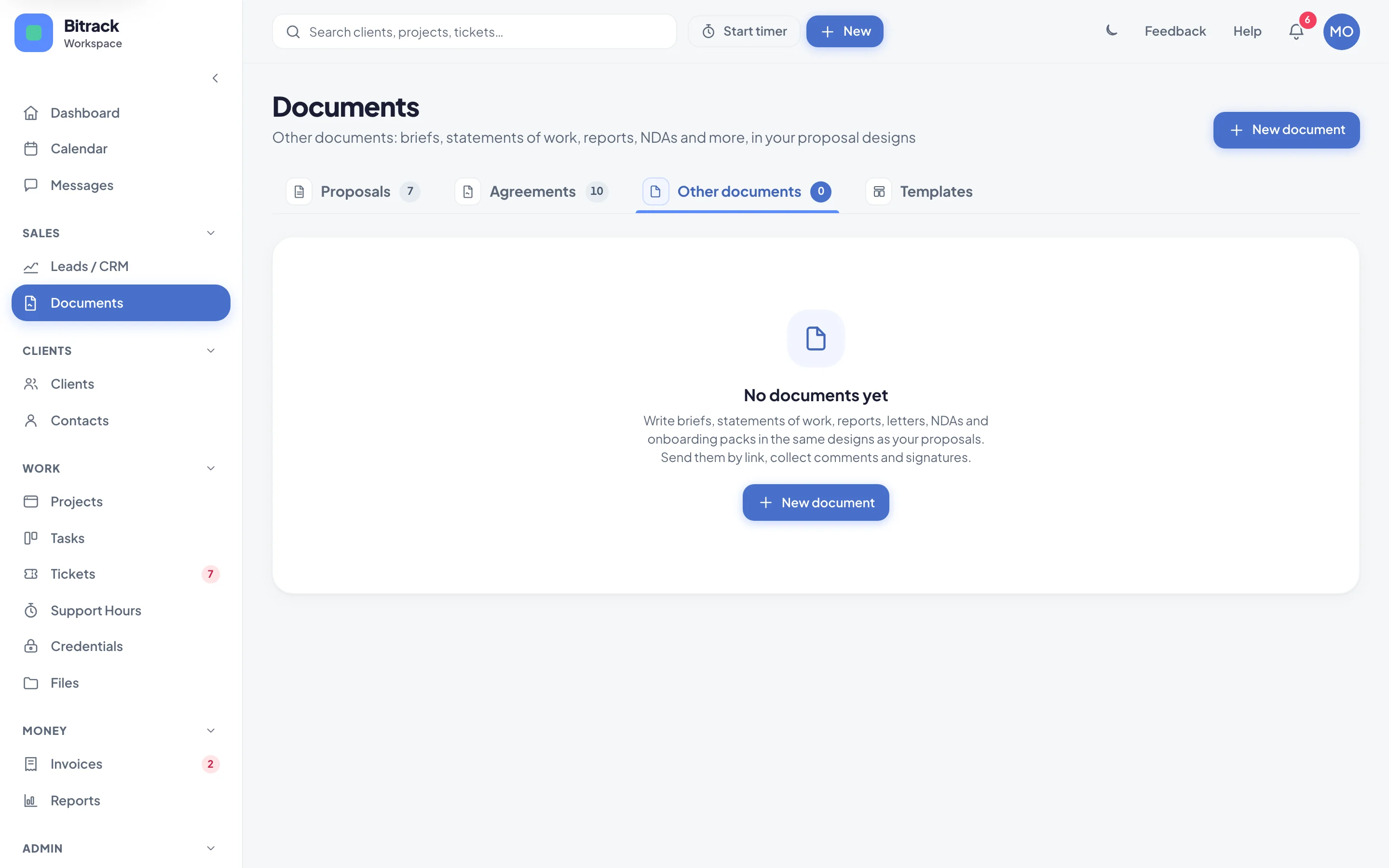
Where to find them
Proposals, agreements and other documents all live under Documents in the sidebar. Across the top there are four tabs:
| Tab | What’s there |
|---|---|
| Proposals | Your proposals, with their status, value and views |
| Agreements | Your agreements, payments and renewals |
| Other documents | Everything else you write for clients |
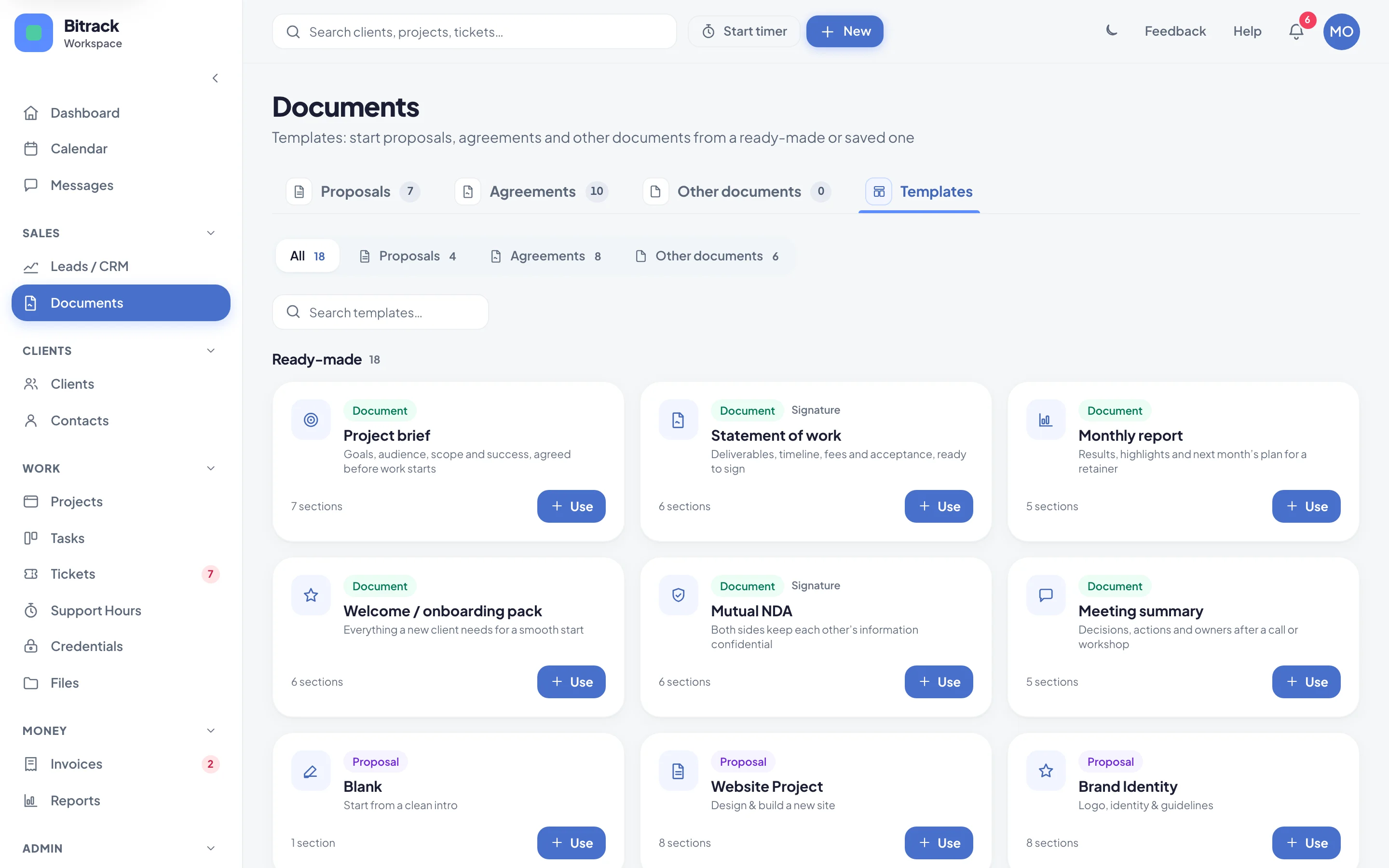
| Templates | Every starting point in one place: proposal, agreement and document templates |
Each tab shows how many you can see. You only see the tabs your role allows. Old links to proposals and agreements still work.
Proposal and document cards show a small picture of each one’s real first page, so you can tell them apart at a glance.
Start a document
- Go to Documents → Other documents and choose New document.
- Give it a title, or leave it empty to use the template’s name.
- Choose its Kind: Project brief, Statement of work, Report, Letter, NDA, Onboarding pack or Other. The kind is the label on the cover.
- Pick the Client it’s for, if you know it already.
- Under Start from, choose Blank document, one of the ready-made documents, or a template your team saved.
- Choose Create document.
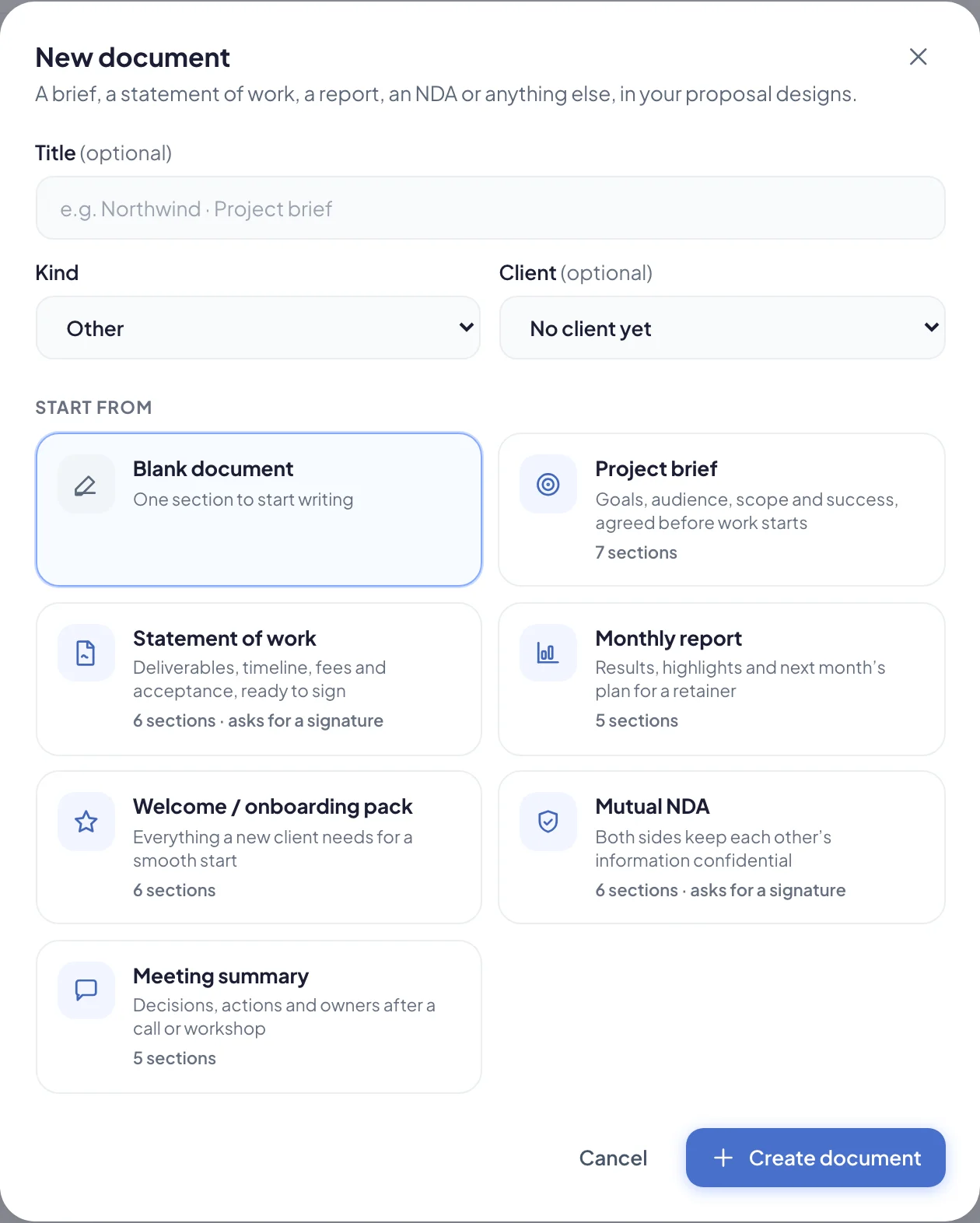
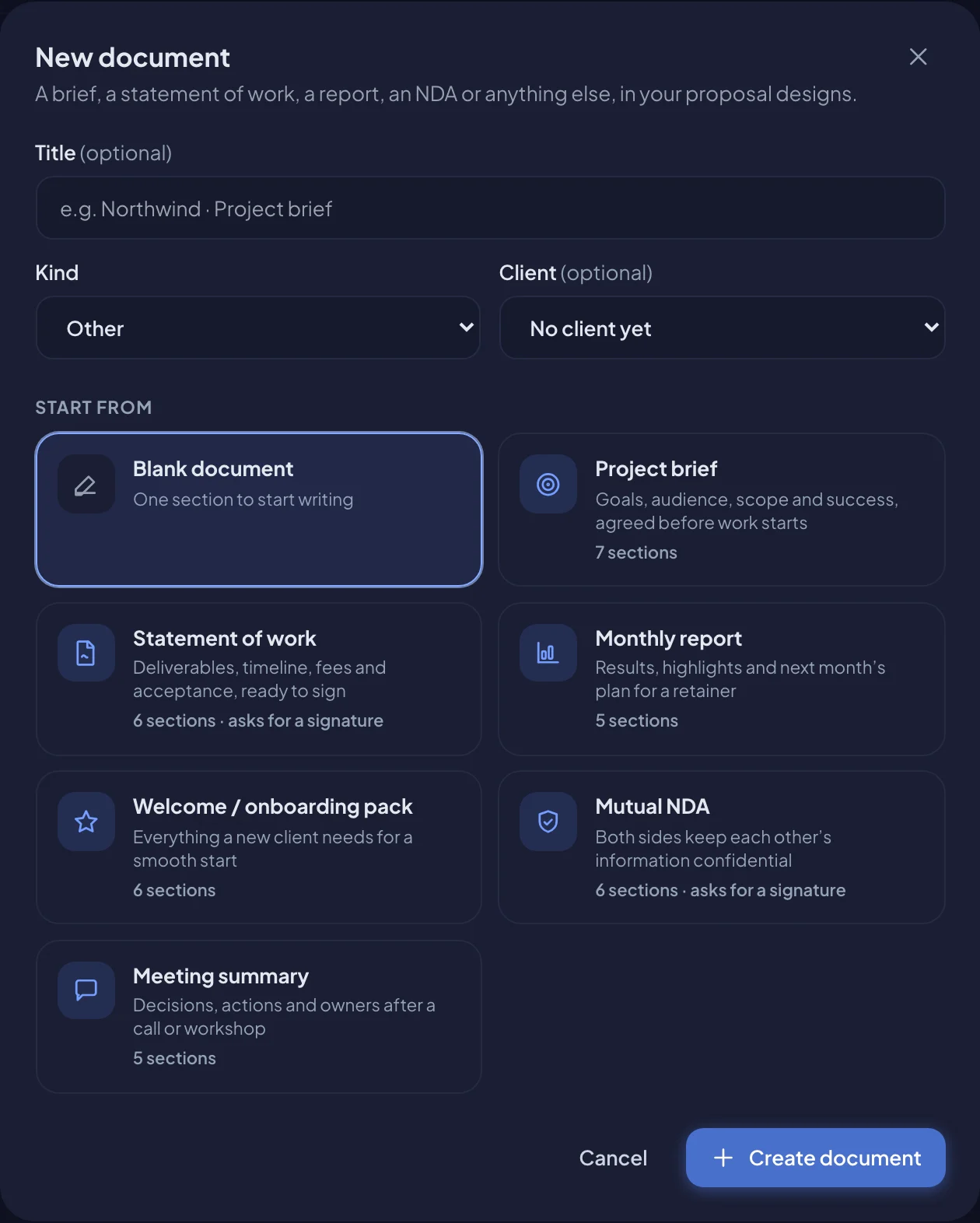
Ready-made documents come with sensible sections you can change: Project brief, Statement of work, Monthly report, Welcome / onboarding pack, Mutual NDA and Meeting summary.
Write and design it
The builder works exactly like the proposal builder. On the left, the panel has Content, Design, Pages, Header & footer and Details; on the right is the document.
On the Design tab, pick a proposal design such as Aurora or Apex. Your title, client, date and reference are on the Details tab.
- Add sections from the library, blank sections (Text, Timeline, Pricing, Table) or visual blocks such as Image, Key numbers and Team.
- Switch between Edit and Preview to see the pages exactly as your client will.
- Everything saves as you type.
A document only shows a total on its cover when it has a Pricing section, and it never has the proposal’s Accept button.
See Design your proposals and agreements and Pictures and visual blocks for the design options.
Details for documents
In the Details tab, below the title, client, date, reference and language, you’ll find three things only documents have:
- Kind: change the label on the cover.
- Linked to: the Client and Project it belongs to. Your team members who see that client or project see the document too, and your client sees it in their portal once you send it.
- Signature: turn on Ask for a signature to end the document with a signature block. Turn on signs too if your company signs as well.
Share it
- Choose Share.
- Copy the private link, or type your client’s email and choose Send email.
Copying or emailing the link sends the document. From then on it’s read-only, so your client always reads the version you sent. The link expires after 30 days; you can Regenerate it or Revoke it at any time.
You get a notification the first time your client opens it, and the list shows how many times it was viewed.
Comments
Your client can comment on any section, on their link or in the portal, and you reply from the speech-bubble button in the header. See Comments and versions.
Signatures
When a document asks for a signature, your client sees Sign on their link and in the portal. They type their full name and confirm they agree.
- The signature covers the exact version you sent. Bitrack records when it was signed, the IP address and the browser, and a fingerprint of the document.
- Once signed, the document is locked. It can’t be edited or reopened; choose Duplicate to start a new one from it.
- If your company signs too, the document waits for you: open it and choose Sign. It moves to Completed once both sides have signed.
- Your client can also Decline, with a reason. You see the reason at the top of the document.
Change a document you’ve sent
- Open it and choose Reopen to edit.
- It becomes the next version, on the same link. Until you send it again, your client’s link says a new version is on its way.
- Make your changes and choose Send again.
A document that doesn’t ask for a signature can be marked done with Mark completed.
Templates
Documents → Templates shows every template in one gallery. Use the tabs to see only Proposals, Agreements or Other documents.
- Choose Use to start a new proposal, agreement or document from it. You need the right to create that kind of record.
- Templates your team saved are under Saved by your team. You can rename or delete the ones you saved.
- To save a document as a template, open it and choose Save as template in the Content tab.
Who can do what
Other documents have their own permission, Other documents, in Team & Access: View, Create, Edit, Send and Delete. Each role starts with the same access it has to proposals.