Leads and the pipeline
Track every deal on the pipeline board, set follow-ups so nothing goes quiet, and turn a won deal into a client and project.
Leads / CRM is where your sales pipeline lives. Every deal is a lead that moves through your stages, from first contact to won or lost.
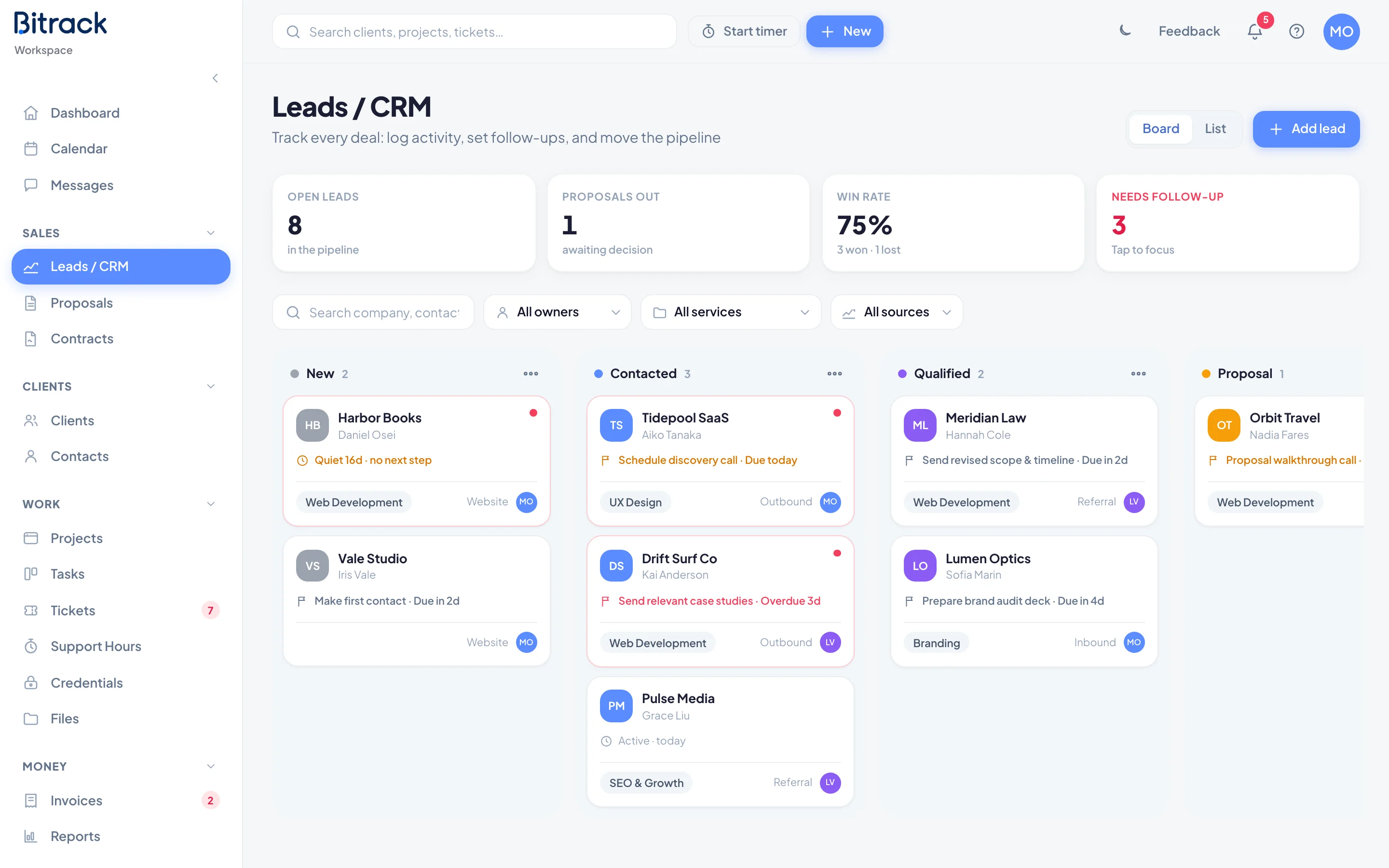
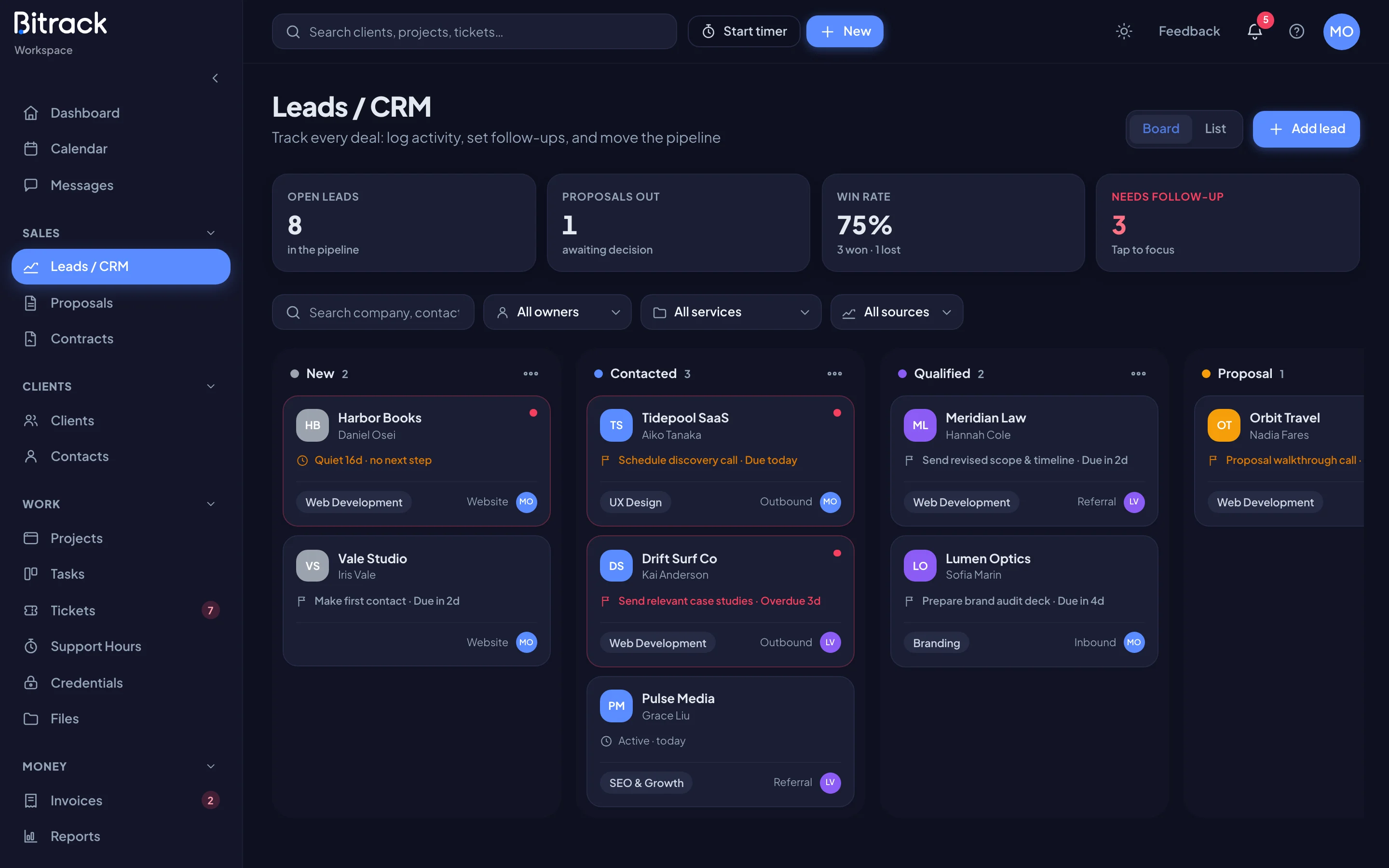
Read the pipeline at a glance
Four numbers sit at the top of the page:
| Card | What it tells you |
|---|---|
| Open leads | Deals still in the pipeline |
| Proposals out | Deals waiting for a decision on a proposal |
| Win rate | Won deals as a share of all closed deals |
| Needs follow-up | Deals that need someone to act now |
Choose Needs follow-up to show only those deals. Choose it again to clear the filter.
Board and list
Use the Board and List switch at the top right.
- Board shows a column per stage. Drag a card to another column to move the deal, or up and down to reorder it.
- List shows a sortable table with a tab for each stage. Select rows to change their Stage or Owner, Mark lost or Delete them in one go.
Search by company, contact or email, and filter by owner, service or source. Deleted leads go to the Trash, with their activity history.
Add a lead
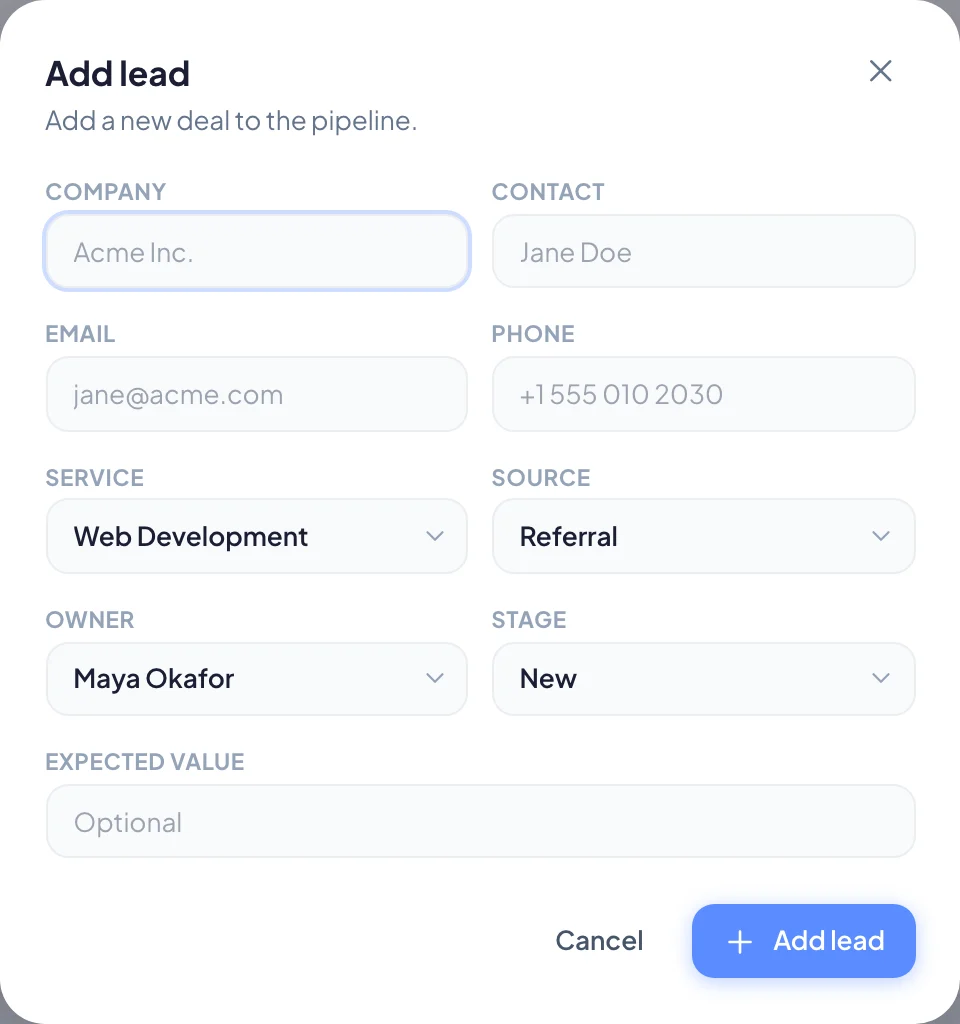
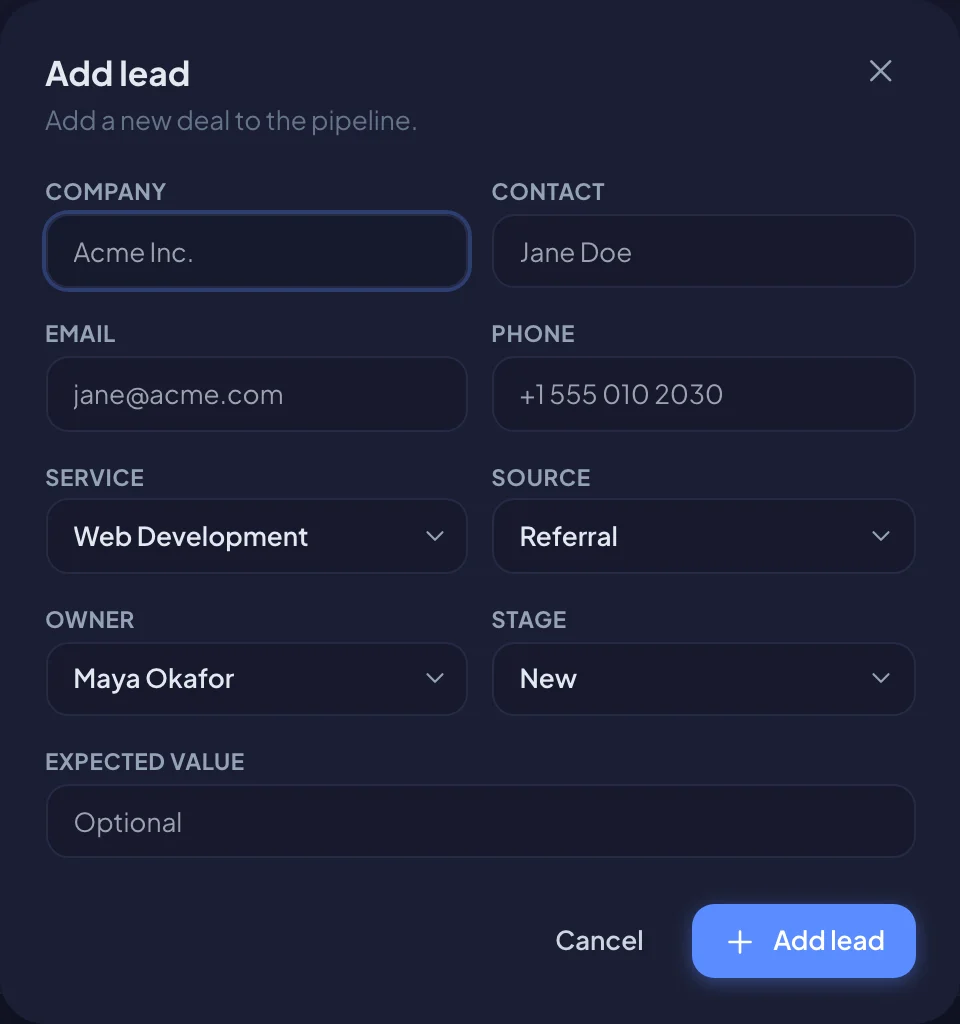
- Choose Add lead.
- Enter the Company, then the Contact, Email and Phone if you have them.
- Pick the Service and Source, the Owner and the starting Stage.
- Add an Expected value if you know it.
- Choose Add lead.
Work a lead
Choose a card or row to open the lead. Choose Open as full page for more room.
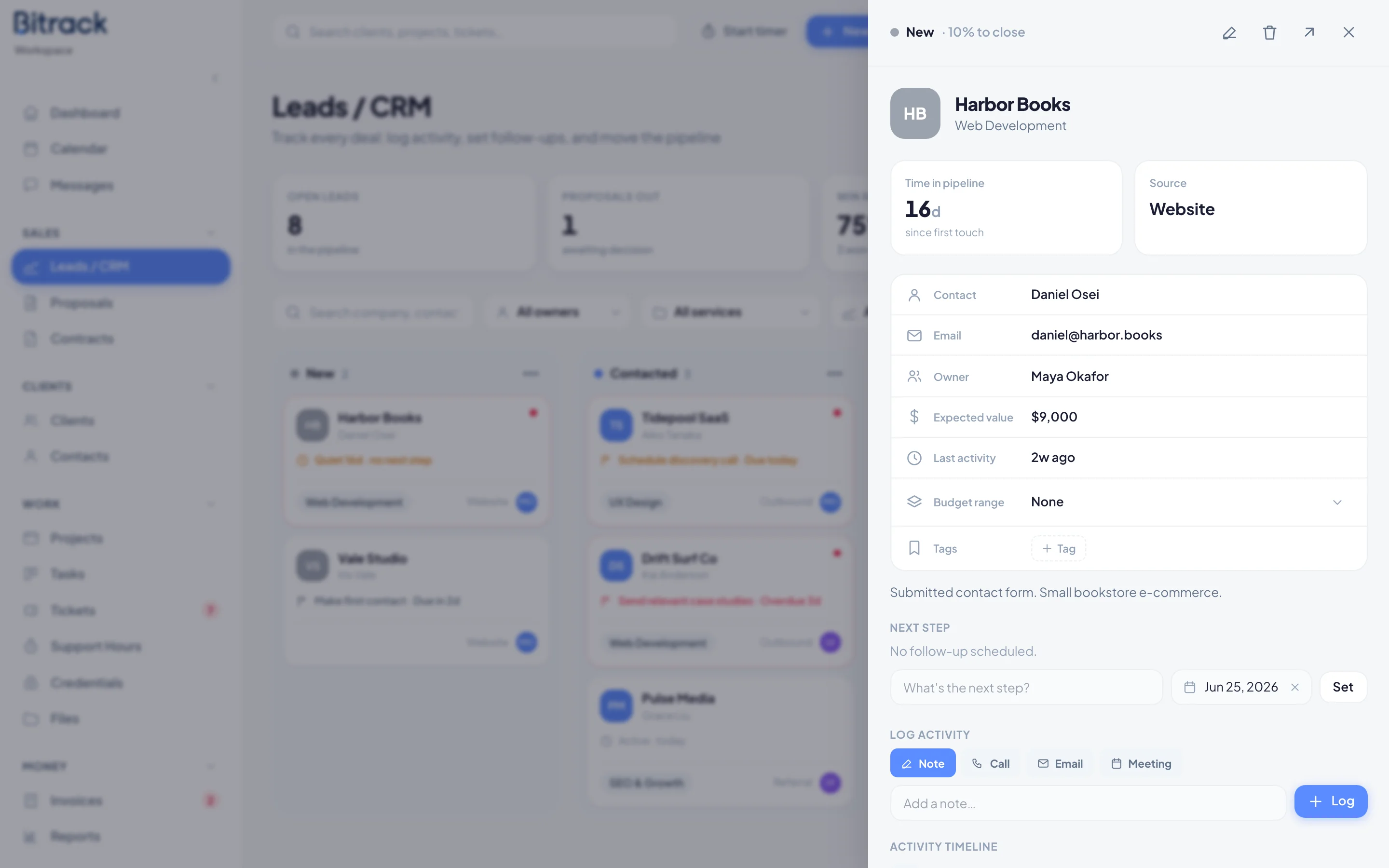
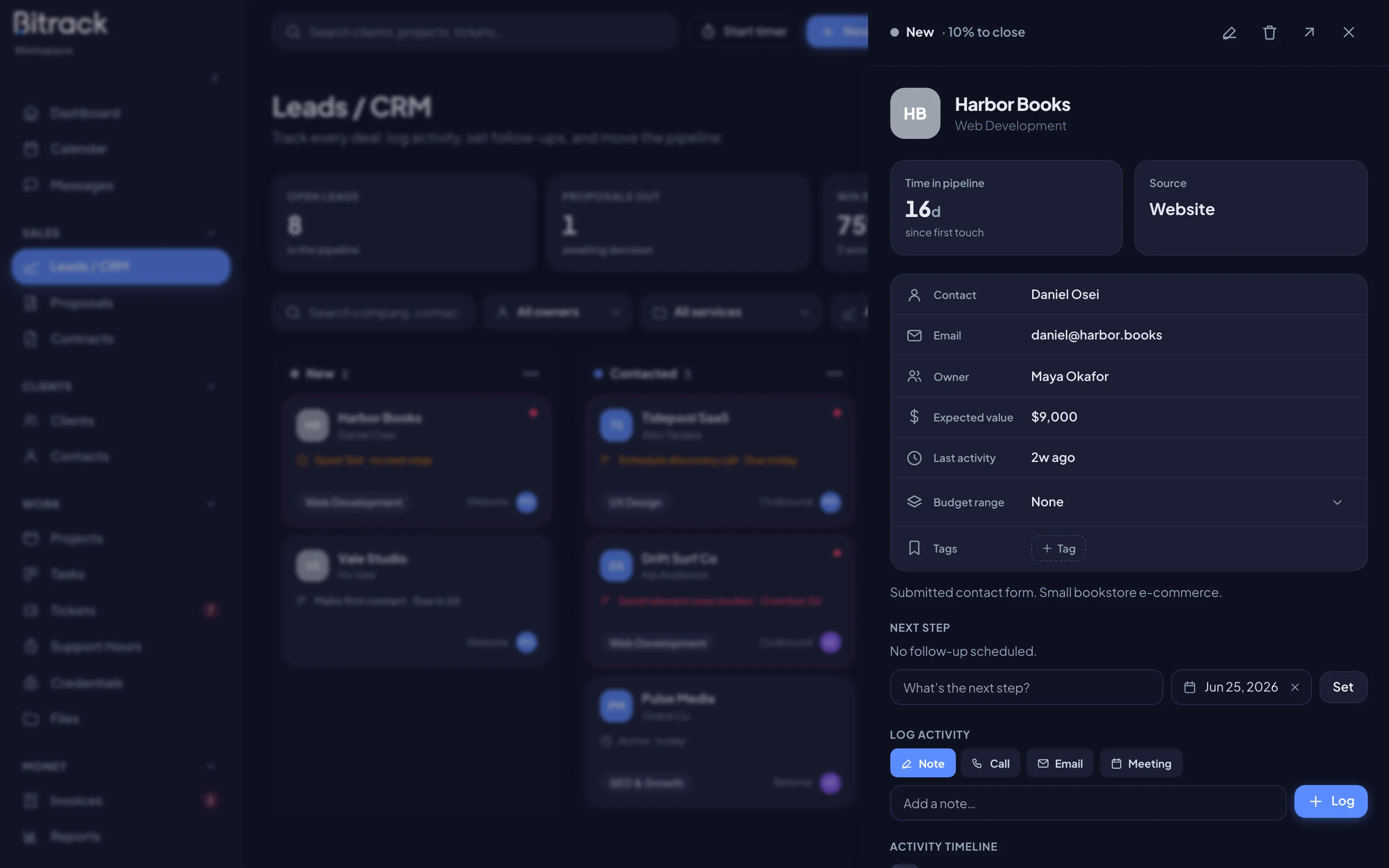
The record shows how long the deal has been in the pipeline, its source, contact details, custom fields and Tags. Leads from your website also show the Original submission.
- Next step: type what needs to happen, pick a due date and choose Set. Choose Mark done when it’s finished.
- Log activity: pick Note, Call, Email or Meeting, write a line and choose Log. Everything appears on the Activity timeline.
- Email: send a real email to the lead’s contact. It’s logged on the timeline too.
- Move to stage: choose any stage to move the deal.
Needs follow-up
A deal needs follow-up when it’s still open and either:
- its next step is due today or overdue, or
- it has no next step and no activity for more than 7 days.
These deals show a red dot on the board and a highlighted row in the list. Each morning, Bitrack also reminds the owner about open deals with no next step and no activity for 7 days. The reminder comes once per quiet spell. Turn it on or off with Nudge owner about stale leads in Settings → Automations.
Change your stages
Choose Add stage at the end of the board, or the Edit stage menu on a column. Set the Stage name, Color, Stage type (Open, Won or Lost) and the Chance to close. Move a stage with Position on the board.
When you delete a stage that still holds deals, you choose where to move them. They are moved, never deleted. You must keep at least one stage of each type.
Convert a won deal
When a deal is won, turn it into real work.
- Move the lead to a Won stage.
- Choose Convert to client & project.
- Leave Also create a project on to create a project for the lead’s service. The lead owner leads it and becomes the account lead.
- If a client with the same name already exists, choose whether to Use the existing client.
- Choose Convert deal.
The lead contact becomes the client’s primary contact. Use Open client or Open project to go straight there.
Next
Choose Create proposal on any lead to start a proposal for it. See Create a proposal.