Send and track a proposal
Share a proposal by private link or email, see when your client opens it, and let them accept or decline online.
Your client doesn’t need an account to read a proposal. You send them a private link, they read it in the browser, and they accept or decline right there.
Before you send: approval
If your role can’t approve proposals, someone who can must sign the proposal off first. Until then the share window shows Waiting for approval.
People with the Approve permission can choose Approve in the builder header or in the share window. They can also send proposals without a separate approval.
Share the proposal
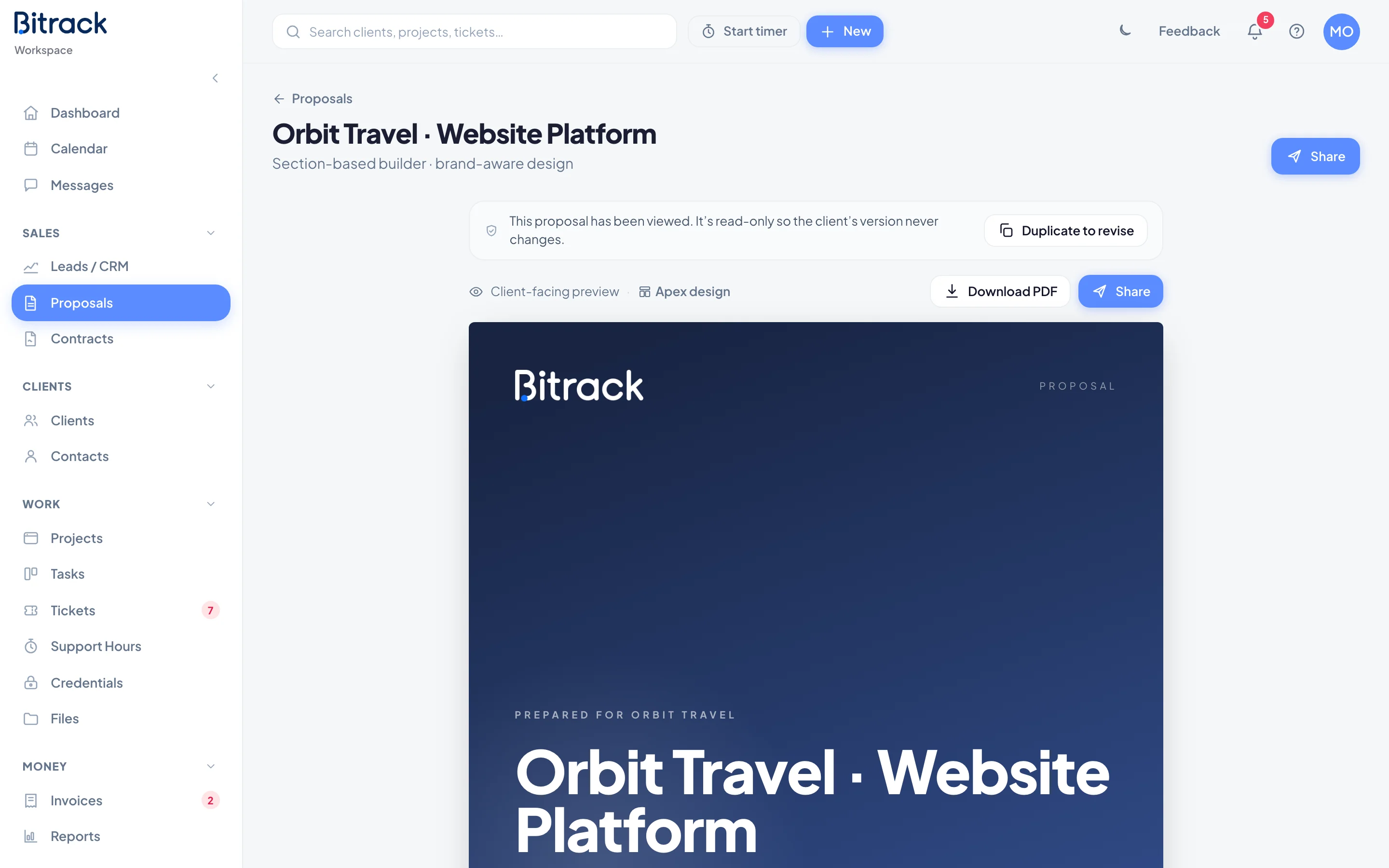
- Open the proposal and choose Share.
- Choose how to send it:
- Copy the Shareable link and send it yourself, or
- enter the client’s email under Send by email, add a short message, and choose Send email.
- Choose Download PDF if you also want a file to attach or print.
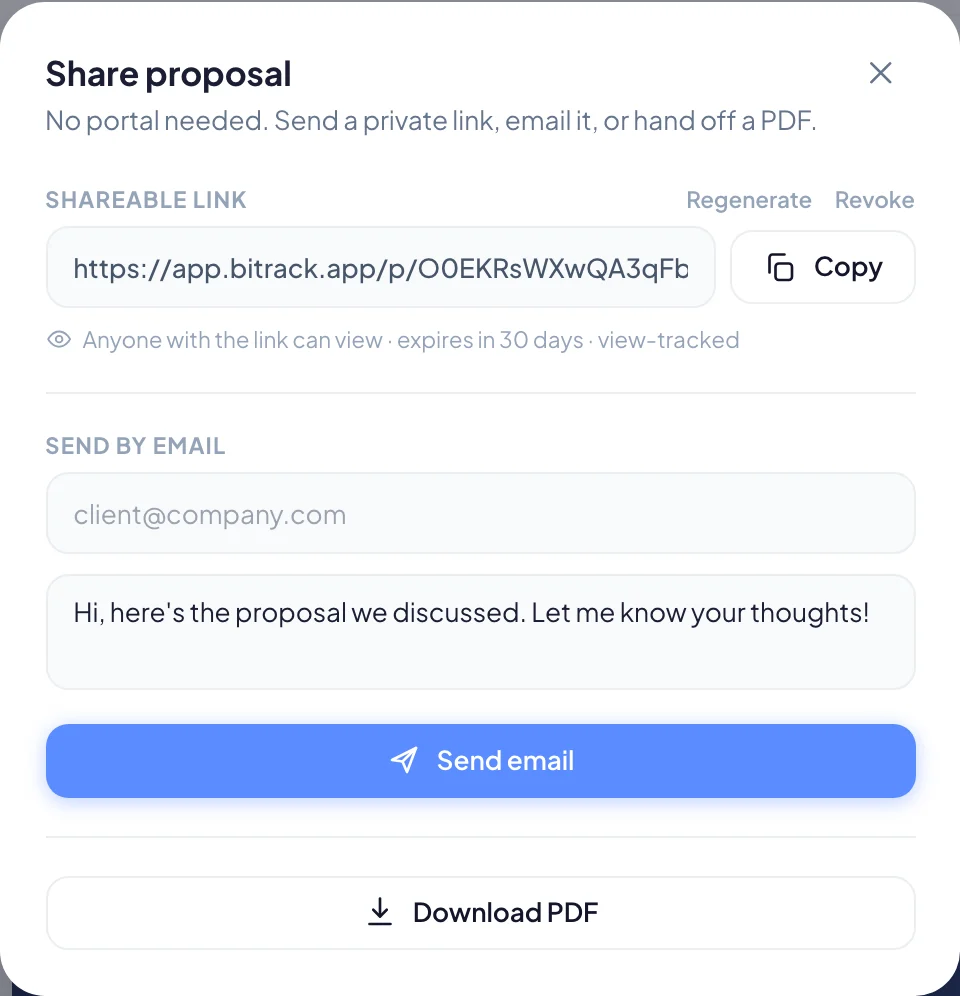
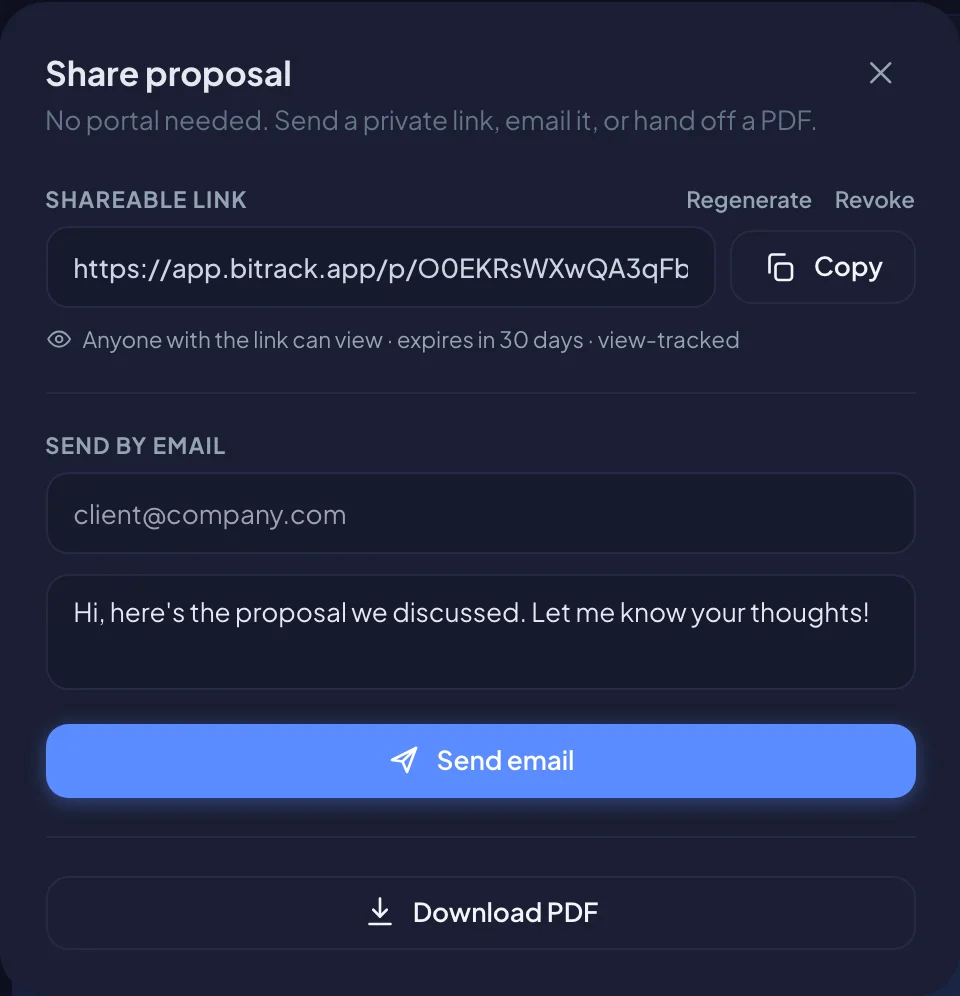
Copying or emailing the link marks the proposal as Sent. From then on it’s read-only, so the version your client reads never changes.
The link is private. Anyone with it can view the proposal, and it expires after 30 days. Use Regenerate to replace the link, or Revoke to turn it off. Either way, the old link stops working immediately.
Track what your client does
The Proposals page has a tab for each status: Drafts, Sent, Viewed, Accepted and Declined.
- When your client first opens the link, the proposal moves to Viewed and its owner gets a notification.
- Each card shows how many times it was viewed and when it was last seen.
- Views by people signed in to your workspace don’t count, so checking it yourself won’t skew the numbers.
Your client accepts online
At the end of the proposal, your client sees Accept this proposal online.
- They choose Accept & sign.
- They type their full name, which is shown as a signature.
- They confirm they agree to the scope, timeline and terms, and choose Accept proposal.
When a proposal is accepted:
- its status changes to Accepted, and the owner is told,
- the linked lead moves to Won in Leads / CRM,
- a draft contract is started from it, if the proposal belongs to a client. See Create a contract.
Record an acceptance you received offline
If your client said yes by phone or email, someone with the Approve permission can record it. Open the proposal in Preview, choose Accept & sign at the end, type the client’s name and choose Accept proposal.
Your client declines
Your client can choose Decline this proposal and give an optional reason. The proposal moves to Declined, and the reason shows on its card and at the top of the proposal.
To send an improved version, choose Revise & resend. See Renewals and changes.
Change a proposal after sending
A sent proposal is locked. To make changes:
- Declined: choose Revise & resend. The proposal reopens as the next version on the same link.
- Sent, viewed or accepted: choose Duplicate to revise. You get an editable copy to send as a new proposal.
You can also duplicate any proposal from the More menu on its card in the Proposals list.
Choose History at any time to see every step, from sending to acceptance.