Create a contract
Turn an accepted proposal or a template into a contract, set its fees, payment schedule and renewal date, and get it ready to sign.
A contract in Bitrack is an agreement made of numbered clauses, with the parties, fees and dates filled in for you. Every contract belongs to a client.
From an accepted proposal
When your client accepts a proposal that belongs to a client, Bitrack starts a draft contract from it for you. You’ll find it in Contracts.
You can also start one yourself:
- Go to Contracts and choose New contract.
- Under From an approved proposal, pick the proposal. Proposals for the client you choose are marked Suggested. One that already has a draft shows Draft ready · open.
- Choose what comes across from the proposal:
- Accepted proposal clause, naming the proposal, who accepted it and when
- Scope of work
- Timeline
- Fees & price lines, so the total matches what was accepted
- any other sections, each as its own clause
- Choose Start contract.
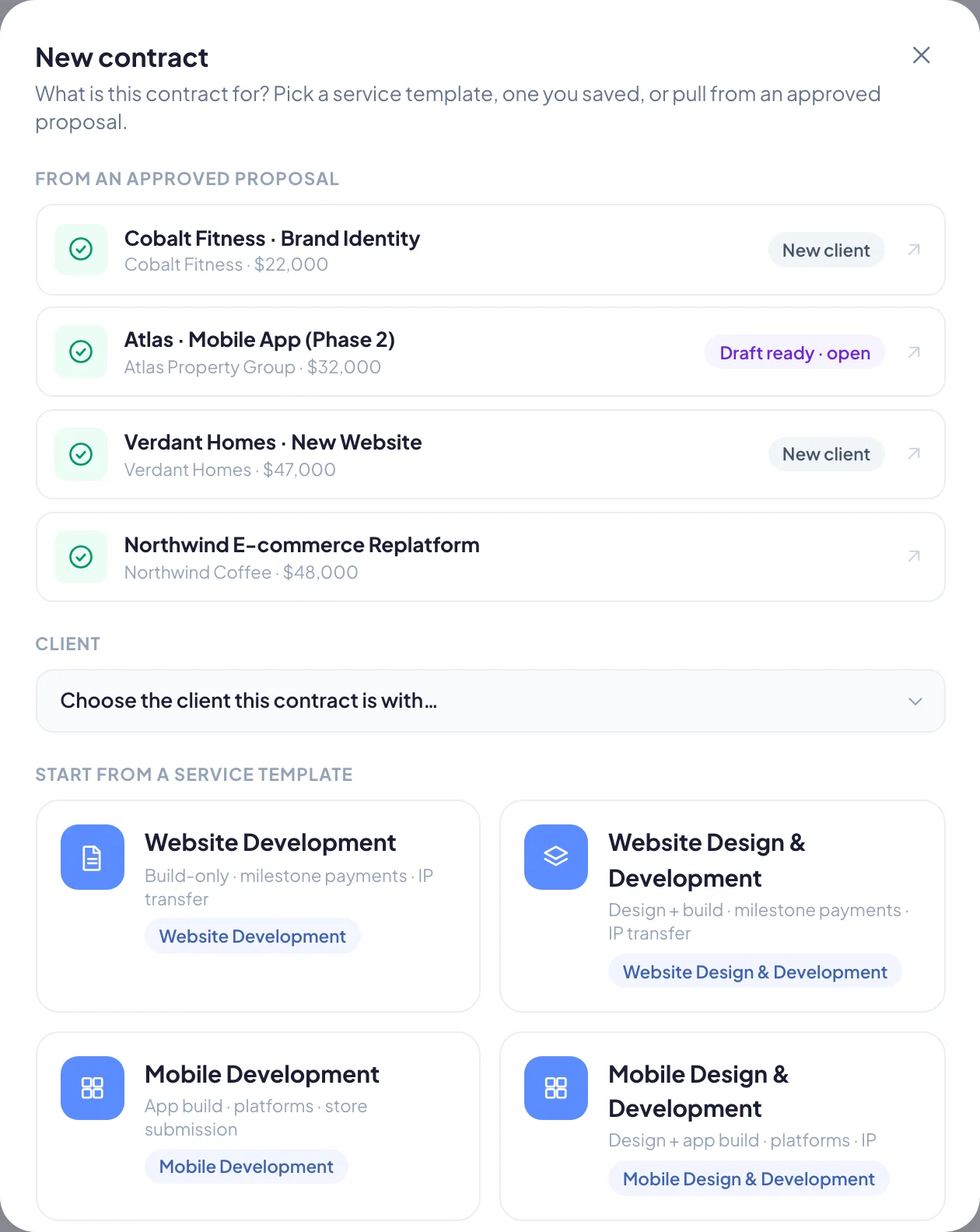
If the proposal was made for a lead rather than a client, you’re asked to Add client first. The details are filled in from the lead. If a client with that name already exists, the contract uses it.
From a template
- Go to Contracts and choose New contract.
- Choose the Client the contract is with.
- Pick a template you saved under Saved by you, or one under Start from a service template, such as Website Development, Branding or Maintenance & Hosting.
You can also start from Library on the Contracts page. See The proposal and contract library.
Fill in the agreement
The contract opens in the builder, with Edit and Preview modes. Changes save as you work.
Agreement details
At the top, fill in the Agreement details:
- Agreement title
- Client, Jurisdiction and Provider
- Effective date. Leave it blank to use the date both sides have signed.
- Period (months), for fixed-term agreements
- Reference
- who Signs for provider and Signs for client, with their Name and Title
These details fill into the clauses automatically wherever their variables appear.
Clauses
Each clause is numbered. You can rename it, edit its wording, move it, drag it by its number, or remove it. Use the variable buttons above the text to insert names and dates.
To add clauses, use the panel on the left:
- Browse library for templates and ready-written clauses
- Saved by your team and Common clauses for one-click additions
- Blank clause to write your own
Standard clause items come from Settings → Contracts. They’re in every contract and can only be edited there.
Fees
The Fees clause holds the price. Enter a single fee, or milestone lines with Add line. The contract’s total value is added up from this clause.
Set the payment schedule
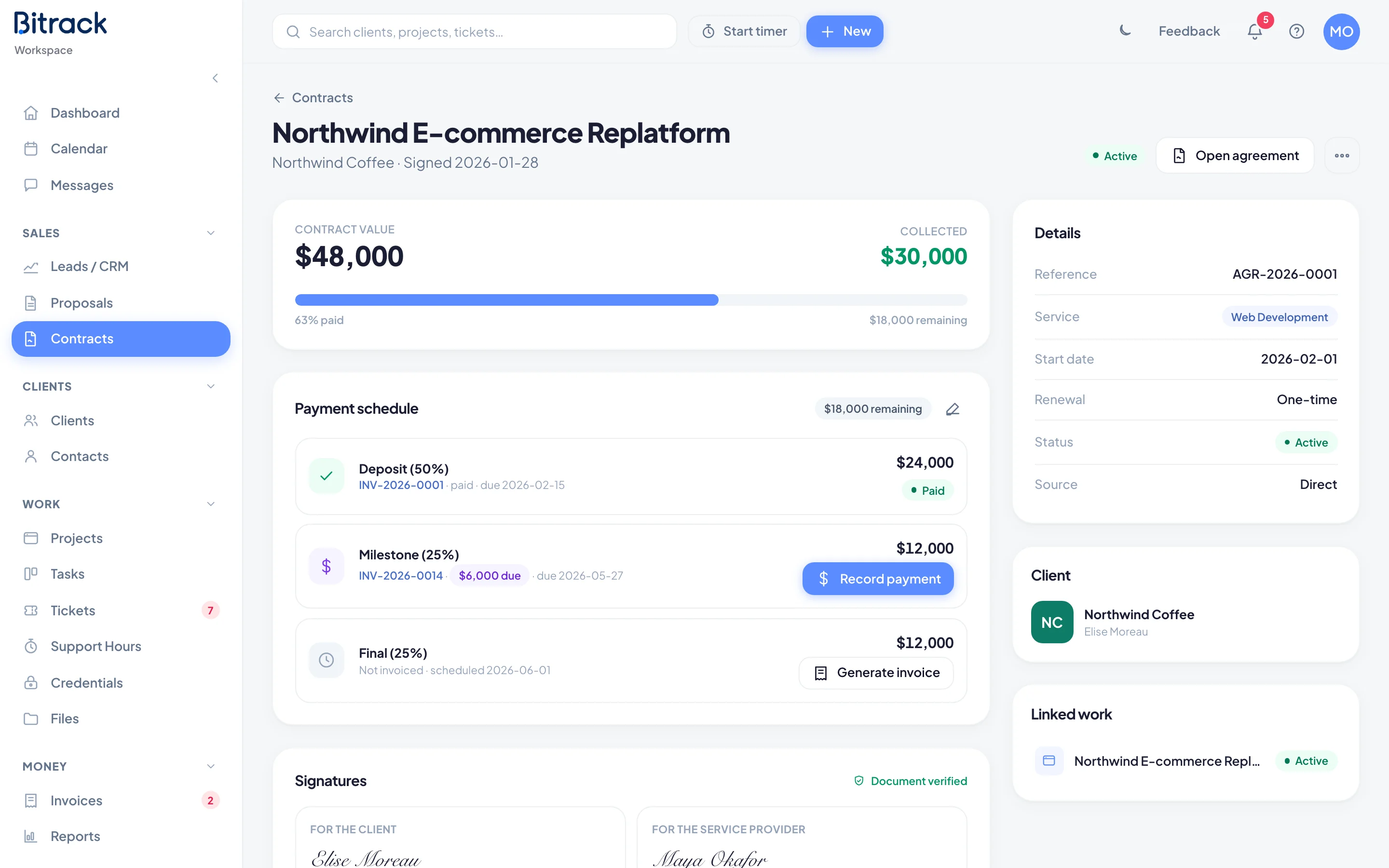
Open the contract’s page (choose the contract in the Contracts list) to see its Payment schedule.
- Choose the edit button next to Payment schedule.
- Pick Milestones or Recurring.
- For milestones, give each Payment a Share of the value and the Days after start it falls due. Choose Add payment for more. The shares must add up to 100%.
- For recurring work, choose Monthly or Annual billing.
- Choose Save schedule.
Set the renewal date
For ongoing work, set a renewal date so you never miss one. On the contract’s page, choose the edit button on the renewal card, pick the date and choose Save. Bitrack reminds the contract owner 30 days before. See Renewals and changes.
Preview and save
Switch to Preview to see the agreement as your client will: A4 pages, numbered clauses and a signature block in your brand. Choose Download PDF for a copy.
To reuse this agreement, choose Save as template.
When it’s ready, see Sign a contract.