Renewals and changes
Stay ahead of contract renewals, and send a revised proposal or contract when your client asks for changes.
Deals rarely end at the first signature. Clients renew, ask for changes, or decline and come back. This guide shows how Bitrack keeps track of all of it.
Renewal reminders
Give any ongoing contract a renewal date. On the contract’s page, choose the edit button on the renewal card, pick the date and choose Save.
When an active contract is 30 days or less from its renewal date, its owner gets a reminder. The reminder comes once. Choose which way you hear about it in your notification settings, under Contract renewals.
See what’s renewing soon
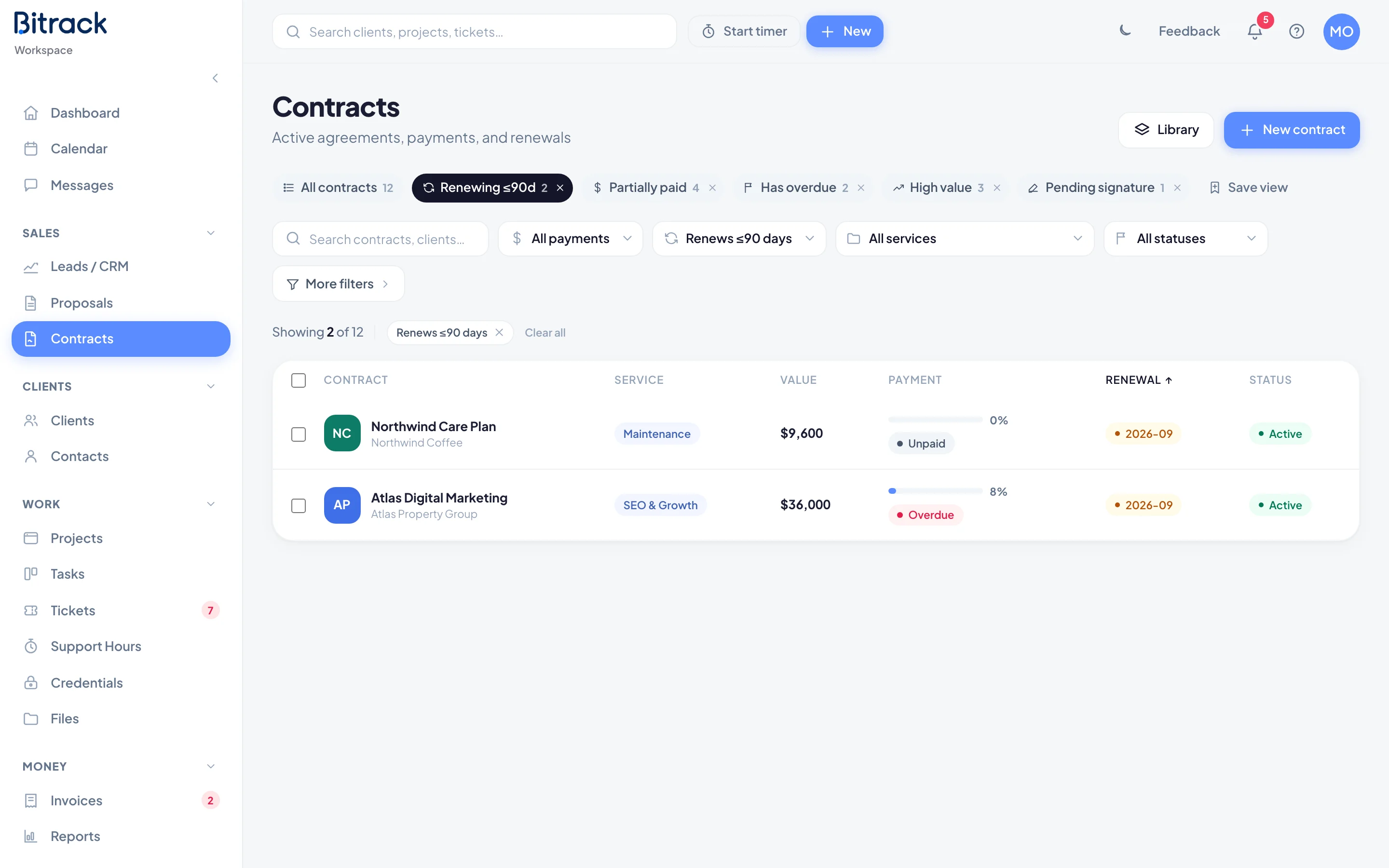
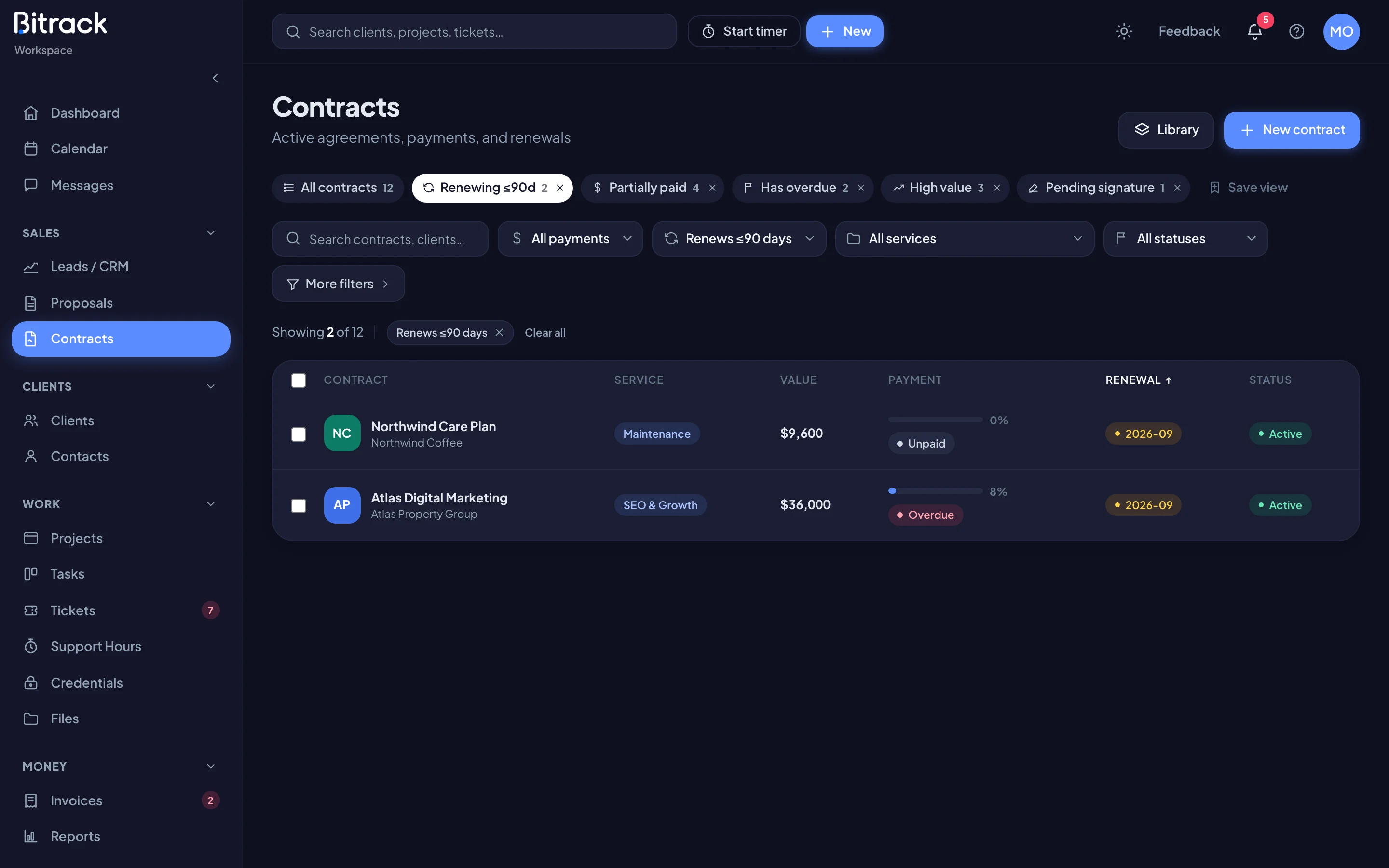
On the Contracts page, choose Renewing ≤90d above the list. The Renewal column also flags dates:
- red for renewals in 30 days or less,
- amber for renewals within 90 days.
You can also filter with the renewal menu, for example Renews ≤30 days. To keep a filter for later, choose Save view and give it a name.
Act on renewals
Select contracts in the list, then use the bar that appears:
- Send renewal reminder emails the client about the upcoming renewal.
- Mark renewed moves the renewal date on by one term. The 30-day reminder is set up again for the new date.
- Export CSV downloads the selected contracts.
Reminders and renewals skip contracts without a renewal date, and drafts, void or completed contracts.
End a contract
When the work is finished and won’t renew, open the contract, choose More actions and then Mark completed. It stays on record as Completed, and renewal reminders stop.
When a client declines
Your client can decline a proposal or a contract and tell you why. You see their reason at the top of the page, with who declined and when.
To answer with a better version:
- Choose Revise & resend.
- Under What’s changing?, write a short note. This is optional, and your client sees it.
- Choose Start version 2 (or the next number).
The document opens for editing as the next version. The client’s link stays the same. Until you send again, it tells your client a revised version is on its way, with your note.
Send again
When the new version is ready, choose Send again. The window is titled Send version 2 (or the next number).
- The email goes to the person who received the last version.
- The message is filled in for you, including what changed. Edit it as you like.
- Choose Send version 2 to send it, or copy the link yourself.
Your client sees the new version on the same link as soon as you send it.
Versions and history
Choose History on any proposal or contract to see every step: sent, viewed, declined, revised, signed and more. Your client sees the same history on their link, without your internal steps.
Revised documents show their version number, such as v2, on proposal cards and in a contract’s History card.
Change something already agreed
Signed and accepted documents are locked, so what your client agreed to never changes.
- An accepted proposal: choose Duplicate to revise to make an editable copy, then send it as a new proposal.
- A contract out for signature, or waiting for your countersignature: open the agreement and choose Edit anyway. This withdraws the version you sent and voids any client signature on it, so you’ll need to send it again.
- An active contract: it can’t be edited. Create a new contract for the changes. If it replaces the old one, void the old one with a reason such as Replaced by a revised agreement.
Read more in Send and track a proposal and Sign a contract.