Create a project
Set up a fixed-scope project or a retainer for a client, with a lead, a team, dates, a budget and starter tasks.
A project holds the work you do for one client: its tasks, milestones, time, files and notes. You can set one up in under a minute and fill in the details as you go.
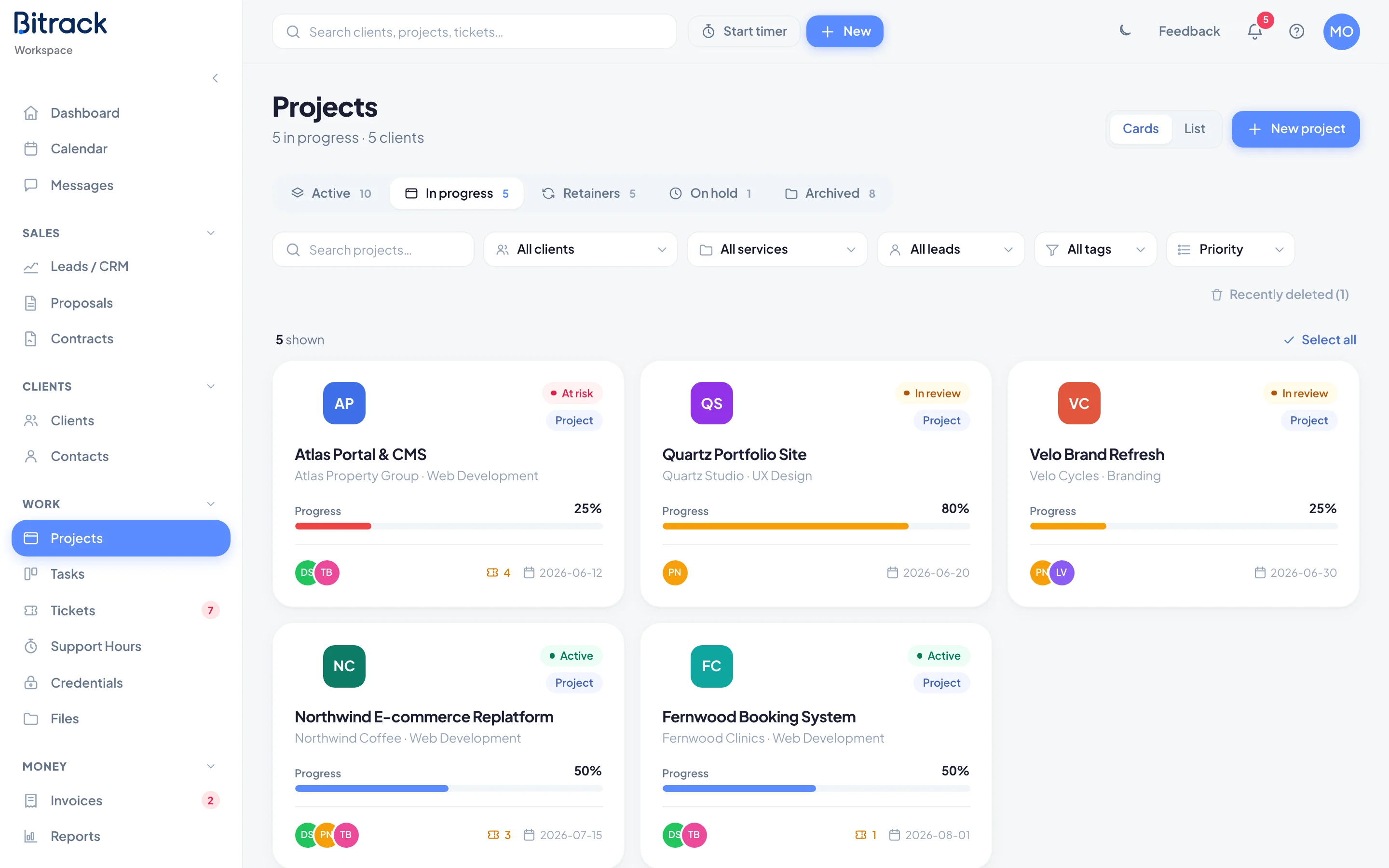
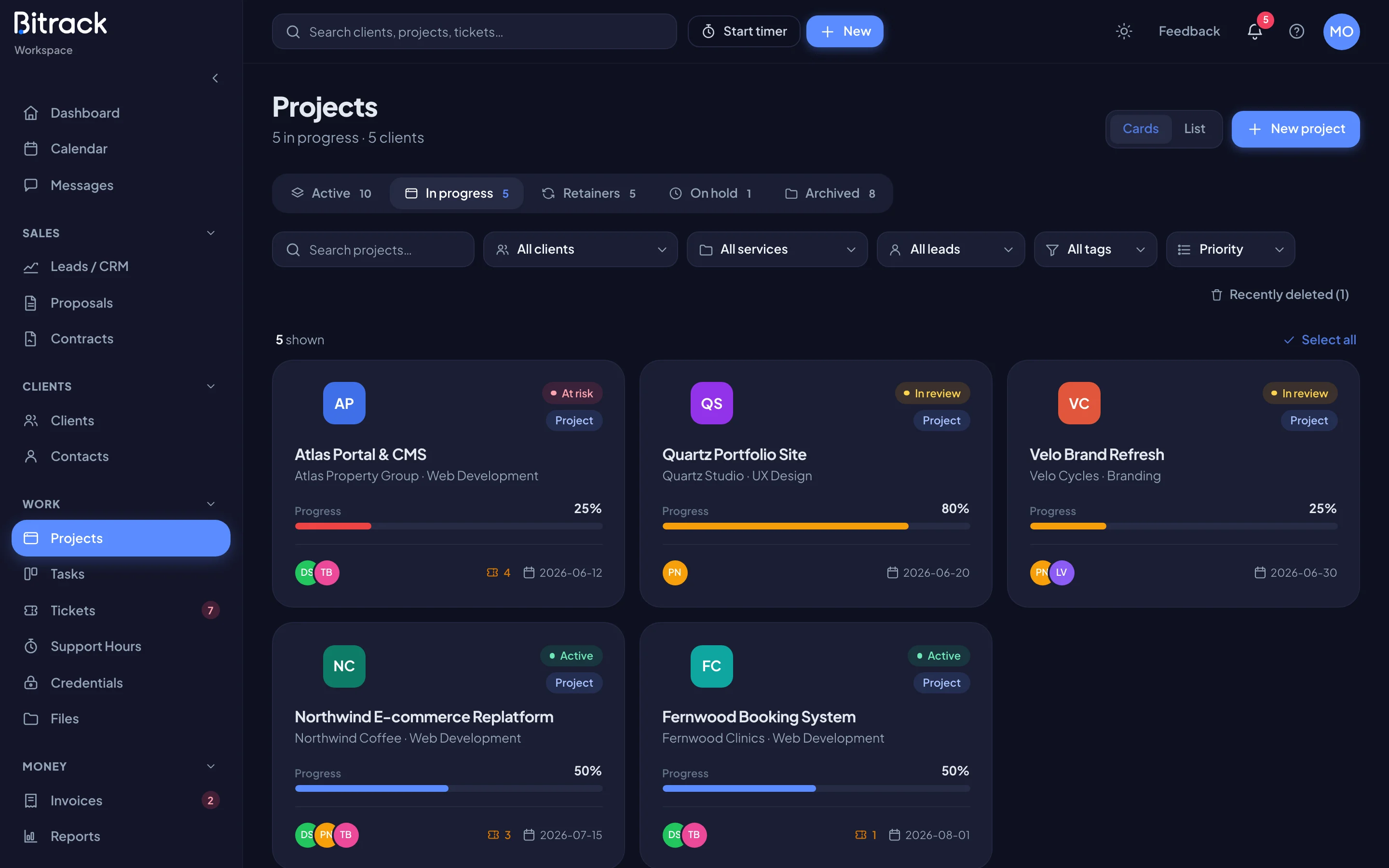
Before you start
Every project belongs to a client. If you have no clients yet, Bitrack asks you to Add a client first. Add one from Clients, then come back.
You need permission to create projects. If you don't see New project, ask an Owner or Admin to check your role.
Create the project
- Go to Projects and choose New project.
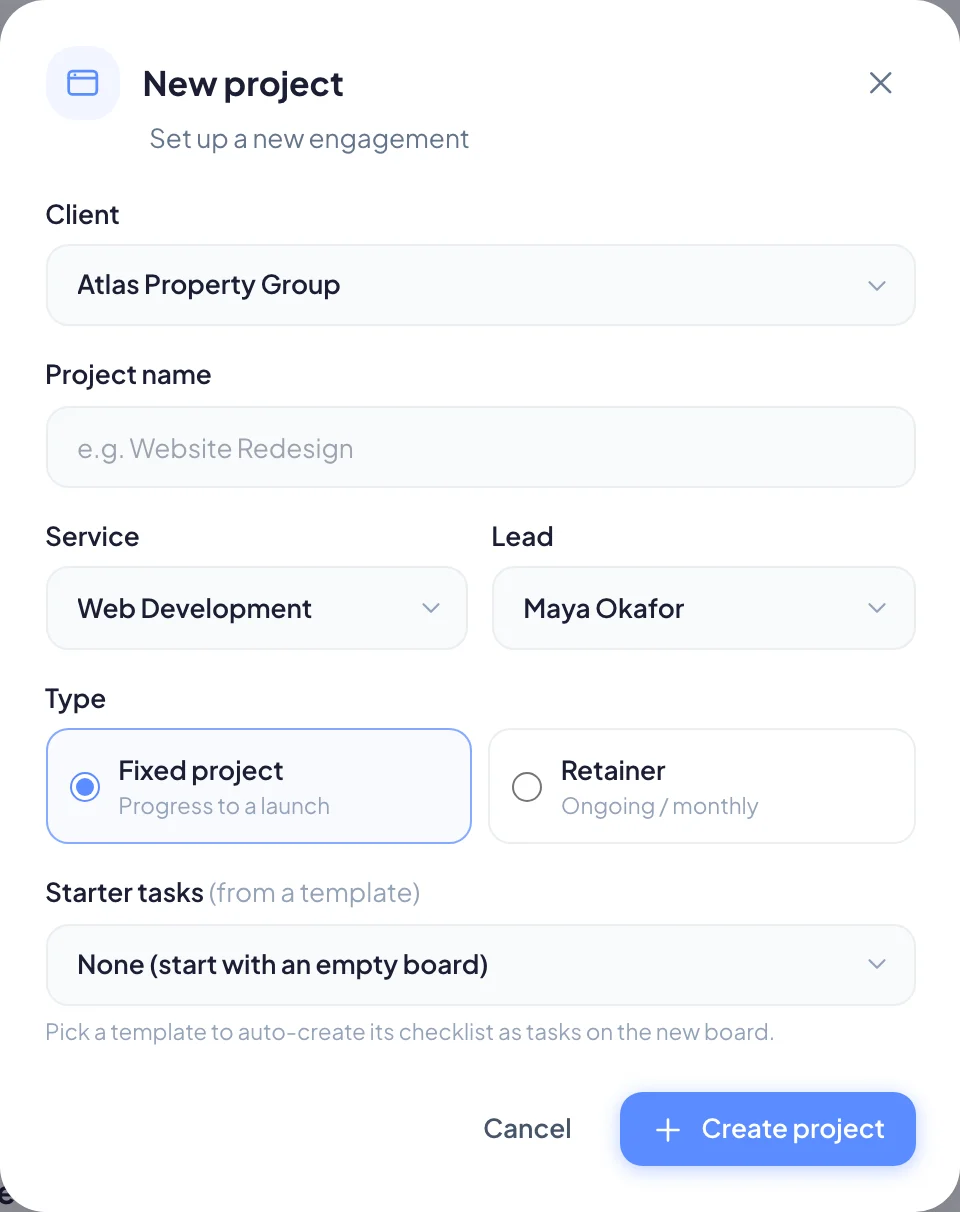
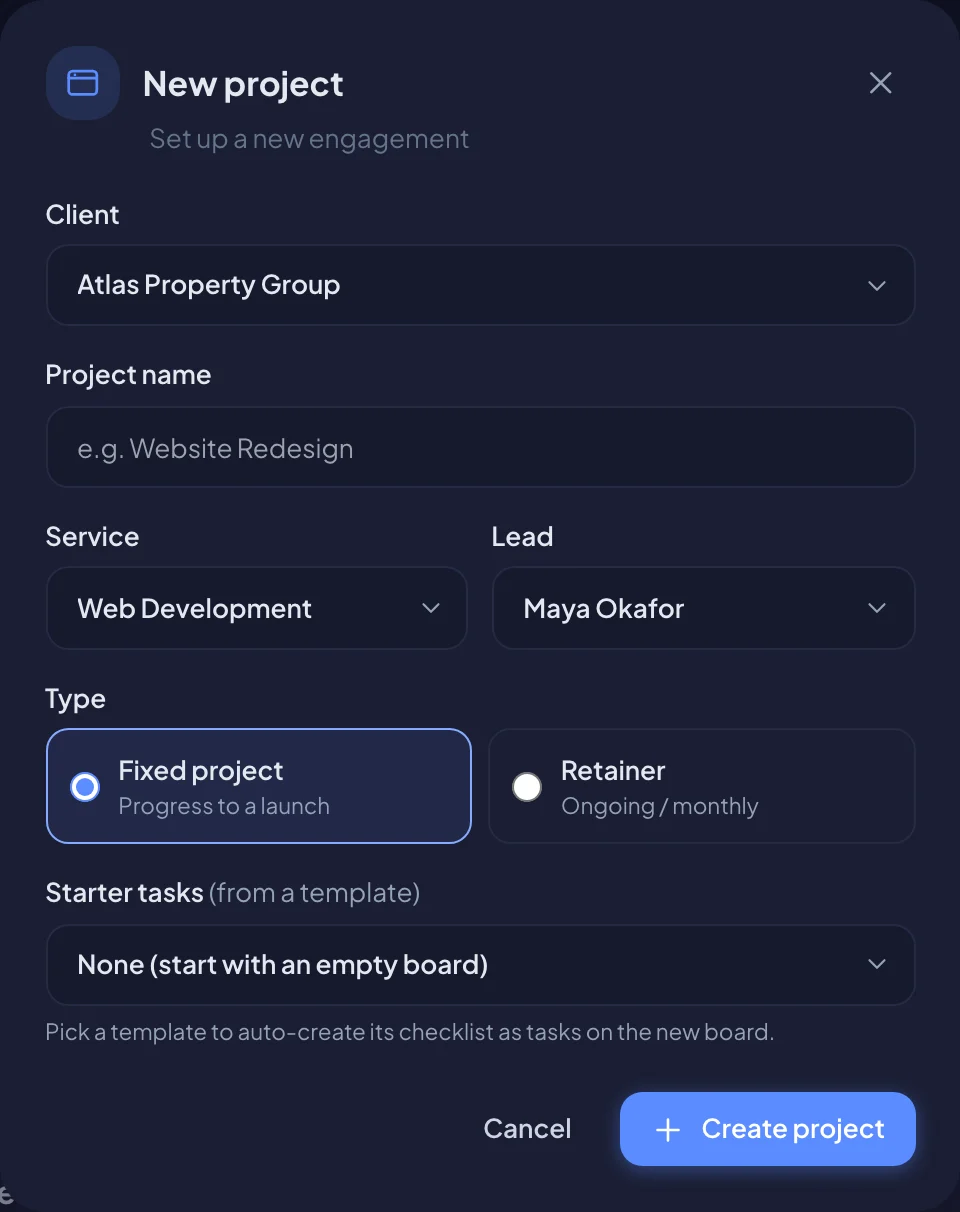
- Under Client, pick who the work is for.
- Enter a Project name, for example Website Redesign.
- Pick the Service and the Lead. The lead is the person responsible for the project, and is always on its team.
- Under Type, choose Fixed project or Retainer (see below).
- Optional: under Starter tasks, pick a template to fill the new board with its tasks. Leave it on None (start with an empty board) to start clean.
- Choose Create project.
Bitrack opens the new project straight away. If you picked a template, the message tells you how many starter tasks were added.
Fixed project or retainer?
| Type | Use it for | How progress works |
|---|---|---|
| Fixed project | Work with a clear end, such as a website build or a launch | Progress moves toward 100% as milestones and their tasks get done |
| Retainer | Ongoing monthly work, such as maintenance, SEO or support | Each month is a cycle, tracked by hours or scope instead of a finish line |
You can switch the type later from Edit if the engagement changes.
Add dates, budget and team
The New project window keeps things short. Add the rest from the project page:
- Open the project and choose Edit.
- Add About this project: the scope, goals and what success looks like.
- Set the Due date. For a retainer this field is called Renews / next.
- Set the Budget ($) for a fixed project.
- Tick the people who work on it under Team.
- Choose Save changes.
For a retainer, also pick a Billing model:
| Billing model | What it means |
|---|---|
| Hourly (time & materials) | Bill actual hours at an Hourly rate ($/h). Each month's timesheet can become an invoice. |
| Monthly hours (capped allowance) | A Monthly fee ($) for a set number of Included hours / month. Turn on Roll over unused hours to carry unused hours to the next month only. |
| Flat fee (fixed monthly) | A Monthly fee ($) for an agreed scope of deliverables. |
Status, archive and delete
- Use the status menu at the top of the project to mark it Active, At risk, In review, On hold or Completed. Completing a project also archives it.
- Choose Archive to tuck a project away. Everything in it is kept, and you can Restore it from Projects > Archived at any time.
- To delete a project, choose Edit, then Delete. Bitrack tells you exactly how many tasks and other items go with it. Deleted projects move to the Trash, so you can restore them.