Milestones
Split a fixed project into phases, give each its own tasks, and watch overall progress add up.
Milestones break a fixed project into phases, such as Design, Build and Launch. Each milestone is a mini-project: it has its own tasks and tracks its own progress.
Milestones appear on the Overview tab of fixed projects. Retainers track monthly cycles instead.
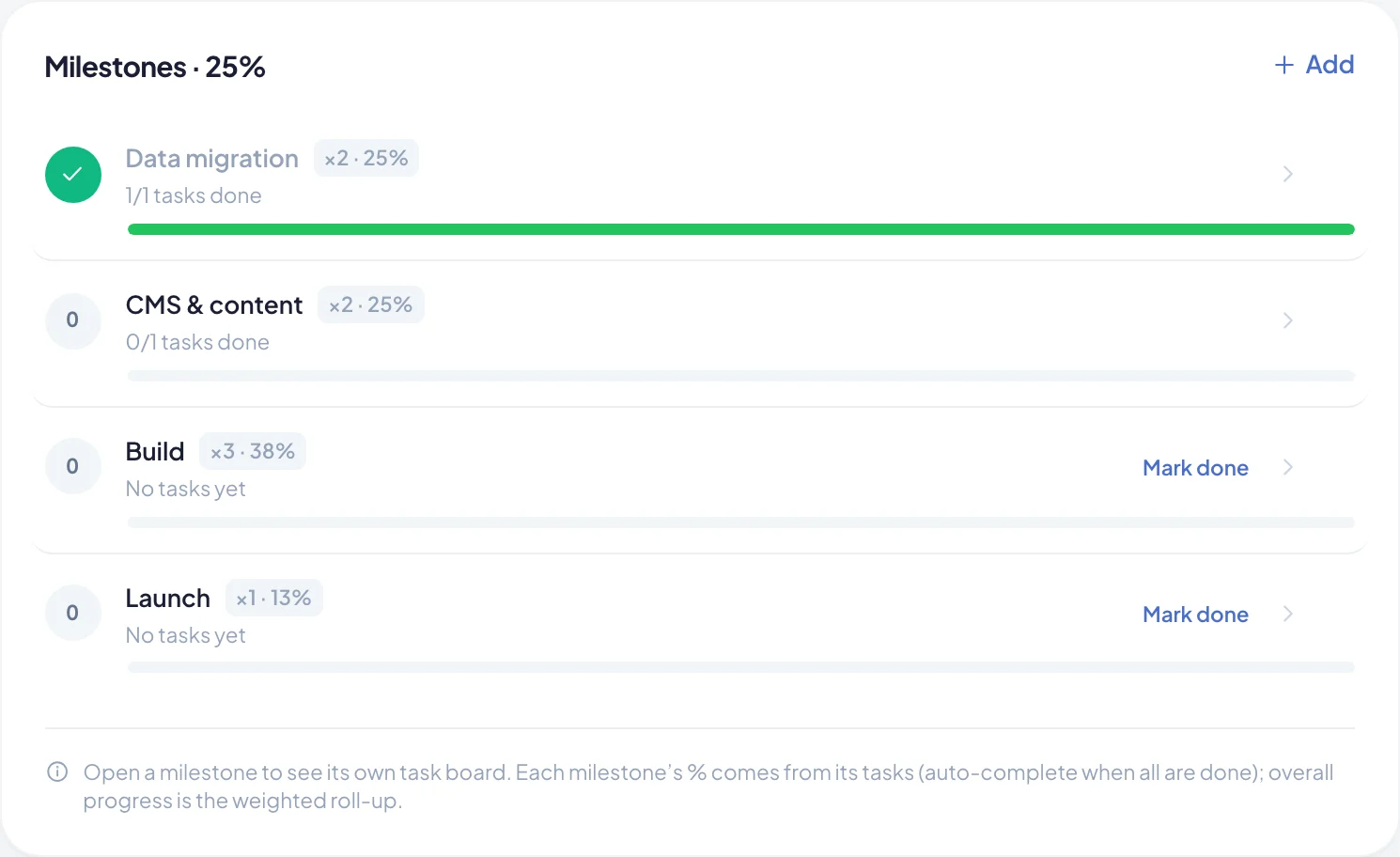
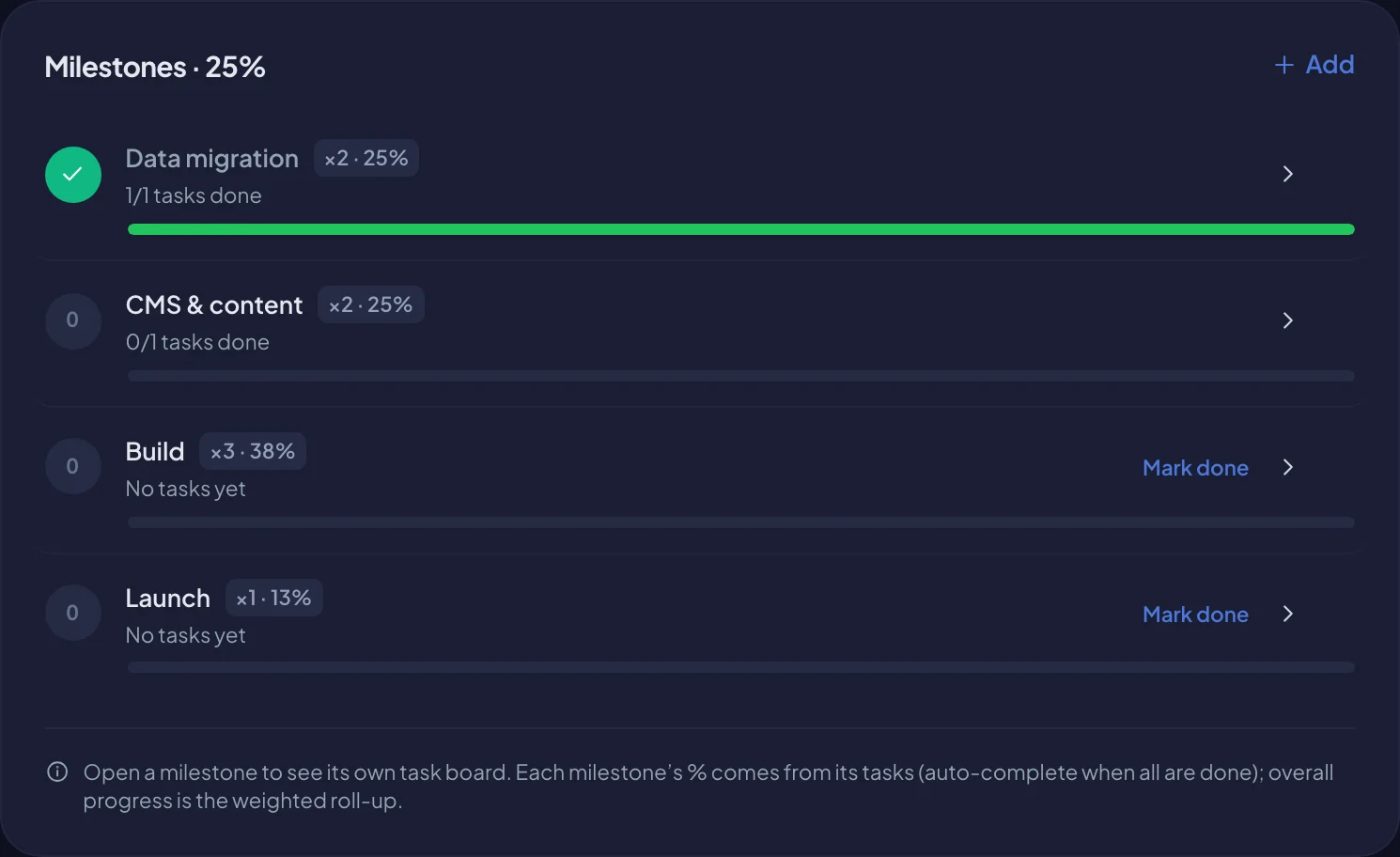
Add a milestone
You need permission to edit the project.
- Open the project and stay on Overview.
- In the Milestones card, choose Add.
- Enter the Milestone name, for example Content population.
- Optional: add its tasks. Pick a template under Seed tasks from a template, or type tasks under Tasks, one per line. You can edit the list a template fills in.
- Set the Weight (see below), or leave Auto ticked.
- Choose Add milestone.
The tasks are created on the project's board and linked to the new milestone.
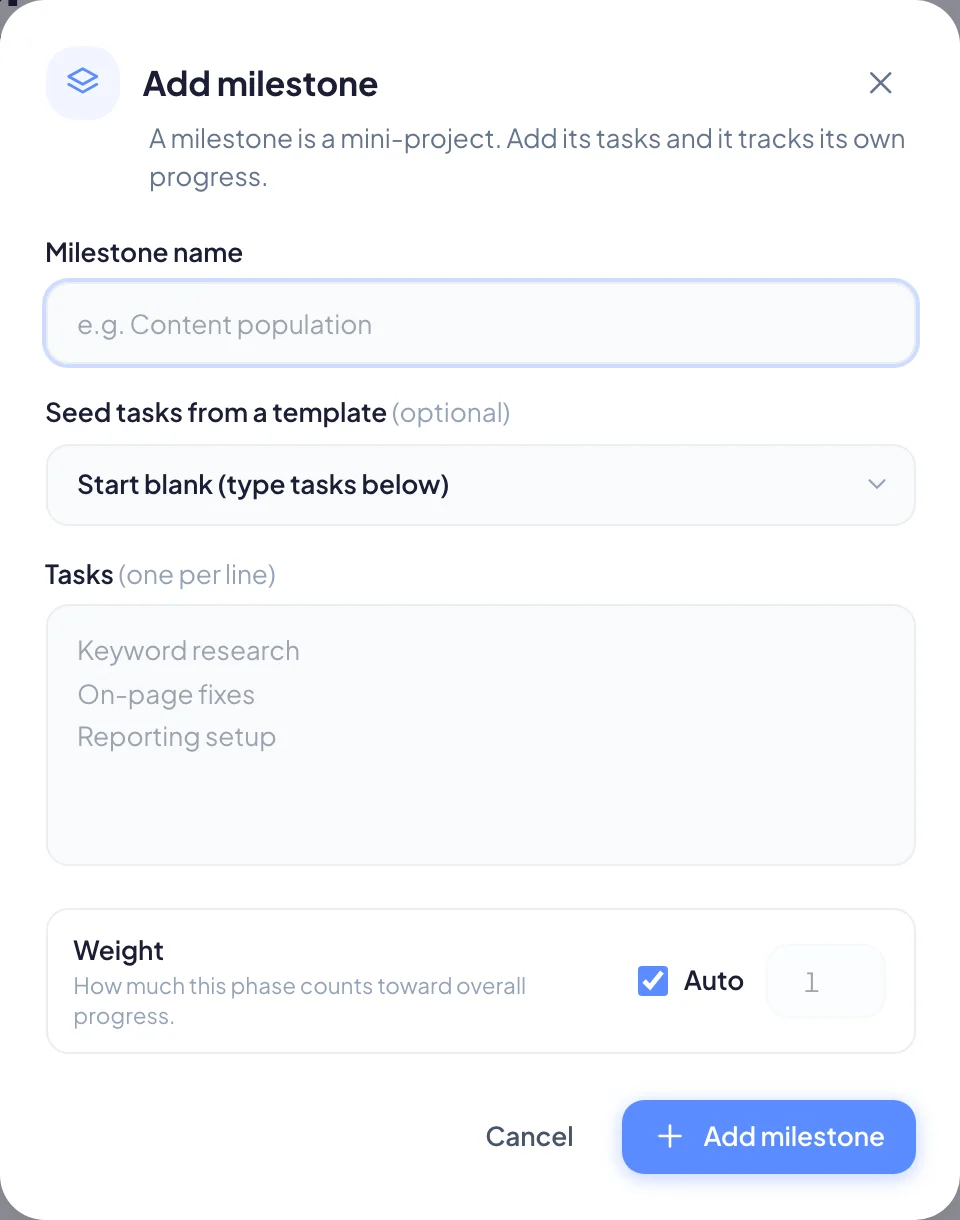
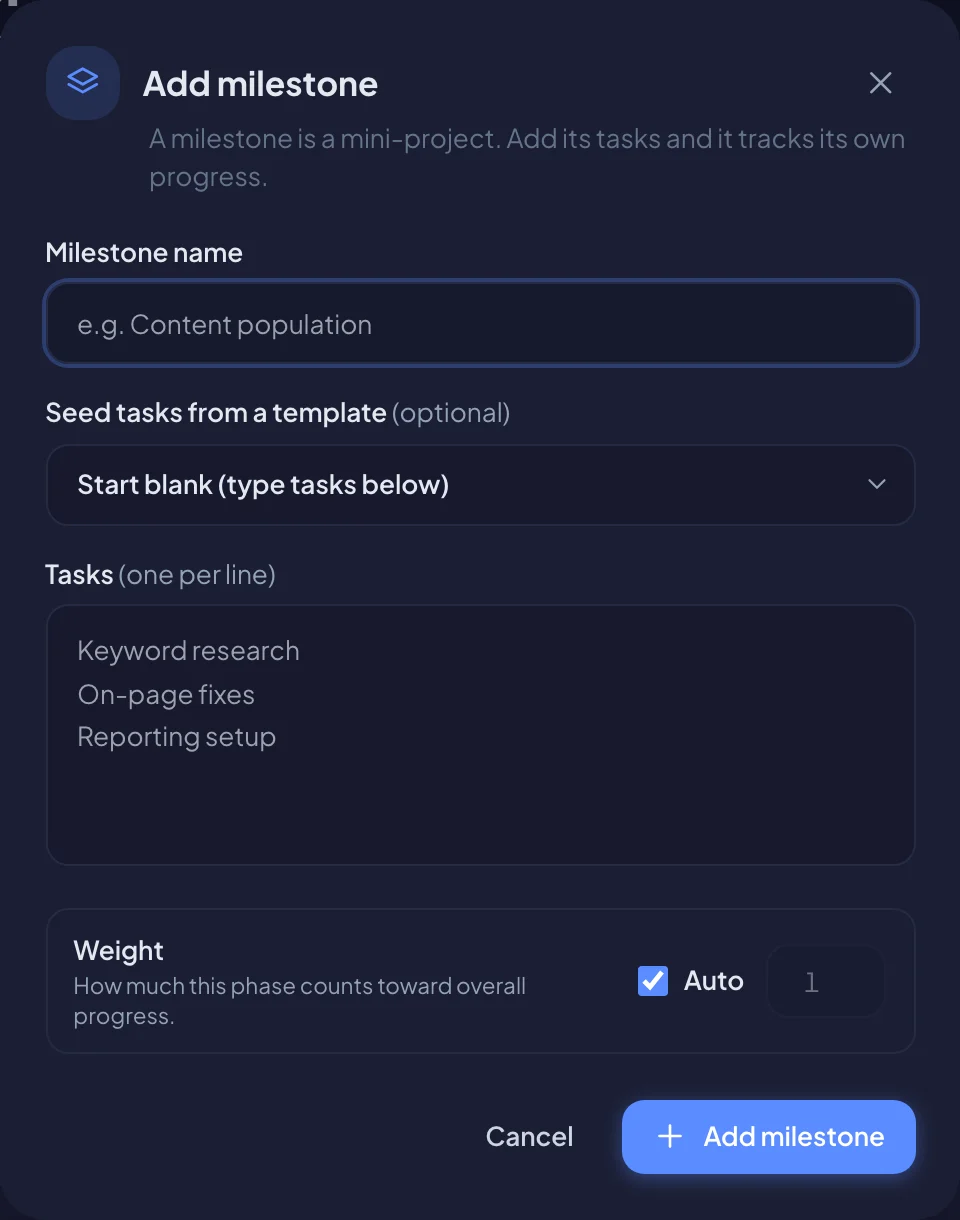
How progress works
- Each milestone's percentage comes from its tasks. When all its tasks are in a done column, the milestone is complete.
- The project's overall progress is a weighted roll-up of all its milestones.
- The Weight decides how much a milestone counts toward overall progress. With Auto, the weight grows with the number of tasks. Untick Auto to set your own number, for example to make Build count three times as much as Launch.
Each row shows the weight and its share of the whole, such as ×3 · 38%.
Mark a milestone done
A milestone with tasks completes itself when its tasks are done. For a milestone with no tasks, choose Mark done on its row. Choose Reopen to undo it.
Reorder, edit and delete
Hover over a milestone row to see more controls:
- Reorder: drag the grip to move the milestone up or down.
- Edit: choose the pencil to change the name or the weight, then Save changes.
- Delete: choose the bin. Its tasks are not deleted. They become unassigned, and you can link them to another milestone.
Work inside a milestone
Choose any milestone row to open its own task board. You see its progress, its tasks by status, and Add task to add work straight into it. Choose All milestones to go back.
On the Tasks tab, switch between By status and By milestone to see the whole project either way. Tasks not linked to a milestone appear under Unassigned.
To move a task to another milestone, open it and change Milestone in the task panel. Read A task in detail.