Timesheets and approval
See where the hours went, check entries before they count, and send clients a clear time report.
Logged time comes together in three places: the Time view on the Tasks page, each project's Time tab, and the review queue. This guide covers all three, plus client-ready reports.
The Time view
Go to Tasks and choose Time in the view switch.
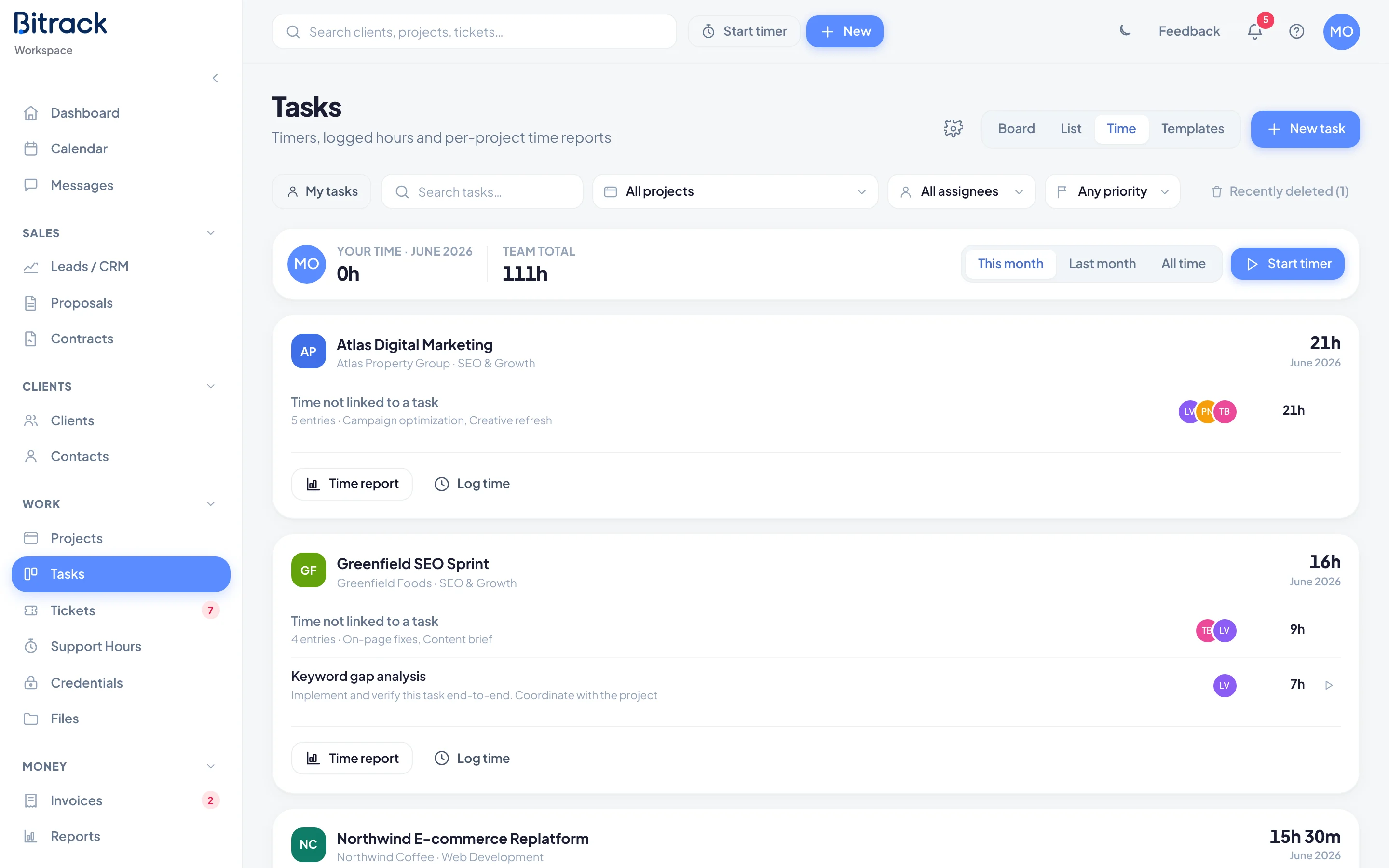
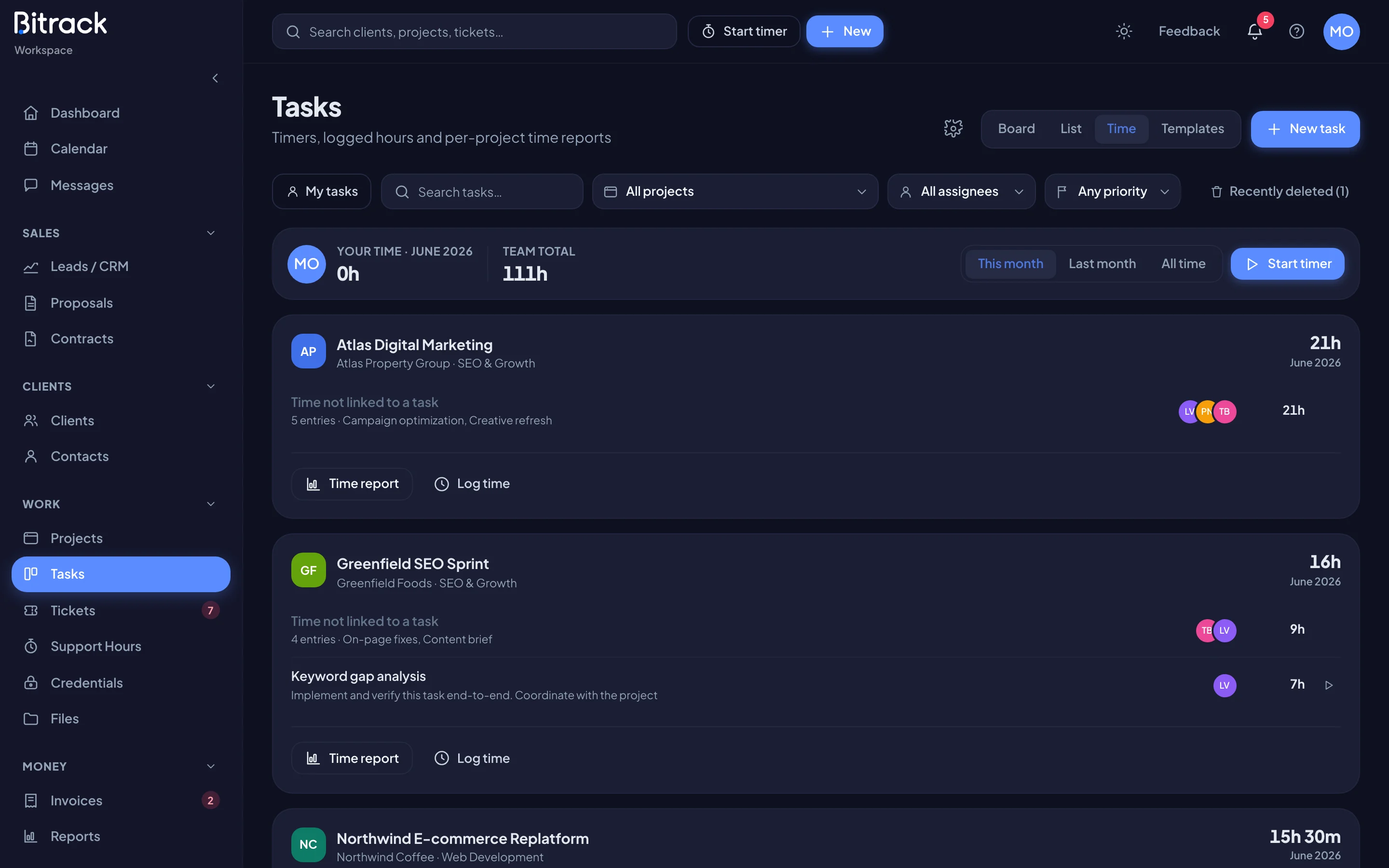
At the top you see Your time and the Team total for the period. Switch the period with This month, Last month or All time. The project and assignee filters in the filter bar narrow everything below.
Below, each project has a card with its total hours and one row per task:
- who worked on the task and how many hours they logged,
- hours still awaiting review, if any,
- a play button to start a timer on that task.
Time logged without a task is grouped as Time not linked to a task. Choose a task row to open it.
Each card has Time report and Log time at the bottom.
A project's Time tab
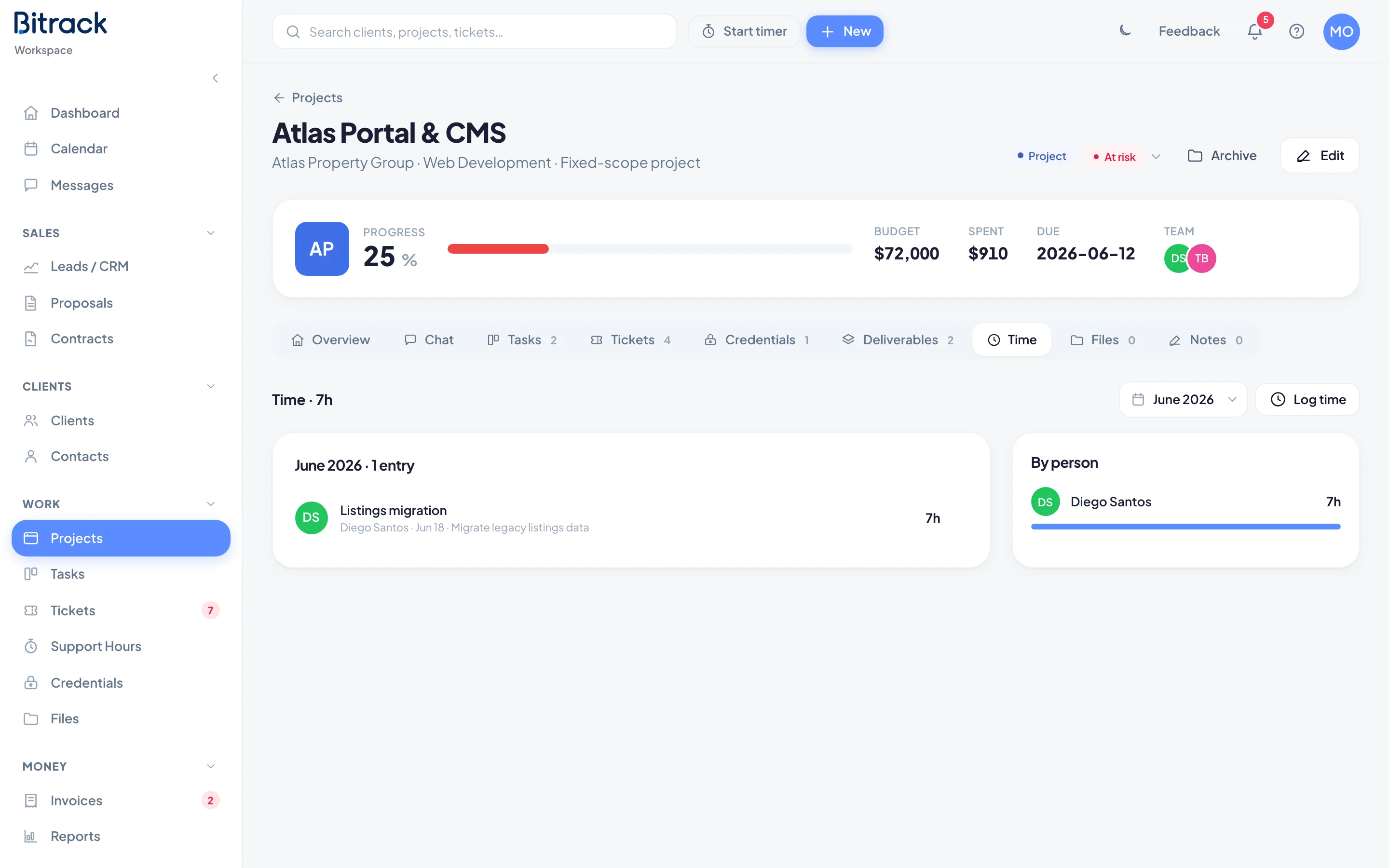
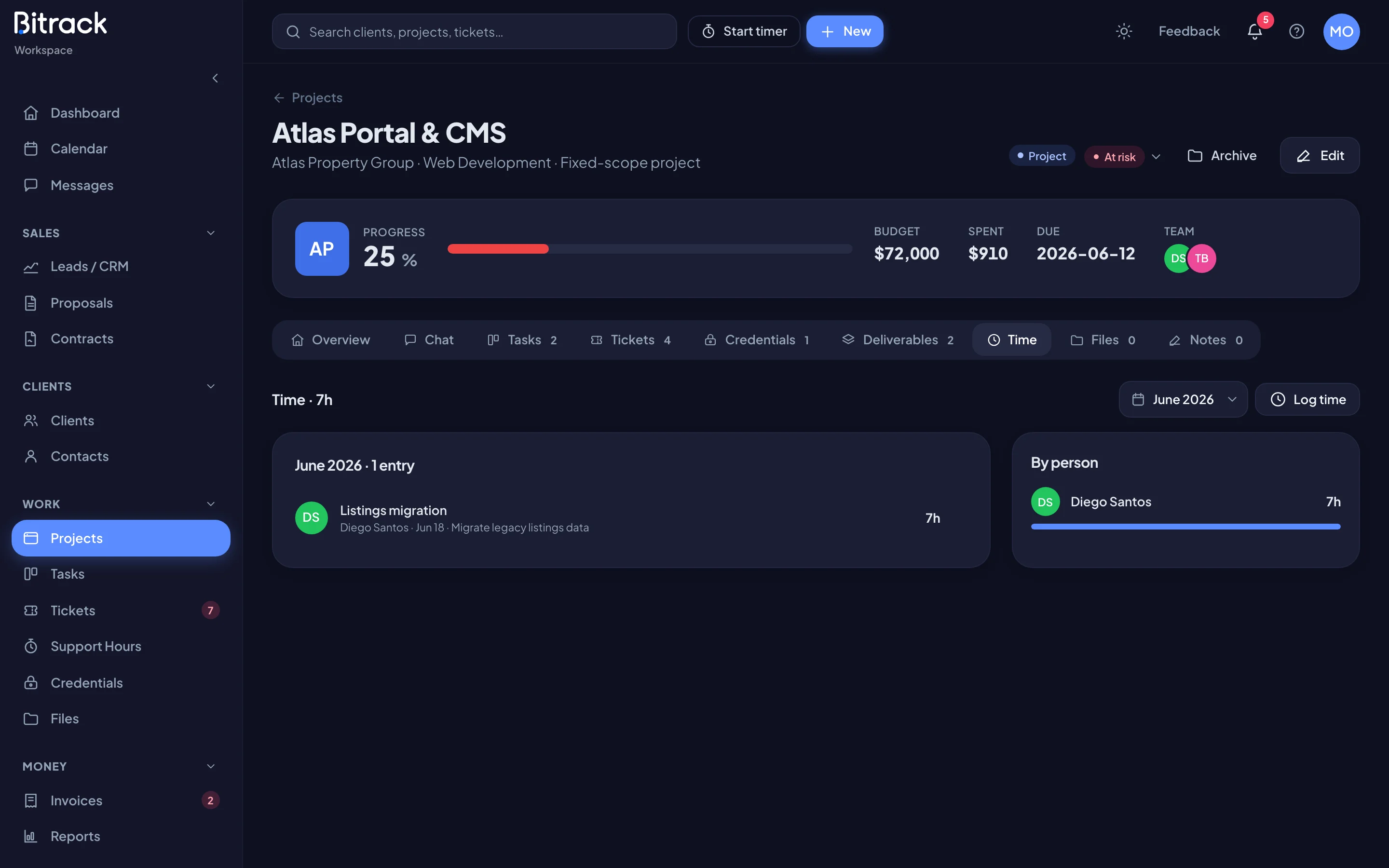
Open a project and choose the Time tab. Pick a month to see:
- every entry that month, with who logged it, the date and the task,
- a By person summary of each member's hours.
Entries that aren't final yet carry a badge: In review, Unconfirmed (a timer that was stopped automatically) or Rejected. Rejected time is crossed out and never counts.
People who can edit the project can choose Log time here, and remove an entry with the bin on its row.
Review hours before they count
Some entries are saved but held back until someone checks them:
- time typed in by hand, when the client's plan requires review,
- more than 8 hours in one entry, or more than 12 hours on one day,
- an entry that looks like a double log,
- a duration changed after it was logged,
- a timer that ran past the workday and stopped itself.
For projects covered by a support plan, these entries appear in Support Hours under Needs review. They're excluded from the client's balance and from reports until someone confirms them. For each entry, you can:
- Confirm it, so it counts against the client's hours,
- Adjust the hours or note first,
- delete it with the bin. The person who logged it is told.
To confirm or delete entries, your role needs Confirm / reject hours in Support Hours. To have every manual, edited, long or auto-stopped entry wait for an OK, turn on Manager review before hours count in the plan's agreement.
Time reports for clients
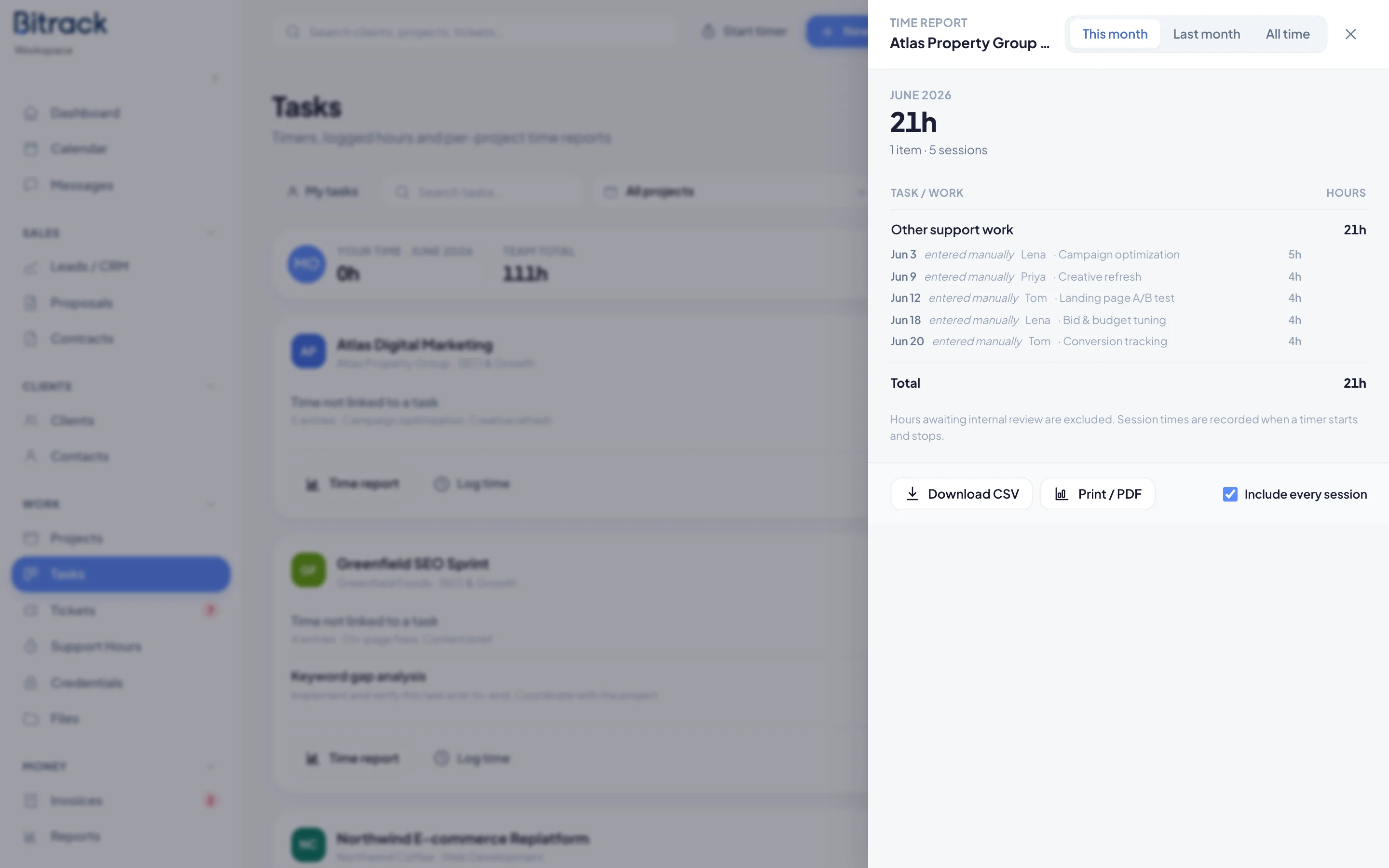
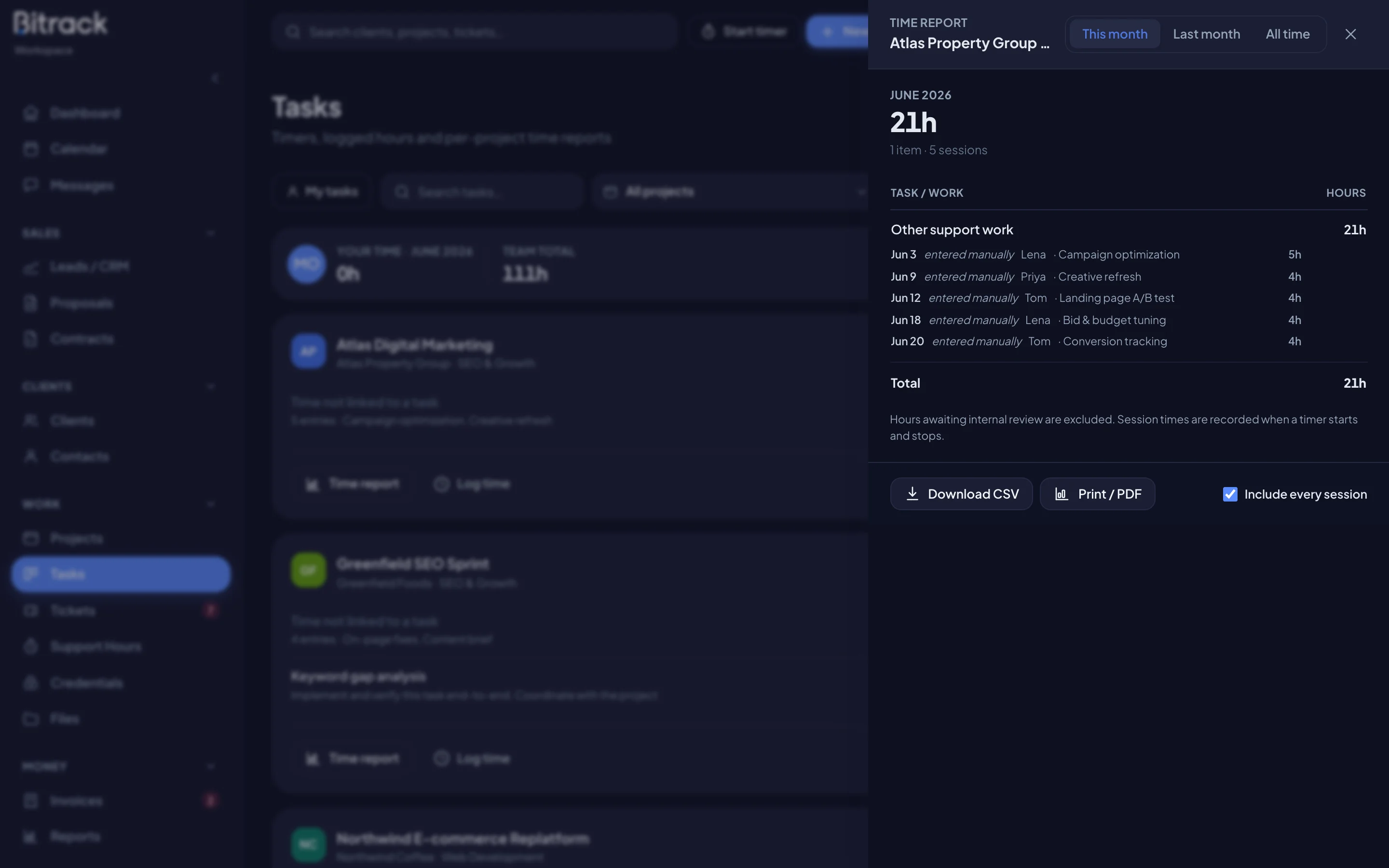
- In the Time view, choose Time report on the project's card.
- Pick This month, Last month or All time.
- Tick Include every session to list each session's date, start and end time, person and note under its task.
- Choose Download CSV for a spreadsheet, or Print / PDF for a document to send.
The report includes confirmed time only. Hours awaiting internal review are left out.
Retainer timesheets
On an hourly retainer, the project's Overview tab has a Timesheet for the current cycle, with each entry's hours and amount.
- View timesheet shows it laid out for the client.
- Export CSV downloads it.
- Create invoice turns this cycle's confirmed hours into a draft invoice. You need permission to create invoices.
Amounts and rates show only to Owners and people whose role includes See financials.