Tasks: board and list
Work with tasks across all your projects on a board or in a list, filter them, and change many at once.
Tasks shows the work in flight across every active project you can see. Use the board to move work along, or the list to scan and sort.
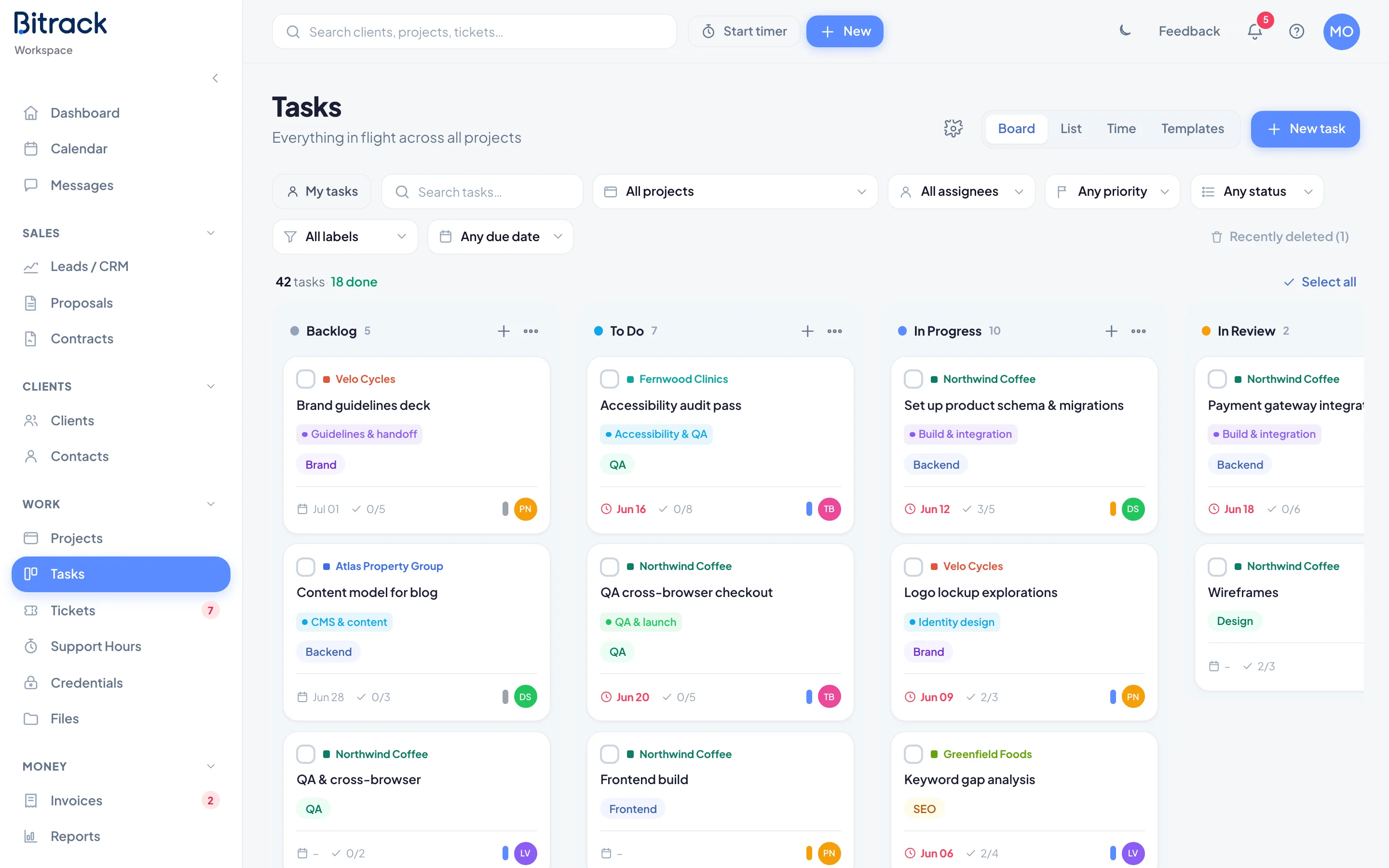
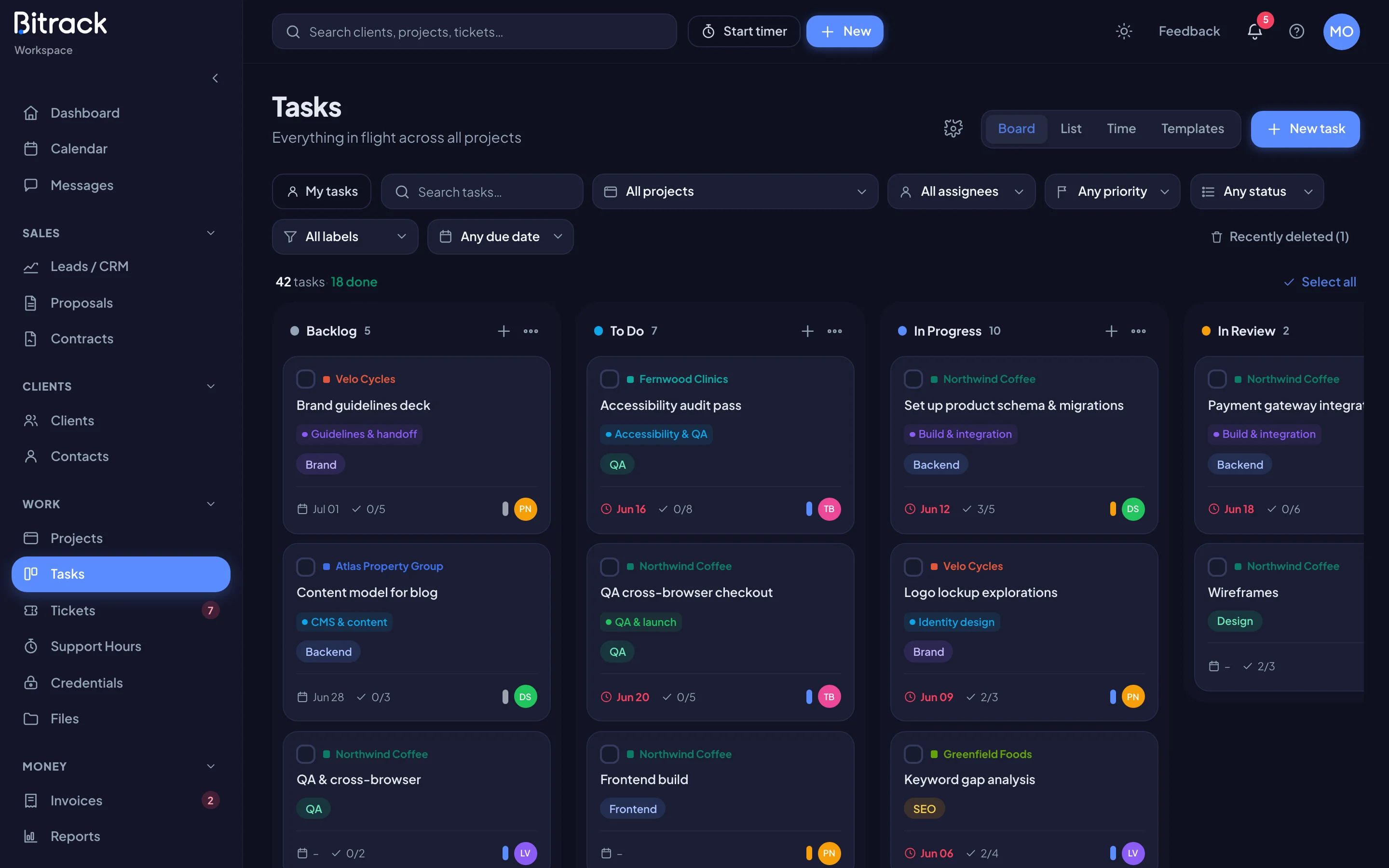
Board, List, Time and Templates
The switch at the top of the page has four views:
| View | What it's for |
|---|---|
| Board | Cards in columns, one column per status. Drag cards to move work along. |
| List | One row per task, with columns you can sort. |
| Time | Hours logged per project and task. Read Timesheets and approval. |
| Templates | Reusable sets of tasks. Read Templates and recurring tasks. |
Bitrack remembers your view and filters for next time.
The board
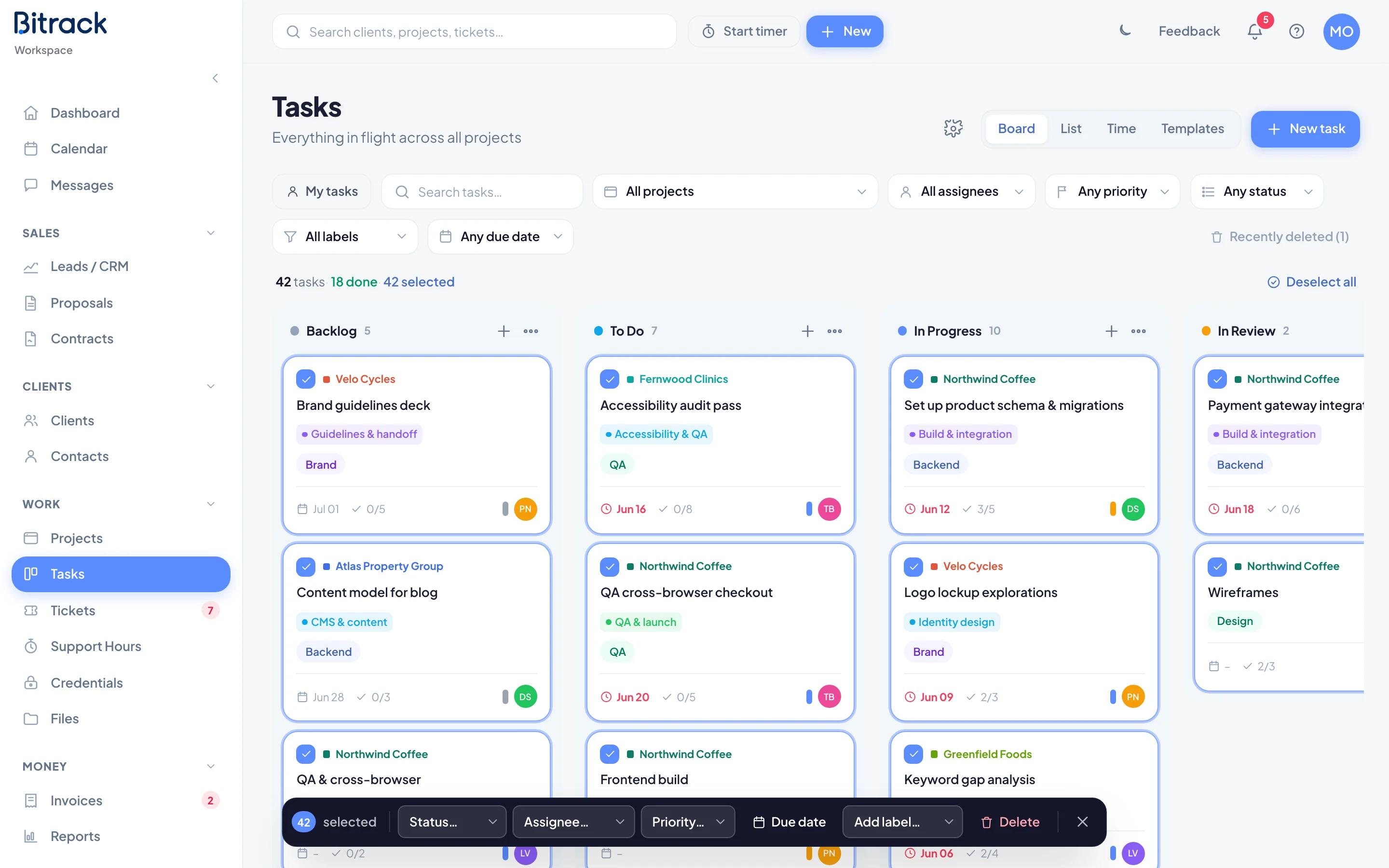
Each column is a task status, such as To Do, In Progress or Done. A card shows the client, the title, its milestone, labels, the due date, checklist progress, a priority bar and the assignee. Overdue dates are highlighted.
- Move a task: drag its card to another column, or up and down to reorder it. Dropping a card in the done column shows Task marked done.
- Add a task to a column: choose + at the top of the column.
- Open a task: choose its card. Read A task in detail.
Columns
The columns are shared by every board in your workspace.
- To add one, choose Add column at the end of the board.
- Enter a Column name, pick a Color, and choose Add column.
To change a column, choose Edit column (the dots) at the top of it. You can rename it, recolor it, or turn on This column means done. Tasks in the done column count as complete toward project progress. Exactly one column is the done column.
To delete a column, choose Delete in the same window. If it holds tasks, pick where to Move them to first. Tasks are moved, never deleted. You must keep at least one column.
Group by milestone
Filter the board to one project that has milestones, then choose Group by milestone. The board splits into one row (swimlane) per milestone, plus No milestone. Drag a card into another swimlane to move it to that milestone.
The list
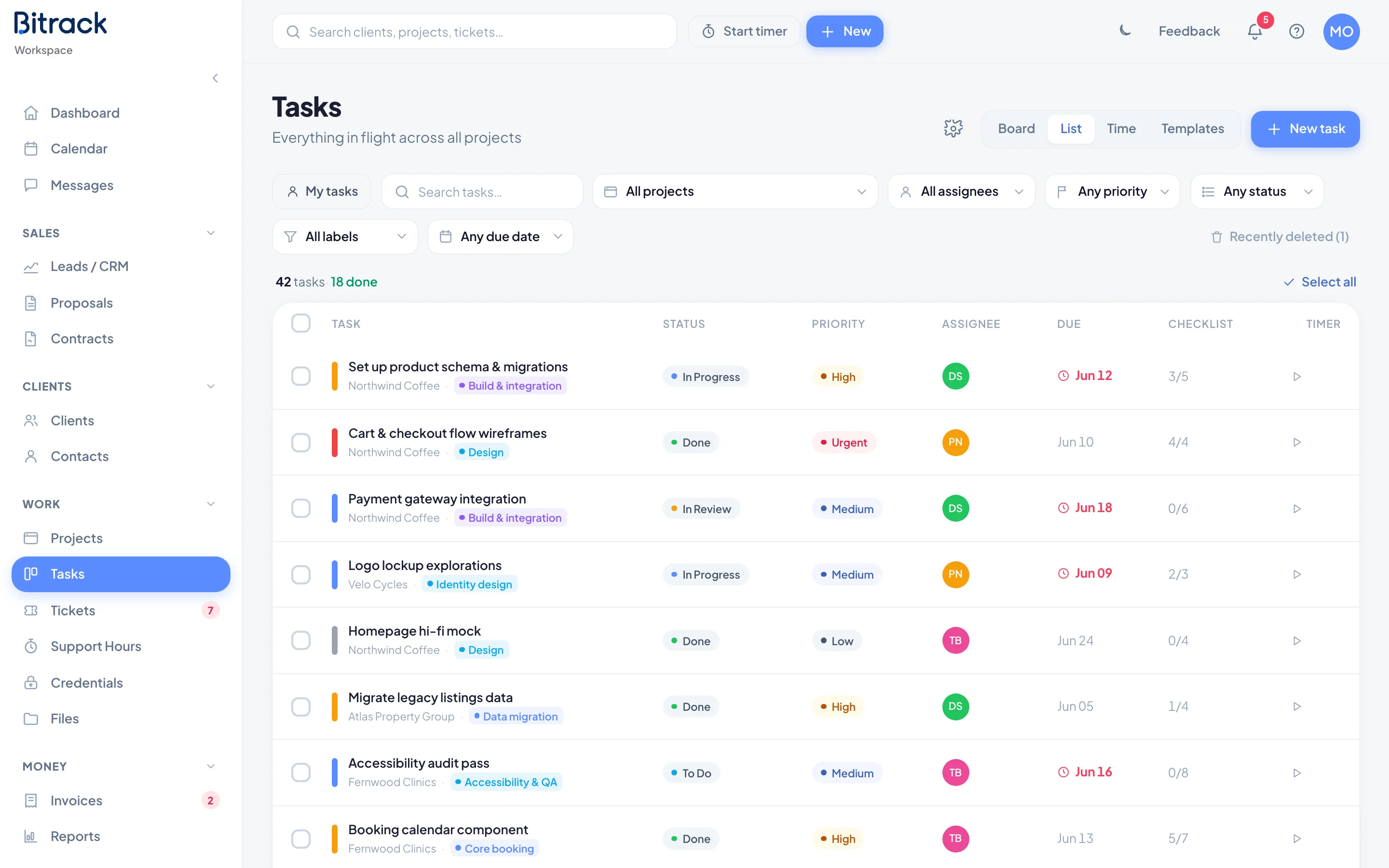
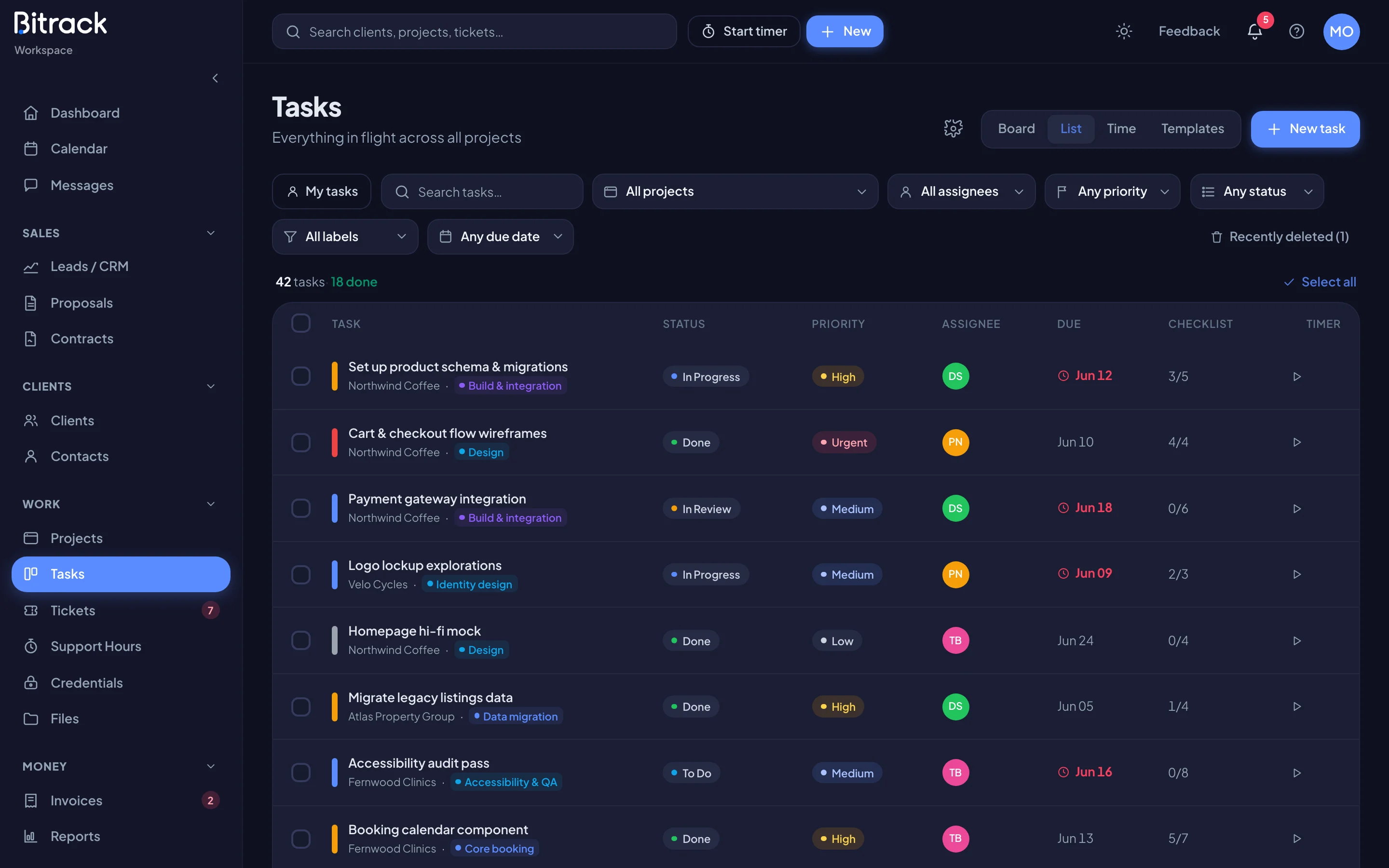
Choose List to see tasks as rows. Choose a column heading, such as Due or Priority, to sort by it. Choose it again to reverse the order, and a third time to clear the sort. Each row has a play button to start a timer on that task.
Find the right tasks
The filter bar works in every view:
- My tasks shows only tasks assigned to you.
- Search tasks… matches task titles.
- Filter by project, milestone (once you pick a project), assignee, priority, status, label and due date (Overdue, Due today, Due soon or No due date).
The line above the board shows how many tasks match, for example 8 tasks · filtered from 42. Clear all filters with the reset button in the filter bar.
Change many tasks at once
- Tick the box on each card or row, or choose Select all.
- Use the bar at the bottom of the screen to set Status, Assignee, Priority, Due date, Milestone or Add label.
- To remove tasks, choose Delete. They move to the Trash, with their checklists and comments.
Due date lets you set a date (Today, Tomorrow, Next week or any day), Clear due date, or Move due dates by a number of days. Tick Count working days only to skip each assignee's days off. A move by calendar days can be undone from the message that appears.
Labels
Labels are shared across every board. Choose the Task settings icon (the cog) to add, rename or delete them. A change updates every task and template that uses the label.