A task in detail
Open a task to describe the work, assign it, set dates and priority, tick off a checklist, talk with your team and track time.
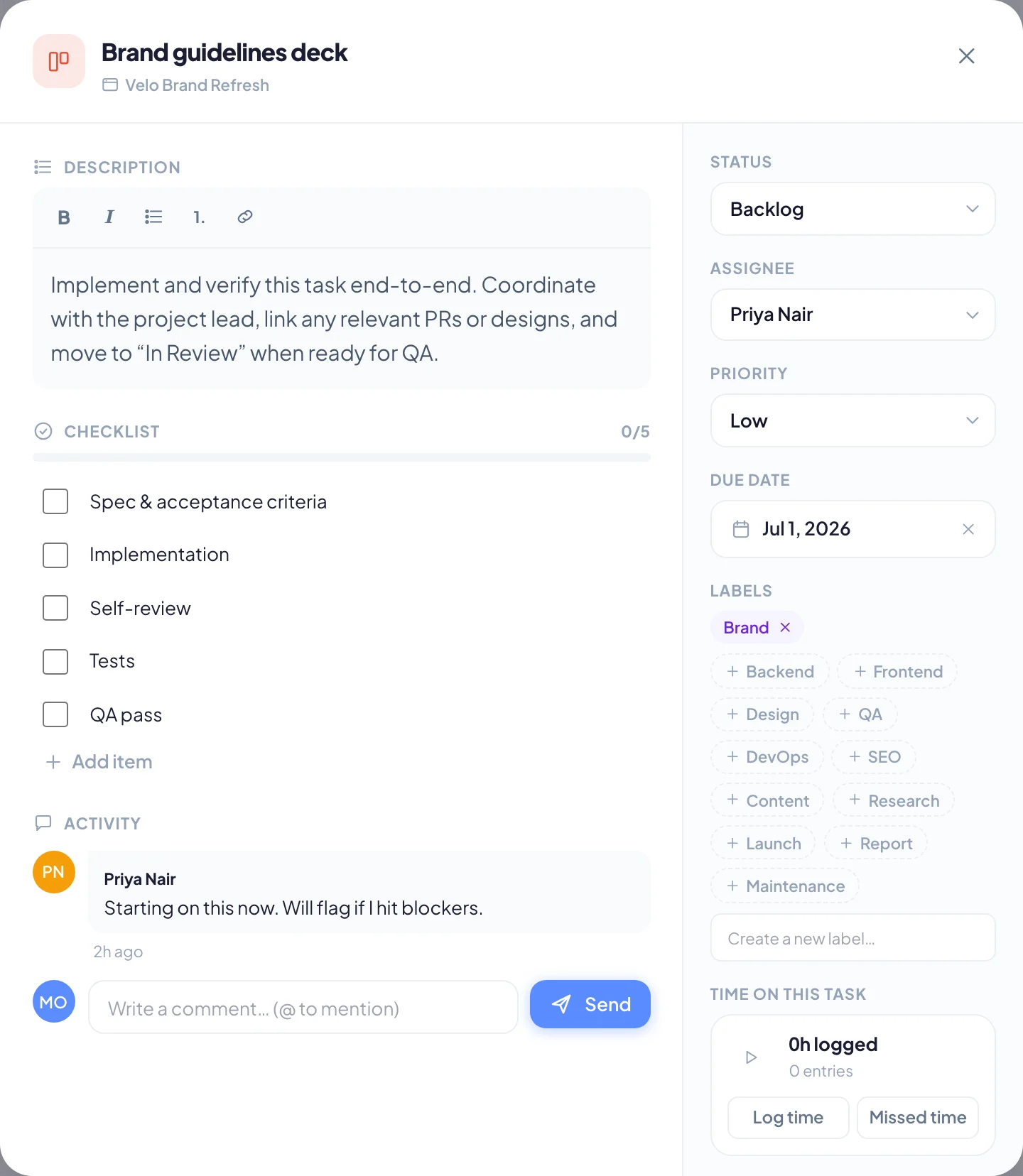
Choose any task card or row to open the task panel. Everything about the task lives here, and every change saves as you make it.
Create a task
- Choose New task on the Tasks page, or + at the top of a board column, or Add task on a project's Tasks tab.
- Type the title.
- Pick the Project, then fill in anything else you need.
- Choose Create task.
If you close a new task without choosing Cancel, Bitrack keeps it as a draft. The next time you choose New task, you'll see Your unfinished task is back. Choose Start fresh to begin again instead.
Title and project
Choose the title at the top to rename the task. Under it is the project name. Choose it to go to the project page.
Description
Use Description for the details: what needs doing, links, acceptance criteria. The toolbar has Bold, Italic, Bullet list, Numbered list and Link.
Checklist
Break the task into steps with a Checklist.
- Choose Add item and type the step.
- Tick an item when it's done. The bar and the count (for example 2/5) update as you go.
- Drag the grip on the left to reorder items.
- Choose the x on the right to remove one.
The checklist count also shows on the task's card, so the team can see how far along it is.
Details on the right
| Field | What it does |
|---|---|
| Status | Which board column the task is in |
| Assignee | Who is doing the work |
| Priority | Urgent, High, Medium or Low. The colored bar on cards shows it at a glance. |
| Due date | When it's due. Overdue tasks are highlighted on the board and list. |
| Labels | Pick from your workspace's labels, or type in Create a new label… and press Enter |
| Milestone | Which phase of the project it belongs to (only for projects with milestones) |
Your workspace may also have custom fields for tasks. They appear in the same column.
Comments and mentions
Activity holds the conversation about the task.
- Type in Write a comment… (@ to mention).
- To bring someone in, type @ and the start of their name. Pick them from the list with the arrow keys and Enter, or choose them.
- Choose Send, or press Enter.
People you mention get a notification, and Bitrack confirms who was notified. You can mention anyone on the project's team.
Time on this task
Time on this task shows the hours logged on it and how many entries there are.
- Choose the play button to start a timer on this task. Choose it again to stop and log the time.
- Choose Log time to add time by hand.
- Choose Missed time if you forgot to start the timer.
Read Track time for the details.
Delete a task
Choose Delete task at the bottom of the right column. The task, its checklist, comments and activity move to the Trash, where they can be restored. You need permission to delete tasks.