Files
Upload files to projects, preview them in Bitrack, find any file in your workspace, and know which files are allowed.
Files live where the work is: on projects, clients, tickets, chats and deliverables. The Files page brings them all together so you can find anything quickly.
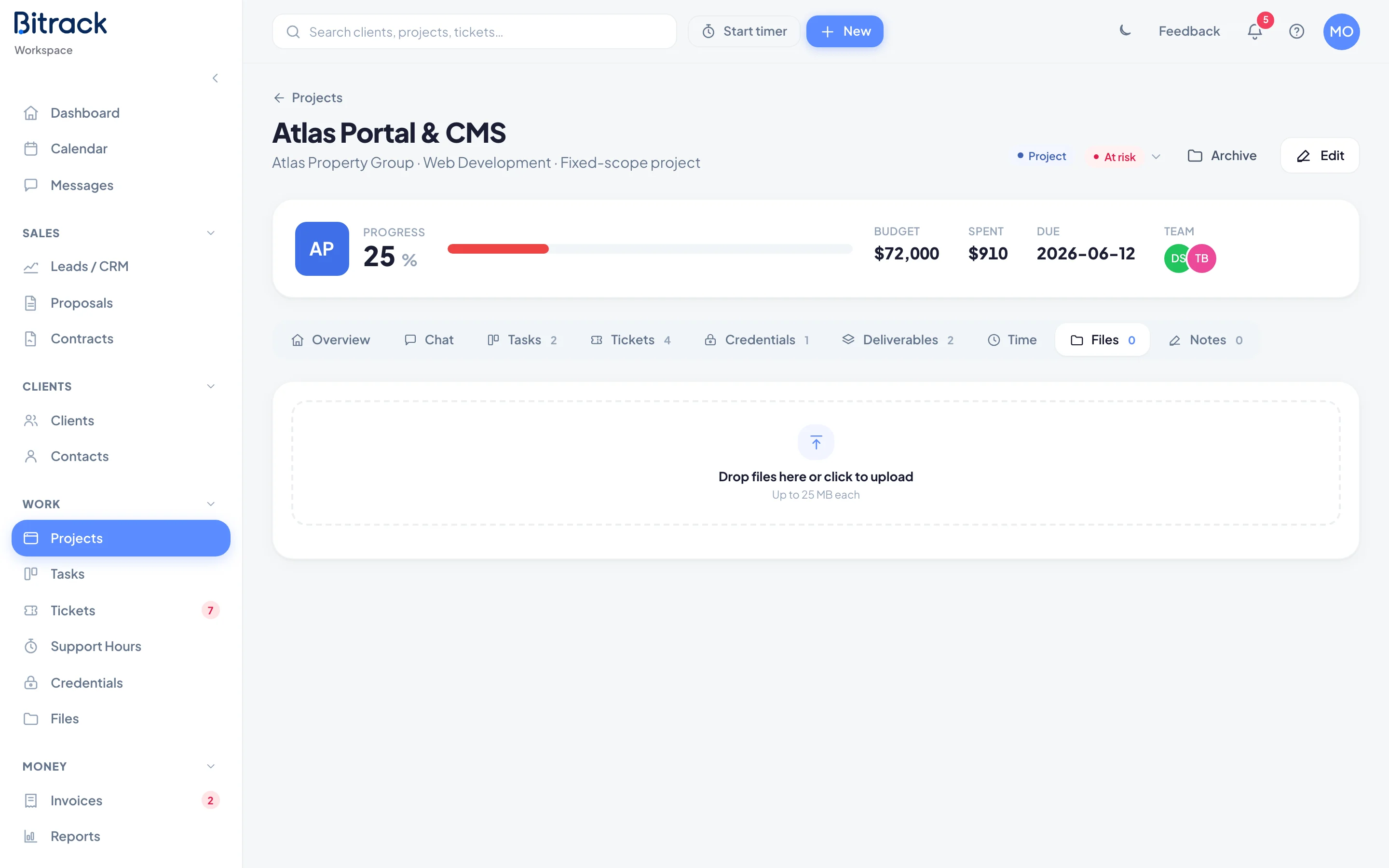
Add files to a project
- Open the project and choose the Files tab.
- Drag files onto the box that says Drop files here or click to upload, or choose the box to pick files.
Bitrack shows the largest file size allowed under the box, for example Up to 25 MB each. You can upload several files at once.
Each file shows its size, the date it was added and who added it. You need permission to edit the project to upload or delete files.
Share a file with the client
Turn on Client can see next to a file to show it to the client in their portal. Files stay private to your team until you do.
Delete a file
Choose the bin next to the file. It moves to the Trash, where it can be restored.
Preview a file
Choose a file's name to preview it without leaving Bitrack. Images, PDFs, video, audio and text files open right in the preview. Use the arrows (or the arrow keys) to step through the other files in the list, and Download to save a copy. Press Escape to close.
Other kinds of files, such as design files, can't be shown in the browser. Download them to open them in their own app.
The Files page
Choose Files in the sidebar to see every file you have access to, from all over the workspace.
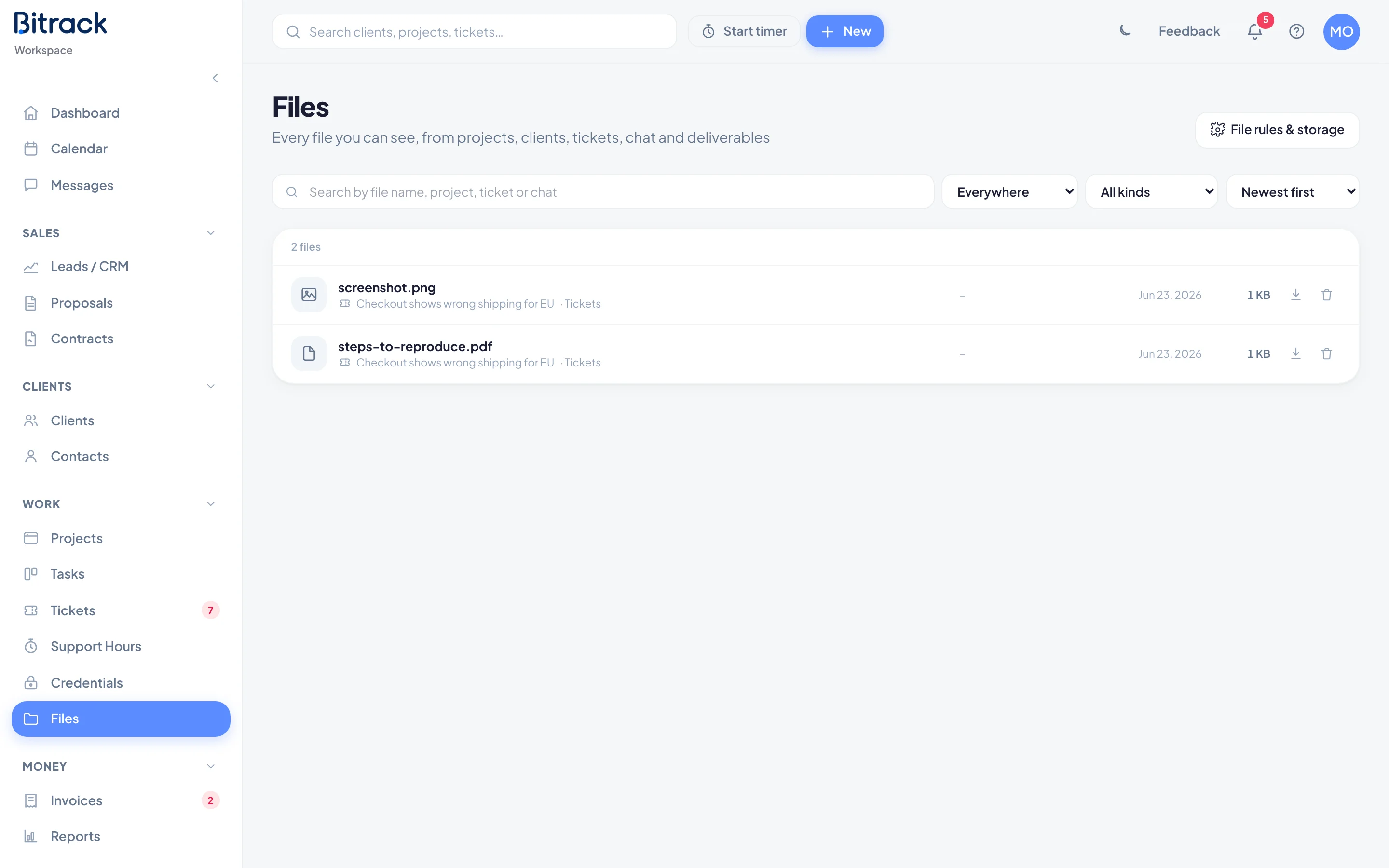
- Search by file name, project, ticket or chat.
- Filter by where the file lives: Project files, Client files, Tickets, Chat or Deliverables.
- Filter by kind, such as Images or Documents.
- Sort by Newest first or Largest first.
Each row shows where the file lives (choose it to go there), who added it, the date and the size. Use the buttons on the right to download or delete it.
Allowed files and virus scanning
To keep your workspace safe, only certain kinds of files can be uploaded:
| Kind | Examples |
|---|---|
| Images | JPG, PNG, GIF, WebP, HEIC |
| Documents | PDF, Word, Excel, PowerPoint, CSV, TXT |
| Video | MP4, MOV, WebM |
| Audio | MP3, M4A, WAV |
| Design files | PSD, AI, Figma, Sketch, XD, InDesign |
| ZIP archives | ZIP (off unless an Owner or Admin turns it on) |
Programs, web pages, scripts and SVG images are never allowed, because they could run code. Password-protected files are refused too, because they can't be checked.
If you pick a file that isn't allowed, or one that's too big, Bitrack tells you and skips it.
When virus scanning is set up for your workspace, every upload is scanned. A file with a virus isn't uploaded, and you see a message saying so.
Change the rules
Owners and Admins can choose File rules & storage on the Files page (or go to Settings > Files) to:
- choose which kinds of files are allowed,
- set the Largest file size, up to your plan's limit,
- see how much storage each area uses, and how much is in the Trash.