Track time
Time your work with one click, log hours you forgot, and let Bitrack catch timers that were left running.
Bitrack tracks time against tasks and projects, so you always know where the hours went. Start a timer when you begin, stop it when you're done, and the time is logged for you.
Start a timer from the top bar
- Choose Start timer in the top bar.
- In What are you working on?, search for a task, project or client.
- Choose the task. The timer starts straight away.
Your own tasks are marked Mine. If the work isn't on a task, such as a client call, choose Not on a task. You'll pick the project when you stop.
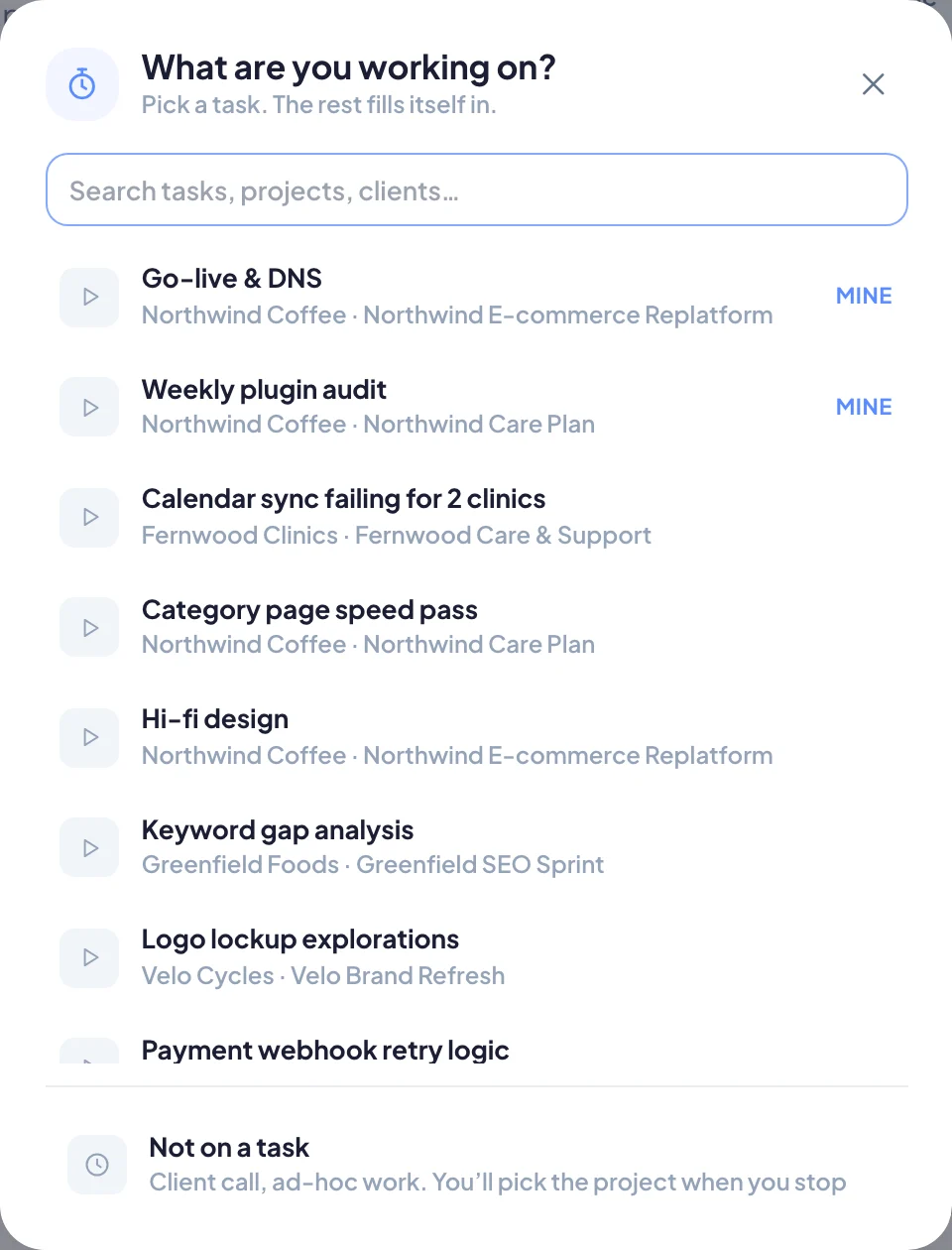
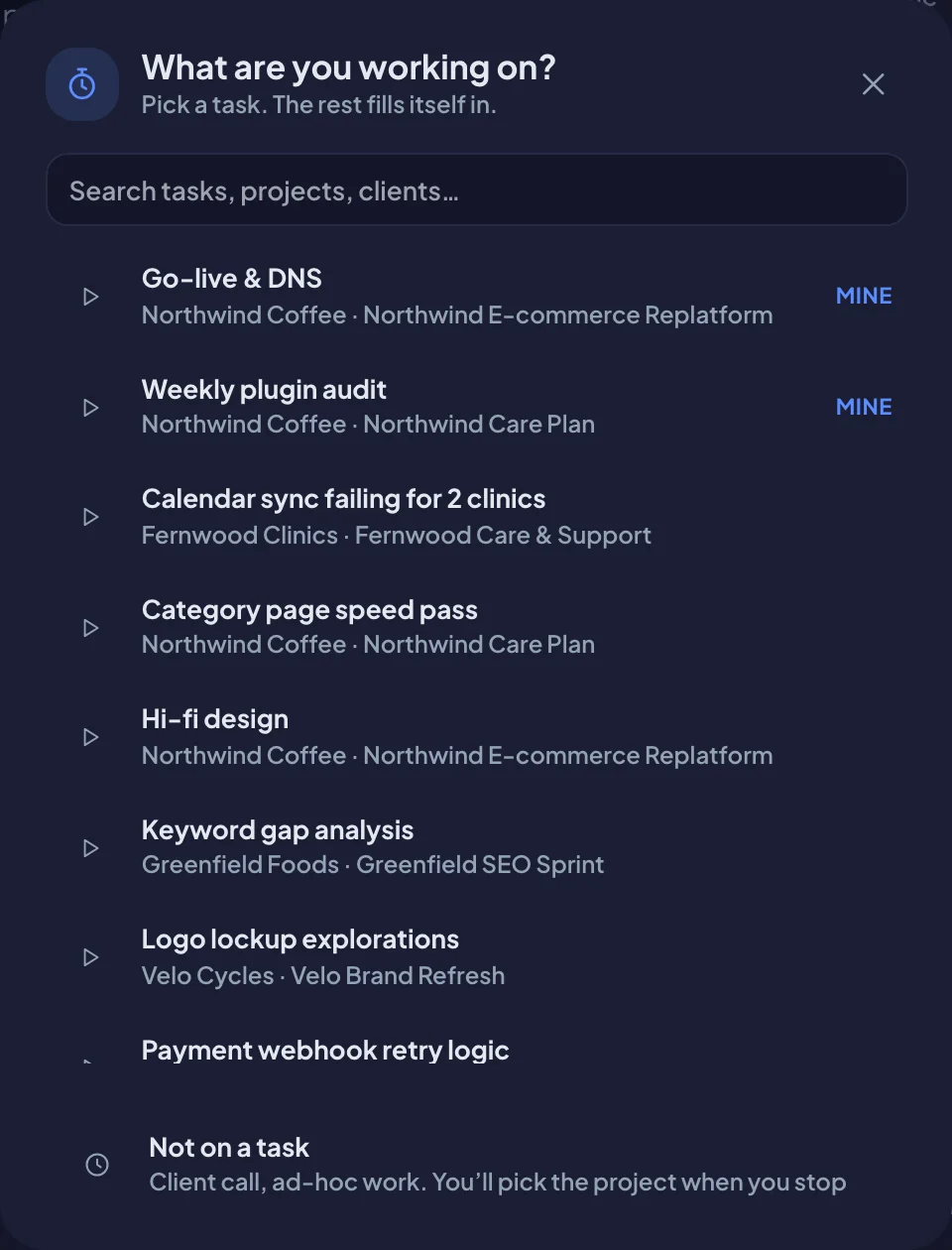
Start a timer on a task
You can also start a timer right where the task is:
- the play button on a row in the List view,
- the play button under Time on this task in the task panel,
- the play button next to a task in the Time view.
While a timer runs, the top bar shows how long it has been going and what it's for.
Stop the timer
Choose the running timer in the top bar, or the pause button on the task. The time is logged right away. A message shows how much was logged, with two options:
- Edit opens Fix this entry, where you can correct the hours, minutes and note.
- Undo removes the entry and sets the timer running again.
If the timer wasn't on a task, Bitrack opens Log this time so you can choose the Client & project and add a Note. Choose Log time to save it, or Discard to throw the time away.
Log time by hand
Forgot to start the timer? Add the time yourself.
- Open the task and choose Log time, or Missed time. You can also choose Log time on a project card in the Time view.
- Enter the Hours, Minutes and Date.
- Check the Client & project, and pick a Task if it's not already set.
- Write a Note about what you did. It's required, because the client may see it on their hours report.
- Untick Billable if the client shouldn't be charged.
- Choose Save entry.
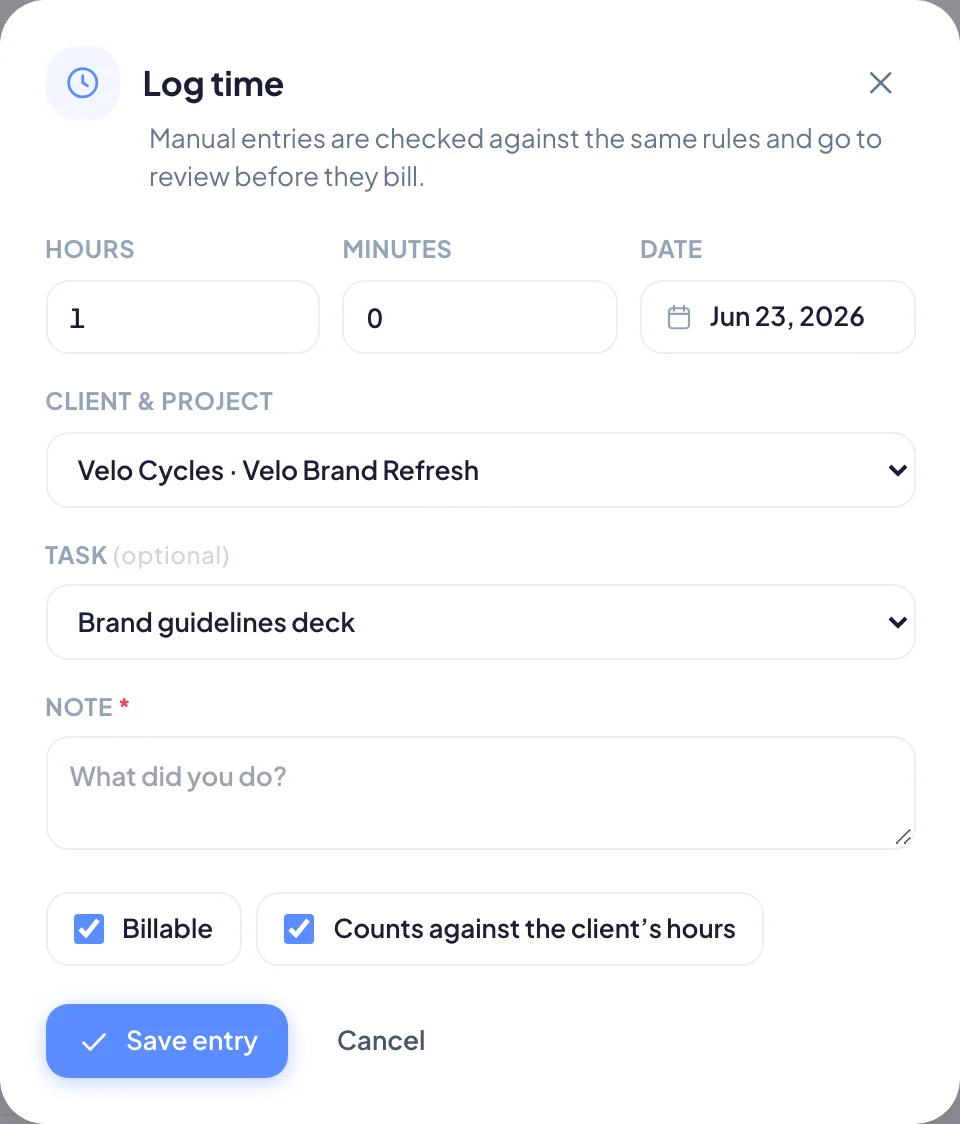
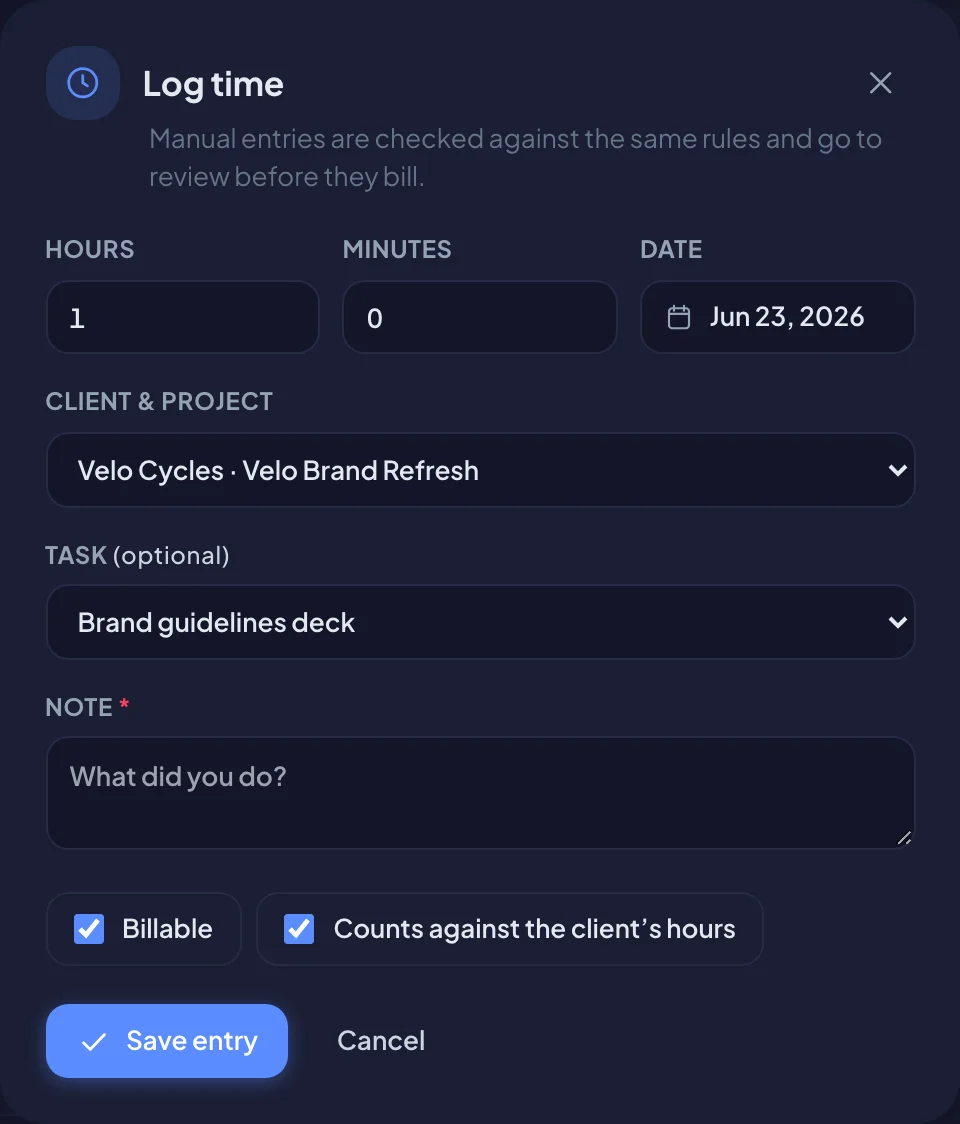
People who can edit a project can also choose Log time on the project page. There you pick the Member the hours belong to, so a lead can log time for someone else.
What Bitrack checks
Every entry, timed or typed in, goes through the same checks.
| Bitrack refuses | Bitrack sends for review |
|---|---|
| No project picked | More than 8 hours in one entry |
| A duration of zero | More than 12 hours on one day for one person |
| No note | An identical entry already on that day |
| A date in the future | A duration edited after logging |
Entries sent for review are saved but marked, and may not count until someone confirms them. Read Timesheets and approval.
Forgotten timers
Bitrack watches for timers people forget to stop:
- After 4 hours, it asks Still working? Choose Yes, keep running, or Stop & log it.
- After 15 minutes away from the screen, it tells you how long you were away and asks whether that time should count. Choose Remove (the button shows the minutes) to take it off, or Keep it.
- After 10 hours, or once the day ends, the timer stops by itself. The time is parked for review instead of being billed, and you get a notification.