Templates and recurring tasks
Save the work you repeat as templates, apply them to any project, and let retainers create their regular tasks for you.
Most agencies do the same kinds of projects again and again. Templates let you set up a project's tasks in one go. Recurring tasks create a retainer's regular work, such as a monthly report, on schedule.
Task templates
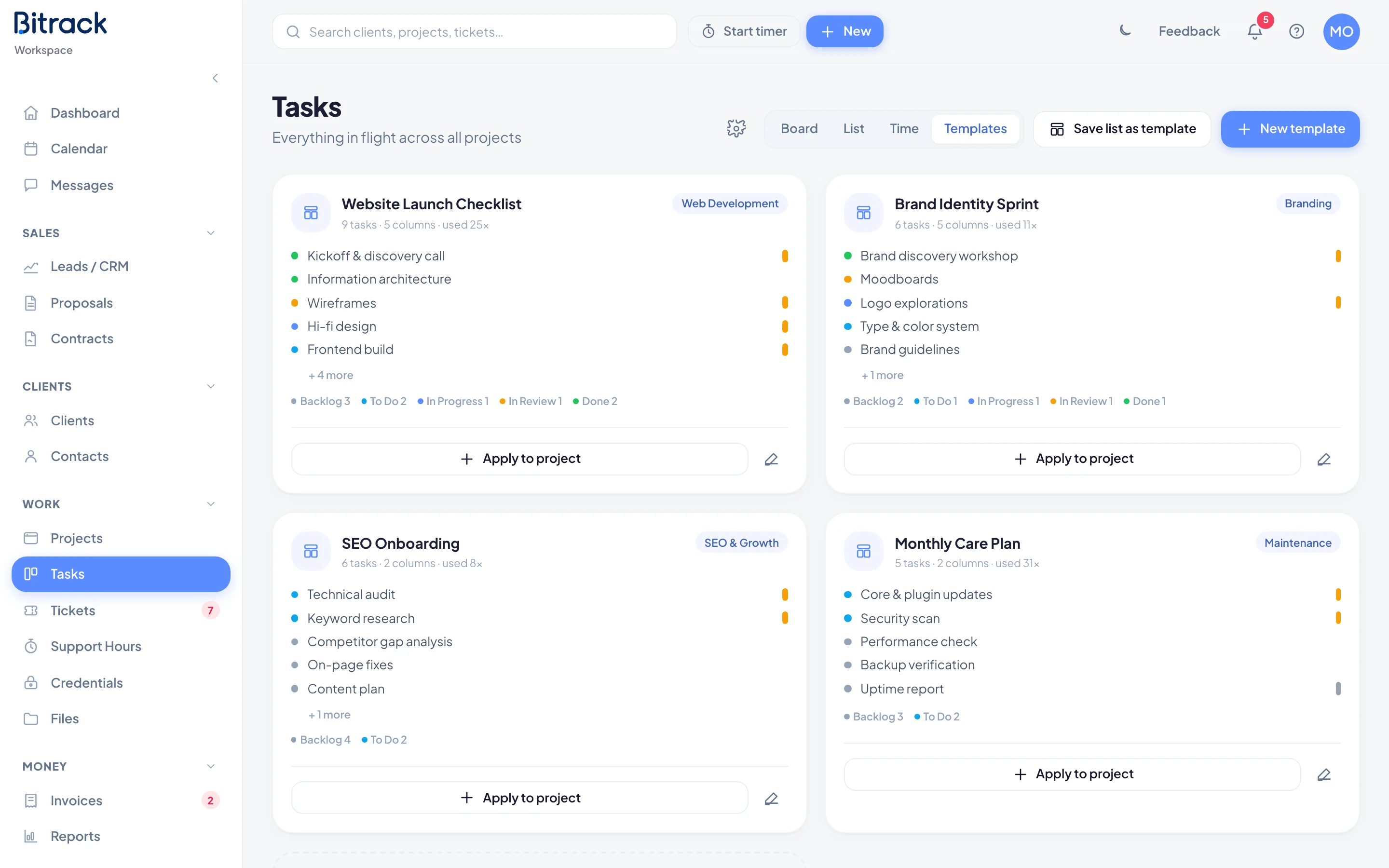
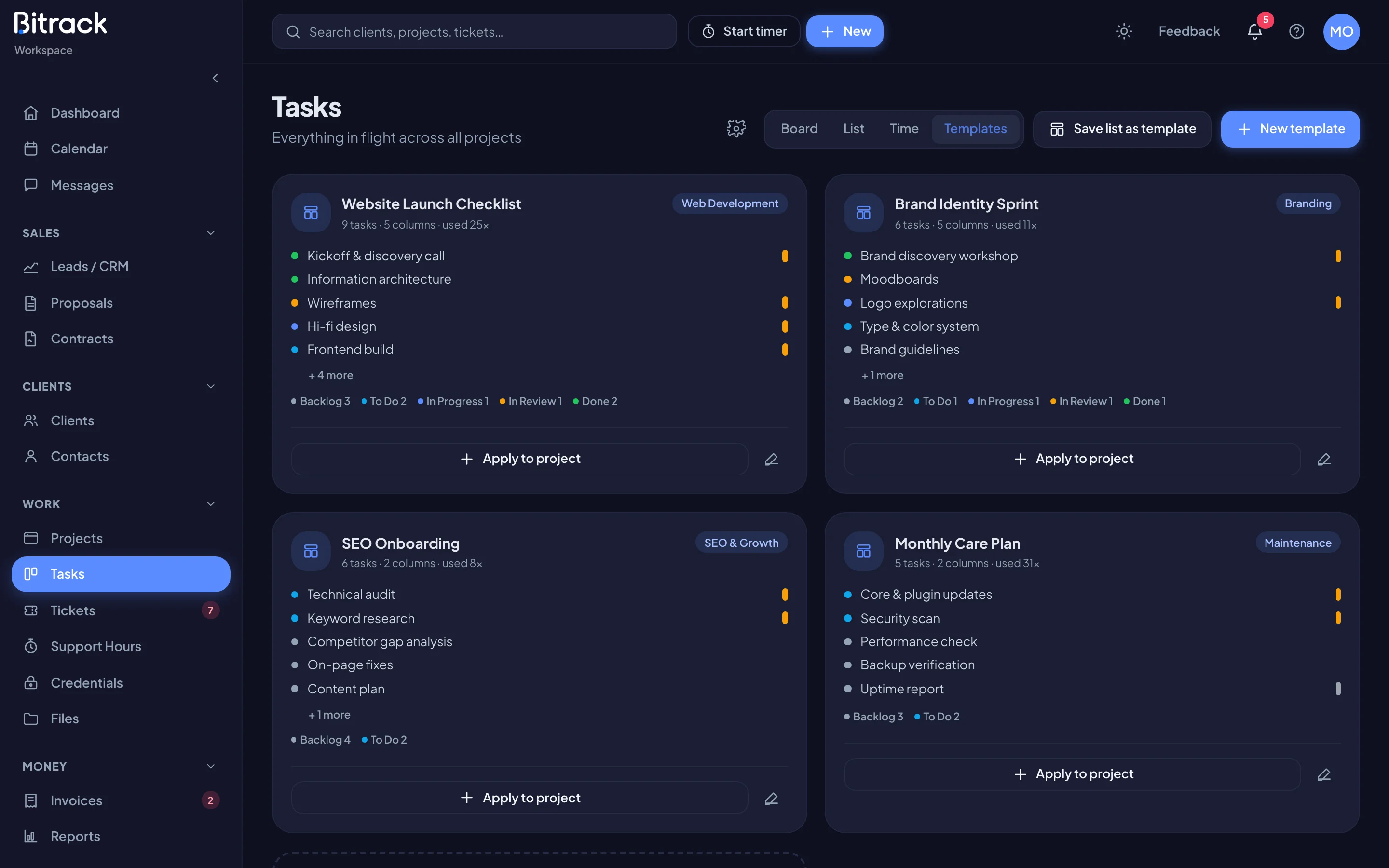
A template is a set of tasks with their board columns, priorities, assignees, labels and checklists. To see yours, go to Tasks and choose Templates in the view switch.
Each card shows the template's name, service, how many tasks and columns it has, and how often it has been used.
Create a template
- In Templates, choose New template.
- Enter a Template name and pick the Service.
- Under Workflow columns & tasks, set up the columns the template uses. Rename a column, choose its dot to change the color, or choose Add column.
- Choose Task next to a column, or + Add a task to that column, to add a task.
- Fill in the task: title, Description, a checklist, Column, Priority, Assignee and Labels. Choose Done to go back.
- Choose Create template.
Save a project's list as a template
Already have a project set up the way you like? Turn it into a template.
- In Templates, choose Save list as template.
- Pick the project under From project. Bitrack shows how many tasks it will capture.
- Enter a Template name and choose Save template.
The template captures the tasks in their current columns, with their priorities, labels and checklists.
To change a template later, choose the pencil on its card. Choose Delete inside the editor to remove it.
Apply a template
- In Templates, choose Apply to project on the template's card.
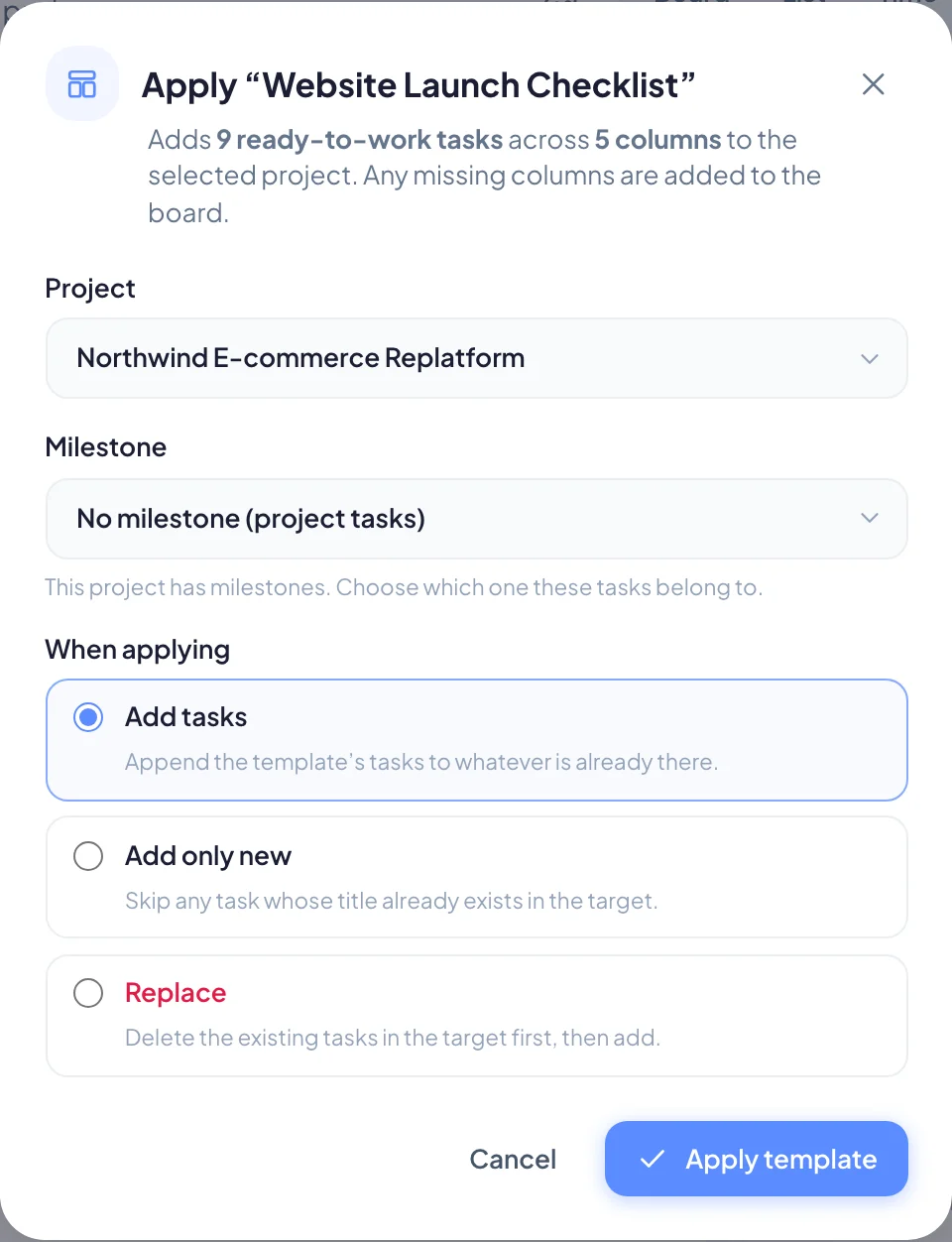
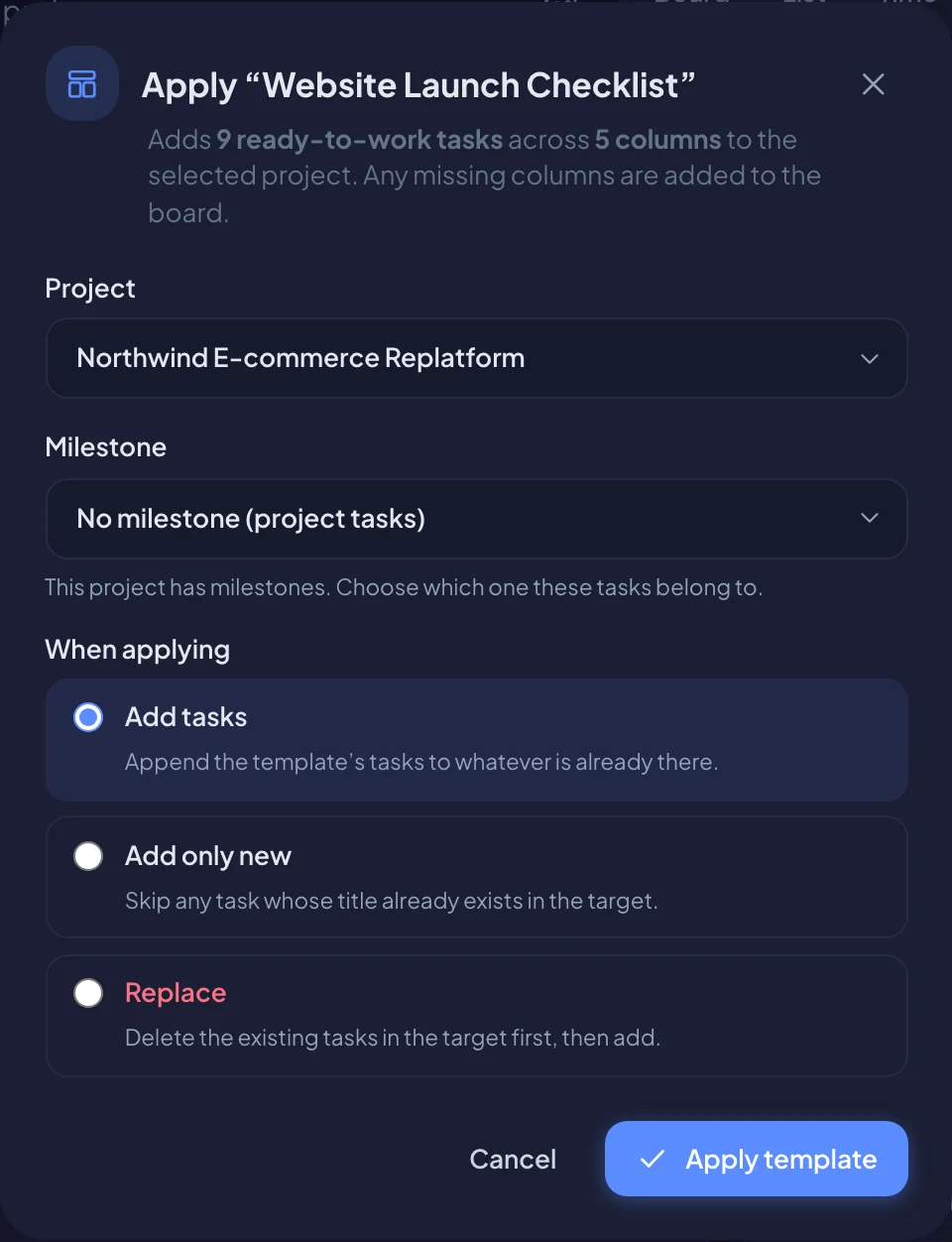
- Pick the Project. If it has milestones, pick the Milestone the tasks belong to.
- Under When applying, choose how to add the tasks:
- Add tasks: add them to whatever is already there.
- Add only new: skip any task whose title already exists.
- Replace: move the existing tasks to the Trash first, then add. Bitrack shows exactly how many tasks this removes and asks you to confirm.
- Choose Apply template.
Any columns the template uses that your board doesn't have yet are added for you.
Recurring tasks
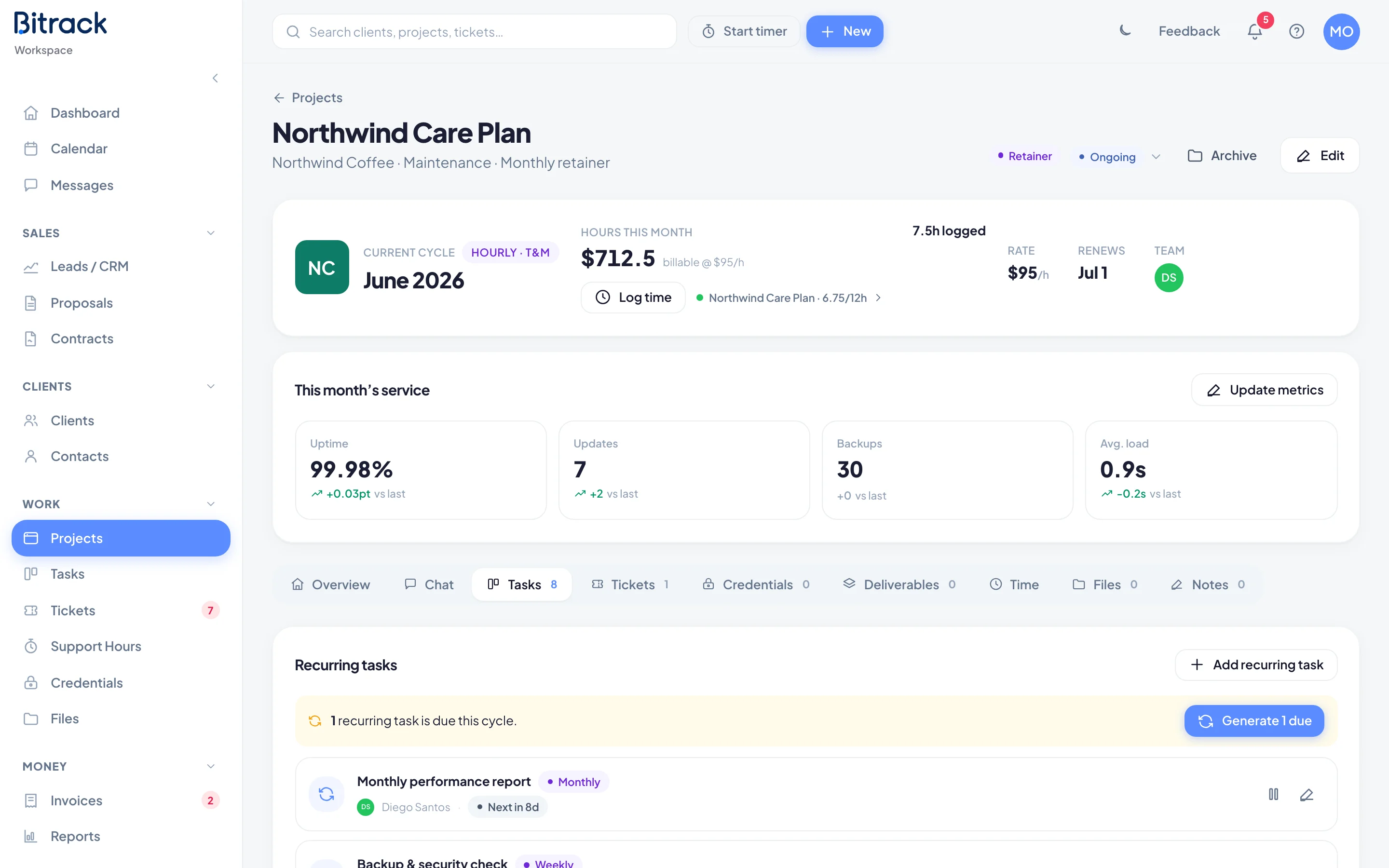
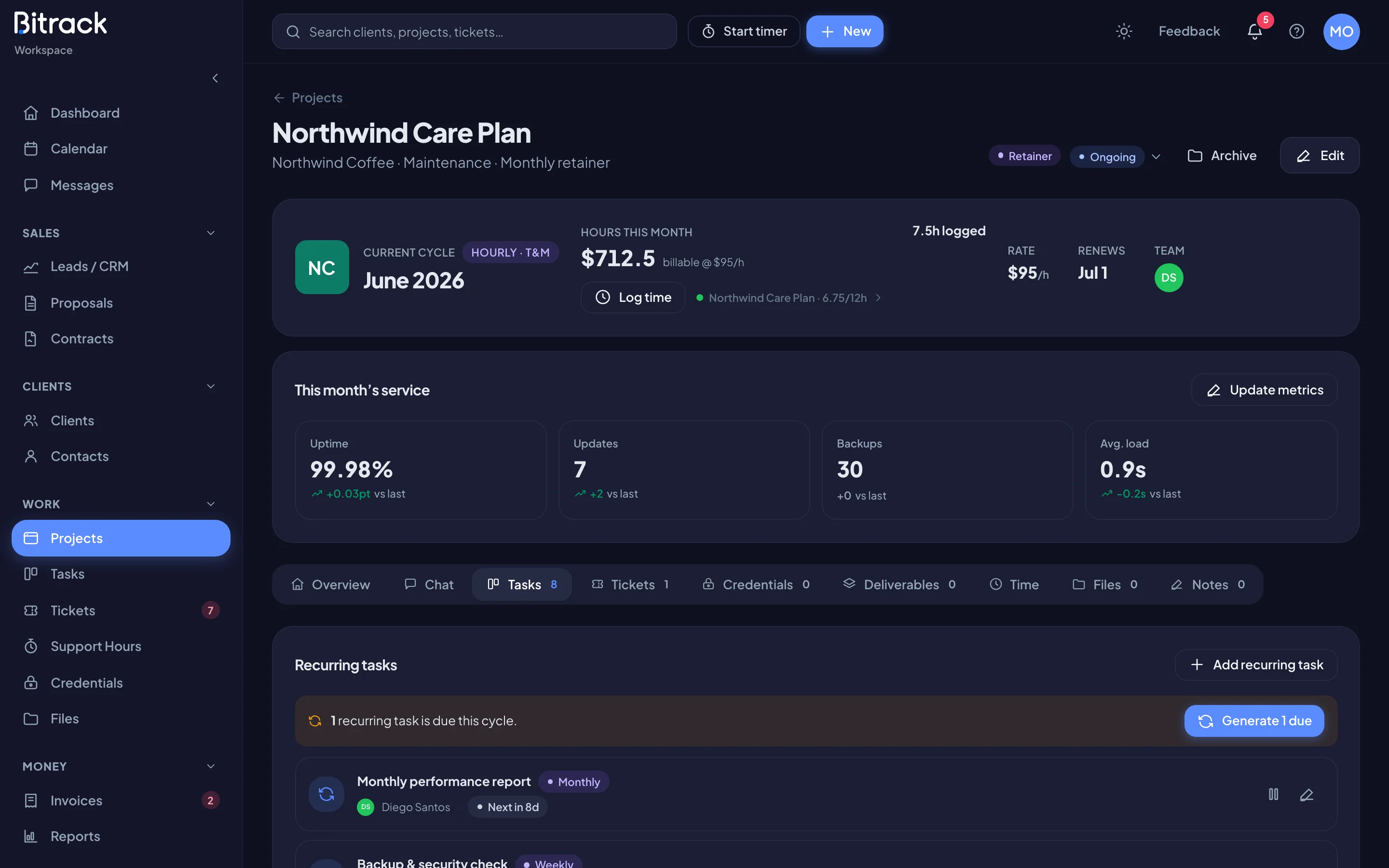
Recurring tasks belong to retainers. Open a retainer project and go to its Tasks tab. The Recurring tasks card sits above the board.
Add a recurring task
- Choose Add recurring task.
- Enter the Task title, for example Monthly performance report.
- Under Repeats, choose Daily, Weekly, Monthly or Custom. With Custom, set Every so many days.
- Pick the Assignee and Priority.
- Under Create in column, pick the board column new tasks start in.
- Optional: set Checklist items to give each new task an empty checklist with that many steps.
- Choose Create.
How recurring tasks run
Bitrack creates each new task automatically when it falls due, and checks every hour. Each rule shows when it runs next, such as Due today or Next in 5d.
If some are due, the card shows how many. Choose the Generate button (for example Generate 2 due) to create them now instead of waiting.
- Pause a rule to stop it for a while, and Resume it later.
- Choose the pencil to edit it, or Delete inside the editor to stop it for good. Tasks it already created are kept.