Sign a contract
Send a contract for e-signature, countersign it, and keep a signing certificate that proves exactly what was signed.
Both sides sign a Bitrack contract online. Your client signs first from a private link, then you countersign, and the contract becomes Active.
Send it for signature
- Open the contract and choose Send for signature.
- In the Share agreement window, either:
- Copy the Shareable link and send it yourself, or
- enter the client’s email, add a short message, and choose Send for signature.
- Choose Download PDF if you also want a file.
Copying or emailing the link sends the contract, and its status changes to Pending. Anyone with the link can view and sign the agreement. The link expires after 30 days, and you can Regenerate or Revoke it at any time.
The document is locked
When you send a contract, Bitrack takes a fingerprint of the exact document: every word and figure. A signature is valid only for the version it was made on.
If you need to change a contract that’s out for signature, open the agreement and choose Edit anyway. This withdraws the version you sent: the contract goes back to draft, the signing link stops working, and any client signature on it no longer counts. You then send it again.
Your client signs
Your client opens the link, reads the agreement and chooses Review & sign.
- They enter their Full name and an optional Title.
- They sign in one of three ways: Type their name, Draw their signature, or Upload a PNG or JPG of it.
- They confirm they have read and agree to the agreement, and are authorised to sign it.
- They choose Sign agreement.
The contract moves to Signed by client. The contract’s owner, your Owner and your Admins get a notification that it’s waiting for a countersignature.
Countersign
- Open the contract and choose Countersign.
- Check your name and title.
- Sign by typing, drawing or uploading your signature. If you saved a signature in My Account, choose Saved.
- Confirm you agree and are authorised to sign for your company.
- Choose Countersign.
The contract becomes Active.
Check the signatures and fingerprint
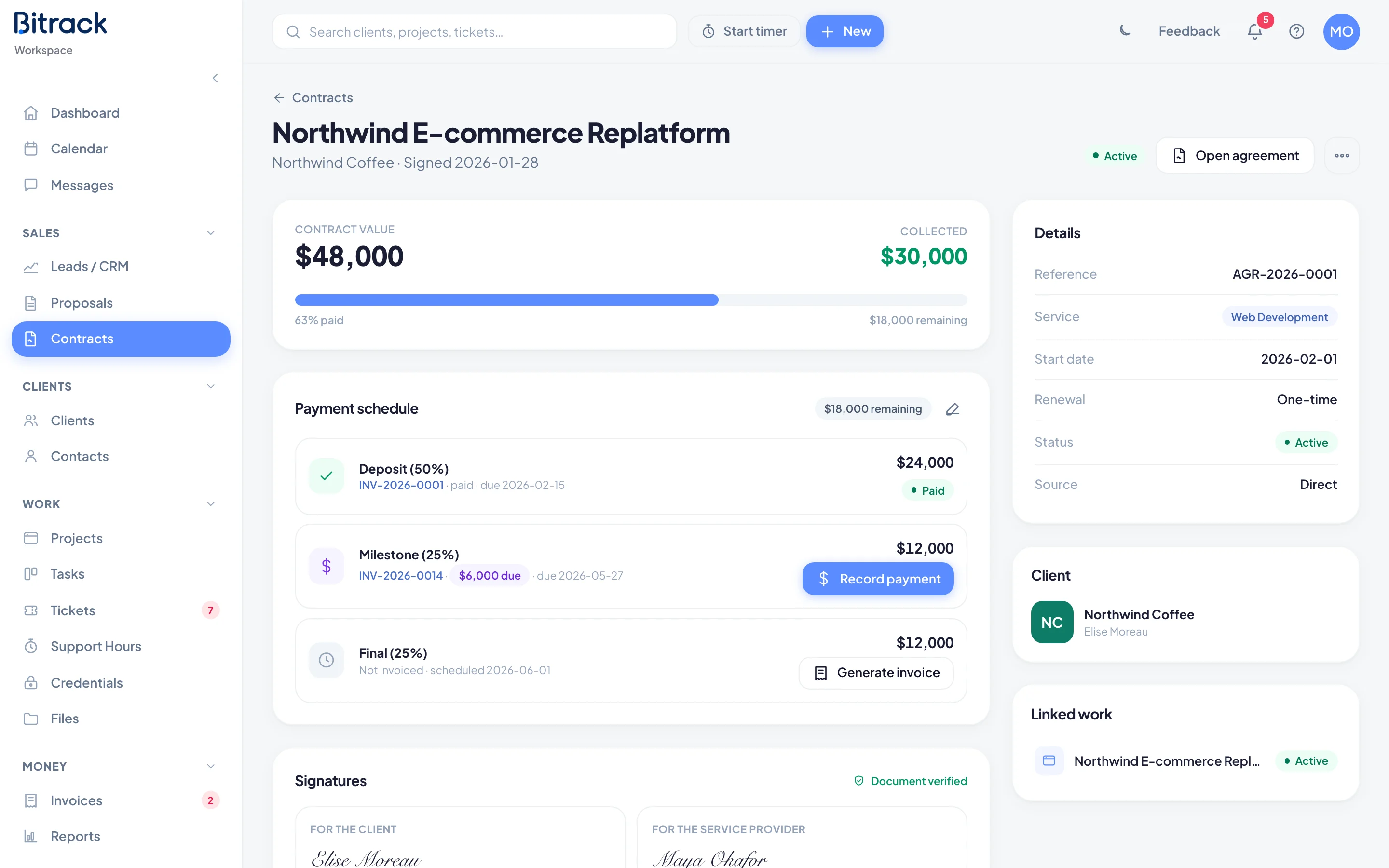
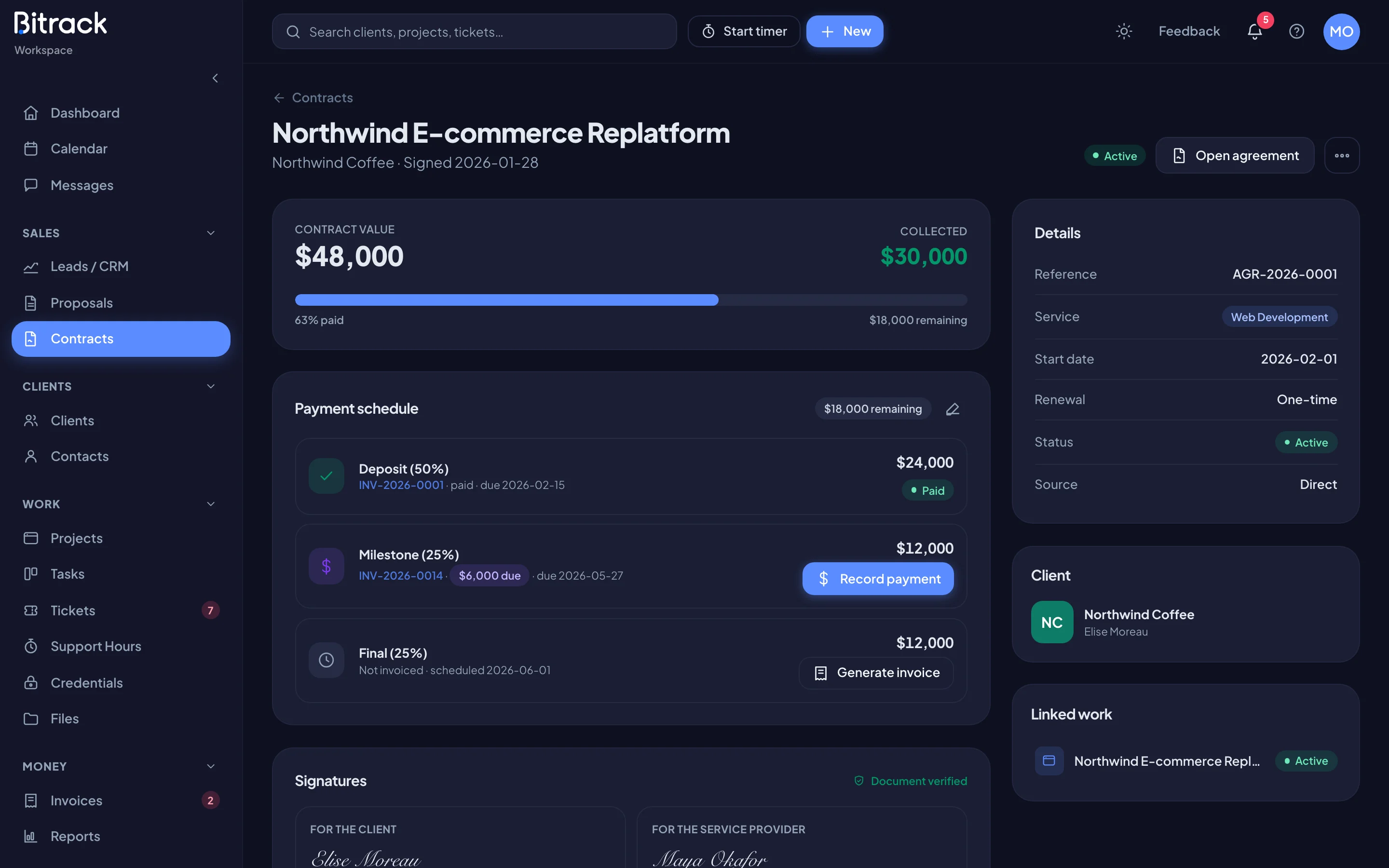
The Signatures card on the contract’s page shows both signatures with the time, device and IP address of each.
Next to the card’s title you’ll see either:
- Document verified: the agreement still matches the fingerprint taken when it was sent.
- Changed since sent: the agreement no longer matches, so the signatures don’t cover what’s there now.
The fingerprint itself is shown as SHA-256 under the signatures.
The signature certificate
Choose Signature certificate to download a PDF record of the signing. It lists:
- the agreement, its reference and status, and when it was sent
- the document fingerprint, and whether the document is unchanged since sending
- for each signer: their name, title, email, when they signed, how they signed, their IP address and device, and the fingerprint of the document they signed
Your client can download the same certificate from their link after they’ve signed.
If your client declines
Instead of signing, your client can choose Decline this agreement and give an optional reason. The contract moves to Declined and the reason shows at the top of its page.
Choose Revise & resend to fix what they raised and send a new version on the same link. See Renewals and changes.
Void a contract
If an agreement should no longer stand, open the More actions menu and choose Void contract. Add an optional reason and confirm.
A void contract stays on record, and its signing link stops working. Linked projects and support plans keep running. This can’t be undone.