Import clients and contacts
Bring your clients and their people into Bitrack from a CSV file, checking every row before anything is created.
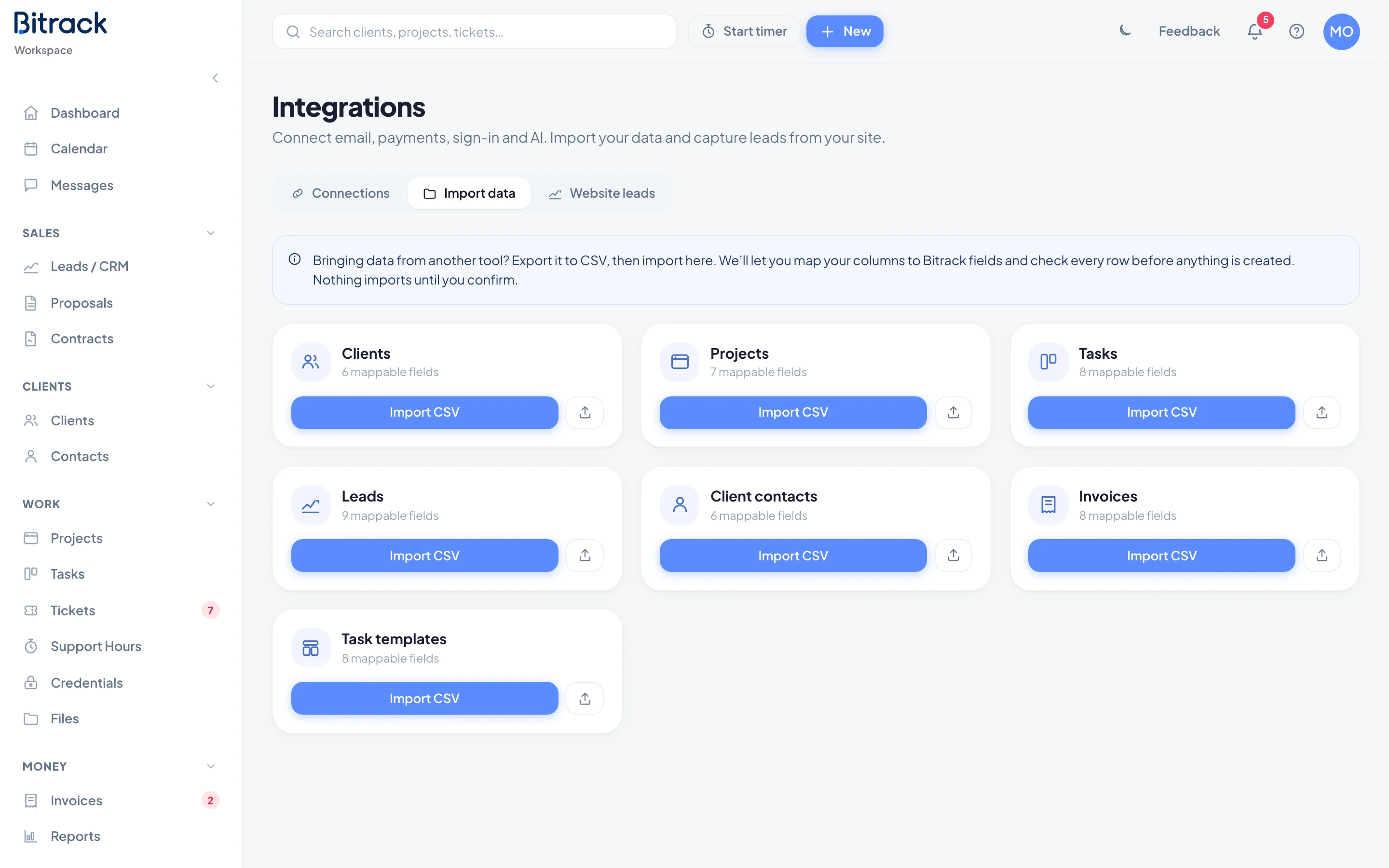
Moving from another tool or a spreadsheet? Export your data to a CSV file, then import it in Integrations. You match your columns to Bitrack fields, and Bitrack checks every row before anything is created. Nothing imports until you confirm.
What you can import
| Import | Fields | Required |
|---|---|---|
| Clients | Name, Contact person, Email, Phone, Industry, Location | Name |
| Client contacts | First name, Last name, Email, Phone, Client, Role | First name |
Get a template
Not sure how to lay out your file? Each card has a Download a CSV template button next to Import CSV. The template has the right column headers and one example row. You can also choose Download template inside the import window.
Your file needs a header row first, then one row per client or person. It can be up to 5 MB and 2,000 rows. Files that use semicolons instead of commas, as some versions of Excel save them, work too.
Import your file
- Go to Integrations and choose the Import data tab.
- On the Clients or Client contacts card, choose Import CSV.
- Drop your CSV file in the window, or choose it to browse.
- Check how your columns are matched under Your column and Bitrack field. Bitrack guesses from your headers; change any that are wrong, or choose Skip to leave a column out.
- Choose Check rows. Nothing is created yet.
- Read the result: how many rows are ready, and which will be skipped and why, by line number.
- Choose Import to create the rows that passed.
When it’s done, you see how many were imported and how many were skipped, and Bitrack takes you to Clients or Contacts.
Why rows are skipped
Bitrack skips a row rather than guessing. Common reasons:
- A required field is empty, such as a client’s Name or a contact’s First name.
- The client already exists in Bitrack, or appears twice in your file.
- An email address isn’t valid.
- A contact’s Client doesn’t match the name of an existing client.
- A contact with the same email already exists at that client.
Fix those rows in your file and import it again. Clients you already imported are skipped as duplicates, and so are contacts whose email is already at that client.
What imported records look like
- Clients come in as companies (B2B), with health set to Healthy, this year as Client since, and your default billing currency. Contact person becomes their primary contact.
- Client contacts join the client you named, with Role as their title. A contact with no client becomes a standalone contact.
You can change anything afterwards from the client’s page or the Contacts directory. See Add a client and Contacts.