Add a client
Add a company or a person as a client, and find, filter and tidy up your client list.
Clients sit at the top of everything in Bitrack: projects and their work hang off them. Add a client first, then start projects for them.
Add a client
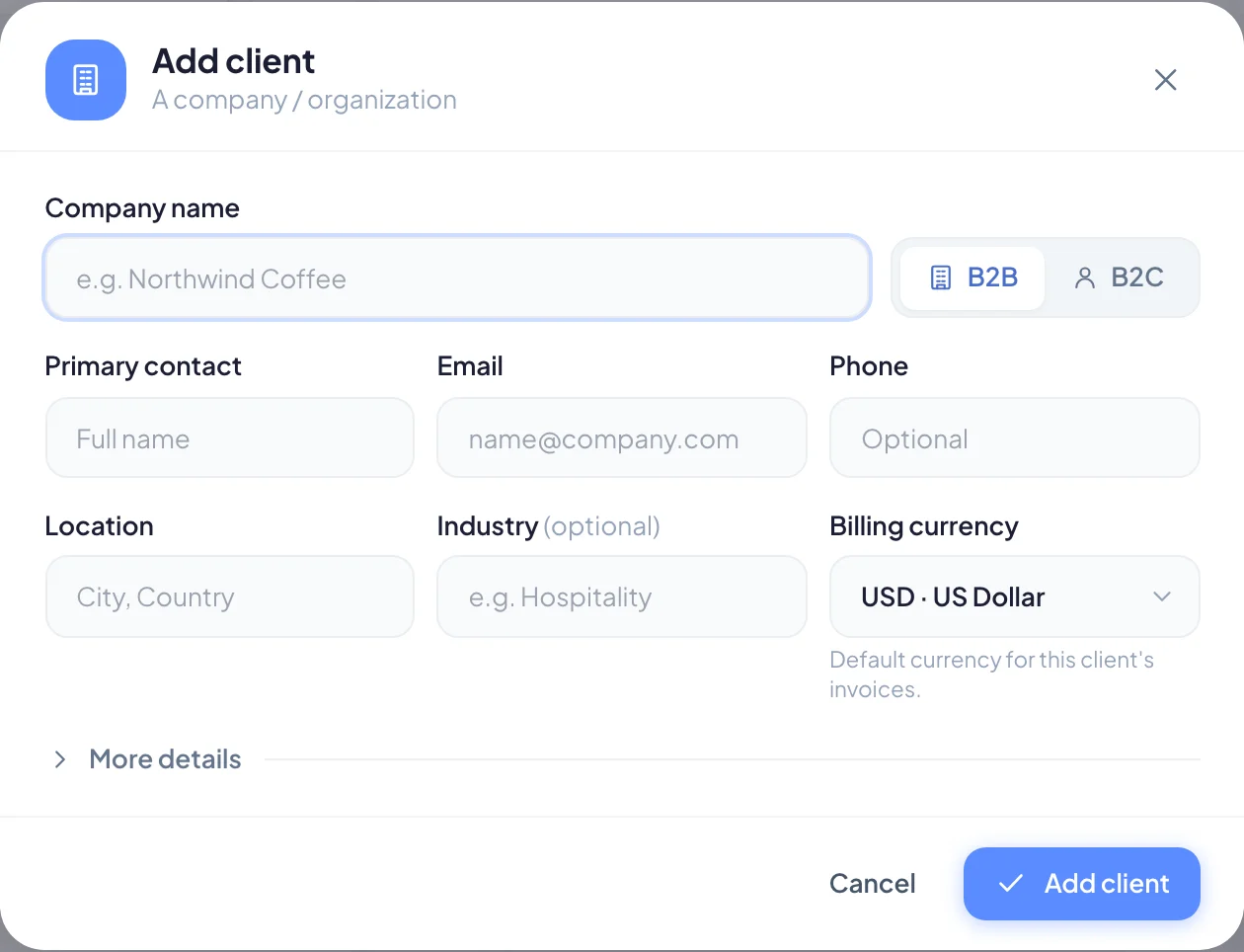
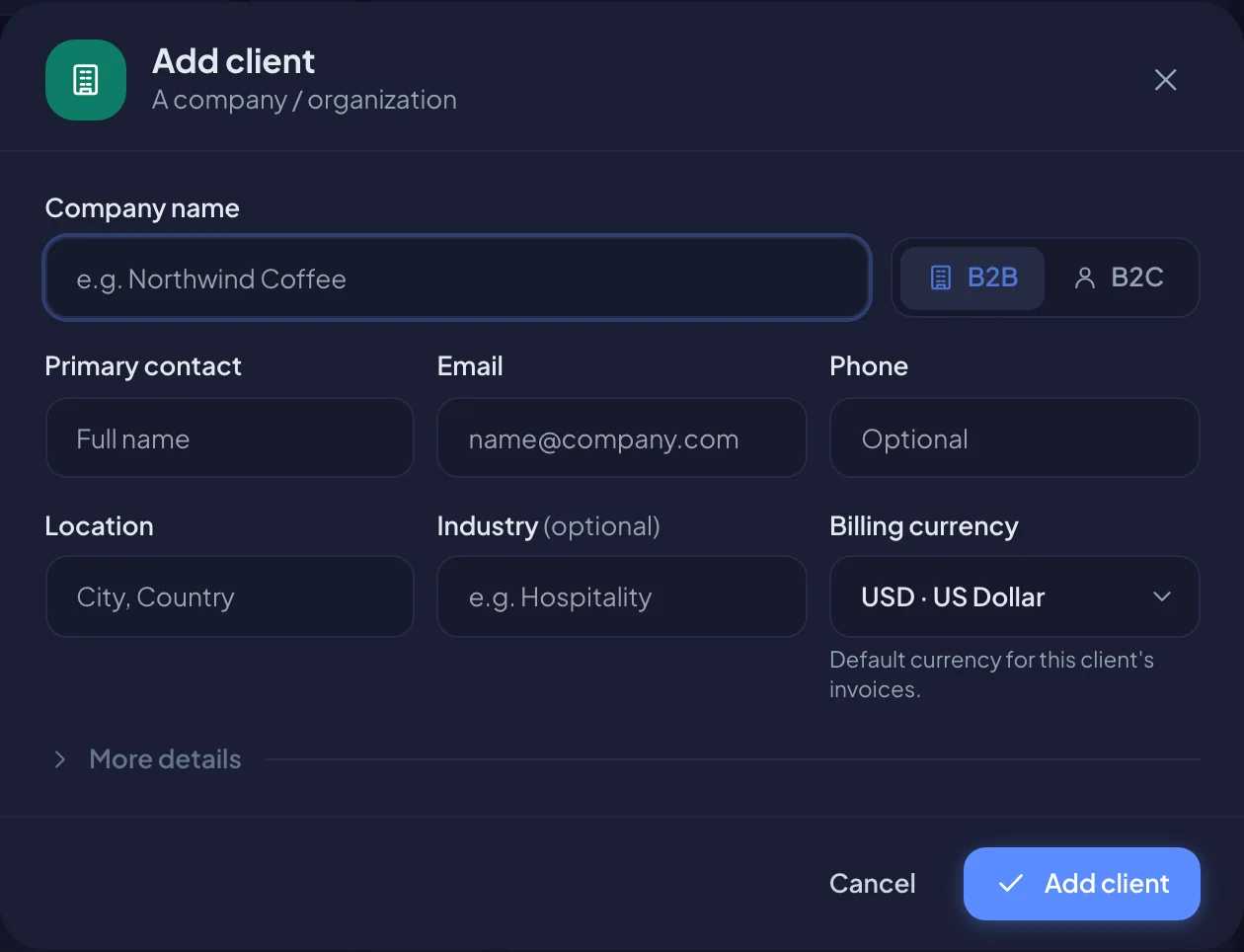
- Go to Clients and choose Add client.
- Choose the type: B2B for a company or organization, or B2C for an individual person.
- Enter the Company name (or Full name for an individual).
- Fill in the contact details you have: Primary contact (companies only), Email, Phone and Location.
- Optionally add the Industry and check the Billing currency.
- Choose Add client.
Bitrack adds the client and opens their page straight away.
More details
Choose More details to add extra information. You can also add or change these later.
| Field | What it’s for |
|---|---|
| Client since | The year you started working together. |
| Health | Healthy, Needs attention or At risk. Use it to flag clients who need care. |
| Account lead | The person on your team who looks after this client. |
| Colour | The colour of the client’s logo tile. |
| Tags | Labels for grouping clients, if your workspace has tags. |
Any custom fields your workspace has set up for clients also appear here. Fields marked with * are required, and More details opens on its own when there are any.
Find a client
Your client list shows each client as a card. Use Cards and Table at the top to switch between a card grid and a table.
Use the filter bar to narrow the list:
- Search by name or industry… also matches the primary contact.
- Filter by type (All types, B2B (companies), B2C (individuals)), industry, health and tag.
- Sort by Name (A–Z), Most projects, Newest clients or Health (at risk first). You may also see Most open tickets and Highest revenue, depending on your workspace and access.
- Once you’ve archived a client, choose Archived to see archived clients.
Bitrack remembers your view and filters. Choose Clear in the filter bar to reset them.
Act on several clients at once
- Choose Select all, or select the clients you want.
- Use the bar at the bottom of the screen: Add tag, Health, Export CSV, Archive or Delete.
You only see the actions your role allows.
Archive or delete a client
From a client’s page, choose More (the three dots), then Archive client or Delete client.
- Archive hides the client from active views. Every project, file and note is kept, and you can restore it anytime with Restore.
- Delete moves the client and its projects to the Trash. Before you confirm, Bitrack tells you exactly how many projects, tasks and credentials go with it.