Contacts
Find everyone you work with in one directory, add people beyond a client’s primary contact, and export the list.
Contacts is your directory of people: client contacts and your sales pipeline, in one place. It gathers people from records you already have, so you rarely need to add anyone twice.
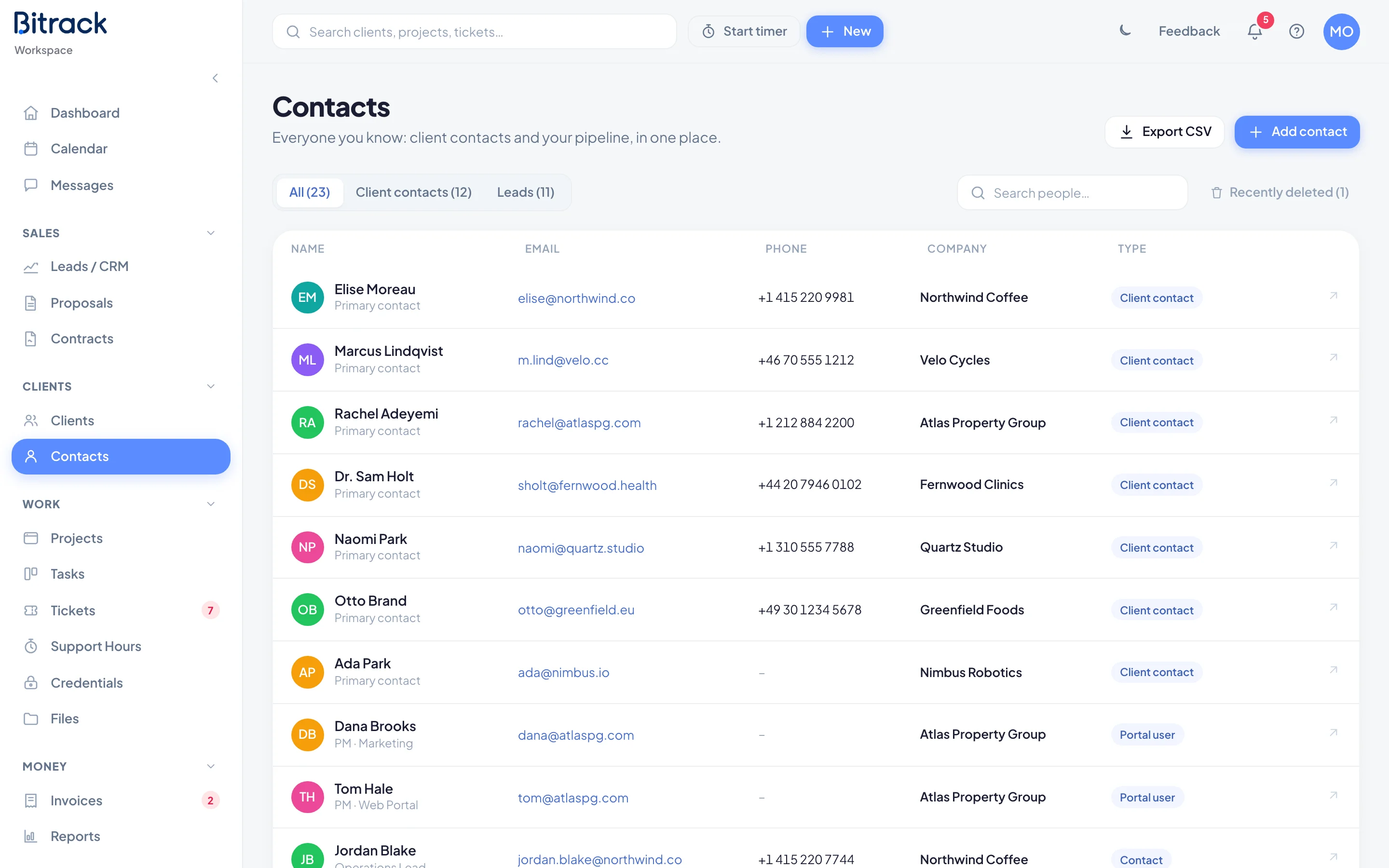
Who’s in the directory
| Type | Where they come from |
|---|---|
| Client contact | The primary contact on each client. |
| Portal user | People who can sign in to a client’s portal, if your workspace uses it. |
| Contact | People you’ve added yourself, at a client or on their own. |
| Lead | The contact person on each lead, if your workspace uses Leads. |
If the same email address appears in more than one place, the person is listed once. You only see people from clients and leads you have access to.
Find someone
- Use the buttons at the top to show All, Client contacts or Leads. Each shows how many people it holds.
- Type in Search people… to search by name, email, phone, company or title.
- Choose an email address to write to that person.
- Choose a company name, or the arrow (Open record) at the end of a row, to open the client or lead.
Add a contact
Add the people you work with beyond a client’s primary contact, such as a marketing director or the billing contact.
- Go to Contacts and choose Add contact.
- Enter their Name, and optionally their Title, Email and Phone.
- Under Client, choose the client they work for, or leave No client for someone standalone.
- Choose Add contact.
You can also add someone from a company client’s page: choose Add on the Other contacts card.
Standalone contacts
A contact with No client is standalone. Use it for people who aren’t tied to a client yet, such as a freelancer, a partner or a referral. They appear in the directory with no company, and you can link them to a client later by editing them.
Edit or delete a contact
Point at a contact you added and choose Edit contact or Delete contact. A deleted contact moves to the Trash. Their client and any leads stay as they are.
Primary contacts, portal users and lead contacts come from their own records, so you change them there. For example, edit the client to change their primary contact.
Export to CSV
- Choose the list you want (All, Client contacts or Leads) and search if you need to.
- Choose Export CSV.
Bitrack downloads the people you’re looking at, with their name, title, email, phone, company and type. Exporting needs permission; if you don’t see Export CSV, ask an Owner or Admin.
To bring contacts into Bitrack from a spreadsheet, see Import clients and contacts.