Comments and versions
Let your client ask questions about any part of a proposal or agreement, reply in one place, and see exactly what changed between versions.
Clients often have a question or a small change before they say yes. Instead of a long email thread, they comment right on the proposal or agreement, and you reply in Bitrack. Each version you send is saved, so everyone can see what changed.
Where your client comments
Below the document, on their private link and in the portal, your client sees Questions or changes?
- They choose what it’s about: About the whole document, or one section or clause.
- They write their question or the change they’d like.
- On the private link, they add their name the first time. In the portal they’re already signed in.
- They choose Send comment.
They can also reply to an earlier comment in the same thread.
The proposal’s or agreement’s owner gets a notification with the comment, so nothing waits in an inbox.
Read and reply
- Open the proposal or agreement.
- Choose the speech-bubble button in the header (Comments & versions). A number on it shows how many comments are still open.
- The Comments & versions window opens on Comments. Each comment shows the section it’s about and the version it was made on.
- Type in Reply to your client… and choose Reply.
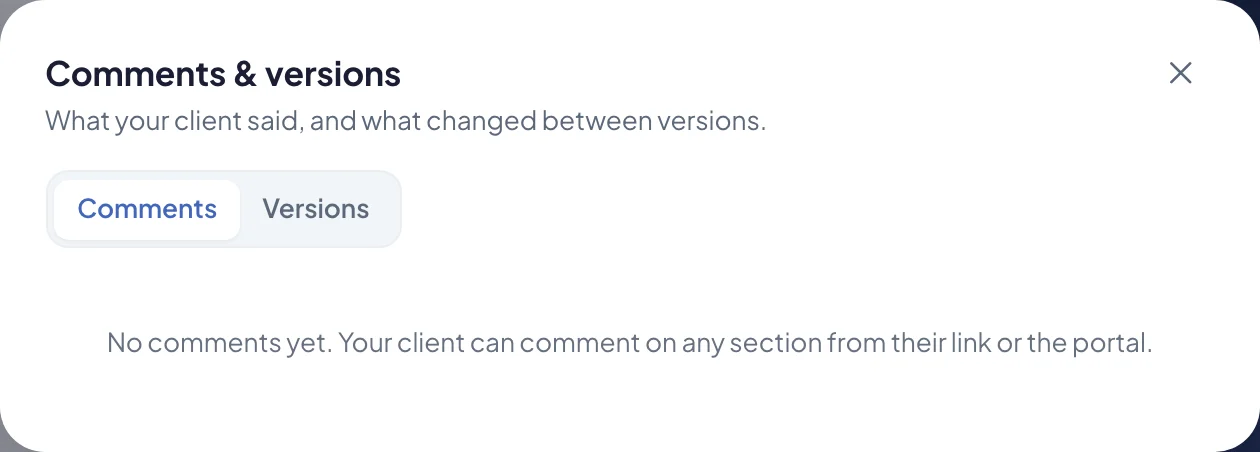
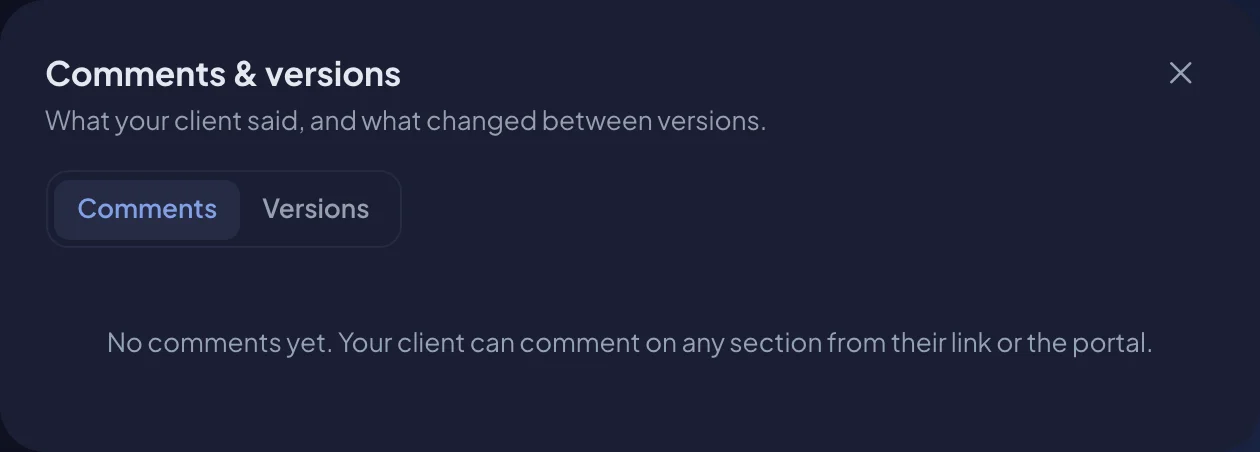
Your reply shows on the client’s link and in their portal, under their comment.
Resolve a comment
When a question is answered or a change is made, choose Mark resolved. The comment fades and no longer counts as open. Your client sees it as Answered. Choose Reopen if it needs more work.
Versions
Every time you send a proposal or agreement, Bitrack saves that version. When you change something and send it again, the new version is compared with the one before.
In the Comments & versions window, choose Versions to see each version, when it was sent, and what changed:
- Added, Removed, Renamed or Changed next to each section or clause,
- the words and figures added in green, and those removed struck through. Price changes show here too.
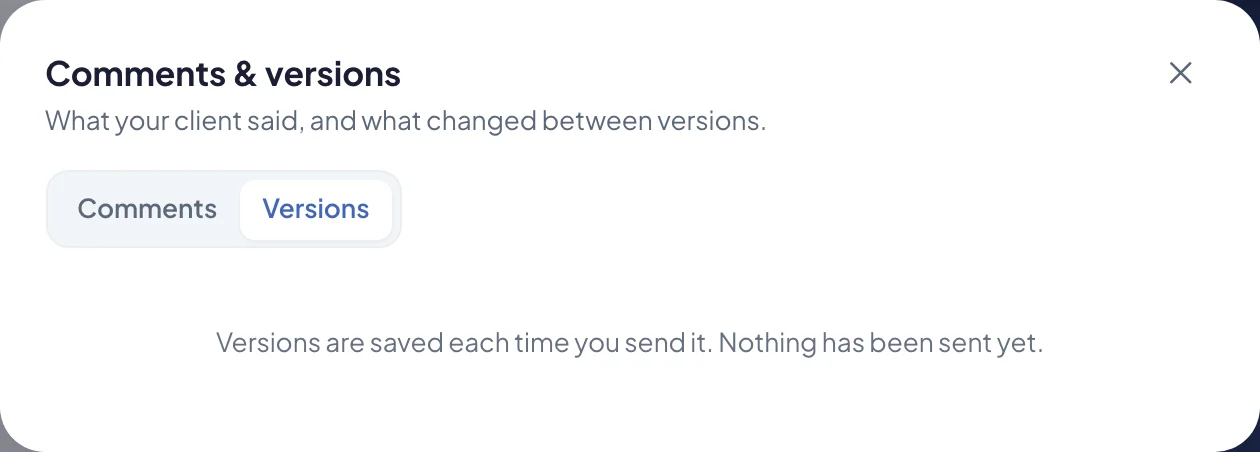
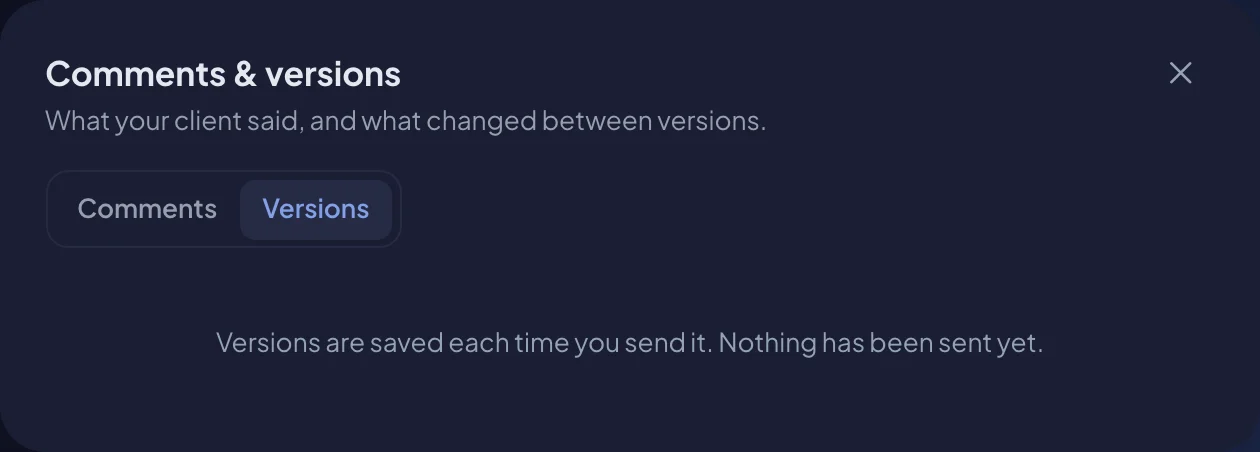
The first version simply says it was the first version sent. If you only changed the look, such as the design or cover, you’ll see Nothing in the wording changed.
What your client sees in a new version
When your client opens a revised version, a card at the top of the panel reads What changed in version 2 (or whichever version it is). They can open it to see the same list of changes, so they don’t have to reread the whole document to find what’s new.
Changing a document after sending
A sent proposal or agreement is locked, so the version your client reads never changes under them:
- For a declined proposal or agreement, choose Revise & resend to make a new version on the same link.
- For an agreement that’s out for signature, choose Edit anyway to withdraw it and edit it.
Read more in Renewals and changes, Send and track a proposal and Sign an agreement.