Optional add-ons and packages
Let your client tick optional extras or pick a package in the proposal, see the total update, and accept exactly what they chose.
Not every client wants the same thing. With interactive pricing, your client builds their own price inside the proposal: they tick the extras they want, or pick one of your packages, and the total updates as they go.
Make a line an optional add-on
- Open a draft proposal and find its Pricing section, in Breakdown mode.
- On the line you want to offer as an extra, choose the + button next to its price.
- The line is marked Optional, with a tick box in front of it.
- Choose the tick box to decide how it starts:
- Ticked: the extra is included when your client opens the proposal, and they can untick it.
- Unticked: it’s left out, and they can tick it to add it.
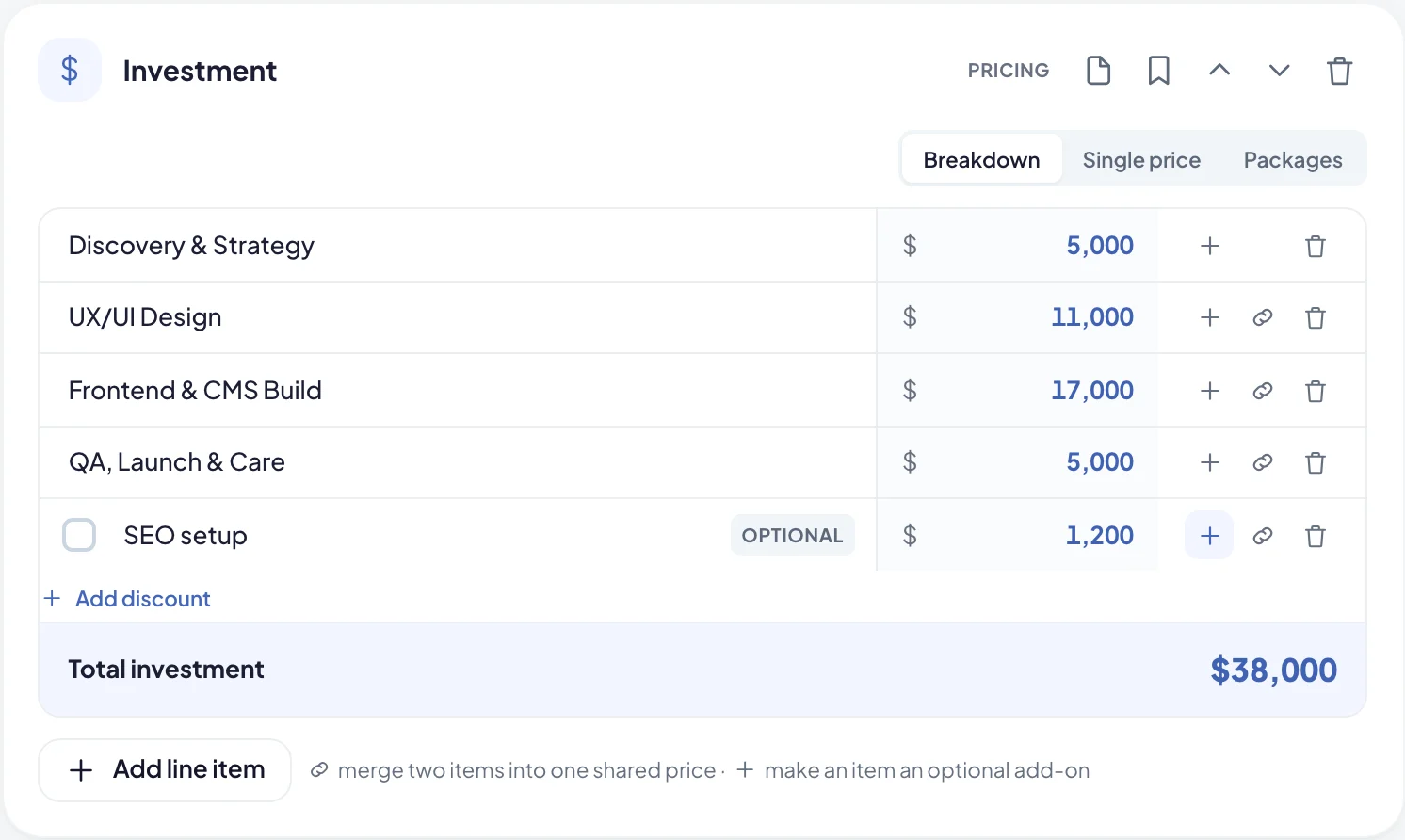
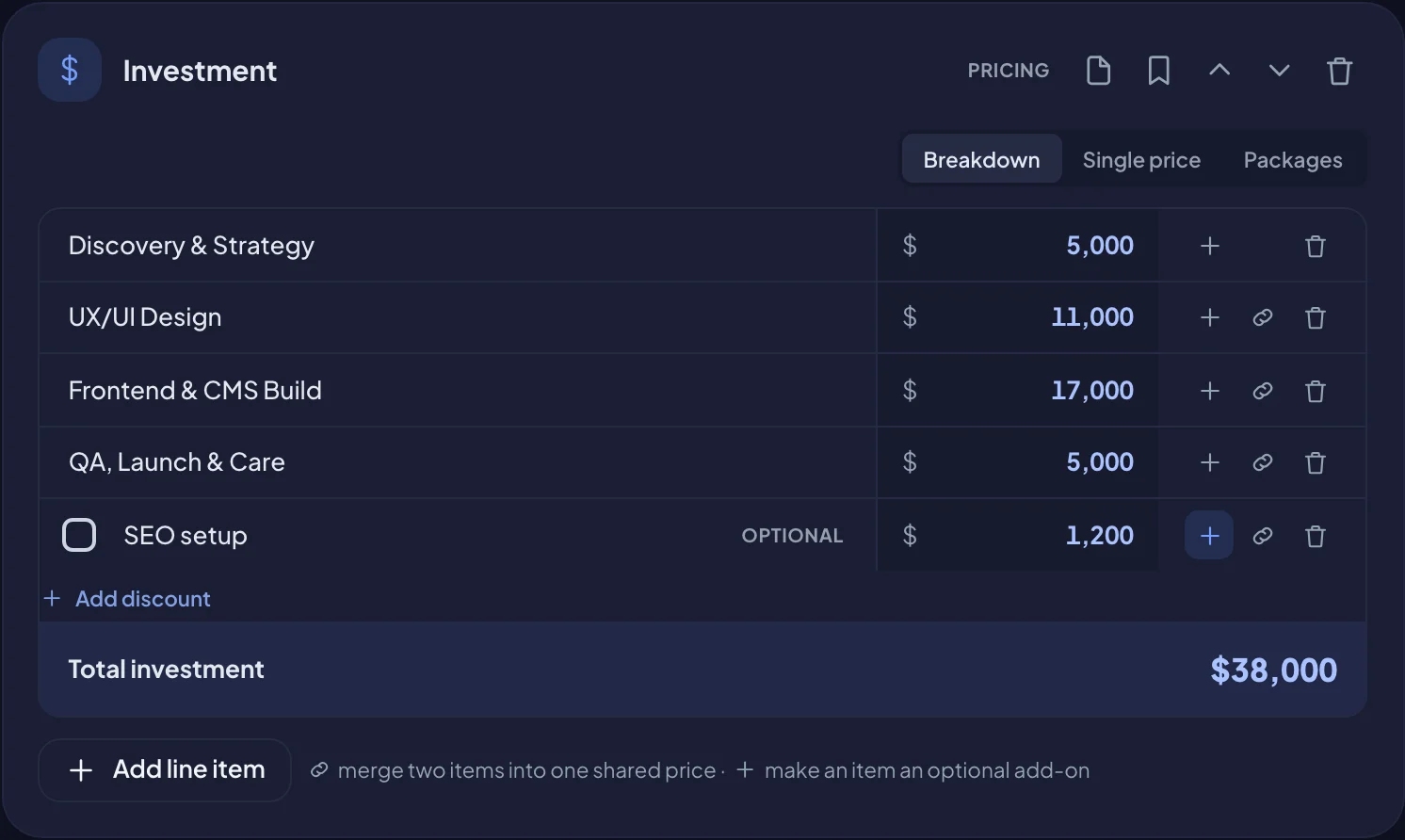
An add-on only counts towards the Total investment when it’s ticked. Its price is always shown, so your client knows what it costs.
To make it a fixed part of the price again, choose the + button once more.
Offer packages
Packages let your client choose between two to four versions of the work, such as Essential, Growth and Premium.
- In the Pricing section, choose Packages.
- Three example packages are added for you. For each one:
- change its name and price,
- list What’s included, one per line.
- Choose Add package for a fourth, or the bin icon to remove one.
- Choose Mark as recommended on the package you suggest. It’s highlighted for your client.
Until your client picks, the recommended package counts towards the total. If none is recommended, the first one does.
You can still add a discount under the packages, as with any pricing section.
What your client sees
Your client makes their choices on their private link, or in the portal under Billing → Documents.
- Add-ons show as tick boxes. Ticking or unticking one updates the total straight away.
- Packages show side by side with the message Choose the package that suits you. The total updates as you choose. They choose one to select it.
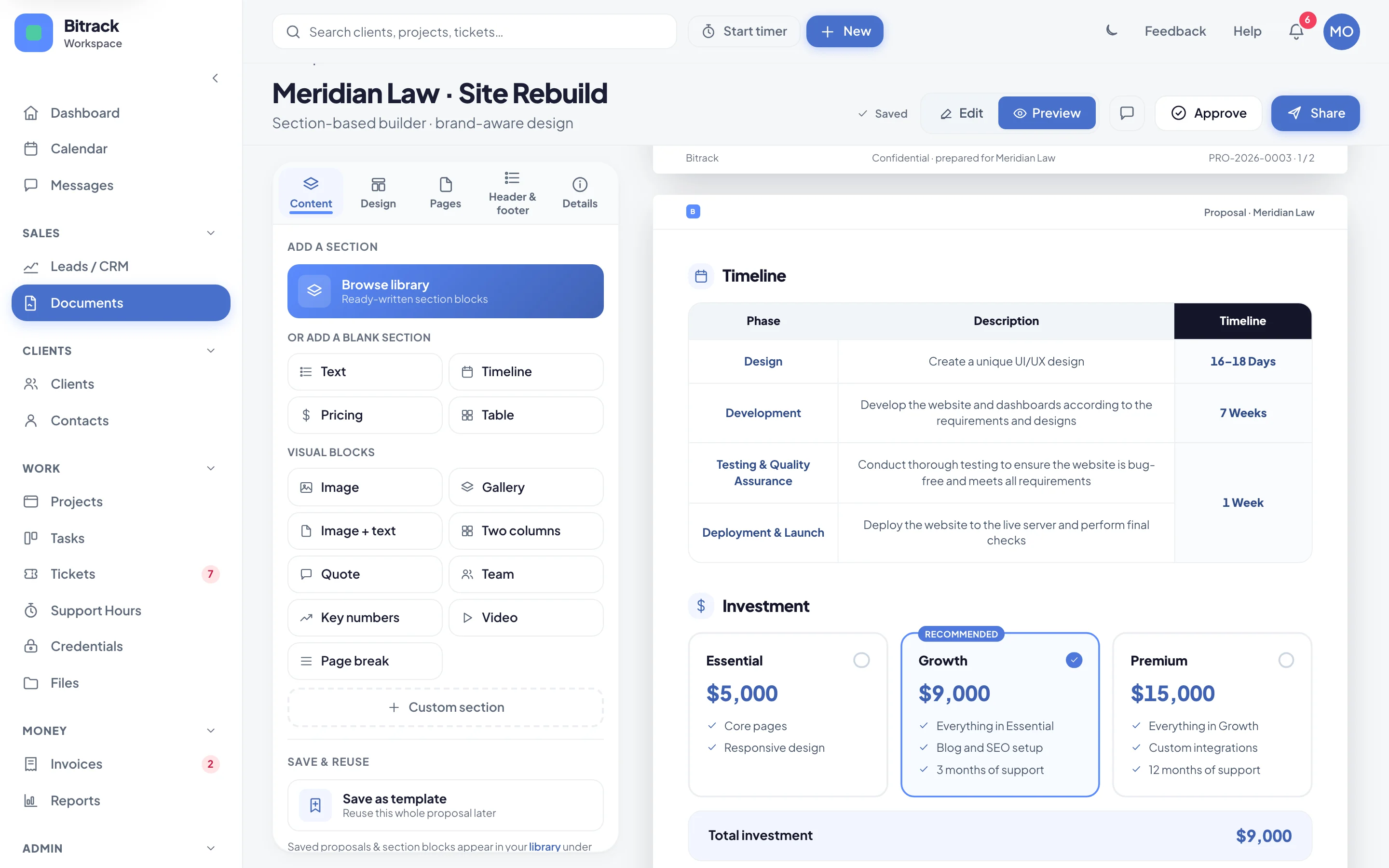
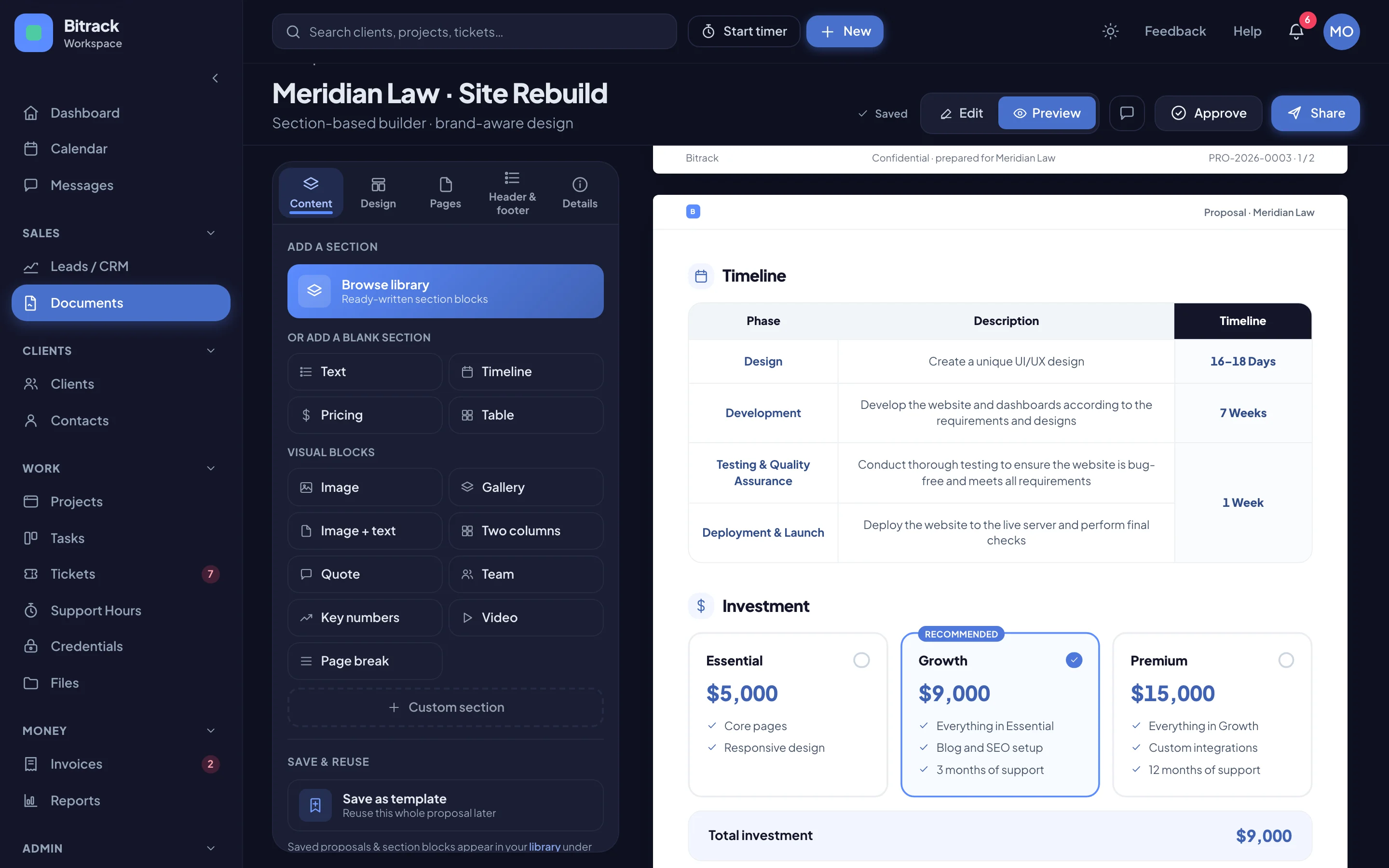
Their choices are saved as they make them. If they close the page and come back, or a colleague opens the same proposal, the same choices are still there. You see them too when you open the proposal.
When your client accepts
When your client accepts, Bitrack uses exactly what they chose:
- The accepted total is the total of the package and add-ons they picked.
- The draft agreement started from the proposal has a Fees clause with the same lines and amounts. Add-ons they didn’t tick are left out.
So you never have to retype the price, and the agreement always matches what your client said yes to. See Create an agreement.
Tips
- Keep add-ons to a few clear extras, such as Copywriting or 12 months of support. Too many choices slow people down.
- Use a Single price section for the core work and a second Pricing section for the extras if you want them on their own.
- To see what each option costs you to deliver, see Estimate cost and margin.