Arabic and bilingual documents
Write a proposal or agreement in Arabic, right to left, or in English and Arabic side by side for clients who need both.
Many clients in the region read, sign and file documents in Arabic, or need both languages in one document. Every proposal and agreement has a Language setting for this.
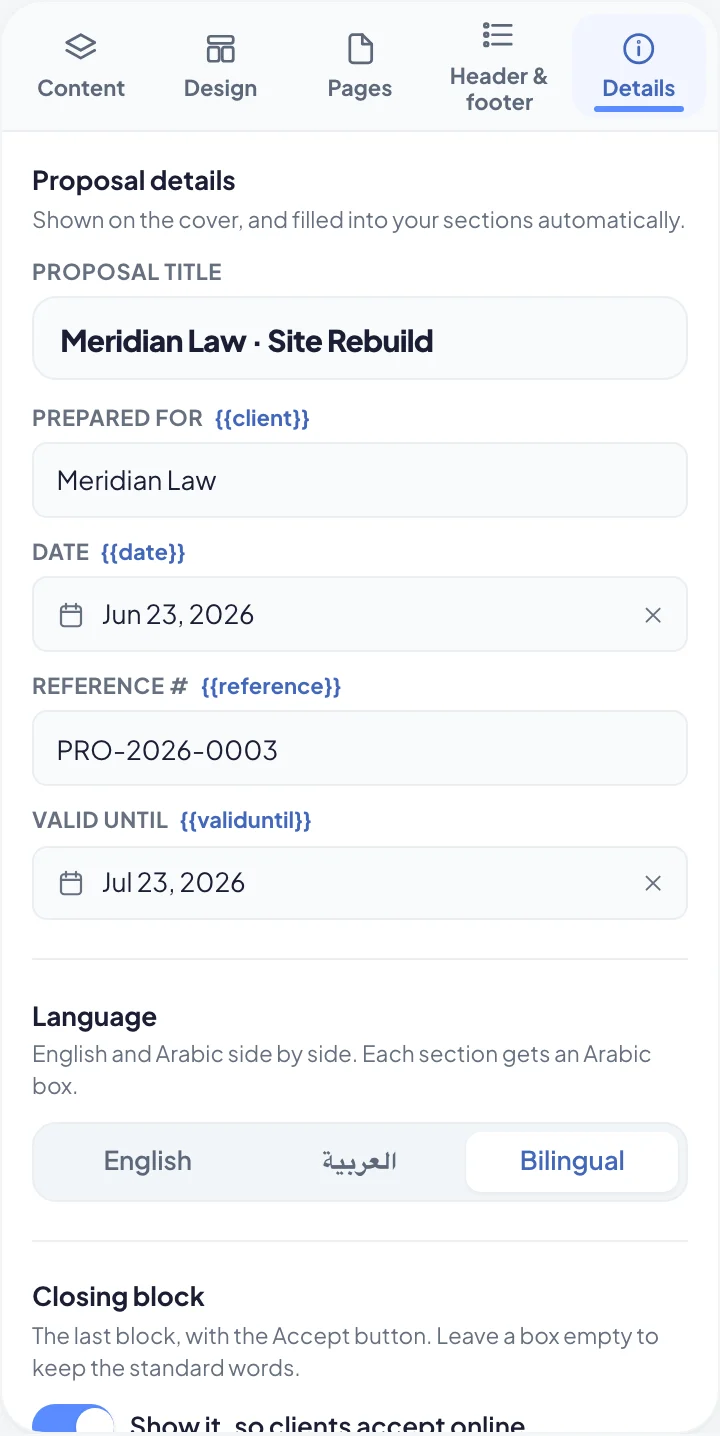
Choose the language
- Open a draft proposal or agreement.
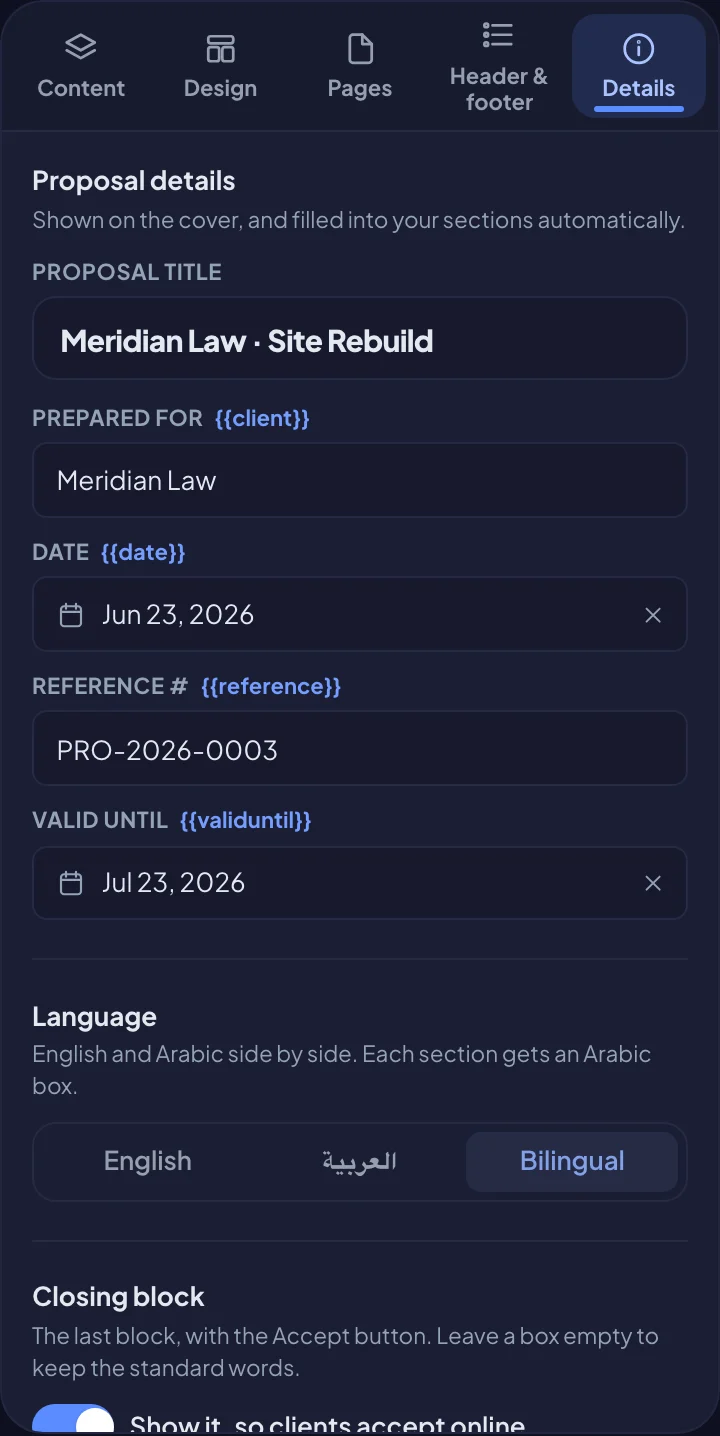
- In the panel on the left, open the Details tab.
- Under Language, choose:
- English: the default.
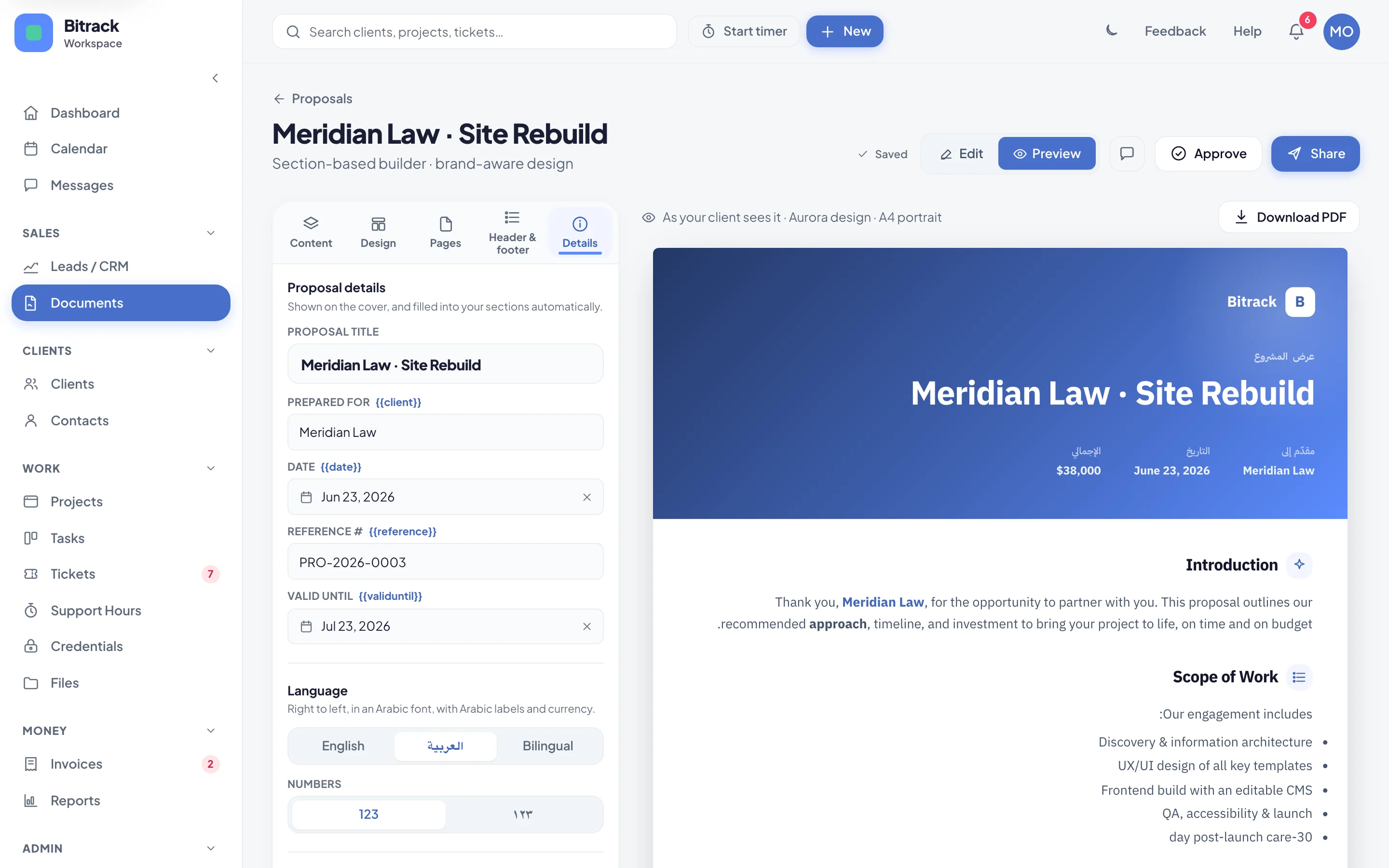
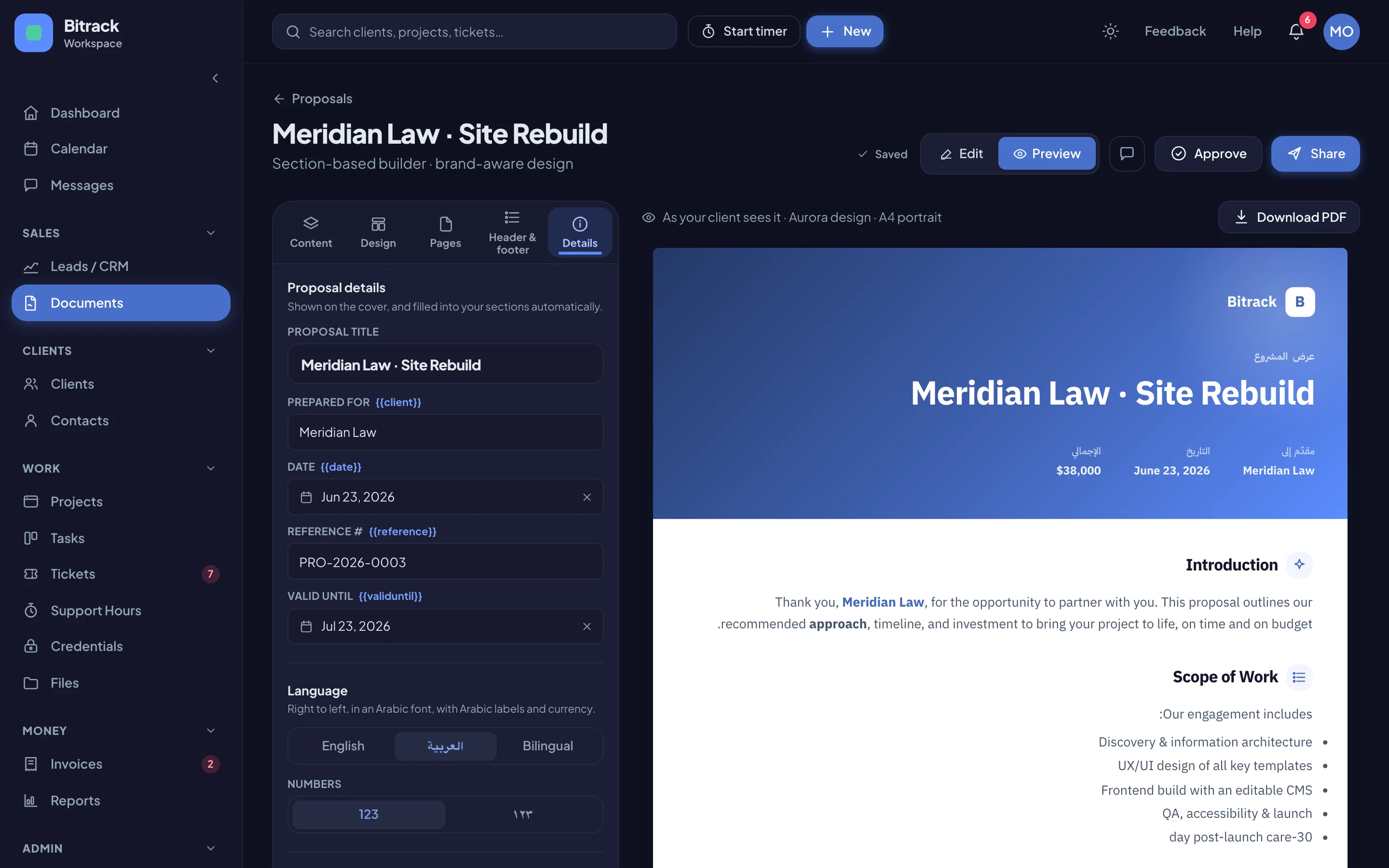
- العربية: the whole document in Arabic.
- Bilingual: English and Arabic side by side.
The pages beside the panel change straight away, and so does the PDF.
Arabic documents
With العربية, the document reads right to left, in an Arabic font. Bitrack’s own labels switch to Arabic too: the cover, prices and totals, the signature block and the DRAFT watermark.
Numbers and currency
Under Numbers, below the language, choose 123 for Western digits or ١٢٣ for Arabic digits. Prices in Arabic documents show the currency in Arabic, such as د.أ for Jordanian dinars or ر.س for Saudi riyals.
You write the content in Arabic yourself:
- In Edit mode, type each section or clause title in Arabic.
- Type the text in Arabic. The text boxes switch to right to left for you.
- Price lines, timelines and tables are typed in Arabic in the same way.
Fonts
The Arabic text follows your Fonts on the Design tab. Pick one of the Arabic fonts, such as Cairo, Tajawal or Amiri, or upload your own and tick This font has Arabic letters. If the font you pick has no Arabic letters, Bitrack uses a matching Arabic font: a clear sans beside sans fonts, and a classic Naskh beside serifs.
Arabic header and footer
The header and footer have their own Arabic words. On the Header & footer tab of an Arabic or bilingual document, switch between English and العربية at the top, and type each set in its own boxes. In Arabic, the boxes run right to left.
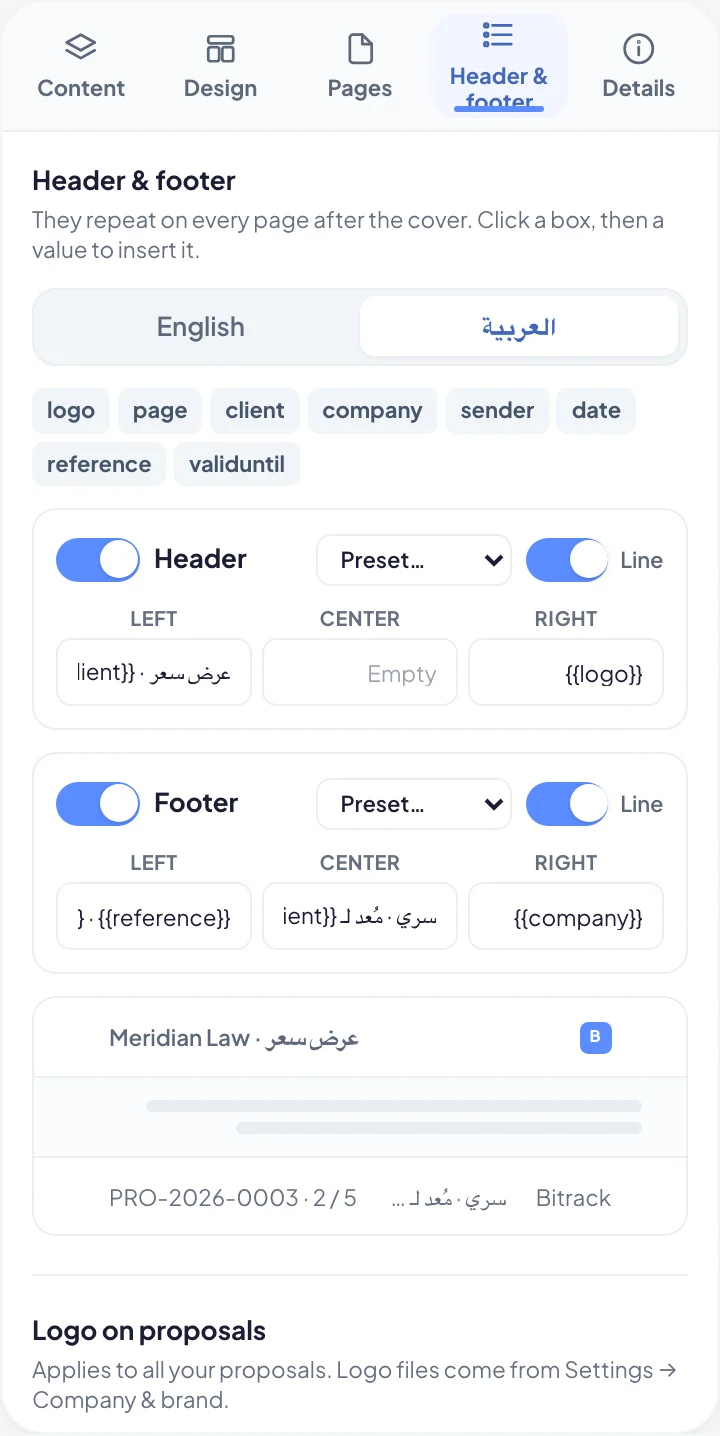
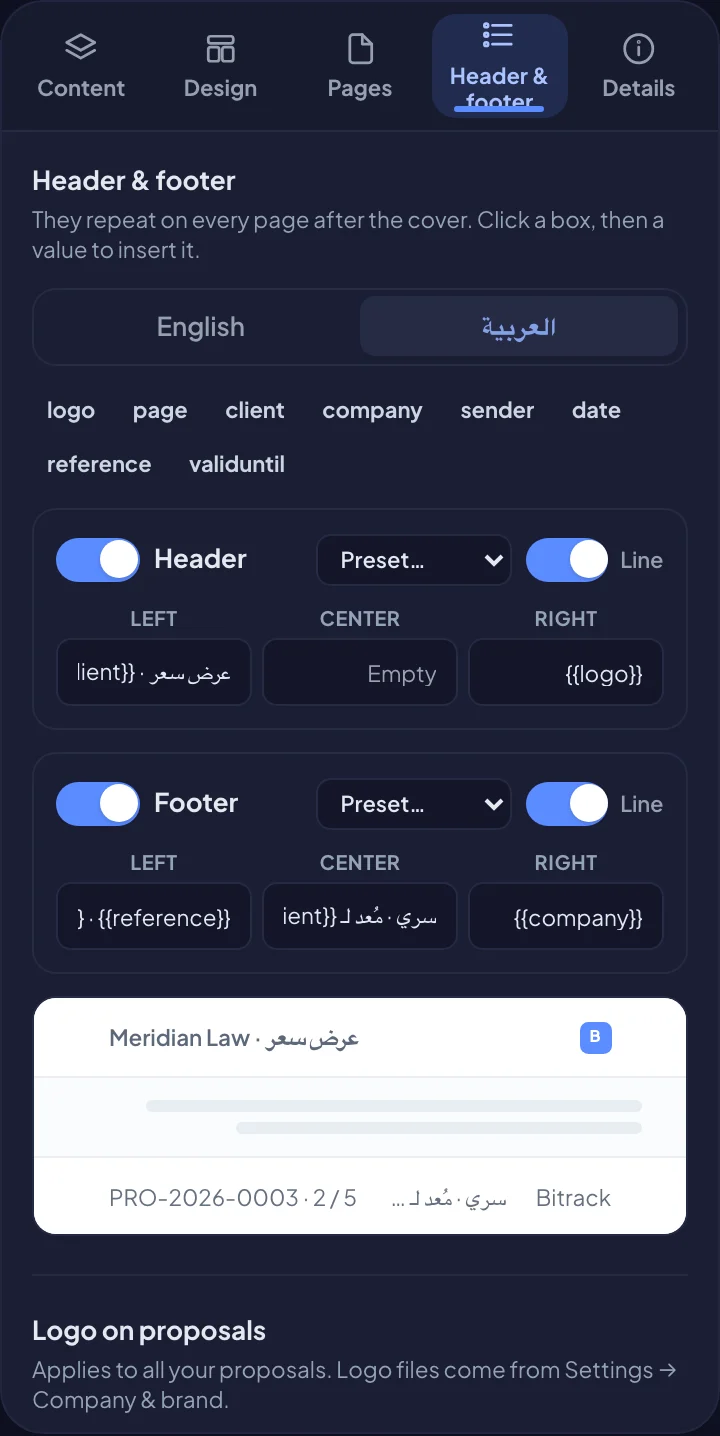
The Arabic set starts from the English one, so values such as the logo and the page number carry over. Retype the words once in Arabic.
On proposals, the closing block on the Details tab has Arabic boxes too, for the Small line, Headline and Button.
Bilingual documents
With Bilingual, each section shows the English and the Arabic side by side, and Bitrack’s labels show in both languages.
In Edit mode, every section or clause gets an Arabic title and text box under the English. In proposals it’s marked Arabic.
- Write the English title and text as usual.
- Below it, type the Arabic title.
- For text sections and clauses, type the Arabic text below it.
Pictures, prices, timelines and tables appear once, with the Arabic title beside the English one. If you leave an Arabic title empty, only the English title shows. An empty Arabic text box leaves the Arabic side of that section blank, so fill in every one before you send.
What your client sees
Your client reads the document in the language you chose on their private link, in the portal and in the PDF. Arabic documents open right to left. Bilingual documents show both languages on each page, so everyone at the client can read the same copy.
They accept a proposal or sign an agreement in the same way as in English. See Send and track a proposal and Sign an agreement.
Good to know
- You can switch the language at any time while the document is a draft. What you typed in each language is kept.
- Variables, such as the client’s name and dates, fill in for you in both languages.
- The Fees clause and price lines keep their numbers, so the totals are the same in every language.