Pictures and visual blocks
Add images, galleries, quotes, your team, key numbers and videos to a proposal, and keep your pictures in one library.
Text and prices tell your client what you’ll do. Pictures show them. Visual blocks are sections you add like any other, and they take on your document’s design and colours.
Add a visual block to a proposal
- Open a draft proposal in Edit mode.
- In the panel on the left, on the Content tab, find Visual blocks under Add a section.
- Choose the block you want. It’s added at the end of the proposal.
- Move it into place with the arrows, or drag it by its icon.
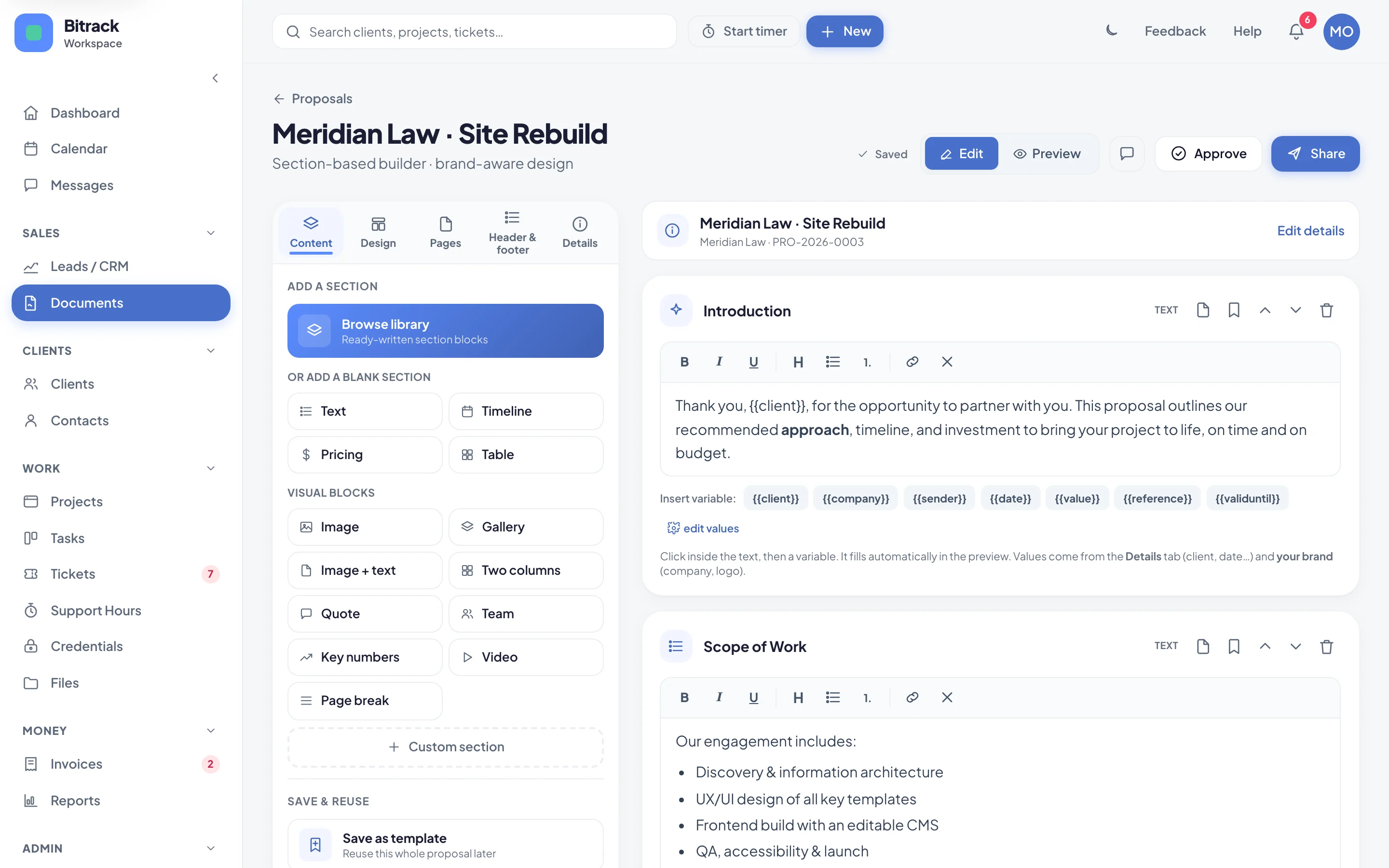
Most blocks have a Show section title switch. Turn it off when the picture speaks for itself.
Add several sections at once
In Browse library, tick the sections you want, in the order you want them. The bar at the bottom shows how many are selected. Choose Insert N sections, such as Insert 3 sections, to add them all together. Choose Clear to start again. Agreements work the same way with clauses.
The blocks
| Block | What it’s for |
|---|---|
| Image | One picture. Pick its Width on the page (Full, Wide, Medium or Small) and add an optional caption. |
| Gallery | Several pictures in a grid of 2, 3 or 4 Columns, each with its own caption. Choose Add image for more, and use the arrows to reorder them. |
| Image + text | A picture beside a paragraph. Choose Image left or Right. |
| Two columns | Two blocks of text side by side, such as before and after, or phase one and phase two. |
| Quote | A client testimonial: the quote, Who said it and Their role, with an optional photo. |
| Team | The people on the project, with a name, role and photo each. Choose Add a person for more, and how many show Per row. |
| Key numbers | Up to four figures with a label each, such as +120% and More organic traffic. |
| Video | A link to a video on YouTube, Vimeo, Loom or similar. |
| Page break | The next section starts on a new page. |
Videos
Paste the video’s full link, starting with https://, and add an optional title under it. You can also choose Add a cover picture (optional). Your client sees the picture with a play button, and the video opens in a new tab, on screen and from the PDF.
Agreements
Agreements can use four of the blocks: Image, Image + text, Two columns and Page break. You’ll find them under Visual blocks on the Content tab of the panel on the left of the agreement builder.
Your image library
Every picture you upload goes into your workspace’s image library, so your team can reuse it in any proposal or agreement.
When a block needs a picture, choose it (for example Choose or upload an image) to open Choose an image:
- Drop images in, or click to upload. PNG, JPG and WebP files up to 15 MB each are accepted. Large photos are resized for the page.
- Or pick one under Your images that you or a teammate uploaded before.
To change a picture later, choose Replace on it.
Remove an image from the library
Hover over the image in the library and choose the bin icon, then Remove. Documents that already use it keep it. You just won’t be able to pick it for new ones.
What your client sees
Your client sees the pictures in place on their link, in the portal and in the PDF, laid out in your document’s design, fonts and colour.
To change the page size, fonts, cover or page background, use the Design and Pages tabs. See Design your proposals and agreements.