The proposal and agreement library
Reuse ready-made proposals, section blocks, agreement templates and clauses, and keep your team’s own versions in one place.
You shouldn’t have to write the same introduction or clause twice. Bitrack keeps two libraries: one for proposals and one for agreements. Each holds items built into Bitrack, plus the ones your team saves.
The proposal library
Go to Documents → Proposals and choose Library. In the builder, choose Browse library.
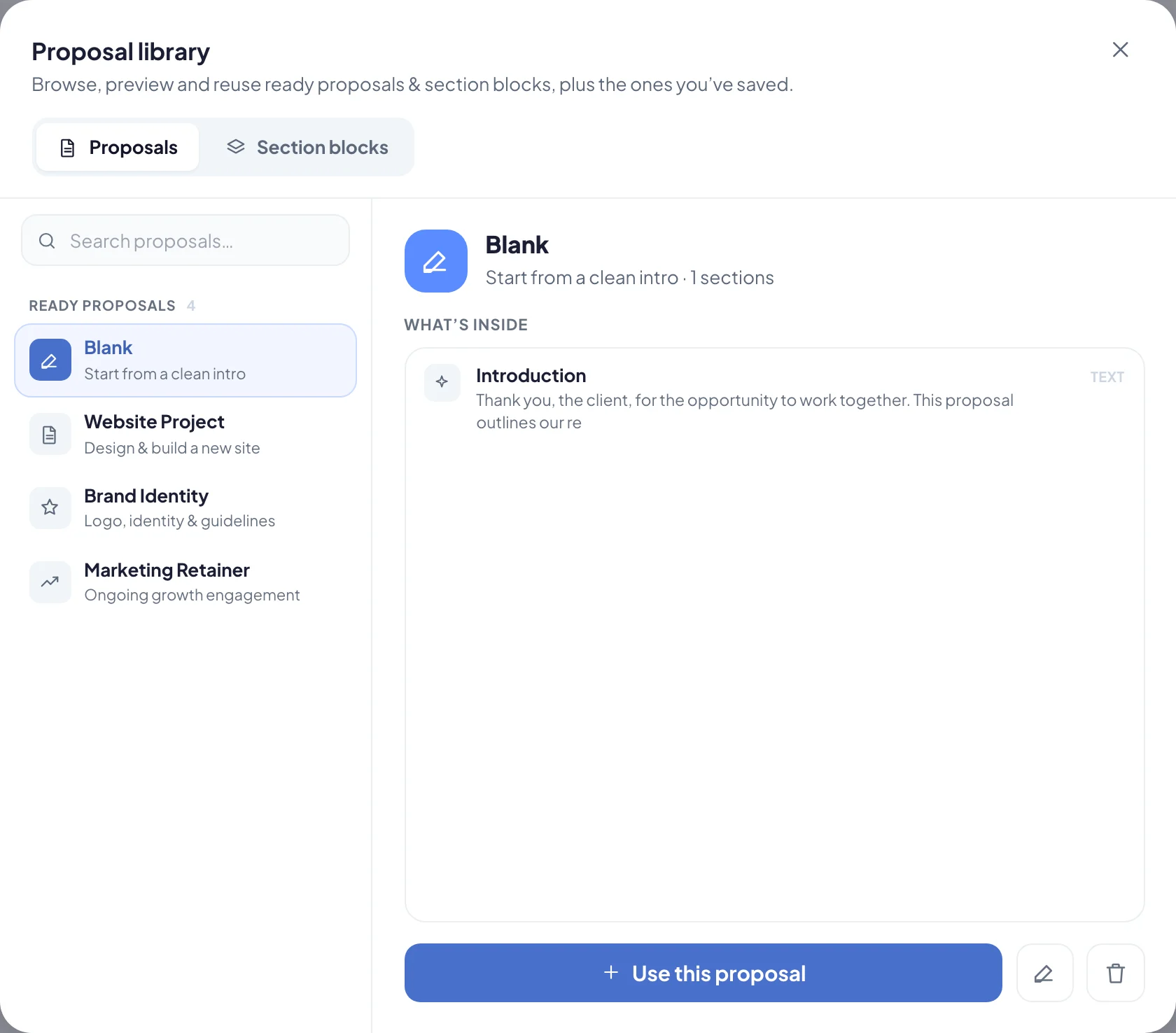
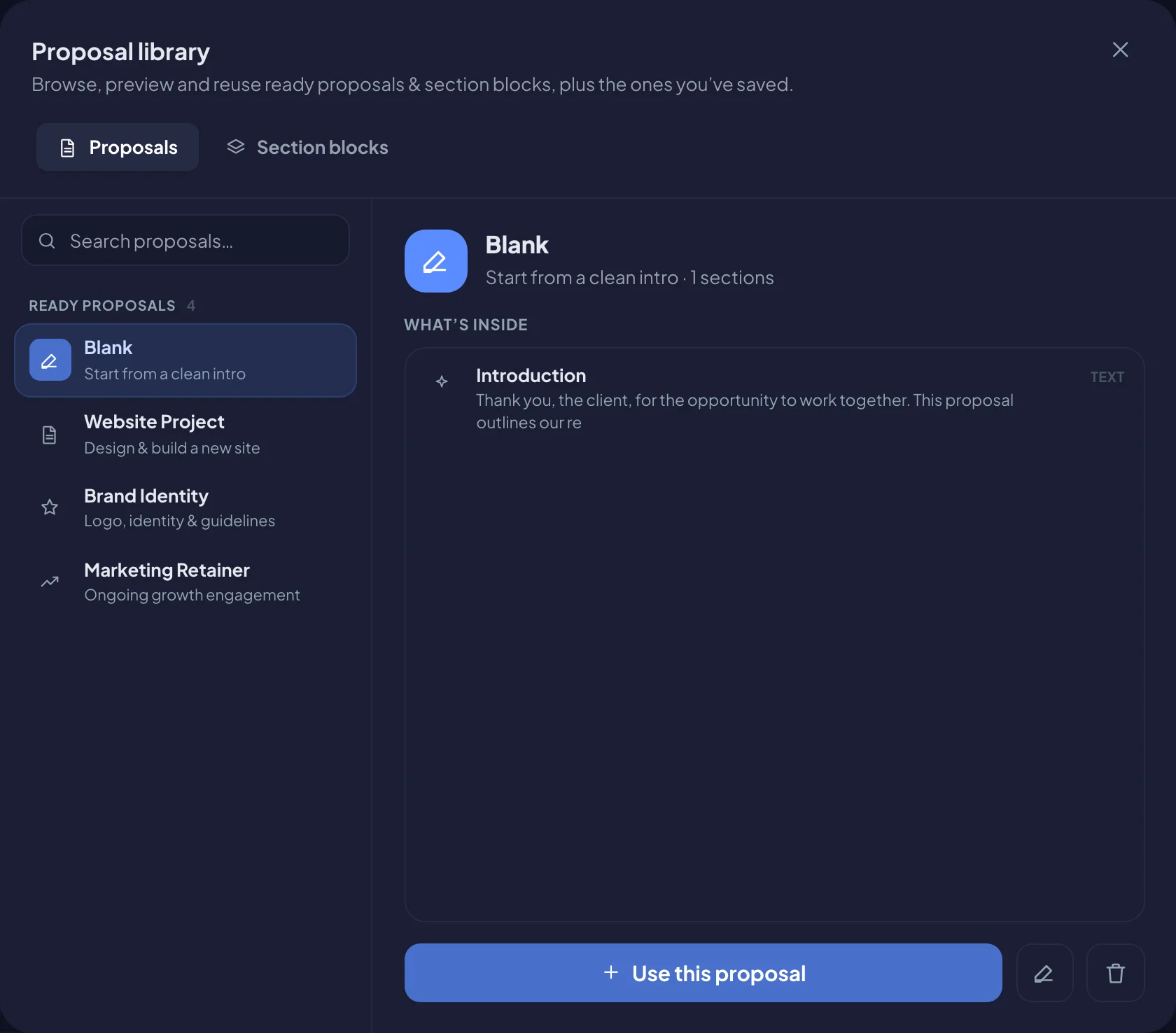
The library has two tabs:
- Proposals: whole proposals to start from.
- Section blocks: single sections, such as an introduction, to drop into any proposal.
Items are grouped into Saved by you and the ones built into Bitrack. Choose an item to preview what’s inside, then:
- Use this proposal to start a new proposal from it, or add its sections to the one you’re editing.
- Insert into proposal to add a block to the proposal you have open.
- Tick several blocks, then choose Insert N sections to add them all at once, in the order you ticked them.
- Copy text to copy a text block’s wording.
Search the list to find an item quickly.
Save your own
From the proposal builder’s Content tab:
- Choose Save as template to save the whole proposal. Give it a Template name and an optional Short description, then choose Save template.
- To save a single section, choose the bookmark button on it, name the block and choose Save block.
To update a template you saved before, choose it under Save as and then Replace template.
The agreement library
Go to Documents → Agreements and choose Library. In the agreement builder, choose Browse library.
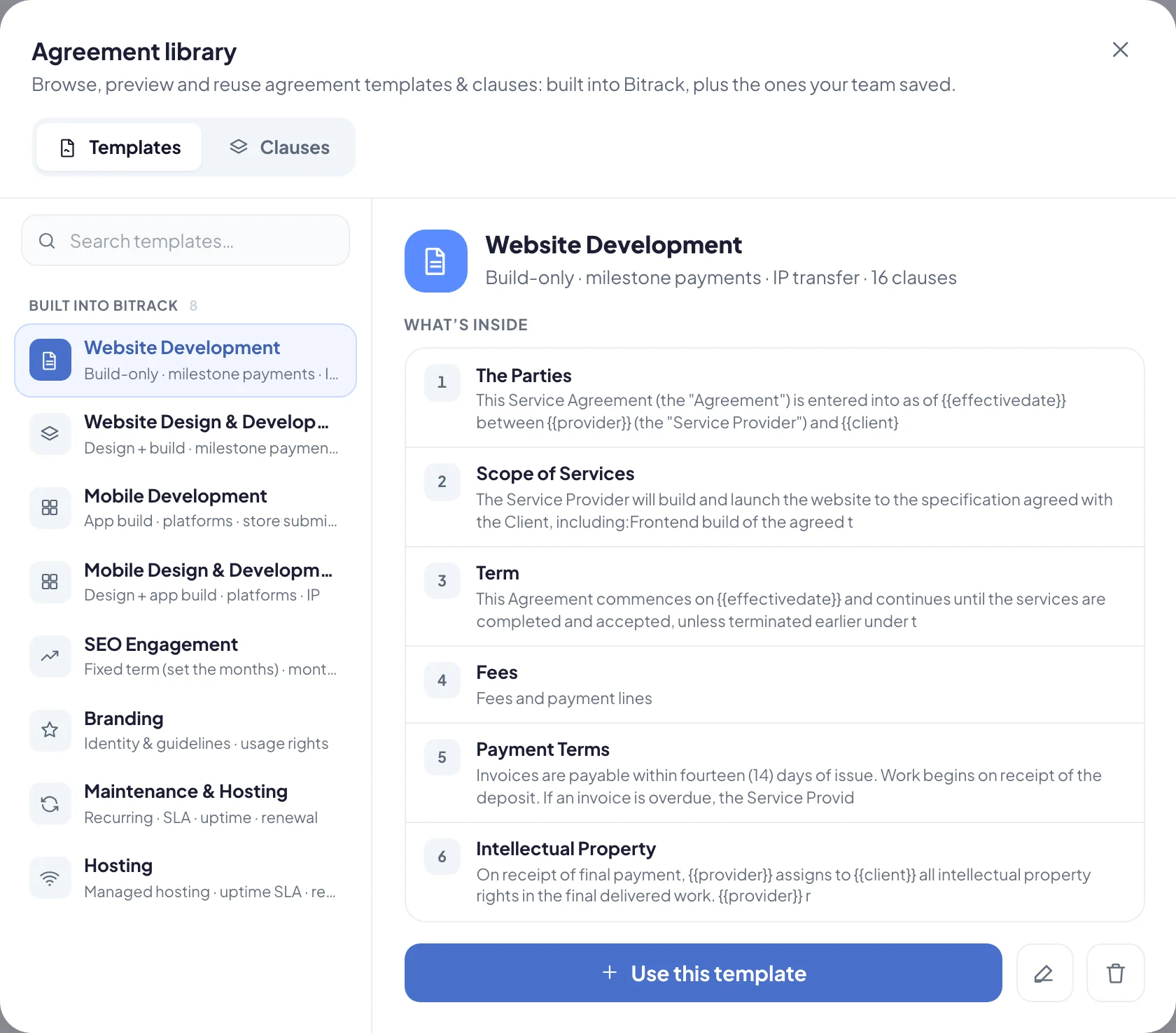
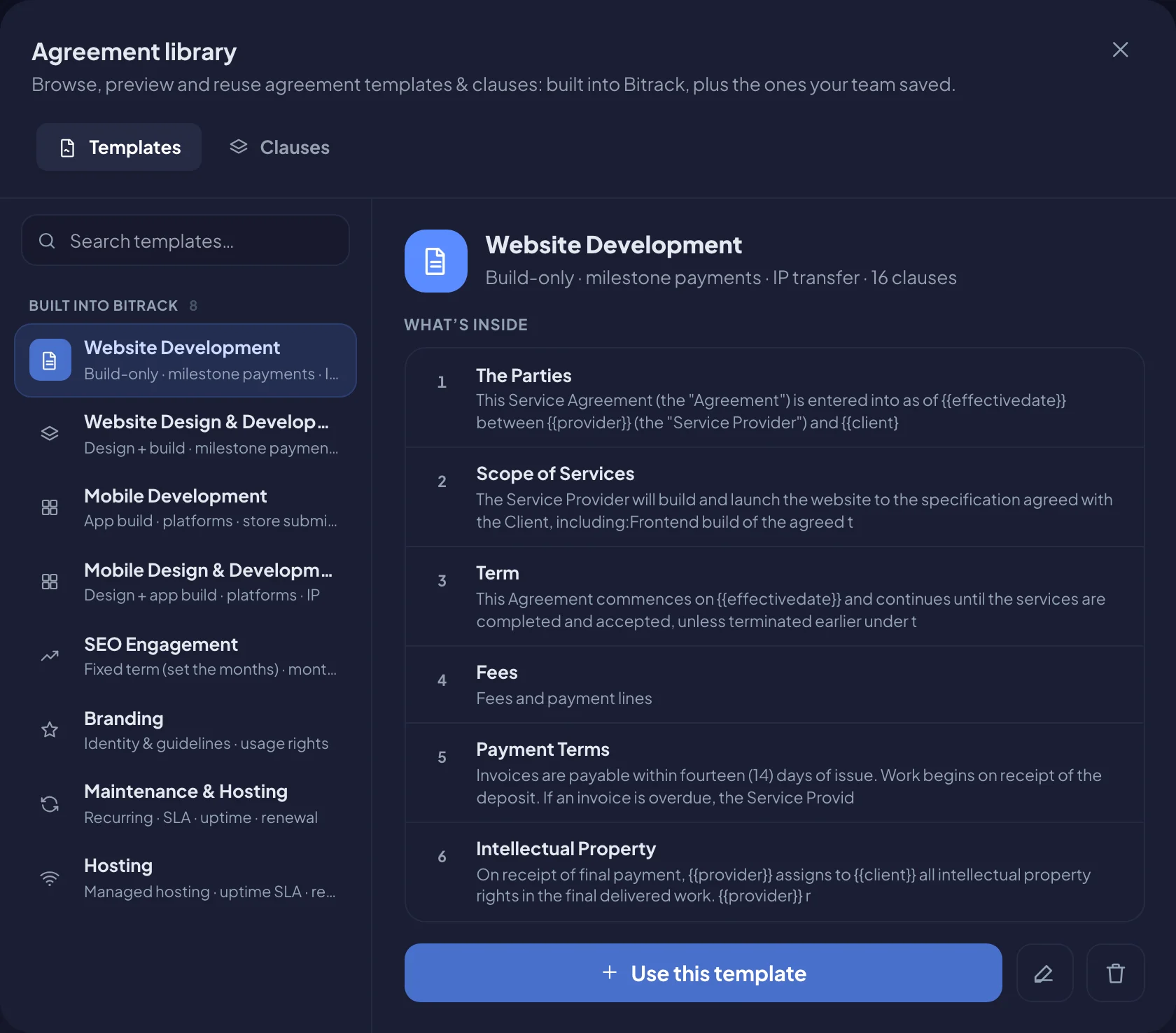
The library has two tabs:
- Templates: whole agreements to start from.
- Clauses: single clauses to add to any agreement.
Items are grouped into Saved by your team and Built into Bitrack. Choose an item to preview it, then:
- Use this template to start an agreement. You’re asked which client it’s with.
- Insert into agreement to add a clause to the agreement you’re editing.
- Tick several clauses, then choose Insert N clauses to add them all at once.
- Copy text to copy a clause’s wording.
Bitrack includes templates for common agency work, including website and mobile builds, branding, SEO, maintenance and hosting.
Save your own
In the agreement builder:
- Choose Save as template to reuse the whole agreement, with its clauses, fees and structure.
- Choose the bookmark button on a clause to save just that clause.
Both appear in the library under Saved by your team, so everyone on your team can use them.
Standard clauses
Standard clauses go into every new agreement automatically, and they’re locked in the builder. They’re managed in Settings → Agreements, not in the library. Agreements already created keep their wording when you change them.
Edit or remove items
Choose the edit button on an item to change its name, description and content. Choose the delete button to remove it.
- Your team’s items: changes apply to everyone who uses them.
- Built-in items: changes are saved as your workspace’s own version. Other workspaces aren’t affected.
If you change your mind, choose Restore built-in library. Your edits to built-in items are undone and deleted ones come back. Your own saved templates, blocks and clauses aren’t affected.
Read more in Create a proposal and Create an agreement.