Roles and permissions
Understand the built-in roles, choose what each role can see and do, and create roles of your own.
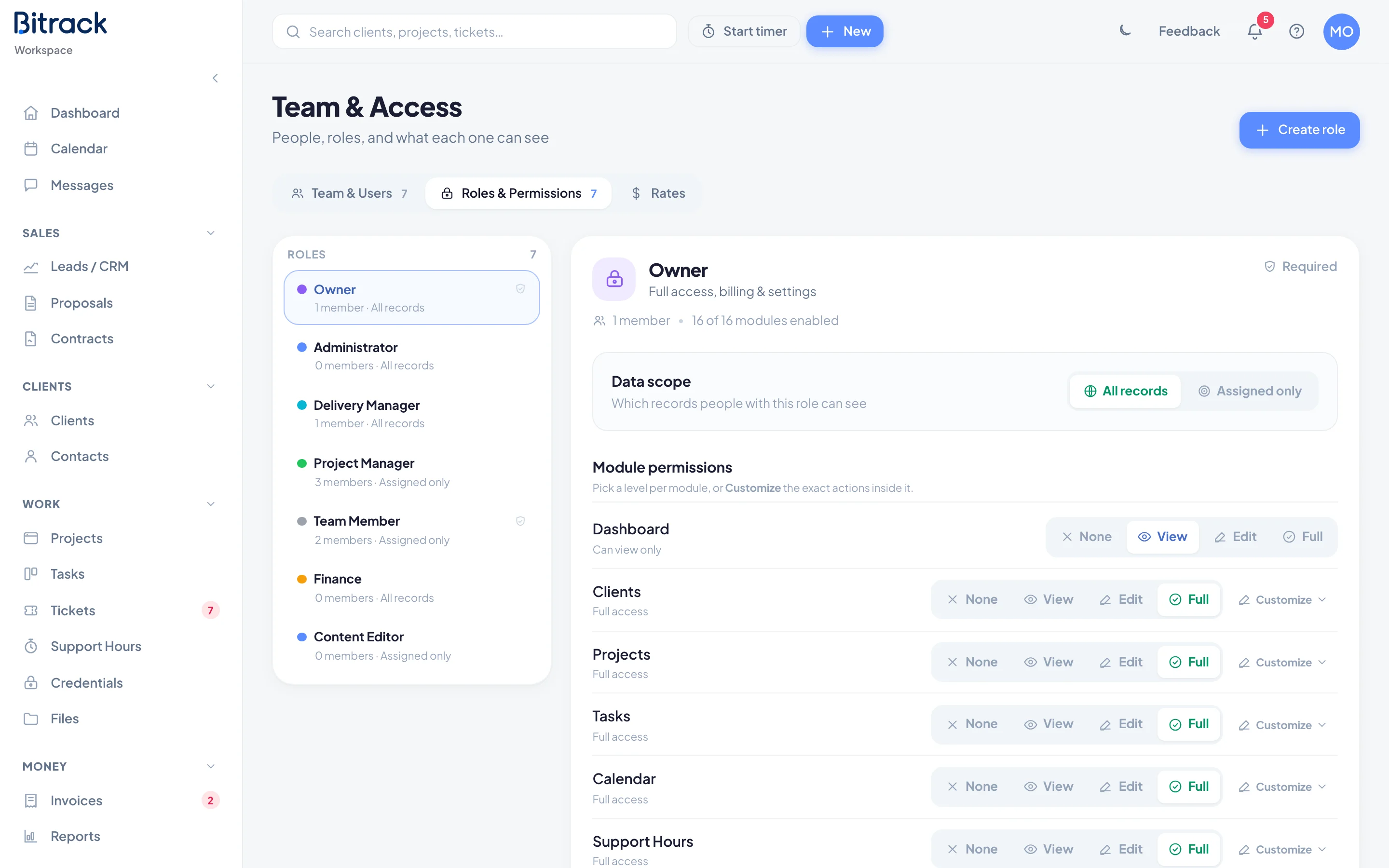
Every person in your workspace has one role. The role decides which parts of Bitrack they can open, what they can do there, and which records they can see.
You manage roles in Team & Access on the Roles & Permissions tab. You need permission to manage roles to change them; Owners and Administrators have it by default.
The built-in roles
New workspaces start with six roles. You can change all of them except Owner.
| Role | Sees | Made for |
|---|---|---|
| Owner | All records | Full access, including billing and settings. |
| Administrator | All records | Managing everything except billing. |
| Delivery Manager | All records | Overseeing every project and the project managers. |
| Project Manager | Assigned only | Running the projects they’re assigned to. |
| Team Member | Assigned only | Doing their assigned work. |
| Finance | All records | Contracts, proposals, invoices and reports. |
Data scope: which records a role sees
At the top of each role is Data scope:
- All records: people with this role see every client, project and task their permissions allow.
- Assigned only: they see only the projects they’re assigned to, and the work inside them.
For one person on an Assigned only role, you can give full visibility without changing the role. In Team & Users, set their Data access to All projects. Read more in Invite your team.
Module permissions
Below the data scope is a row for each part of Bitrack (Clients, Projects, Tasks, Invoices and so on). For each one, pick a level:
| Level | What it allows |
|---|---|
| None | No access. The module disappears from their sidebar. |
| View | Can view only. |
| Edit | Can view, create and edit. |
| Full | Everything, including delete, archive and sensitive actions. |
To set every module at once, use the Set all: links above the list.
Fine-tune single actions
Some modules have more than one action. Choose Customize on a module to see each one, for example Create, Edit, Assign, Export or Delete. Tick only the actions you want. The module is then marked Custom.
A few actions are marked with a shield as sensitive, such as See financials on projects or Approve on invoices. Give these with care, because they show money or let people sign things off.
Save your changes
Your edits aren’t live until you save. A summary appears at the bottom, listing every change. Choose Save changes to apply them, or Discard to undo them.
Create a role
- Go to the Roles & Permissions tab and choose Create role.
- Enter a Role name and a short Description.
- Under Start from, pick an existing role to copy, or Blank (no access).
- Choose Create role, then adjust its permissions and choose Save changes.
Rename or delete a role
- Choose Rename on a role to change its name, description or Colour.
- Choose Delete to remove a role. If people have that role, pick where they go under Move members to, then choose Delete role. This can’t be undone.
What people without access see
Bitrack hides what a person can’t use instead of showing it greyed out. Menu items, buttons, tabs and fields like budgets or rates simply don’t appear. If a teammate can’t find something, check their role here.