Find your way around
The sidebar, the top bar and the dashboard, and where everything lives.
Everything in Bitrack is one or two clicks away. This guide shows the parts of the screen you’ll use every day.
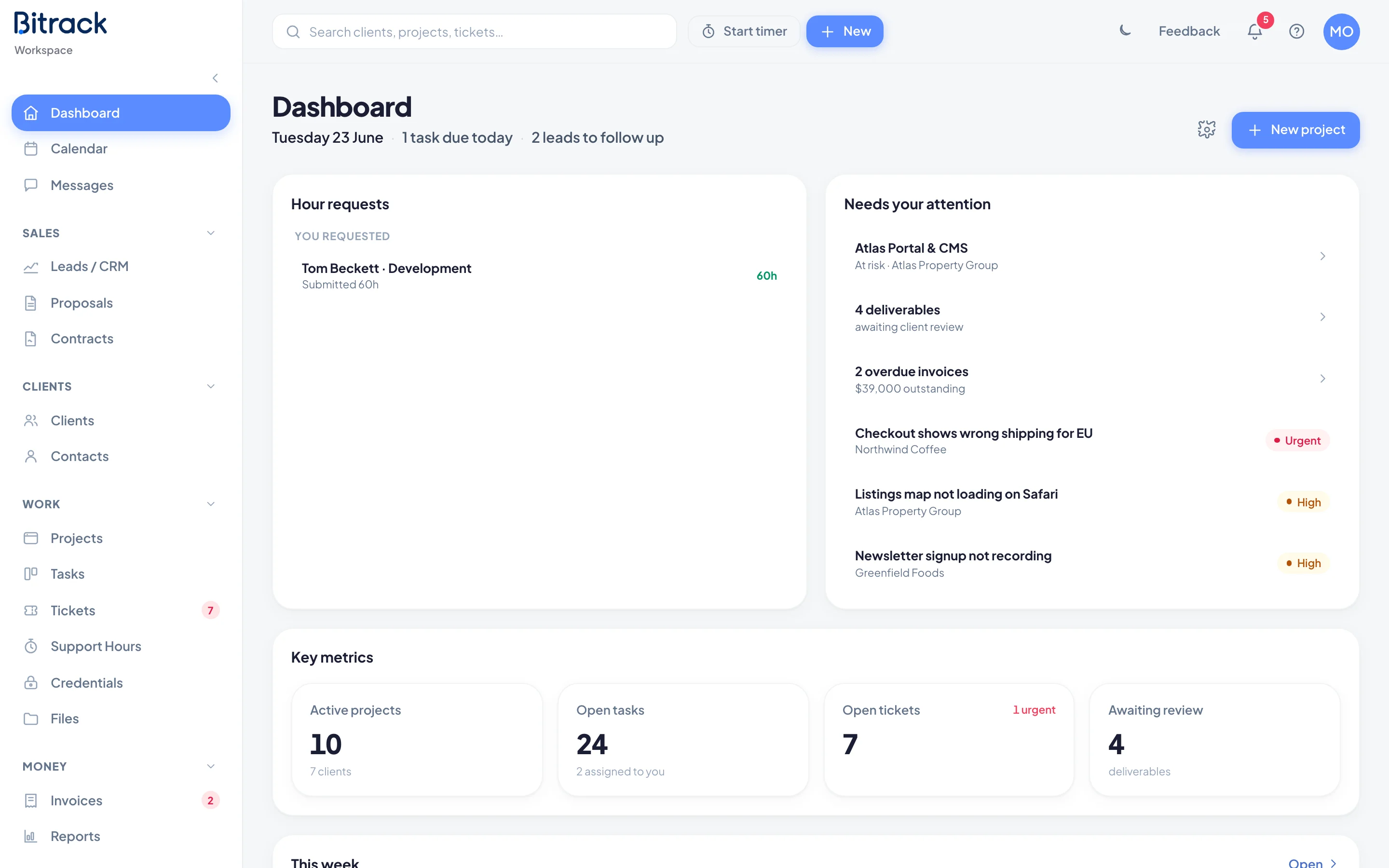
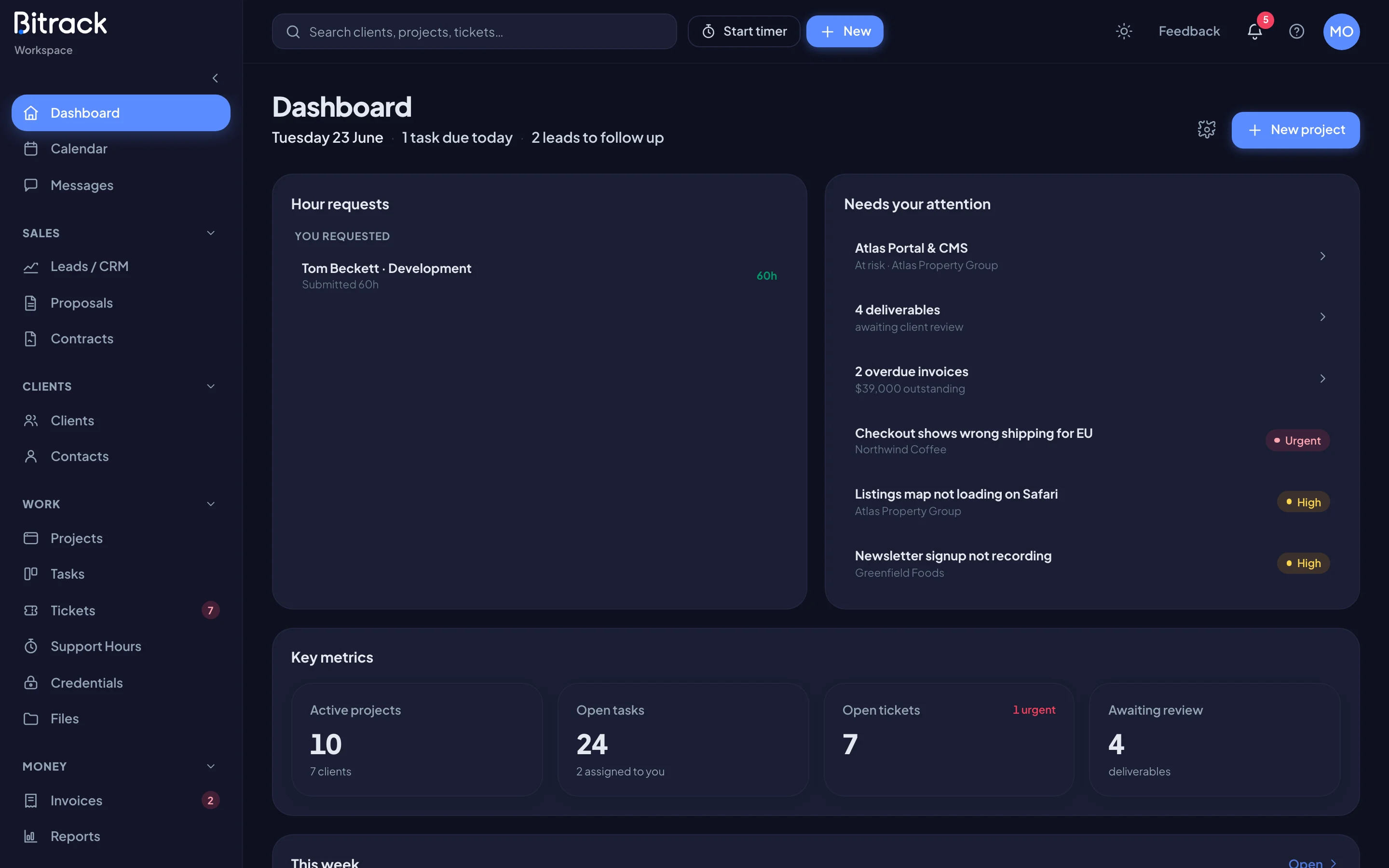
The sidebar
The sidebar on the left lists every part of Bitrack you have access to, grouped by what it’s for:
| Group | What’s in it |
|---|---|
| (top) | Dashboard, Calendar and Messages |
| Sales | Leads / CRM, Proposals and Contracts |
| Clients | Clients and Contacts |
| Work | Projects, Tasks, Tickets, Support Hours, Credentials and Files |
| Money | Invoices and Reports |
| Admin | Team & Access, Integrations and Settings (for Owners and Admins) |
You only see what your role allows. If a colleague mentions something you can’t find, ask an Owner or Admin to check your role.
The top bar


- Search finds clients, projects, tasks, tickets, proposals, contracts and more. Start typing and pick a result.
- Start timer tracks time on a task. While it runs, the timer shows here, and one click stops it.
- New creates anything you’re allowed to create, from a task to an invoice, without leaving the page you’re on.
- The moon / sun switches between light and dark.
- Feedback sends us a message: a problem, an idea or something you like.
- The bell shows your notifications. Choose one to go straight to what it’s about.
- The ? menu shows you around the page you’re on, replays the product tour, and switches page tips on or off.
- Your picture opens your account menu: My Account and Sign out.
The dashboard
The dashboard is your day at a glance: what needs you today, this week’s dates, key numbers and your team’s workload. Owners and Admins see the whole workspace; everyone else sees their own work first.
To change what’s on it, choose the settings icon at the top of the dashboard, then add, remove or drag widgets into the order you like. Read more in Customize your dashboard.