Notifications
Read your notifications from the bell, and choose which ones reach you in Bitrack, by email, or not at all.
Bitrack tells you when something needs you: a task assigned to you, a mention, a client reply. You decide what reaches you and where.
The bell
The bell at the top right shows a red count of unread notifications.
- Choose the bell to open the list. Unread ones are highlighted with a dot.
- Choose a notification to go straight to what it’s about. It’s marked as read.
- Choose Mark all read to clear the count.
A notification marked Emailed was also sent to your inbox. When there’s nothing new, you see You’re all caught up.
To change your settings from here, choose the settings icon at the top of the list.
In-app and email
Each kind of notification can reach you in two ways:
| Channel | Where it appears |
|---|---|
| In-app | In the bell, inside Bitrack. |
| In your inbox, at the address in your profile. |
You can switch each one on or off for every kind of notification.
Choose what reaches you
- Choose your picture at the top right, then My Account.
- Choose Notifications.
- Find the event in its category and use the In-app and Email switches.
Changes save as soon as you make them. The line at the top tells you how many event types you’ll be notified about.
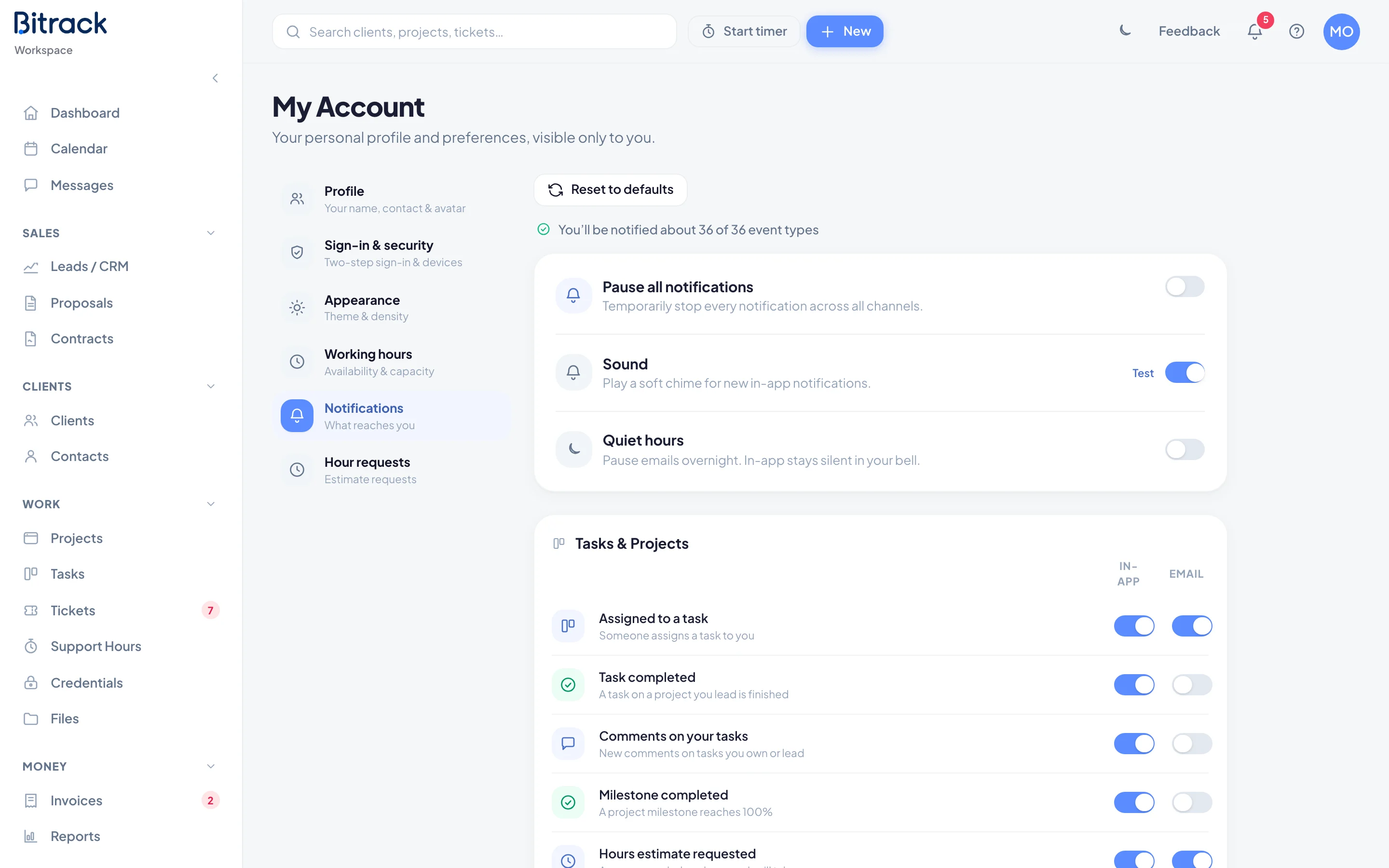
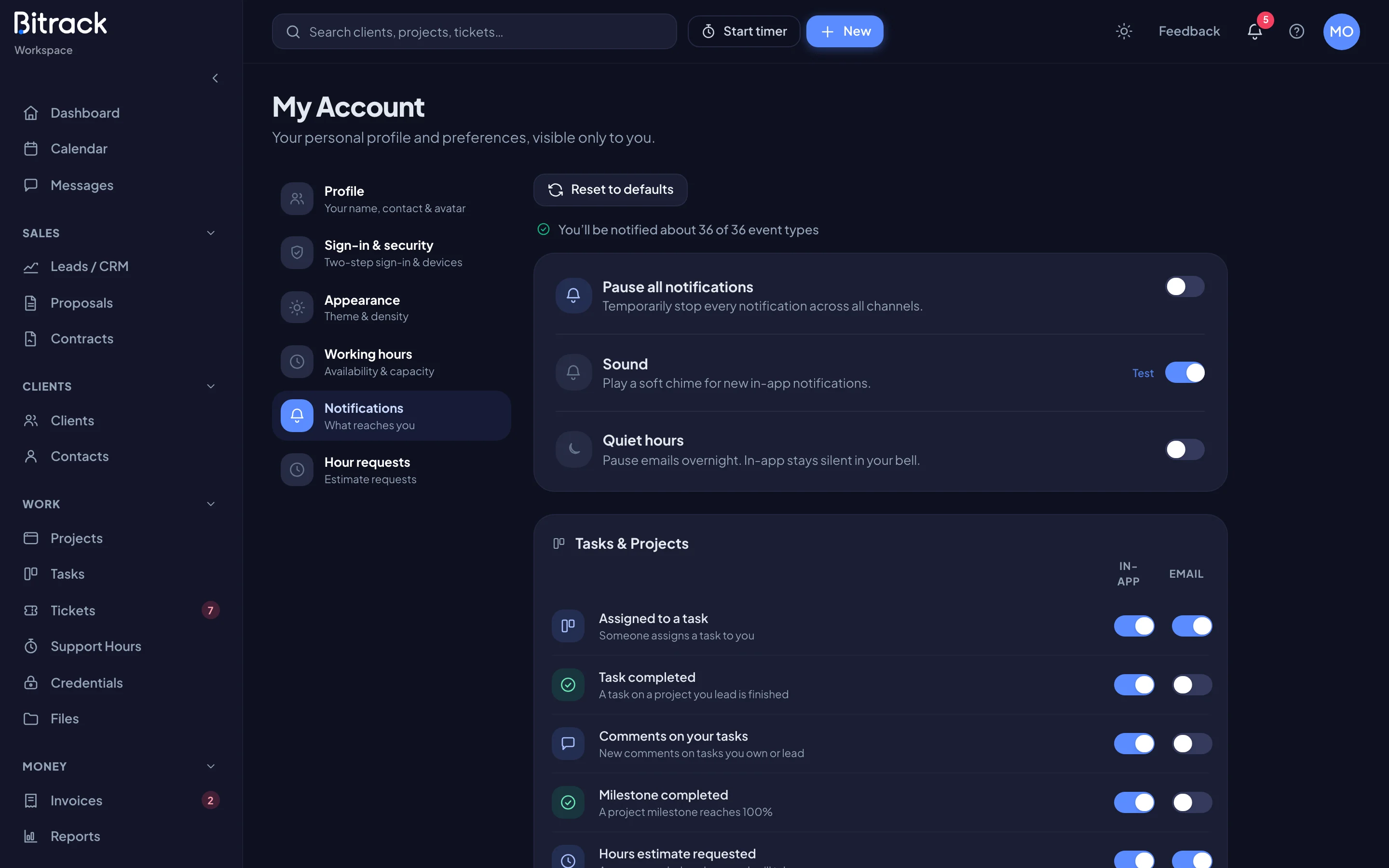
Events are grouped by category, for example:
- Tasks & Projects: Assigned to a task, Task completed, Comments on your tasks, Milestone completed.
- Calendar: Event invitations, Event reminders, Meeting requests.
- Mentions: Chat mentions, Mentions in comments, Replies to your feedback.
- Support Tickets: New tickets, Assigned a ticket, Ticket replies, SLA at risk, SLA breached.
- Sales & CRM, Support Hours, Credentials and Billing & Finance for the work in those areas.
You only see categories your role receives. If some are left out, a note under the main settings says which ones and why.
Pause, sound and quiet hours
At the top of the Notifications section:
- Pause all notifications: stops every notification on every channel until you switch it off. The bell shows that notifications are paused, with a link to resume.
- Sound: plays a soft chime for new in-app notifications. Choose Test to hear it.
- Quiet hours: pauses emails overnight. Set the times after From and to. In-app notifications still arrive silently in the bell. Active now shows when you’re inside the window.
Quiet hours use the Time zone in your profile. See Your account.