Page tours and tips
Get a guided look at any page, replay the product tour, and choose whether page tips appear on their own.
Bitrack can show you around. Short tours highlight the real parts of the screen, one at a time, and explain what each one does.
Everything lives in the ? (Help) menu at the top right of every page.
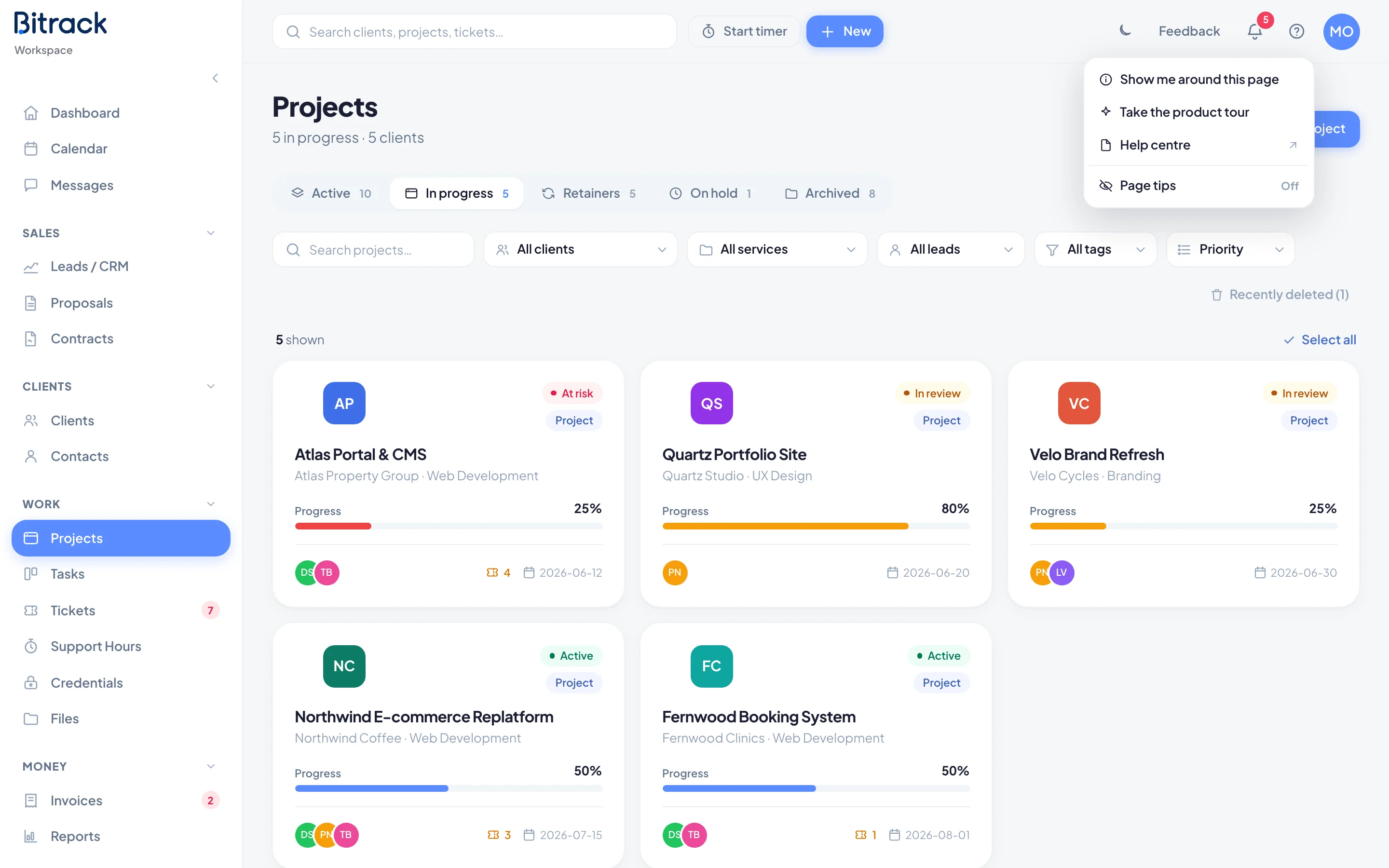
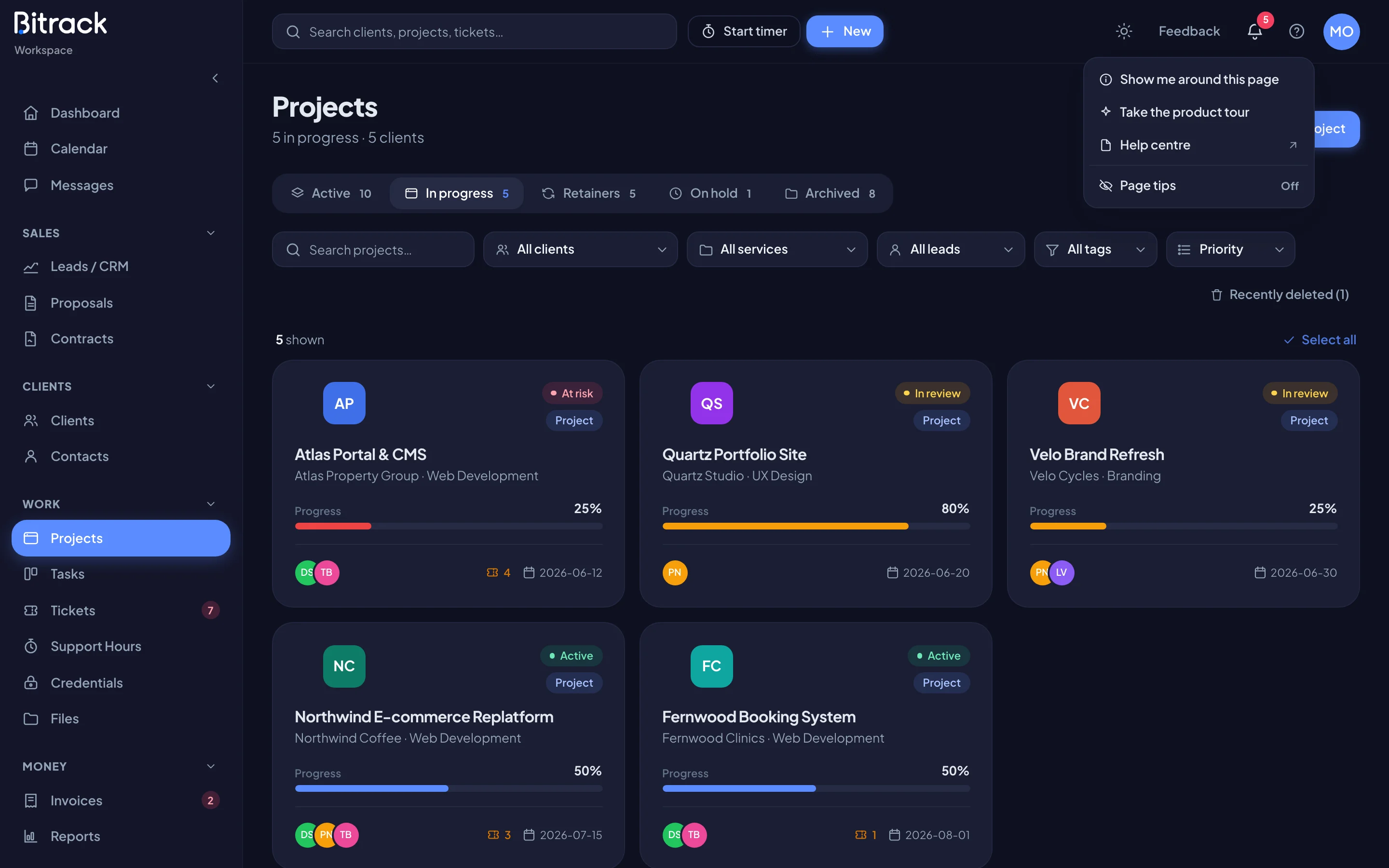
Show me around this page
- Open the page you want to learn, for example Projects or Tasks.
- Choose ? in the top bar, then Show me around this page.
- The first card lists the tips for this page and about how long they take. Choose Show me to start.
This option only appears on pages that have a tour. Tours cover the main areas, such as the dashboard, projects, tasks, calendar, leads, proposals, settings and Team & Access.
Take the product tour
The product tour is a 30-second look at the layout that’s on every page: the menu, New, search, the timer, notifications and the help menu.
It starts by itself the first time you open your dashboard. To watch it again, choose ?, then Take the product tour. You can also replay it from My Account under Appearance, with Start tour.
Moving through a tour
| To do this | Choose or press |
|---|---|
| Go to the next tip | Next (or Show me on the first card), or the right arrow key |
| Go back | Back, or the left arrow key |
| Stop the tour | Skip, or Escape |
| End on the last tip | Finish |
Page tours show your progress as, for example, 2 of 5. The product tour shows dots.
Tours only show what you can use. If a part of the page is hidden for your role, or a module isn’t switched on, that tip is skipped.
Page tips
Page tips are the same page tours, shown automatically the first time you open each page.
- To switch them on, choose ?, then Page tips. The menu shows On or Off.
- Each page shows its tips once. After that, use Show me around this page to see them again.
- To switch them off from inside a tour, choose Don’t show page tips.
Page tips are off until you switch them on, and they never start while the product tour is still ahead of you or a window is open.
For a tour of the top bar and sidebar in writing, see Find your way around.