Your account
Update your profile, keep your sign-in secure, and set your theme and working hours in My Account.
My Account holds your personal settings. Only you see them, and they don’t change anything for the rest of your team.
To open it, choose your picture at the top right, then My Account. The sections are listed on the left.
Profile
How you appear across the workspace, and to clients on anything you share.
- Photo: choose Upload photo, then drag to position it and slide to zoom. Choose Apply photo. Use Change photo or Remove later.
- Avatar color: the colour behind your initials when you have no photo.
- Full name, Job title and Phone.
- Time zone: used for due dates, quiet hours and availability.
Choose Save changes when you’re done.
Change your email
- Type your new address in Work email.
- If you sign in with a password, enter your Current password to confirm it’s you.
- Choose Save changes. We send a 6-digit code to the new address.
- Enter the code and choose Confirm email.
Until you confirm, your current email stays in use. You can choose Send a new code or Cancel the change in the same window.
The Sign out card at the bottom ends this session.
Sign-in & security
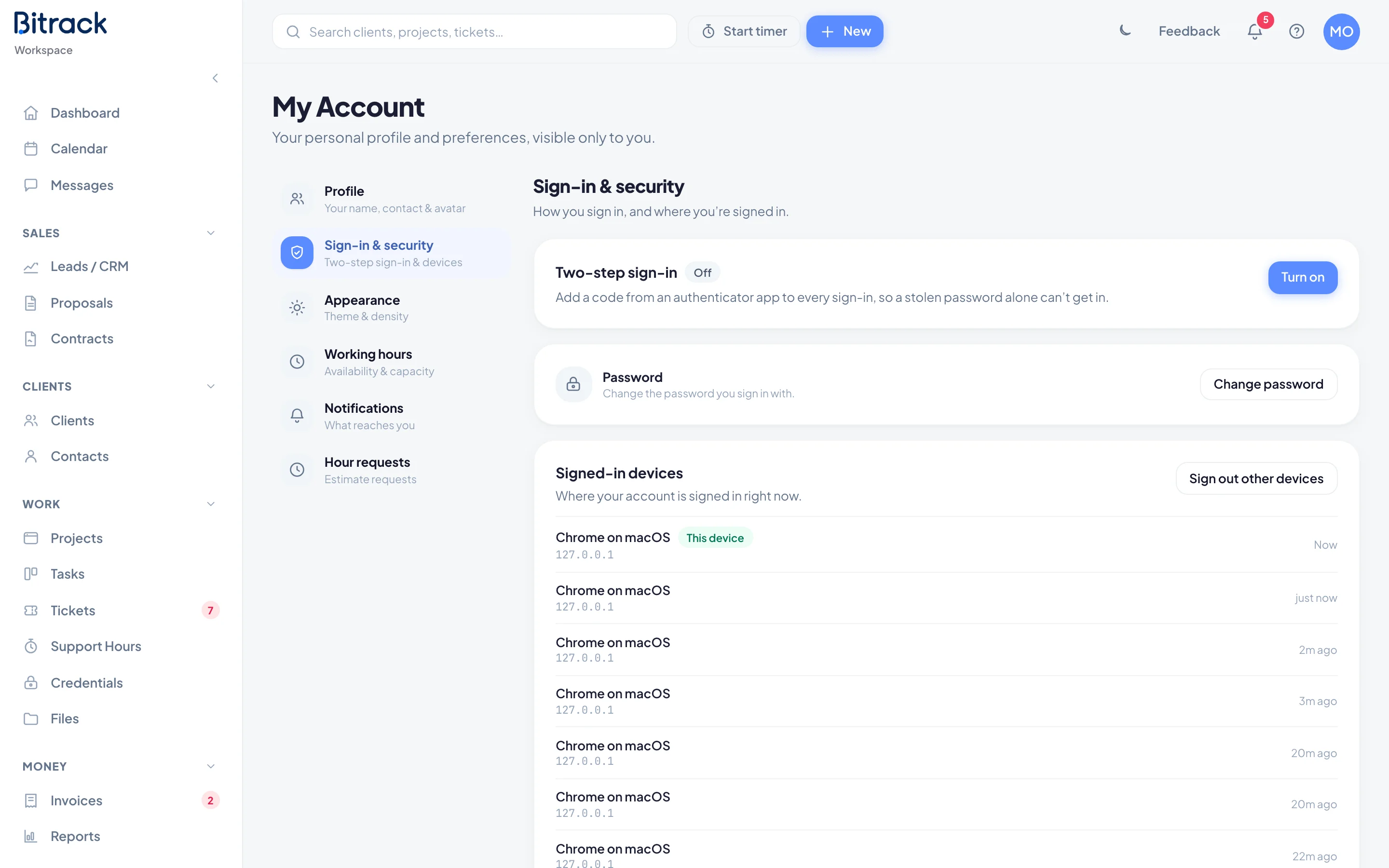
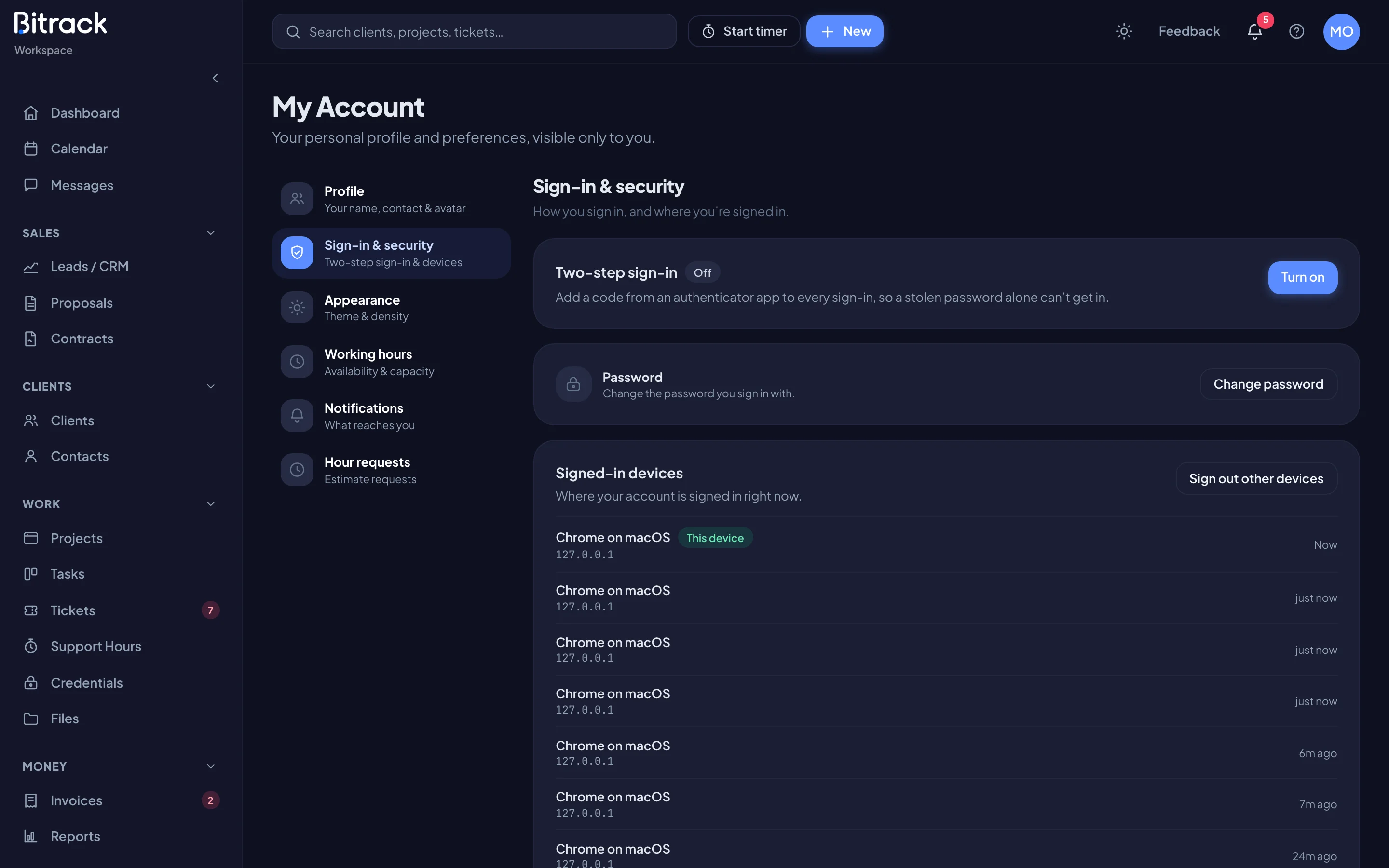
Two-step sign-in
Two-step sign-in adds a code from an authenticator app to every sign-in, so a stolen password alone can’t get in.
- Choose Turn on, confirm it’s you, and choose Continue.
- Open an authenticator app (for example Apple Passwords, Google Authenticator or 1Password) and scan the QR code. If you can’t scan it, type the key shown below it.
- Enter The 6-digit code it shows and choose Turn on.
- Save your recovery codes. Choose Copy all or Download as a file, tick I’ve saved my recovery codes somewhere safe, then choose Done.
Each recovery code gets you in once if you lose your phone. The card shows how many you have left. Choose New recovery codes to replace them all with a new set of 8.
To stop using it, choose Turn off. If your workspace requires two-step sign-in, you can’t turn it off, and you’re asked to turn it on to keep using Bitrack.
Password
Choose Change password, enter your Current password, a New password (at least 8 characters) and Confirm new password, then choose Update password.
If you only sign in with Google, choose Set a password to add a second way in.
Choose Connect to sign in with your Google account in one click. Choose Disconnect to go back to your email and password. You can only disconnect Google once you have a password.
Signed-in devices
This list shows every browser and device signed in to your account, with This device marked. Choose Sign out other devices to sign out everywhere else.
Appearance
- Theme: Light, Dark or System (follows your device).
- Density: Comfortable (roomy spacing) or Compact (fits more on screen).
- Product tour: choose Start tour to replay the welcome tour.
Working hours
These settings feed availability, due-date display and the team workload reports.
- Capacity: your Billable hours / week. A bar shows how much of it you’ve logged this week. Choose Save capacity.
- Schedule: your Working days, and when your Day starts and Day ends.
- Out of office: switch it on when you’re away. Set From, To and who gives Cover, then choose Save. New work routes around you while it’s on.
Other sections
- Notifications: what reaches you, and how. See Notifications.
- Calendars: connect your Google or Outlook calendar, when your workspace has Calendar.
- Hour requests: appears when a manager asks you to estimate hours, or you’ve asked someone.