Your dashboard
Understand what each dashboard widget shows, and why your dashboard may look different from a colleague’s.
The dashboard is the first page you see when you sign in. It shows what needs you today, what’s coming up this week and the numbers that matter for your role.
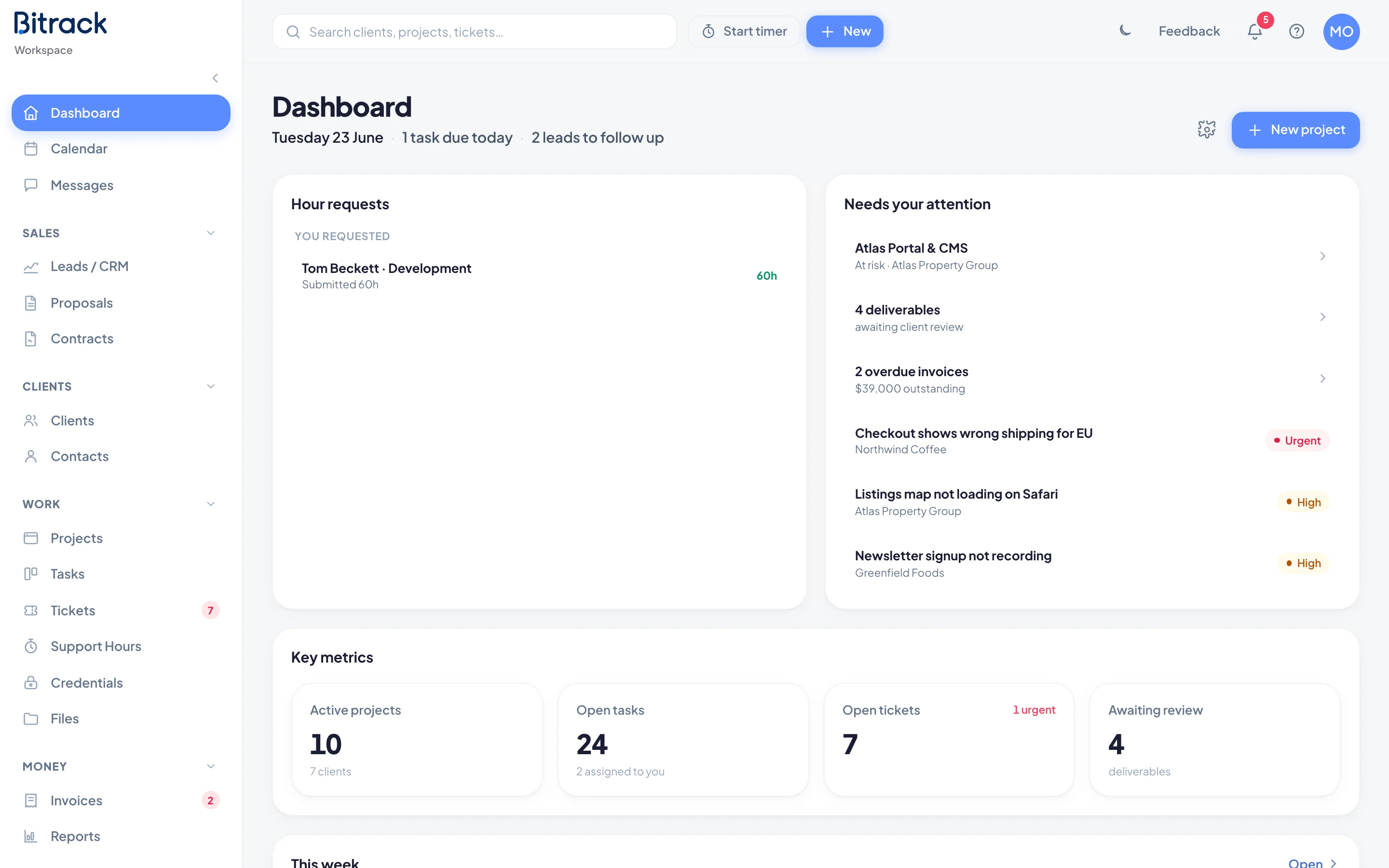
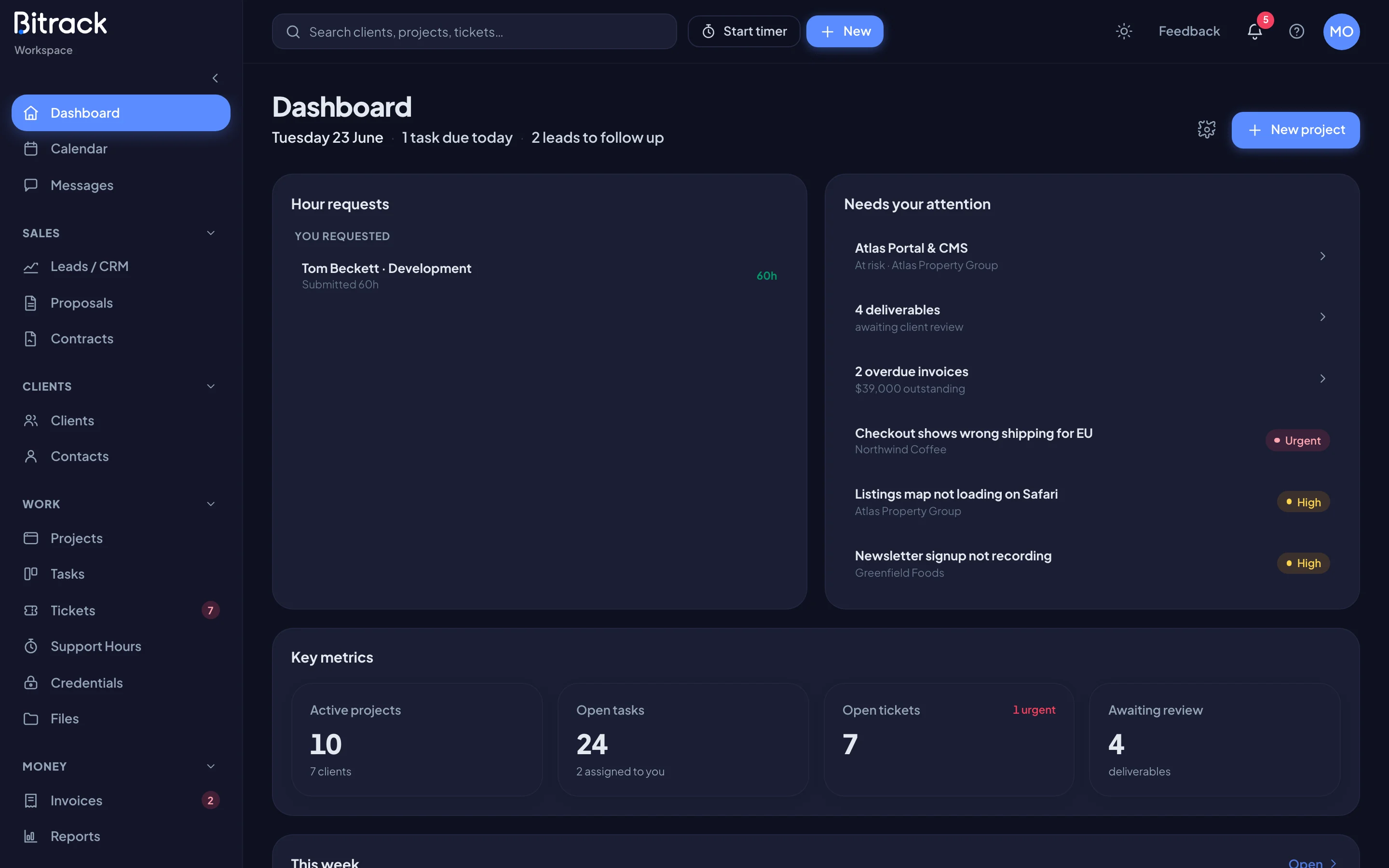
The header line
Under the Dashboard title you see today’s date, followed by what needs you today. For example, 2 overdue tasks or 3 tasks due today. It can also show open tickets for you and leads to follow up, if you use those parts of Bitrack.
Each item is a link. Choose it to go straight to that list. When there’s nothing waiting, the line says Nothing due today.
The widgets
Each card on the dashboard is a widget. Everything in it is worked out live from your workspace, and it only includes what you’re allowed to see.
| Widget | What it shows |
|---|---|
| Key metrics | Up to four headline numbers, such as Active projects, Open tasks, Open tickets, Outstanding, Open pipeline, Hours this month and Utilisation, with a comparison to the previous period where it applies. |
| This week | The next 7 days, one column per day: events, tasks, milestones, follow-ups, renewals and due dates. Switch between Everyone and Just mine. |
| Needs your attention | Projects at risk, deliverables awaiting client review, overdue invoices, urgent tickets, retainers running low and your overdue tasks. |
| My day | Your open tasks, how many are overdue and your tickets, with your next tasks under Next up. |
| My tasks | Your open tasks. You can change a task’s status right from the widget. |
| Active projects | Up to five active projects with their progress, or retainer usage, and an At risk flag. |
| Upcoming deadlines | Project due dates in the next 3 weeks and task due dates in the next 2 weeks, soonest first. |
| Overdue & due today | Counts and a short list of overdue tasks and tasks due today. |
| Team workload | Hours each person logged this week against their weekly capacity, their open tasks, and who is out of office. |
| Retainer health | Hours used this cycle on your retainer projects. |
| Support hours | The support plans closest to using up their hours, and how many time entries are awaiting review. |
| Revenue | Invoiced revenue over the last 12 months, what’s been collected, and the change year to date. |
| Invoices to action | Invoices that are overdue, awaiting approval or sent. |
| A/R aging | What clients owe, split into Current, 1–30 days, 31–60 days and 60+ days. |
| Sales pipeline | How many open leads sit in each stage. |
| Leads to follow up | Leads whose next step is due in the next 3 days or is already overdue. |
| Hour requests | Estimate requests for you to answer (For you) and ones you asked others for (You requested). |
| Recent activity | The latest changes across the work you can see. |
Choose any item in a widget to open it. Some widgets also have a link in their top corner, such as View all, Open or All, that takes you to the full page.
Who sees what
What you see depends on your role and your permissions:
- A widget only appears if you can see what it’s about. For example, Sales pipeline needs access to Leads, and Support hours needs access to Support Hours and at least one running plan.
- Money widgets (Revenue, A/R aging) and money figures only appear for people who can see financials.
- Widgets and metrics for parts of Bitrack your workspace doesn’t use don’t appear at all.
- Retainer health only appears when you have an active retainer project. Hour requests only appears when someone has asked you for an estimate, or you asked someone. When you have one, it moves to the top.
Each role also starts with its own layout. Owners see revenue and A/R aging, Finance sees invoices and the pipeline, and Team Members start with My day, Needs your attention, This week, Overdue & due today and Recent activity. In This week, Owners, Administrators and Delivery Managers start on Everyone; everyone else starts on Just mine.
You can change your own layout at any time. See Customize your dashboard.
A new workspace
In a brand-new workspace the dashboard shows a welcome and a Getting started list instead, to walk you through your first client and project. Once you’re under way, the widgets take over and the Getting started list stays at the top until you finish it or hide it with the x.