Customize your dashboard
Add, remove and reorder widgets so your dashboard fits how you work.
Your dashboard layout is personal. You can add the widgets you need, remove the ones you don’t, and put them in any order. Only you see your layout; nobody else’s dashboard changes.
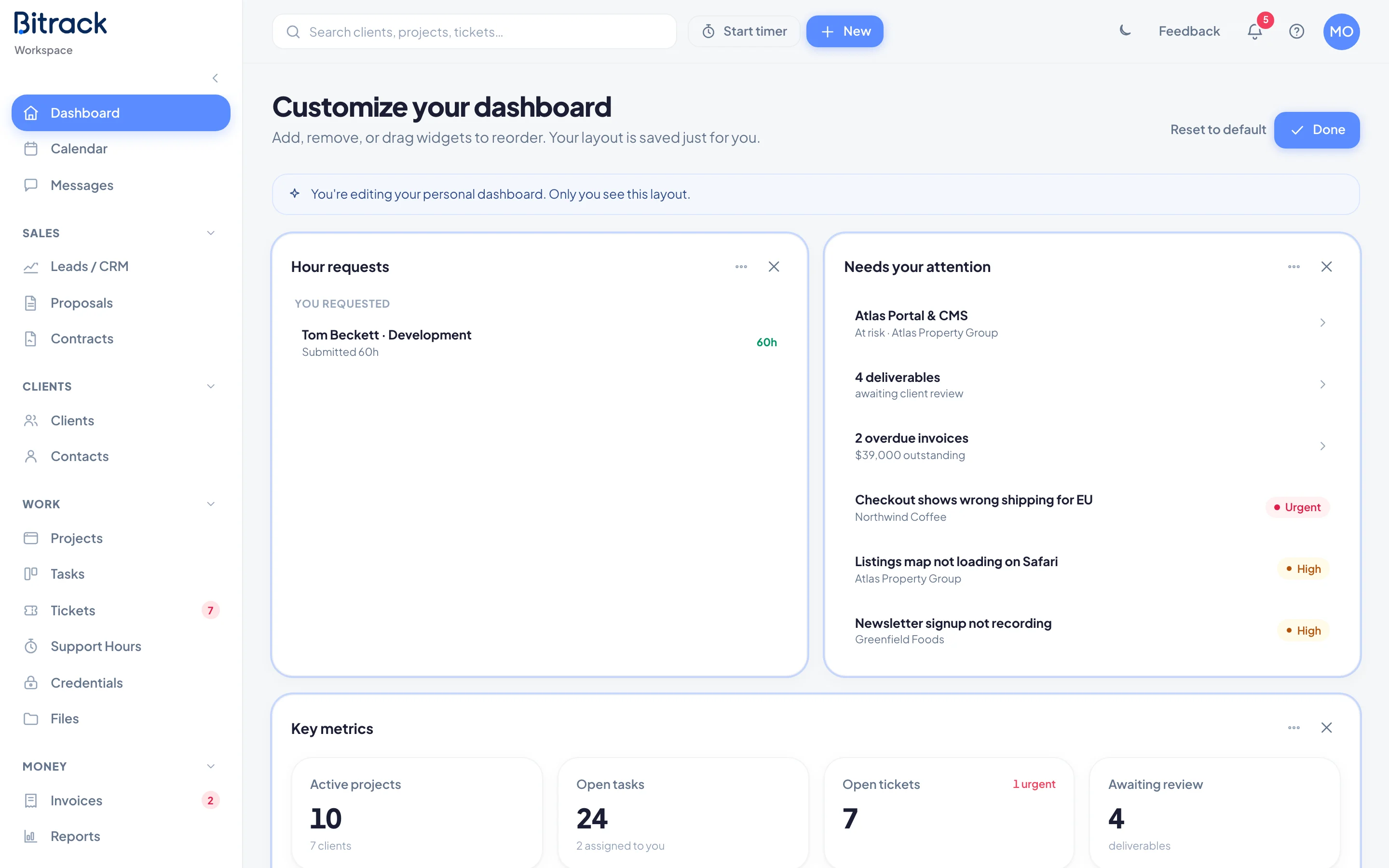
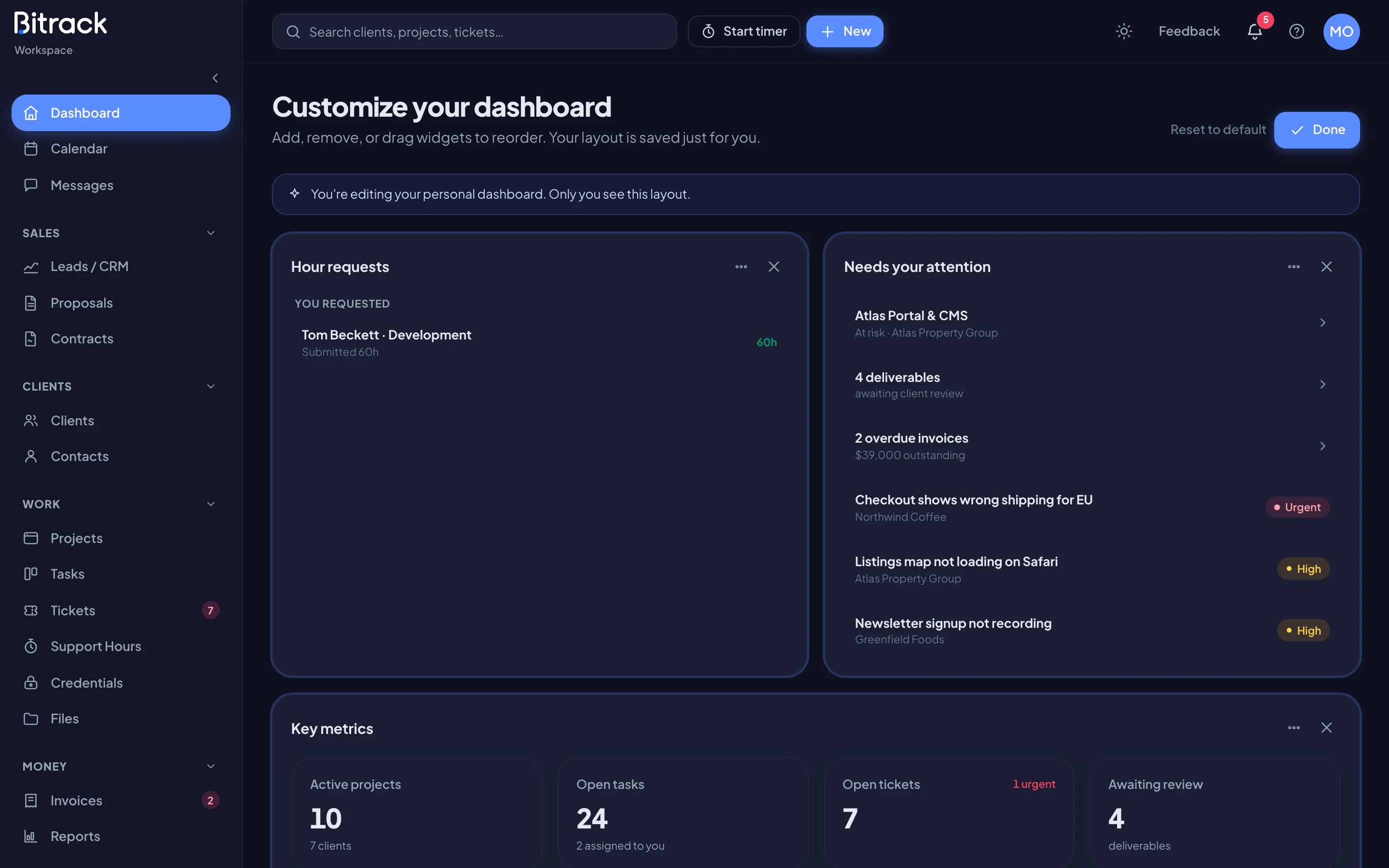
Open customize mode
- Go to Dashboard.
- Choose the settings icon (Customize dashboard) at the top right.
The title changes to Customize your dashboard and a note confirms: You’re editing your personal dashboard. Only you see this layout. Each widget gets a highlighted border and its own controls.
Add a widget
- Scroll to the Add a widget area below your widgets.
- Choose the widget you want. Each one says whether it’s a Wide or Standard widget.
The widget is added to the end of your dashboard straight away. Wide widgets, such as Key metrics, This week and Revenue, take the full width of the page. Standard widgets sit two to a row on a large screen.
The list only offers widgets you’re allowed to see and that aren’t already on your dashboard. When every widget is in use, the Add a widget area disappears.
Remove a widget
- Find the widget you want to remove.
- Choose the x (Remove widget) in its top-right corner.
The widget moves back to the Add a widget area, so you can add it again later.
Reorder widgets
- Point at the dots handle (Drag to reorder) in a widget’s top-right corner.
- Drag the widget onto the widget whose place you want it to take, and let go.
Bitrack fills any gaps automatically, so standard widgets pack neatly beside wide ones.
Save your changes
There’s nothing to save. Every change is kept as soon as you make it. When you’re finished, choose Done to leave customize mode.
Reset to the default
If you want to start over, choose Reset to default at the top of the page while customizing. Your dashboard goes back to the standard layout for your role, and you see the message Dashboard reset to the default for your role.
Good to know
- When a new widget joins your role’s default layout, it’s added to your dashboard once. If you remove it, it stays removed.
- If your role or permissions change, widgets you can no longer see disappear from your layout automatically.
- Some widgets only appear when they have something to show, such as Hour requests or Retainer health. Read more in Your dashboard.