The calendar
See everything with a date in one place, choose what’s shown, and switch between month, week, day and list views.
The Calendar brings together everything with a date: your events, tasks, milestones, follow-ups and renewals. Dates come live from their own records, so when a task’s due date changes, it moves here too.
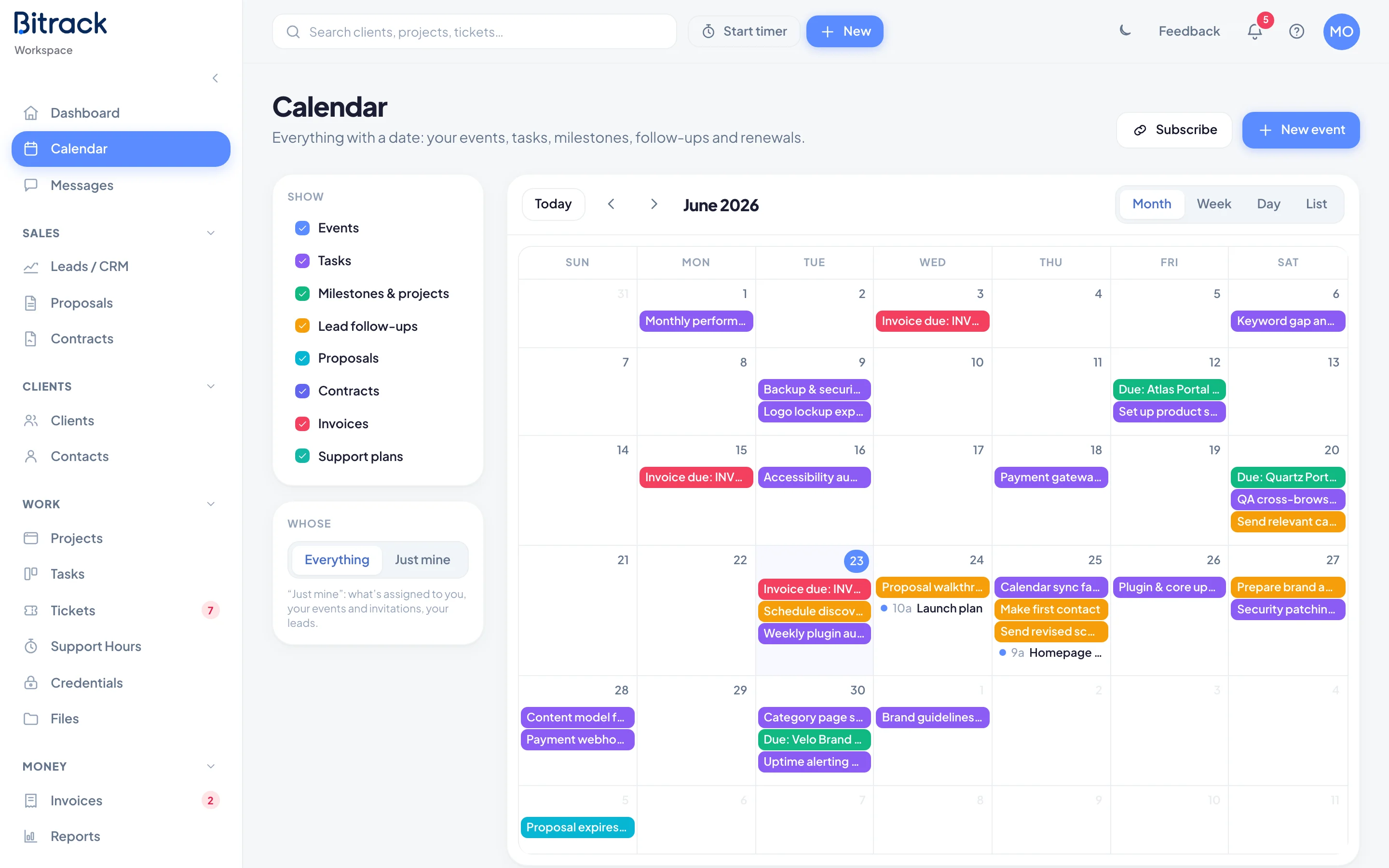
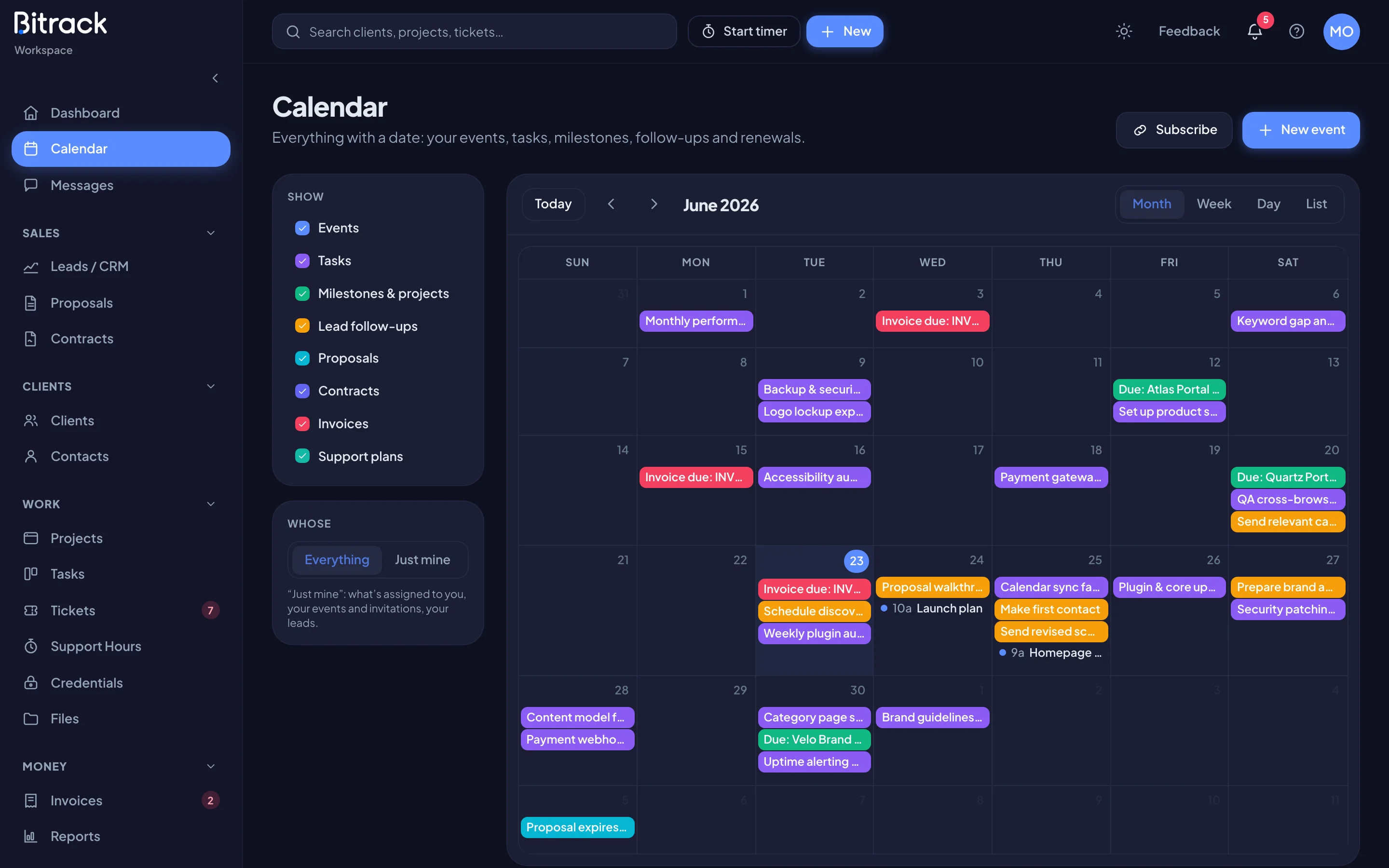
Layers: choose what’s shown
The Show panel on the left lists the layers you can see. Choose a layer to turn it on or off. Bitrack remembers your choice.
| Layer | What it shows |
|---|---|
| Events | Events made in Bitrack: meetings, calls and anything else you add. |
| Tasks | Open tasks on their due date. |
| Milestones & projects | Project milestones, plus each project’s start (Starts:) and due date (Due:). |
| Lead follow-ups | The next step on each open lead, on the day it’s due. |
| Proposals | Sent proposals on the day they expire (Proposal expires:). |
| Contracts | Contract renewals (Renews:) and signature links about to expire. |
| Invoices | Open invoices on their due date (Invoice due:). |
| Support plans | Support plans on their renewal date (Plan renews:). |
| My Google / Outlook | Your own events from a connected Google or Outlook calendar. Only you see this layer. |
You only see the layers your role allows, and only the records you could open elsewhere in Bitrack. Invoices also needs access to financials. My Google / Outlook appears once you connect a calendar; see Connect Google or Outlook.
Whose: everything or just yours
The Whose panel switches between two views:
- Everything: everything you have access to, across the team.
- Just mine: what’s assigned to you, your events and invitations, and your leads.
Views
Use the buttons at the top right of the calendar to choose a view. Bitrack remembers the one you use.
- Month: the whole month. Days with many items show a link to see the rest.
- Week: seven days with times down the side. All-day items sit in the All day row at the top.
- Day: a single day with times.
- List: everything in the month as a list. An empty month says Nothing scheduled.
Choose Today to jump back to today, and the arrows (Previous and Next) to move back or forward. Choose a date number in any view to open that day.
Open an item
Choose anything on the calendar to open it:
- An event opens its details. See Create an event.
- A task opens in its task panel, where you can change it.
- Anything else opens the record it belongs to, such as the project, lead, proposal or invoice.
Events that repeat show a small repeat icon next to their title.
Move things by dragging
If you can change them, you can drag items to a new date:
- Drag a task to another day to change its due date. You see a message like Due date moved to 25 Jun.
- Drag an event to move it, or drag its bottom edge to make it longer or shorter. You see Event moved.
Repeating events can’t be dragged. Open the event and change it in its form instead. Other layers, such as milestones and invoices, can only be changed on their own pages.
Add an event
If you can add events, choose New event at the top of the page. You can also choose an empty spot on a day or time, or drag across several times in Week or Day view, to start an event right there. See Create an event.
See it in your own calendar app
Choose Subscribe to get a private link that shows your Bitrack calendar in Google Calendar, Outlook or Apple Calendar. See Subscribe to your calendar.