Subscribe to your calendar
Show your Bitrack calendar in Google Calendar, Outlook or Apple Calendar with a private link.
A subscribe link puts your Bitrack calendar inside the calendar app you already use: your events, deadlines and follow-ups, exactly as you see them in Bitrack. It works with Google Calendar, Outlook and Apple Calendar.
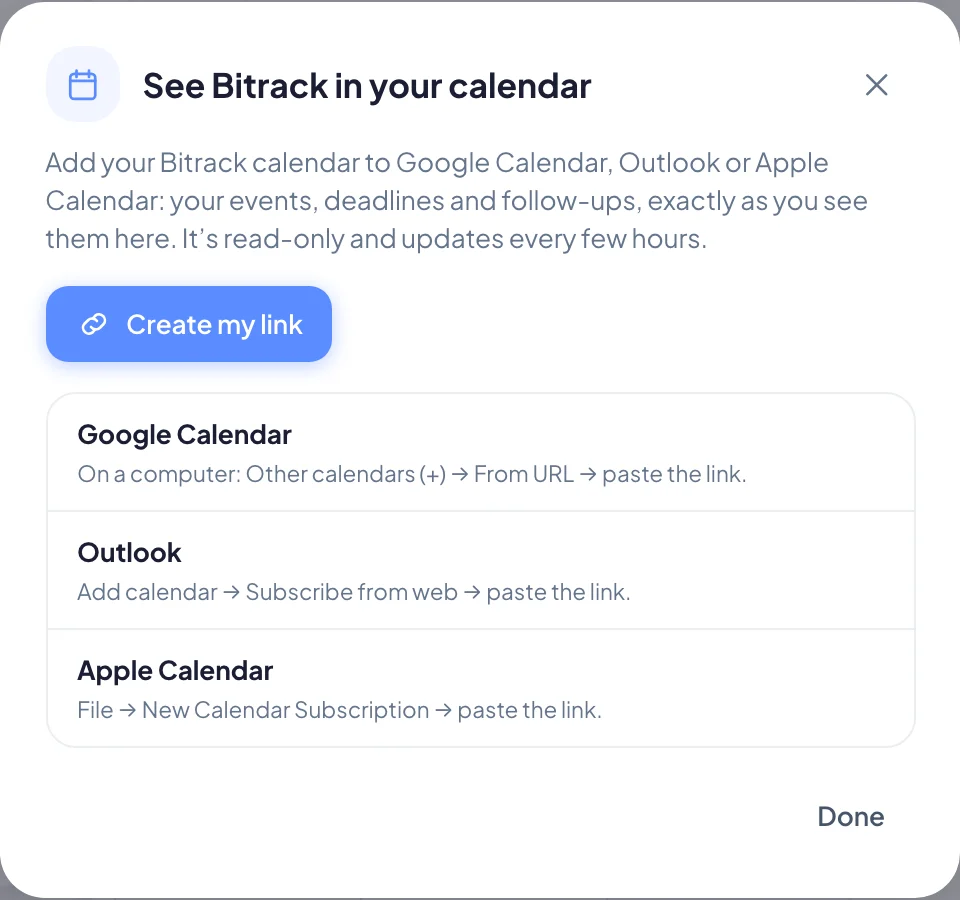
Create your link
- Go to Calendar and choose Subscribe.
- Choose Create my link.
- Choose Copy to copy the link.
Add it to your calendar app
Paste the link into your calendar app:
| App | Where to paste the link |
|---|---|
| Google Calendar | On a computer: Other calendars (+), then From URL, then paste the link. |
| Outlook | Add calendar, then Subscribe from web, then paste the link. |
| Apple Calendar | File, then New Calendar Subscription, then paste the link. |
Once added, your Bitrack calendar appears alongside your other calendars.
How it works
- It’s read-only. To change something, change it in Bitrack.
- It updates every few hours. How often depends on your calendar app, so a change in Bitrack can take a while to appear.
- It shows what you can see in Bitrack, and nothing more, from the last 30 days to about 6 months ahead.
- It doesn’t include events from a connected Google or Outlook calendar, so they don’t appear twice.
Make a new link
If you lose your link or think someone else has it, make a new one:
- Go to Calendar and choose Subscribe.
- Choose Make a new link, then confirm with Make a new link.
- Copy the new link and add it to your calendar app again.
Your old link stops working straight away, so calendars using it stop updating until you add the new one.
Turn your link off
- Go to Calendar and choose Subscribe.
- Choose Turn off my link, then Turn it off.
Calendars using the link stop showing Bitrack. You can make a new link anytime.