Teams and boards
Give each department its own boards and columns, see every board from the Tasks page, save filtered views, and read every team's work by the same four stages.
If your company has departments that work differently, such as Design, Development or Marketing, give each one a team. A team has its own boards, and each board has its own columns. A board holds the team's tasks from any project: a Development team can have a Development board for new builds and a Support board for fixes on every client's site.
Until you add a team or a second board, everyone works in General, with the columns you have today. Nothing changes for anyone until you do.
Add a team
- Open Team & Access → Teams.
- Choose New team.
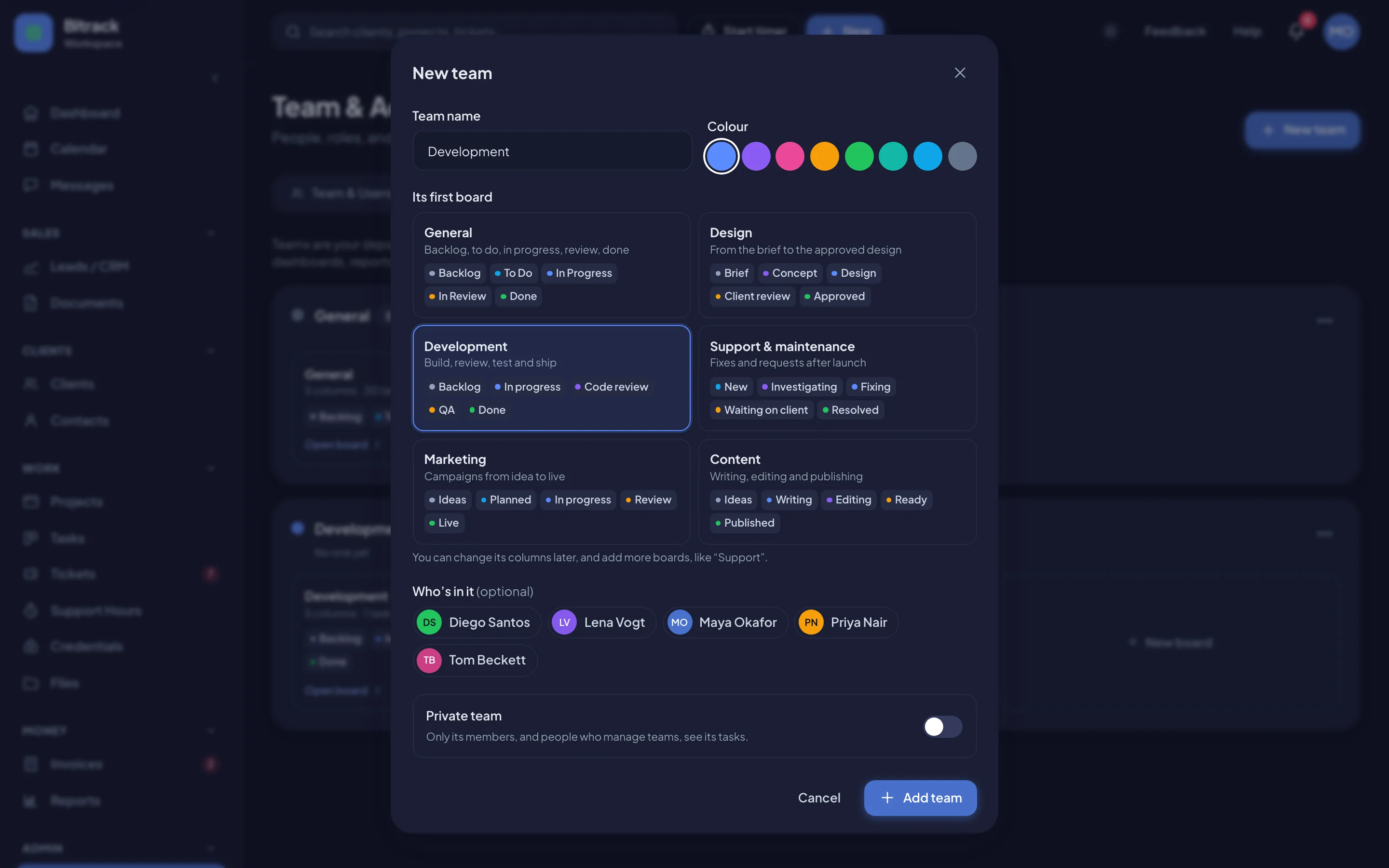
- Name it, pick a colour and choose its first board: General, Design, Development, Support & maintenance, Marketing or Content.
- Pick who's in it, and turn on Private team if only its members should see its tasks.
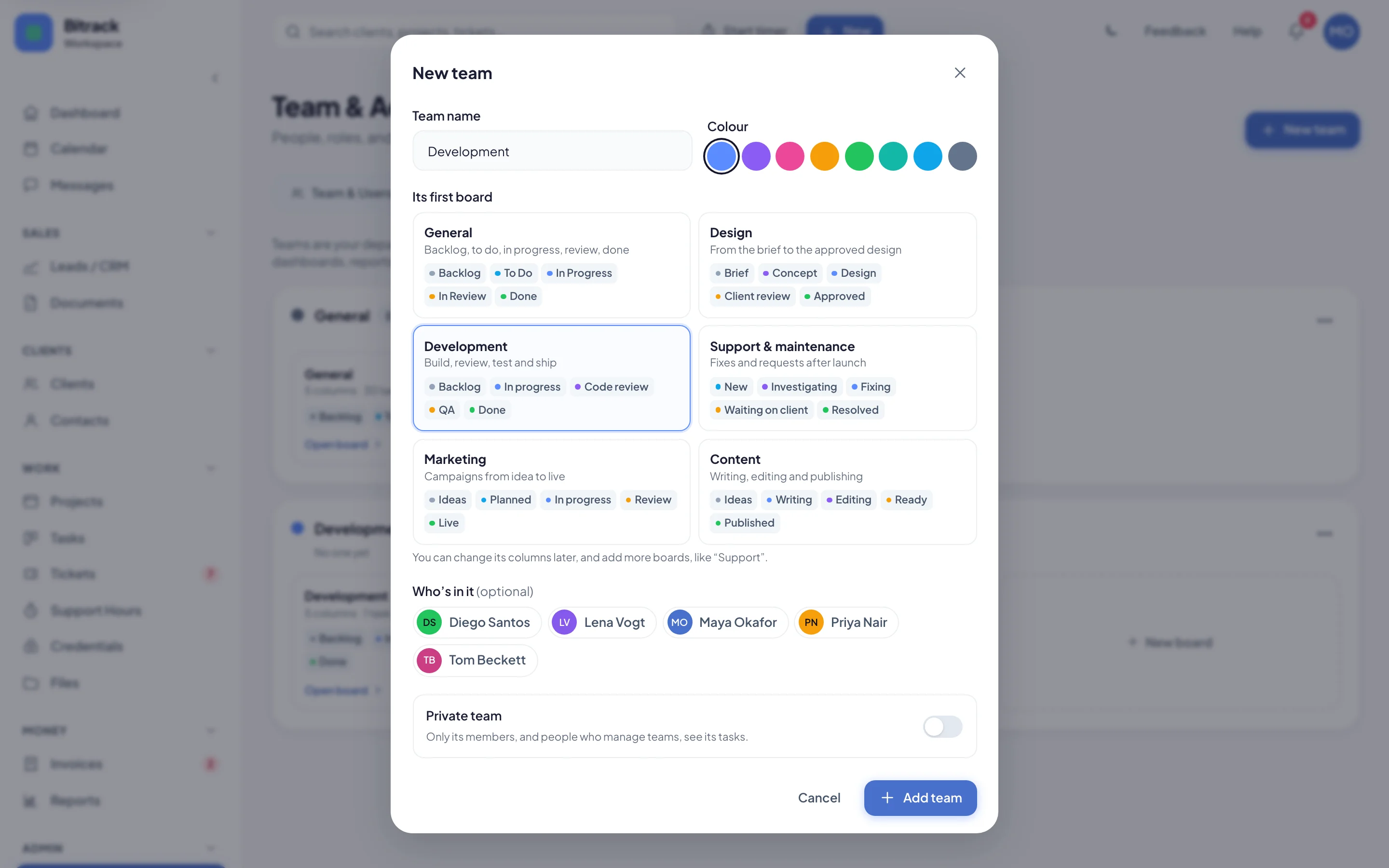
From a team's … menu you can edit it, choose its People & leads, add a New board or delete it.
Boards
On Tasks, choose Boards to see every team's boards. Each card shows the board's columns and how many open tasks it has. Choose a card to open the board.
- New board: choose New board under a team (or + next to the board switch). Start from a ready-made set of columns.
- Board settings: on an open board, choose the gear to rename it, change its columns, choose the team's people and leads, or delete it. Its tasks are moved, never deleted. A team always keeps at least one board: to remove a team's only board, add another board first or delete the team.
- All teams shows everyone's work in four stage columns. Each card shows its team, board and column, for example Development · Code review.
A board isn't tied to one project. To work on one project, filter the board by project, then save it as a view.
Saved views
A view is a board with filters, saved under a name, for everyone who works on that board. For example, filter the Development board to one project and choose Save view. Views show above the board; choose All to see everything again. Whoever saved a view, or the team's leads, can rename it, update it with the current filters or delete it.
Stages: how every team reads the same
Every column belongs to one of four stages: Not started, In progress, Done or Cancelled. Teams can name their columns however they like; the stages keep dashboards, reports, project progress and the client portal consistent.
- Done columns count toward project progress.
- Cancelled columns close the task, but it counts neither way.
- Each board keeps at least one Done column.
Your clients only ever see a project's progress, never your internal columns.
Teams on a project
On a project's Overview, the Teams & boards card shows which teams work on it. Choose Change to tick the teams, choose the board each one uses on this project, and pick the team that New tasks go to. A project with no teams ticked stays with General.
On a project's Tasks tab, each team has a tab, plus All teams, by stage.
To move a task to another team or board, change Team in the task. It keeps its stage: a task in progress stays in progress.
Automations for a team
In Automations, a rule can apply to one team's tasks: under For → Only some of it, add the team under Teams.
Boards made from a ready-made set come with rules that suit them, marked with the team's name in the templates. For example, Development offers Send code review to the project lead, and Support & maintenance offers Flag new support requests. They're already limited to that team and point at its own columns.
When a rule sets a column from another board, the task moves to the same stage on its own board, so a rule never moves work to another team.
Teams and tickets
With Tickets on, each ticket can belong to a team, and the Tickets page has a team switch, a Team queue tab and Group by team on the board. A team can also have its own first-reply targets and working hours. Read more in Work with tickets and Response targets (SLAs).
Reports by team
In Reports → Delivery, Work by team shows each team's open, overdue and done tasks, and how much of its work is complete. With several boards, Tasks by status shows the four stages.
Who can do what
- People with Manage teams & boards (Owners and Admins by default) create and delete teams, choose leads and make teams private.
- A team's leads manage its people, boards and columns.
- General's columns can be changed by anyone who can edit tasks, as before.
- Anyone who can edit tasks can save views.
- A role's data scope can be Their teams' work: people with that role see the projects on their teams' boards, plus the projects they're assigned to. A project that only uses the General board is seen only by the people on it. See Roles and permissions.