Response targets (SLAs)
Set how fast your team should first reply to a ticket for each priority, and see which tickets are at risk.
A response target (SLA) is the time your team has to send the first reply on a ticket. Bitrack counts down on every client ticket and warns you before you miss it.
How the target works
- The clock starts when the ticket is opened.
- It stops at the first reply your team sends to the client. Internal notes don’t stop it.
- The target depends on the ticket’s priority.
- The clock counts real hours, including nights and weekends.
Internal tickets and resolved tickets have no target. A priority with no hours set has no target either.
Set your targets
Owners and Admins set the targets for the whole workspace.
- Go to Settings and choose Automations.
- Find the Ticket response SLA card and make sure its switch is on.
- Enter the hours for Urgent, High, Medium and Low. Each change saves when you leave the field.
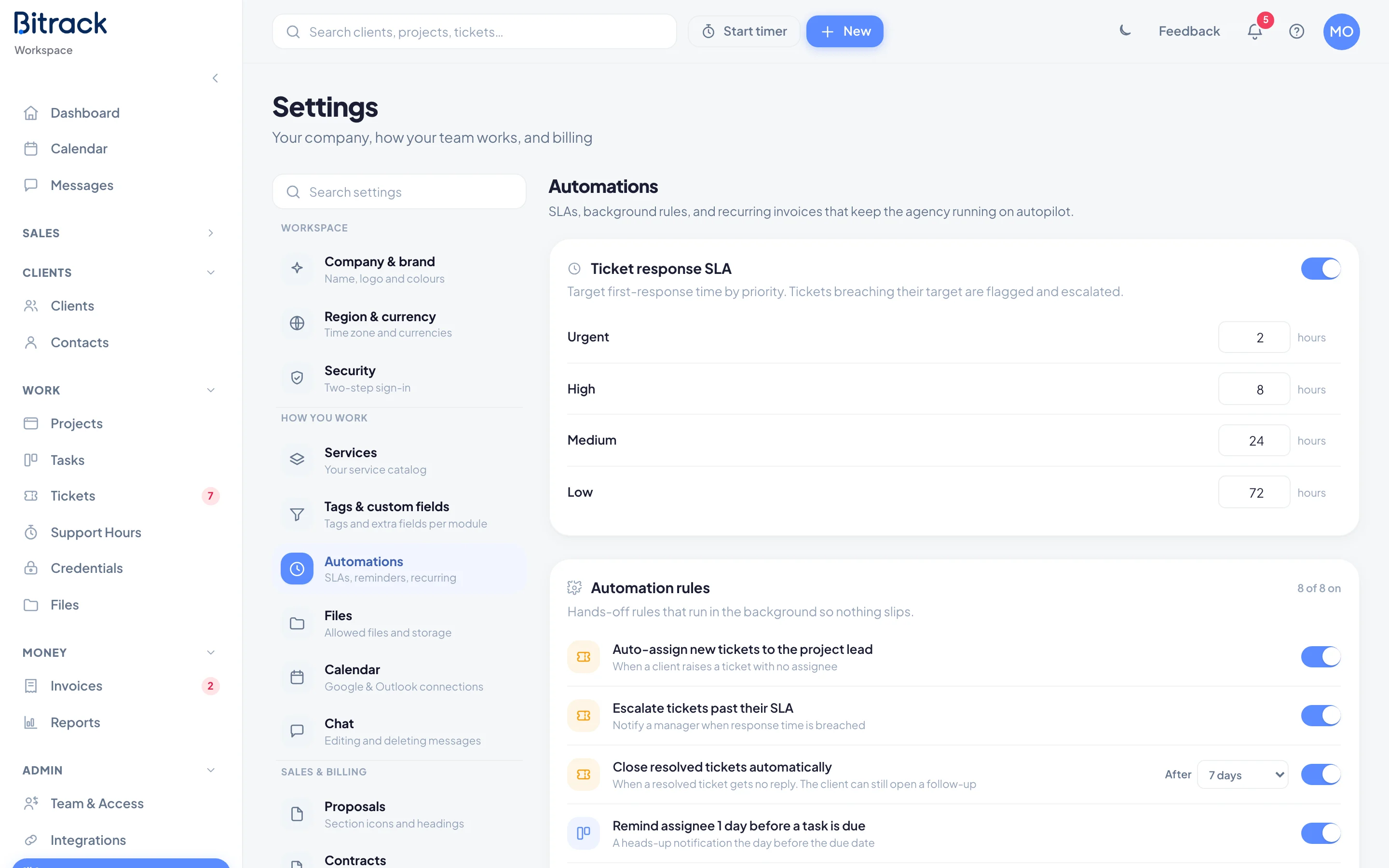
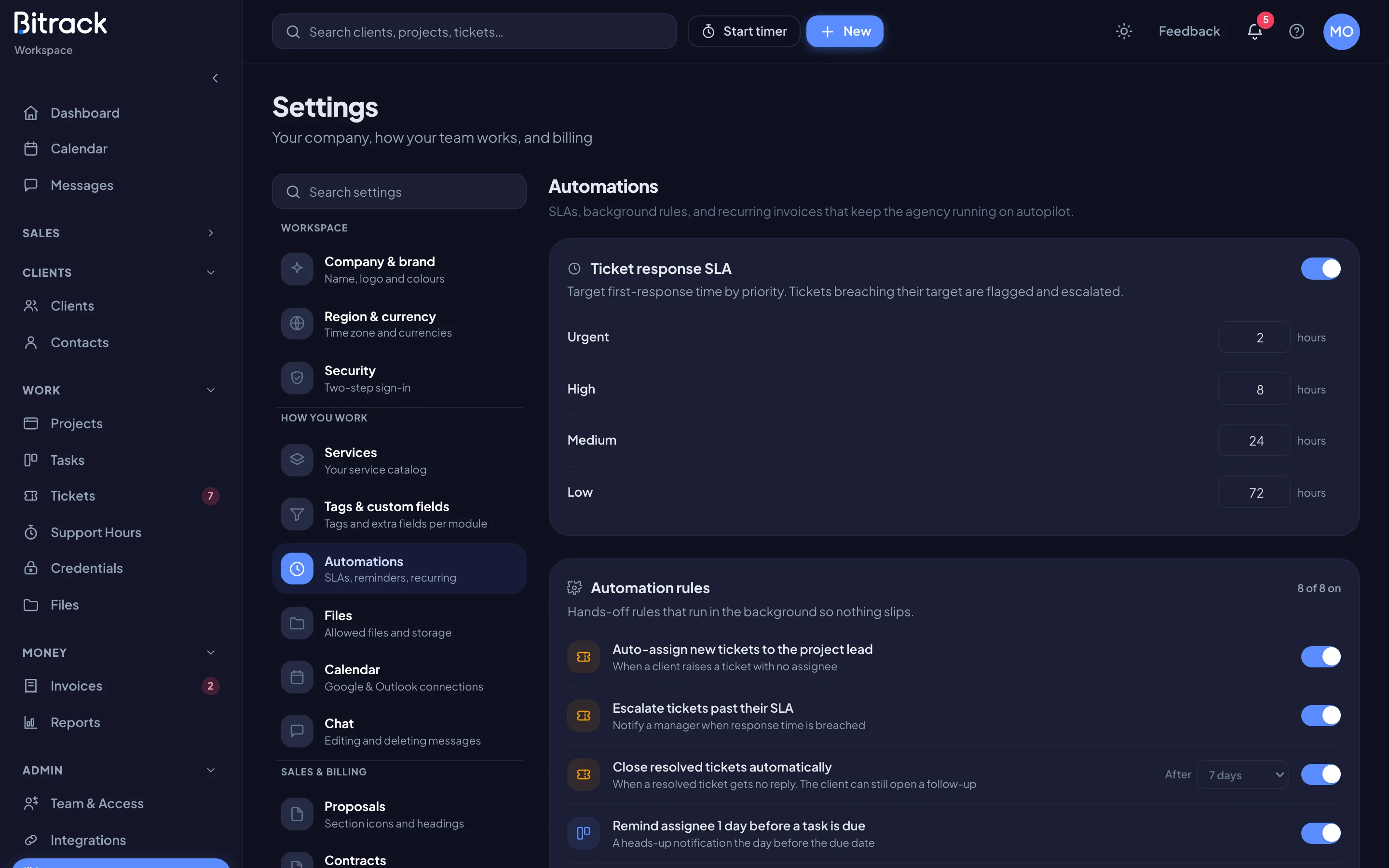
New workspaces start with these targets:
| Priority | First response within |
|---|---|
| Urgent | 2 hours |
| High | 8 hours |
| Medium | 24 hours |
| Low | 72 hours |
To stop tracking response times, turn off the Ticket response SLA switch. The badges disappear from every ticket.
Read the badge on a ticket
Each client ticket shows a badge in the list, on the board and inside the ticket:
| Badge | What it means |
|---|---|
| 5h left (grey) | Time left to send the first reply |
| 45m left (amber) | A quarter or less of the target is left. Reply soon |
| SLA 2h over (red) | The target has passed with no reply |
| SLA met (green) | Your team has sent its first reply |
Hover over a badge to see the target it’s measured against.
Warnings and escalation
With the rule Escalate tickets past their SLA switched on (in Settings > Automations, under Automation rules), Bitrack also notifies people:
- When a ticket gets close to its target, the ticket’s owner gets an SLA at risk notification.
- When the target passes, the owner and everyone who can reassign the ticket get an SLA breached notification.
Each warning is sent once per ticket. With the rule off, tickets still show their badge, but nobody is notified.
Tips for meeting your targets
- Use the Needs reply tab on the Tickets page to see which clients are waiting on you.
- Set the right priority when a ticket comes in. Changing the priority changes the target.
- Turn on Auto-assign new tickets to the project lead so every new client ticket has an owner from the start.
Read more about tickets in Work with tickets.