Set up support hours plans
Create a support plan for a client, choose their monthly or yearly hours, and get notified as the hours run down.
A support plan holds the hours you’ve agreed with a client, such as 10 hours a month or 30 hours a year. Every timer or manual entry on the plan’s project counts against it automatically, so you always know what’s used and what’s left.
Create a plan
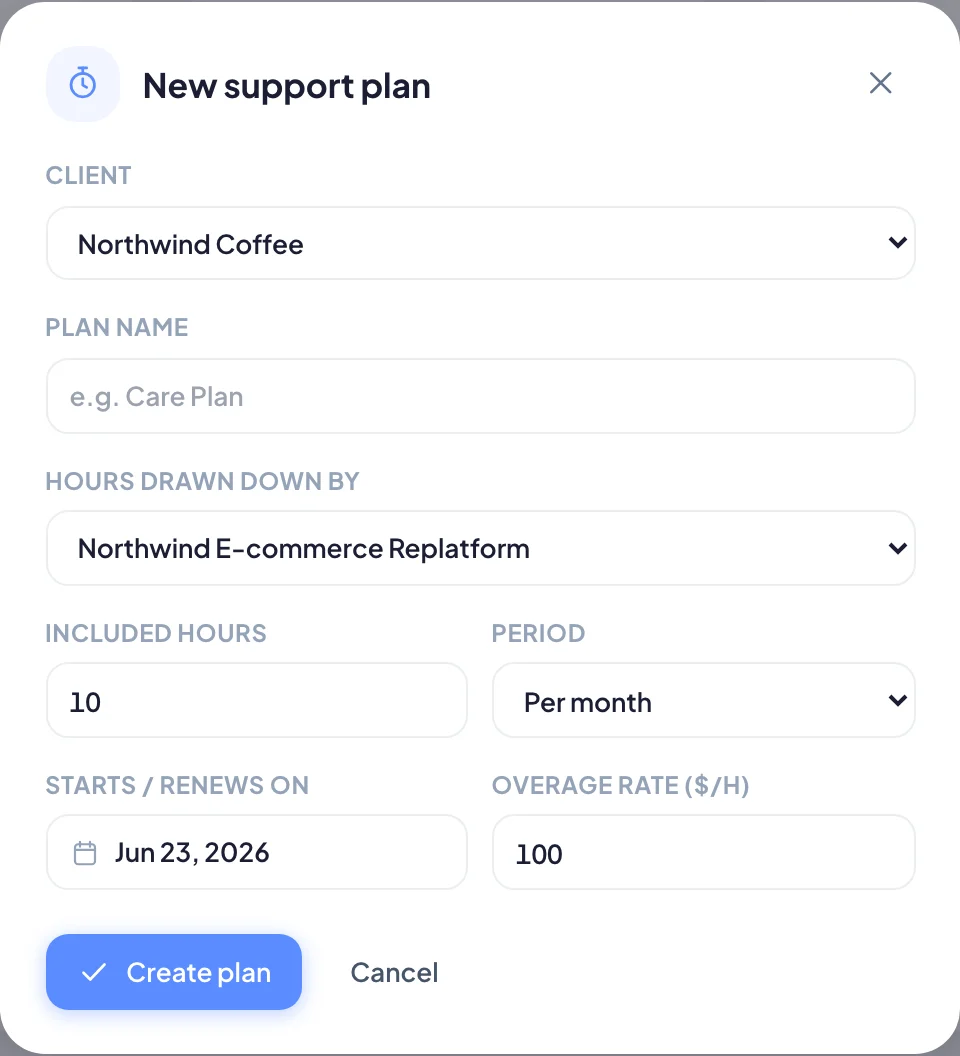
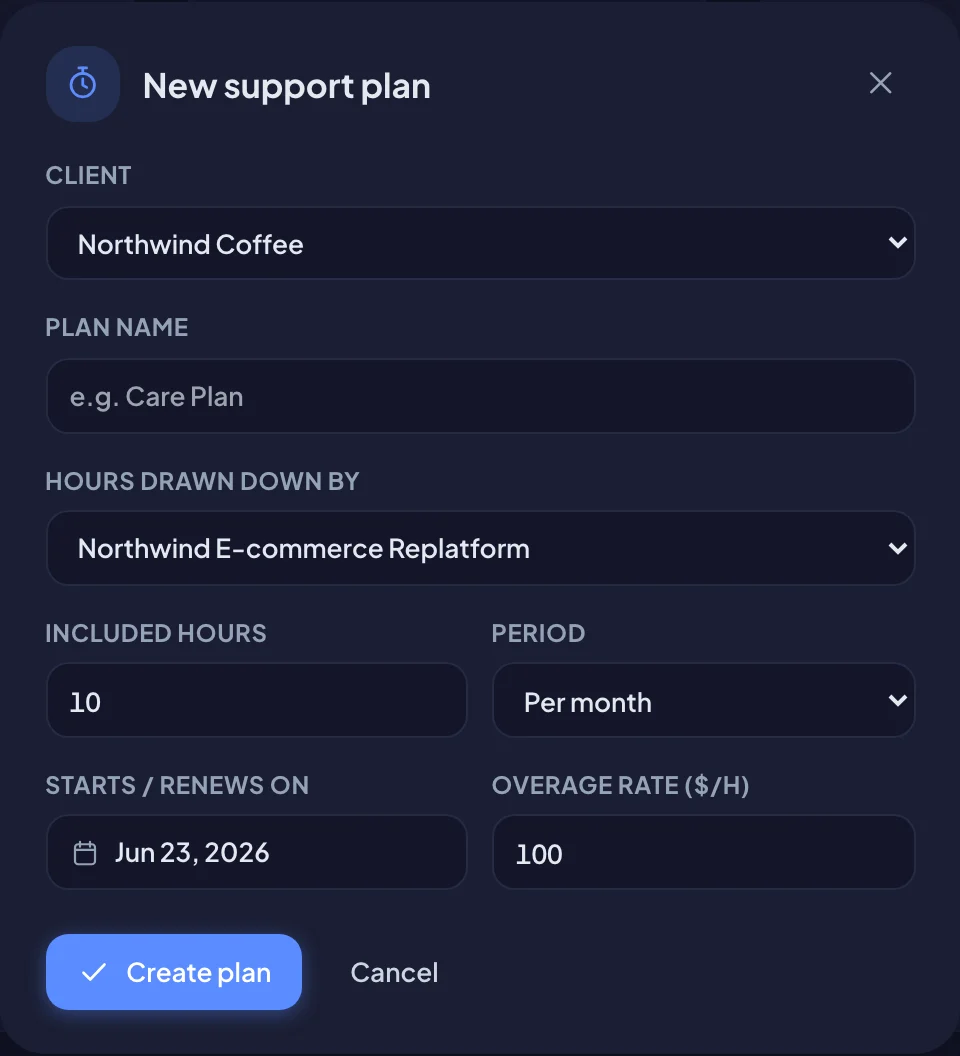
- Go to Support Hours and choose Add plan (or Add a support plan if you don’t have one yet).
- Pick the Client.
- Give it a Plan name, for example Care Plan.
- Under Hours drawn down by, pick the project whose time counts against the plan.
- Enter the Included hours and choose the Period: Per month or Per year.
- Set Starts / renews on.
- Enter the Overage rate ($/h) for hours beyond the plan.
- Choose Create plan.
Read the Support Hours page
The four boxes at the top give you the big picture:
- Support hours this month across all plans.
- Plans needing attention: plans running low or over.
- Hours over credit, with the unbilled value if you can see financials.
- Entries needing review: hours that don’t count yet.
The tabs below show Plans, All entries, By person and Needs review. Each plan card shows its usage bar and its pace, such as how many hours are left and how many days to go. If a plan is burning faster than it should, the card says what it’s pacing to by the end of the period.
The plan page
Choose a plan card to open it. You’ll see:
- the hours used out of the hours available, with what’s Included, Rolled over, any Top-up, hours Awaiting review and Internal (not charged) time;
- the Pace: the day of the period, and the hours projected by the end;
- Who worked on it and What the hours went on;
- every entry in the period.
Use the arrows next to the period name to look at earlier periods. Choose Back to now to return.
Change the agreement
The Agreement card on the plan page holds the plan’s rules. People who can manage plans can change them here at any time.
| Setting | What it does |
|---|---|
| Included hours | The hours per month or per year |
| Resets | Monthly plans reset on the 1st. Yearly plans reset when the contract renews |
| Unused hours | Monthly plans only. Roll one month forward carries unused hours into the next month. Expire monthly drops them |
| Overage rate | The hourly rate for time beyond the plan |
| Notice thresholds | When to notify your team: 50%, 75%, 90% and 100% |
| Manager review before hours count | Holds manual, edited, long and auto-stopped entries until someone confirms them |
New monthly plans roll unused hours forward by default. Rolled-over hours last one month, and only hours from the plan’s own months roll over.
Usage alerts
When a plan reaches a threshold you’ve picked, Bitrack notifies the people who work on the plan and the client’s account lead. New plans notify at 75%, 90% and 100%. Choose a threshold button to switch it on or off.
Each alert is sent once per period. The Notices sent list on the plan page shows which ones went out and when.
Top-ups
A top-up adds extra hours to the current period. You add one when a plan runs over: choose Add hours on the overage banner, and the period gets enough hours to cover what was used. Read more in Review hours and send reports.
Log time against a plan
Choose Log time or Start timer at the top of the page. On a plan page, the project is already filled in. Time logged anywhere else on that project counts too.