Review hours and send reports
Confirm hours before they count, settle overages, and send clients a monthly hours report they can also see in their portal.
Support hours are only useful if clients trust the numbers. Bitrack holds back unusual entries until someone checks them, helps you decide what to do when a plan runs over, and sends the client a clear report each period.
Review hours before they count
With Manager review before hours count on (the default for new plans), some entries wait for an OK before they count against the client’s hours. Bitrack flags an entry when it is:
- Entered by hand, not timed
- Longer than 8h in one entry
- Timer auto-stopped past the workday
- Duration was edited after logging
- Looks like a double log
- or the person’s day total looks too high.
Flagged entries appear on the Needs review tab of Support Hours. They’re left out of every client’s balance and every report until someone confirms them, so a forgotten timer or a typo can’t quietly become an invoice.
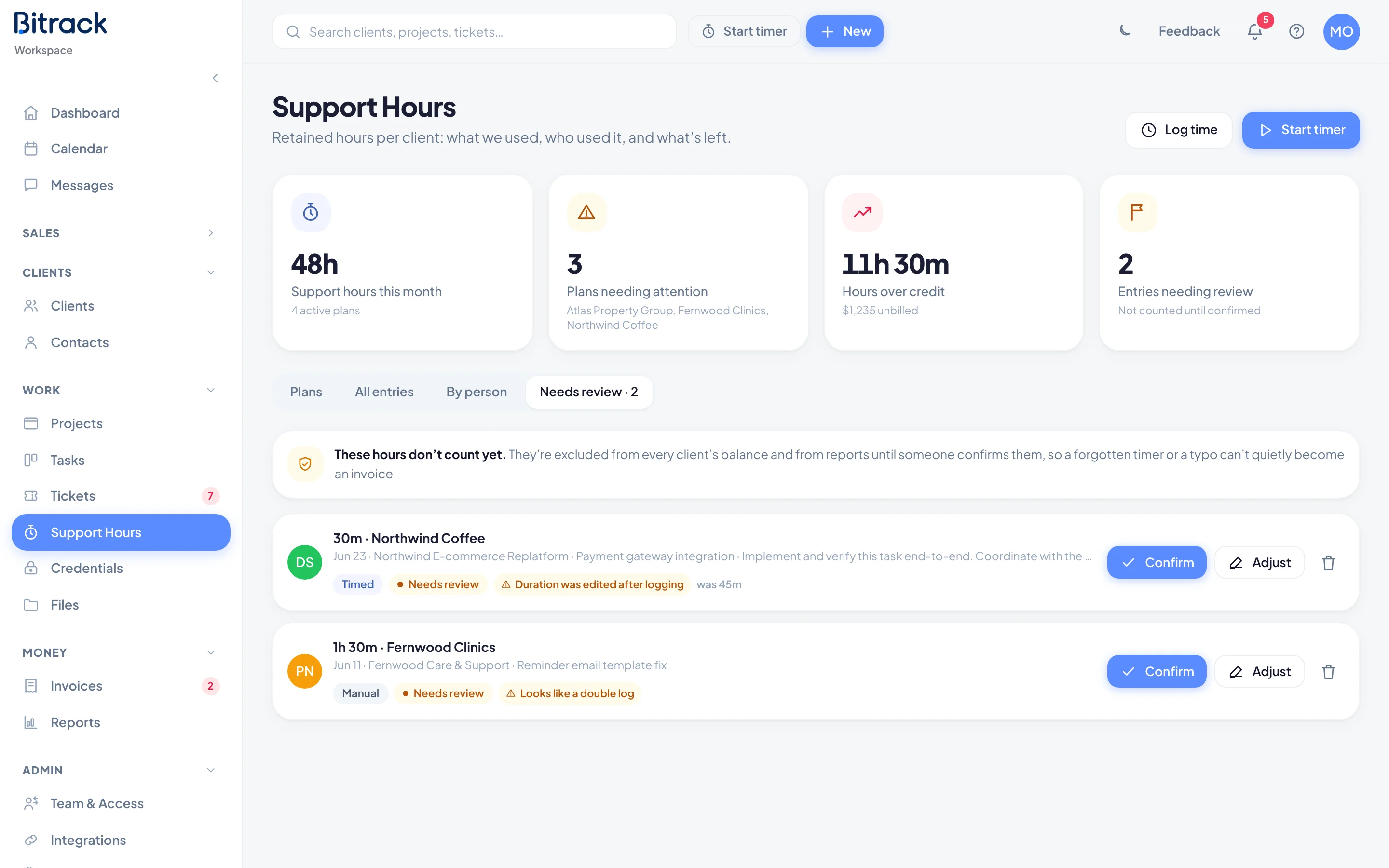
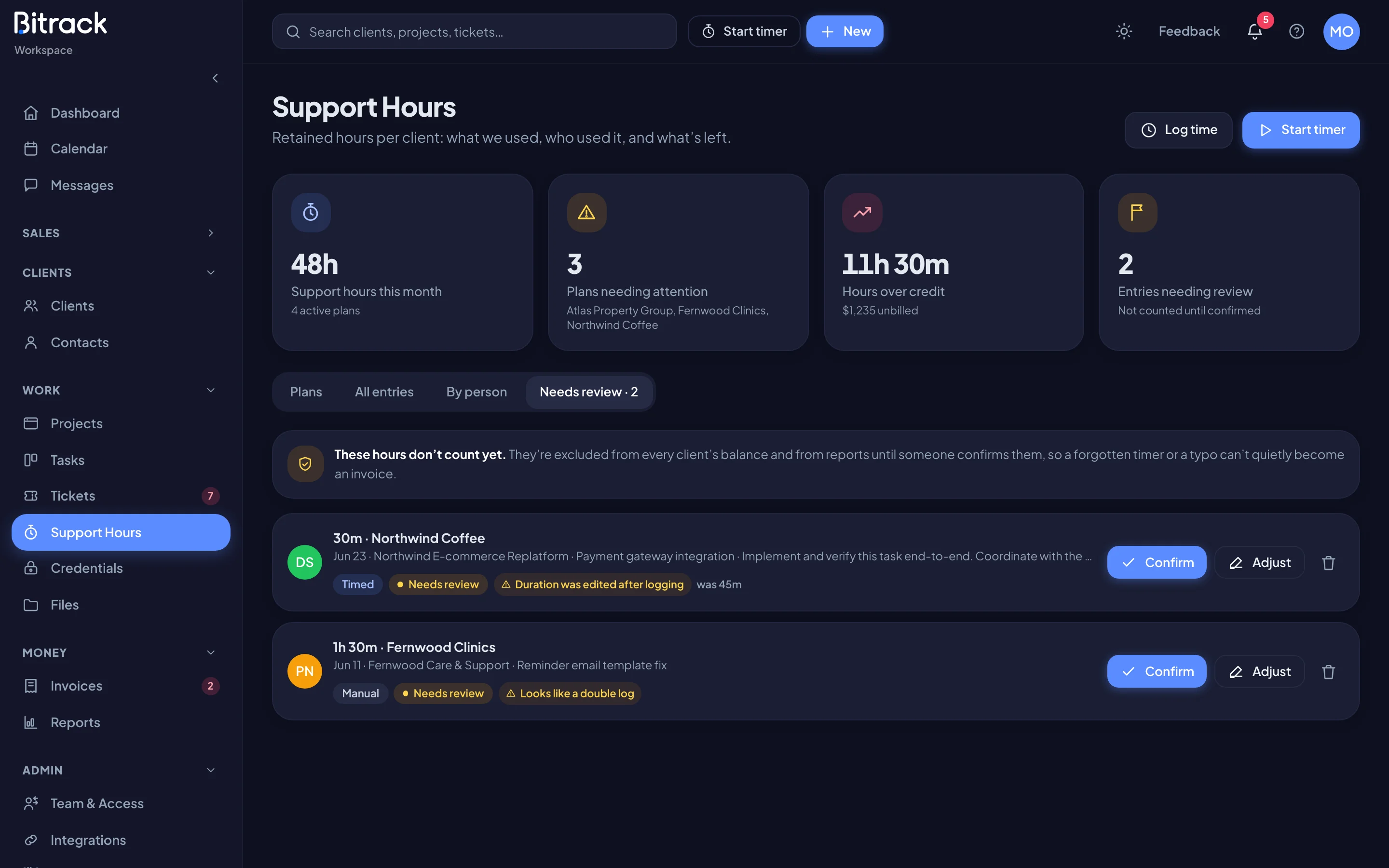
For each entry, choose:
- Confirm to count the hours as they are.
- Adjust to fix the Hours, Minutes or Note, then Save. Untick Counts against the client’s hours for internal time you don’t want to charge.
- Delete entry (the bin icon) to remove the entry from the client’s hours entirely. The person who logged it is notified.
The people who get notified about new entries to review are the ones who can confirm them.
When a plan goes over
If a period uses more than the plan allows, the plan page shows how many hours are over and, if you can see financials, what they’re worth at the overage rate. Work is never blocked. Your team can keep logging time.
People who can manage plans decide how the current period is settled:
| Choice | What happens |
|---|---|
| Bill the overage | The extra hours are queued for invoicing at the overage rate |
| Absorb it | Nothing is billed. The hours are written off as goodwill |
| Add hours | A top-up is added to the period, enough to cover the hours used |
You settle each period once. The plan page then shows how the overage was resolved.
The client report
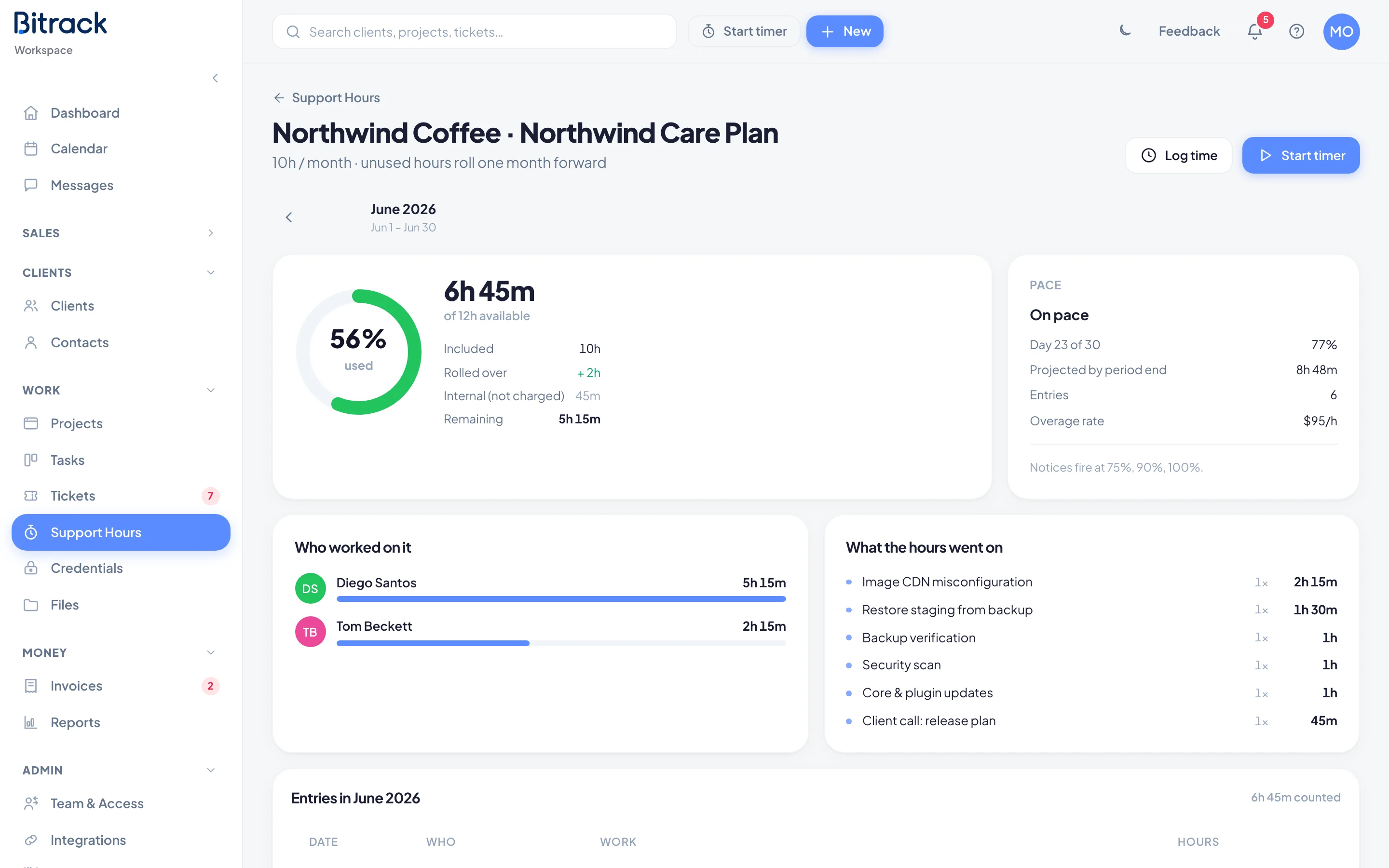
Each plan has a Client report card on its page. The report is a one-page summary of the period: hours used, what they went on, and what’s left. Internal time is left out.
- Open the plan and use the arrows to pick the period.
- Choose Preview to see what the client will get.
- Choose Send report, then Send report again to confirm.
The client contact gets the report by email, with a PDF attached. A note on the card shows when it was sent. Choose Resend report to send it again.
Sending locks the period
When you send the report for a period that has ended, the period locks. Its entries show Reported, the period shows Reported & locked, and the numbers the client saw can’t change silently. Later corrections show up as adjustments.
If you send a report for the period that’s still running, it goes out as a summary so far. The period locks when it ends.
Send reports automatically
Turn on Share automatically each month (or each week on a weekly plan). Bitrack then sends the report for each period once it ends, which also locks it. Weekly plans also get a summary of the running week each Monday.
What the client sees in the portal
With Client sees balance in portal on, the client’s portal home shows a card for the plan with:
- the hours left (or how far over they are), and the hours used out of the hours available;
- how the plan works, for example unused hours roll one month forward;
- their Recent work;
- their Hours reports, ready to download.
Turn the switch off if you’d rather share hours only through the reports you send.
Read how to set up a plan in Set up support hours plans.