Invoices at a glance
Find your way around the Invoices page, understand each invoice status, and see what needs chasing.
Invoices brings together everything you bill: contract milestones, recurring retainers and one-off invoices. The page shows what’s owed, what’s late and what needs you next.
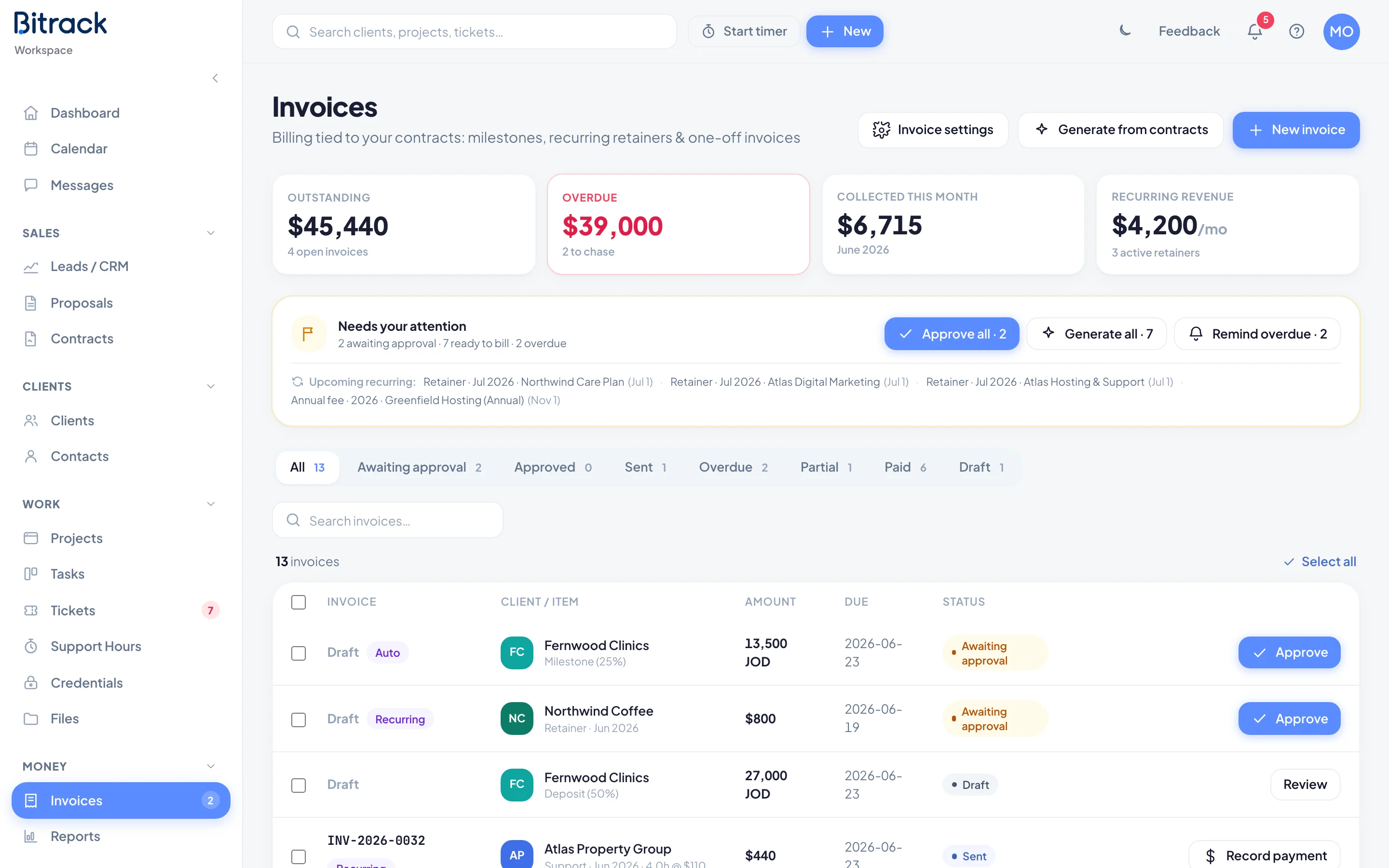
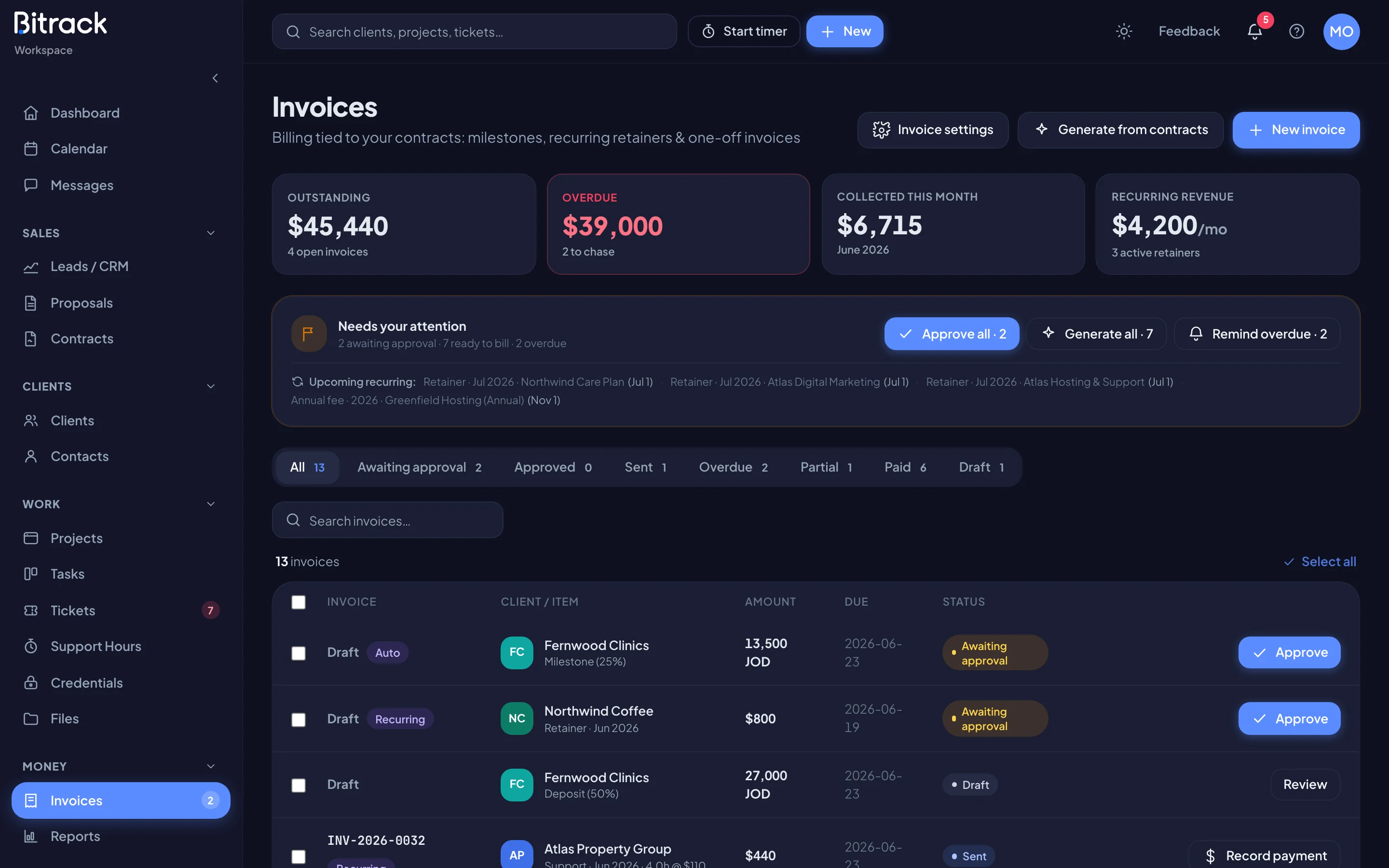
The totals at the top
| Box | What it shows |
|---|---|
| Outstanding | Everything still unpaid on sent invoices, and how many are open |
| Overdue | The unpaid amount past its due date, and how many to chase |
| Collected this month | Payments received this month |
| Recurring revenue | Your monthly recurring income from active retainers |
Choose Outstanding or Overdue to filter the list to just those invoices. Choose it again to clear the filter.
The totals are in your base currency. Each invoice in the list shows its own currency. Read more in Region and currency.
Needs your attention
When there’s something to do, a bar above the list sums it up, for example 2 awaiting approval · 1 ready to send · 3 overdue. It has a button for each job:
- Approve all approves every invoice awaiting approval.
- Send approved emails every approved invoice to its client.
- Generate all creates drafts for every contract milestone or period that’s due.
- Remind overdue sends a payment reminder on every overdue invoice.
If a client has no email address, Bitrack skips their invoice and tells you how many it skipped.
Below it, Upcoming recurring lists the next retainer invoices that will be created. When there’s nothing to do, the bar says All caught up.
Invoice statuses
| Status | What it means |
|---|---|
| Draft | Being prepared. It has no number yet |
| Awaiting approval | Generated automatically, or submitted by someone who can’t approve. Needs an approver |
| Approved | Issued with its number and ready to send |
| Sent | Emailed to the client and awaiting payment |
| Partially paid | Some money has come in. The list shows the balance still due |
| Overdue | Past its due date with money still owed |
| Paid | Paid in full |
| Void | Cancelled. It no longer counts as billed or owed |
You may also see Payment reported. That means the client told you, from their portal, that they’ve paid. Check your account, then record the payment. Read more in Send an invoice and get paid.
Next to the number, badges show where an invoice came from: Recurring, Auto (generated from a contract schedule) or Standalone (no contract).
Find an invoice
- Use the tabs to show one status: All, Awaiting approval, Approved, Sent, Overdue, Partial, Paid or Draft. A Payment reported tab appears when a client has reported a payment.
- Search by invoice number, client or title.
- Choose an invoice to open it.
When a filter is on, a line above the list says what you’re looking at. Choose Clear filter to see everything again.
The next step on each row
The last column shows the next action for each invoice, so you can work straight from the list:
- Approve on invoices awaiting approval.
- Send on approved invoices.
- Review on drafts.
- Remind and Record payment on overdue invoices.
- Record payment on sent and partly paid invoices.
Work with several invoices
Tick the invoices you want, or choose Select all. Then choose:
- Send reminder to email a reminder on each open invoice.
- Mark sent to send each approved invoice.
- Export CSV to download them as a spreadsheet.