Region and currency
Set the time zone your workspace runs on, your base currency for reports, and the currencies you bill in.
Region & currency holds the clock your workspace runs on and the money settings behind your reports. Owners and Admins can change them.
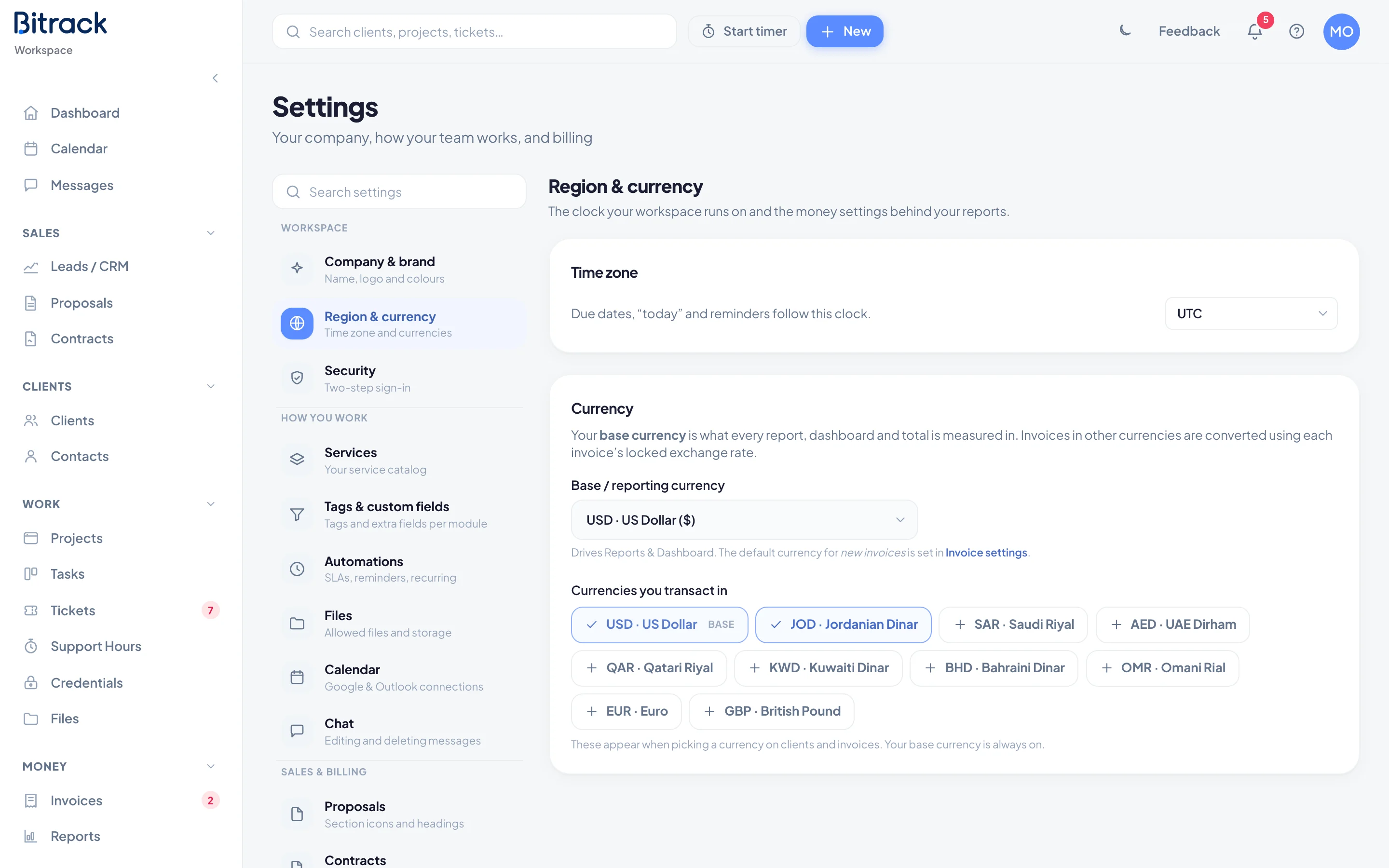
Set your time zone
Your workspace time zone decides what “today” means in Bitrack. Due dates, “today” and reminders all follow this clock.
- Go to Settings → Region & currency.
- Under Time zone, open the list and pick your time zone.
Bitrack saves it straight away and confirms with a message such as Time zone set to Europe/London.
Choose your base currency
Your base currency is what every report, dashboard and total is measured in. If you invoice in other currencies, those invoices are converted using each invoice’s locked exchange rate, so your totals don’t shift when rates move.
- Go to Settings → Region & currency.
- Under Base / reporting currency, pick a currency from the list.
Bitrack confirms with a message such as Base currency set to USD · reports now in USD. From then on, Reports and the Dashboard show totals in that currency.
Pick the currencies you work in
Under Currencies you transact in, you’ll see a button for every currency Bitrack supports. The ones you use are highlighted with a tick.
- Choose a currency to turn it on.
- Choose it again to turn it off.
The currencies you turn on are the ones offered when you pick a currency on clients and invoices. Your base currency is always on and is marked Base, so you can’t turn it off.
Who can change these settings
| Who | What they can do |
|---|---|
| Owners and Admins | Change the time zone, base currency and currencies |
| Others who can open Settings | See the current settings without changing them |