Export or delete your workspace
Download a full copy of your workspace, or delete it, with a waiting period in which you can still restore it.
As the Owner, you can take a full copy of your workspace or delete it. Both are in the Data group of Settings.
Where to find it
Go to Settings, then look under Data:
- If export is available for your workspace, the section is called Export & delete.
- If it isn’t, the section is called Delete workspace and only has the delete option.
Export your workspace data
The export is a ZIP with every record: a spreadsheet for each kind (clients, projects, tasks, time, tickets and more), one complete data file, and all uploaded files. Credential secrets are never included.
- Go to Settings → Export & delete.
- Under Export workspace data, choose Export.
- Confirm it’s you with your password, a code from your authenticator app, or Google.
- Choose Start export.
Bitrack prepares the file in the background, which can take a few minutes. We email you when it’s ready, and the page shows Ready with the file size. Choose Download ZIP to save it.
The file can be downloaded for 7 days, then it’s deleted from our servers. To make a fresh one, choose New export. A new export replaces the current file.
Delete your workspace
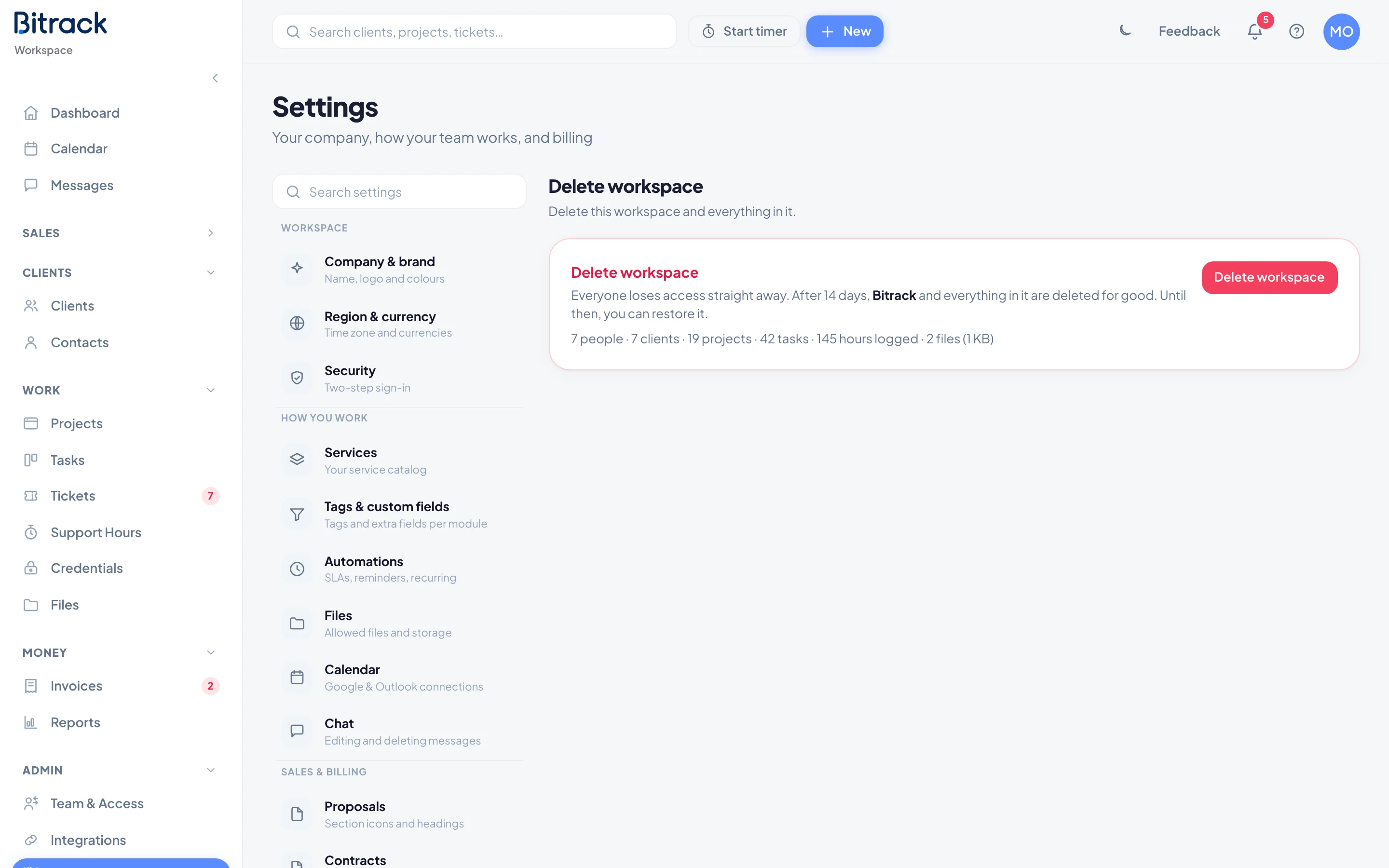
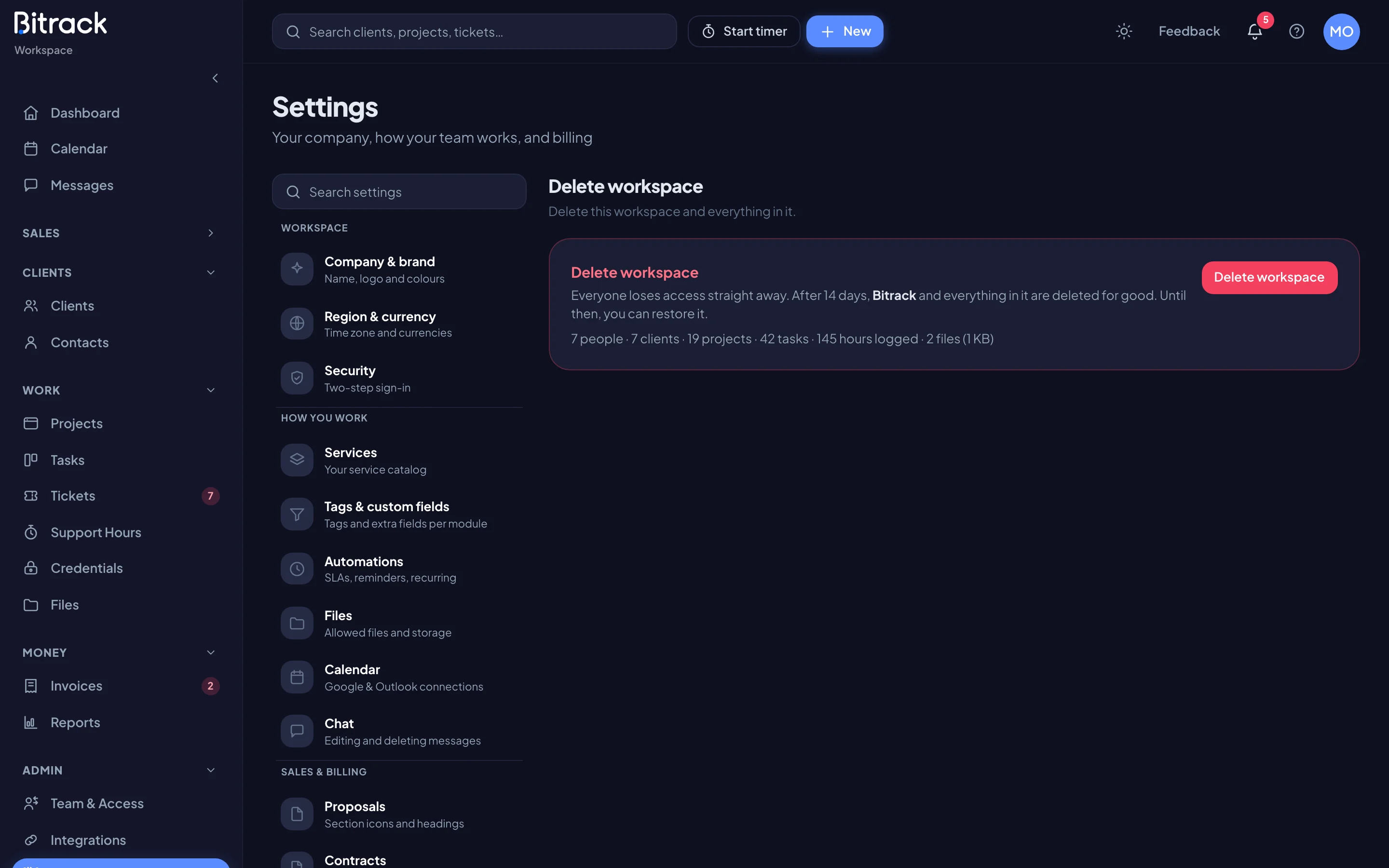
Deleting your workspace has a waiting period of 14 days, so a mistake can be undone.
- Go to Settings → Export & delete (or Delete workspace).
- Check the summary on the Delete workspace card. It lists your people, clients, projects, tasks, hours logged and files.
- Choose Delete workspace.
- Type your workspace name to confirm.
- Confirm it’s you with your password, a code from your authenticator app, or Google.
- Choose Delete workspace.
What happens next
As soon as you confirm:
- Everyone is signed out, and the workspace is locked.
- Its emails, reminders and public links stop.
- Anyone who signs in sees a page saying This workspace will be deleted, with the date.
On the 14th day, the workspace and everything in it are deleted for good. This can’t be undone.
Change your mind
Until the deletion date, you can bring the workspace back.
- Sign in to Bitrack as the Owner.
- On the This workspace will be deleted page, choose Restore workspace.
Everyone can sign in again. If you made an export, the same page has a Download your export link.