Chat, calendar and portal settings
Set how long people can edit or delete messages, allow calendar connections, and let clients request meetings.
Three small sections in Settings shape how people use Messages, the Calendar and the client portal. Owners and Admins can see and change them. Each section only appears when your workspace uses that module.
Chat: editing and deleting messages
Settings → Chat sets how long people can change what they’ve sent. Shorter keeps conversations trustworthy; longer forgives typos.
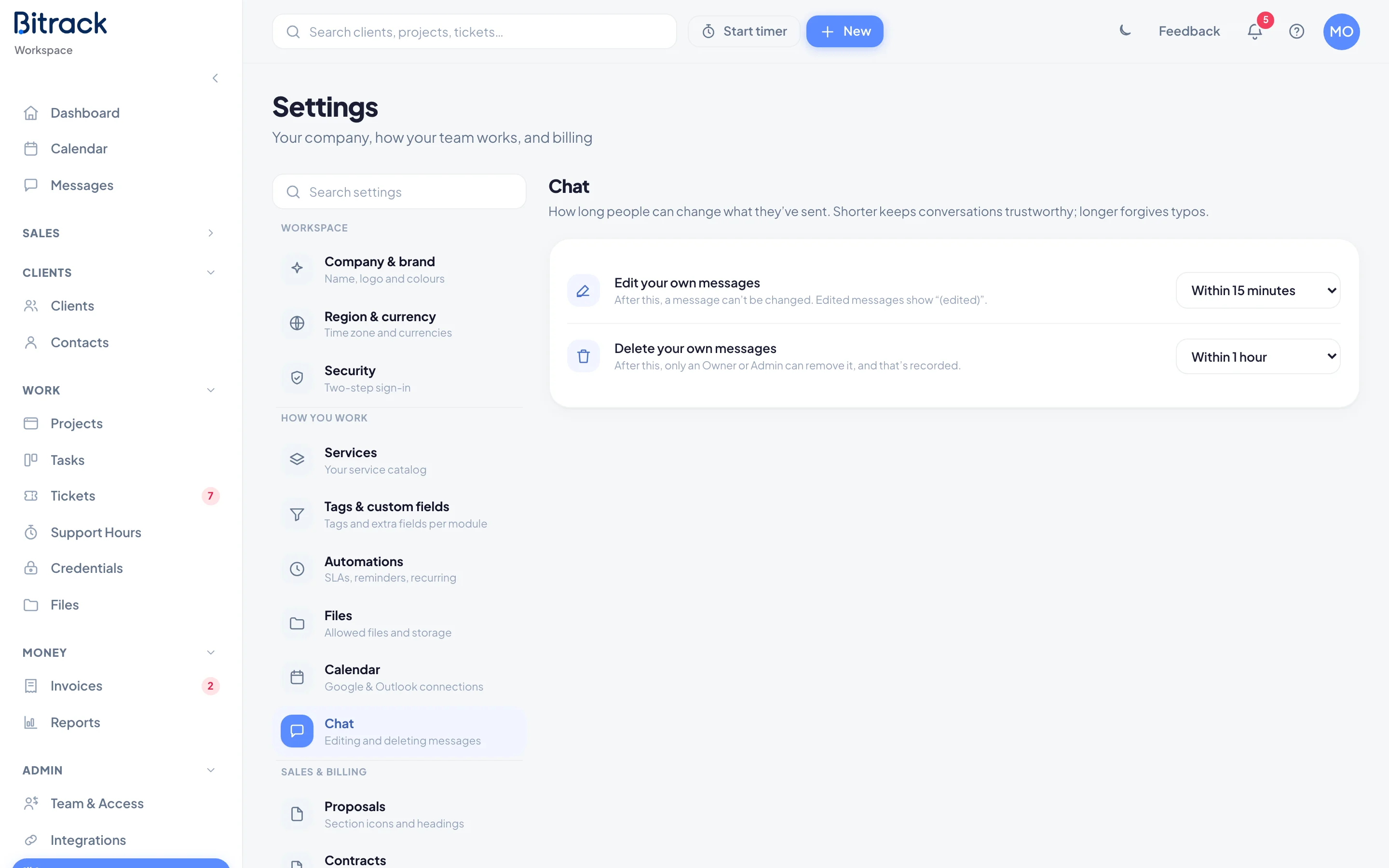
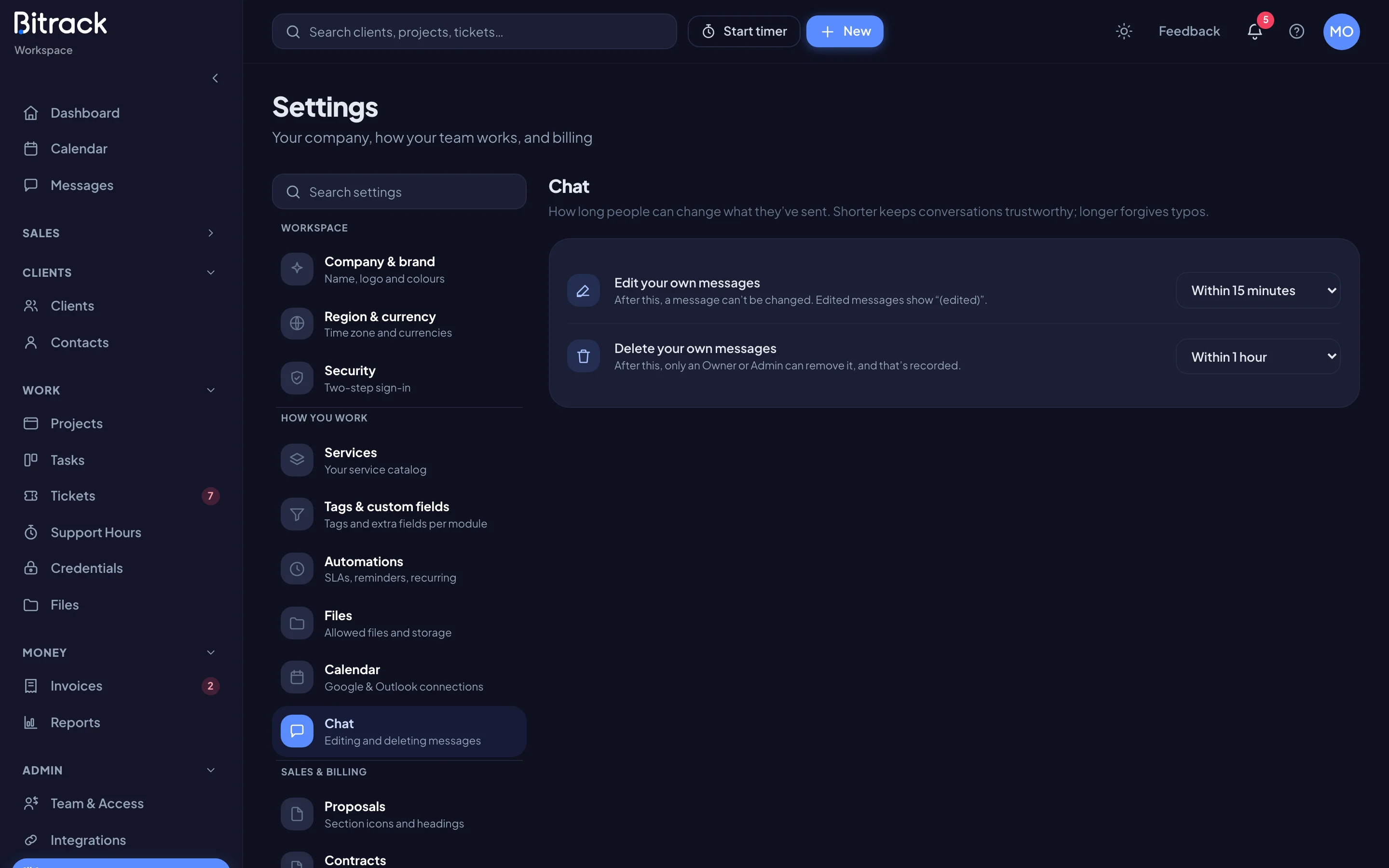
There are two settings:
| Setting | What happens after the time runs out | Default |
|---|---|---|
| Edit your own messages | The message can’t be changed. Edited messages show “(edited)” | Within 15 minutes |
| Delete your own messages | Only an Owner or Admin can remove it, and that’s recorded | Within 1 hour |
To change one:
- Go to Settings → Chat.
- Open the list next to the setting.
- Pick Not allowed, Within 5 minutes, Within 15 minutes, Within 1 hour, Within 24 hours or Any time.
You’ll see Saved.
Calendar: Google and Outlook connections
Settings → Calendar decides whether people can connect their own Google or Outlook calendar to Bitrack. It’s on by default.
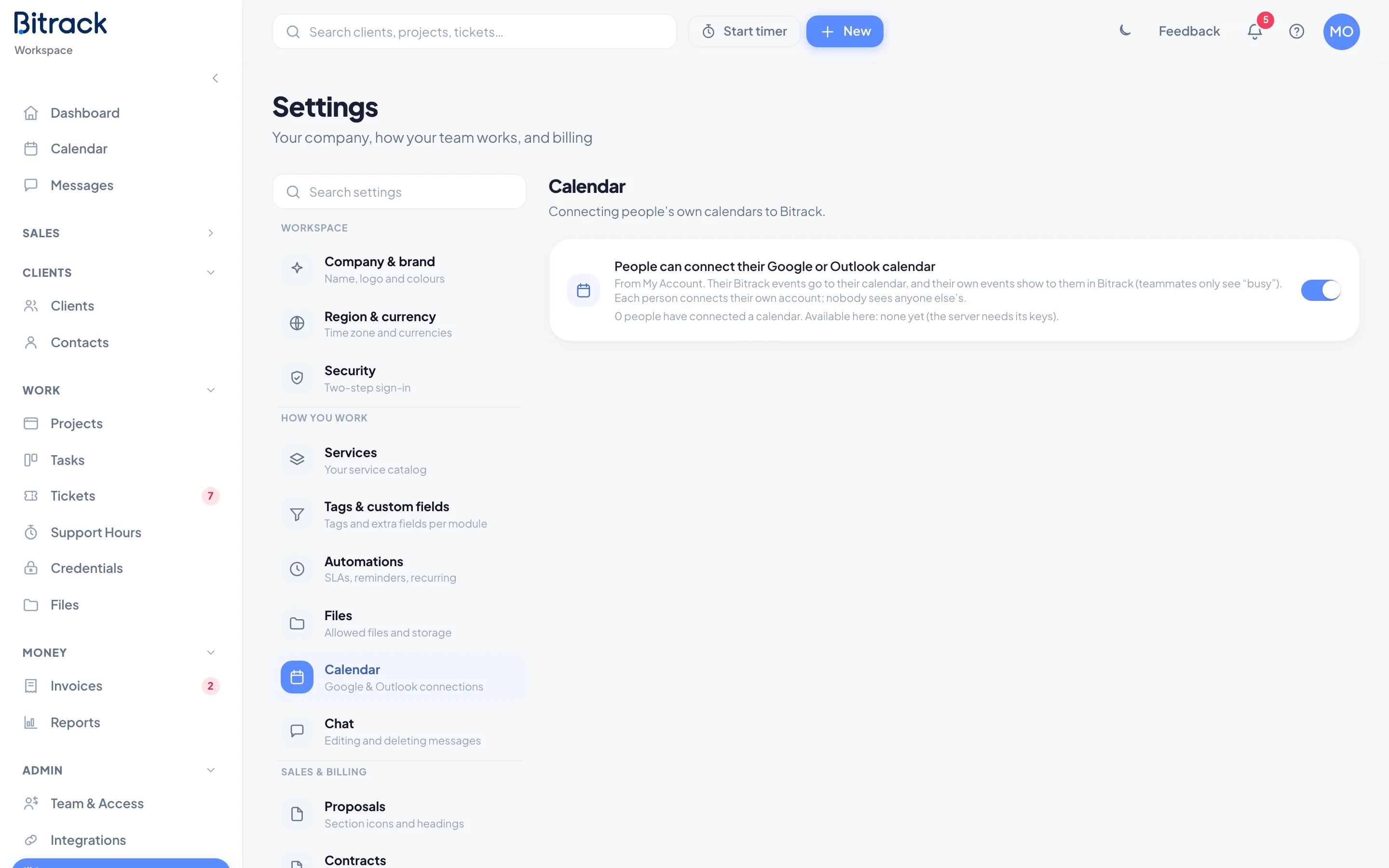
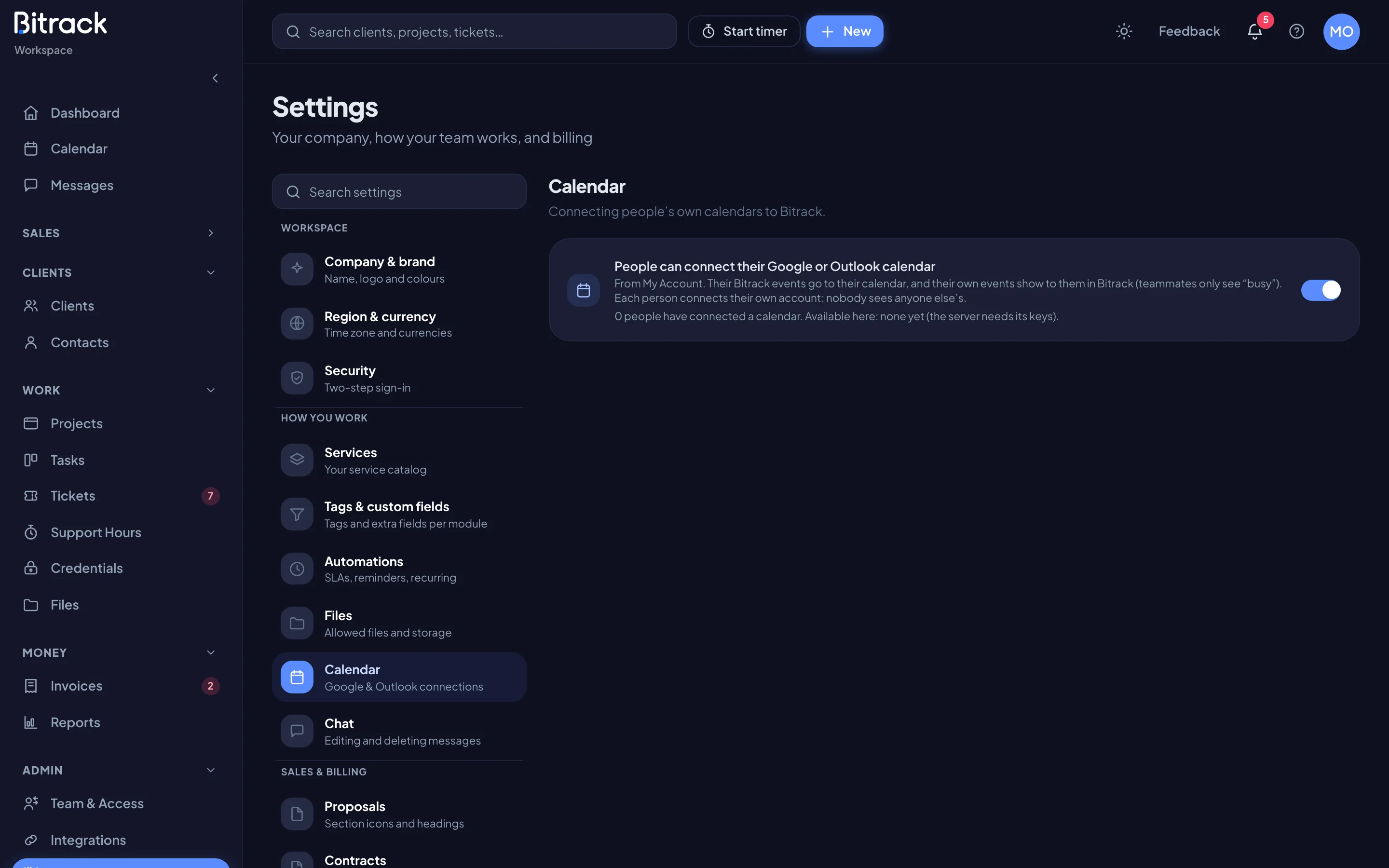
When it’s on, each person connects their own account from My Account. Their Bitrack events go to their calendar, and their own events show to them in Bitrack. Teammates only see “busy”. Nobody sees anyone else’s calendar. The section also shows how many people have connected a calendar.
Read more in Connect Google or Outlook.
Turn calendar connections off
- Go to Settings → Calendar.
- Turn off People can connect their Google or Outlook calendar.
- If anyone is connected, Bitrack tells you how many calendars will be disconnected. Choose Turn off and disconnect.
Client portal: meeting requests
Settings → Client portal sets what your clients can do in their portal. It appears when your workspace uses both the client portal and the Calendar.
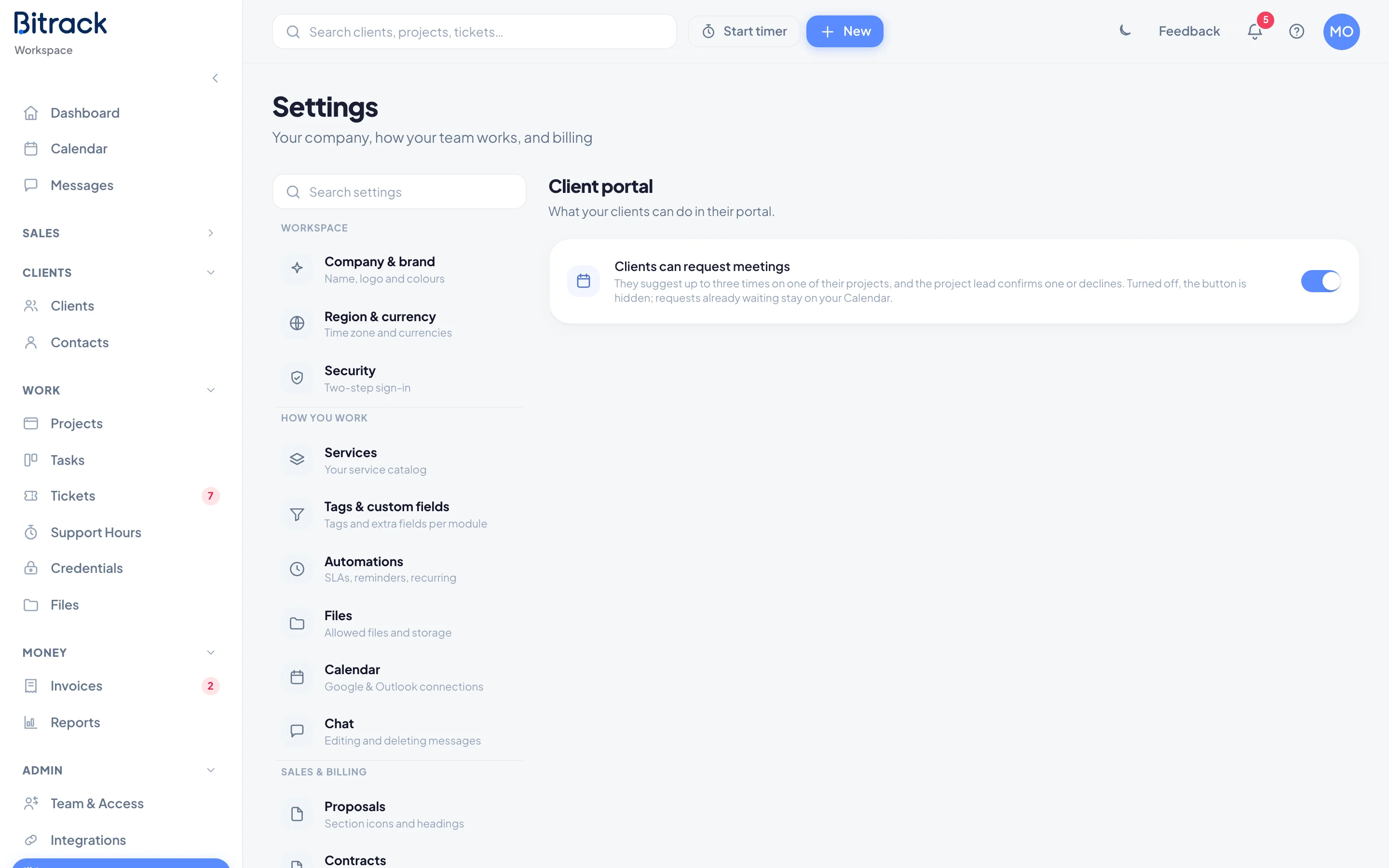
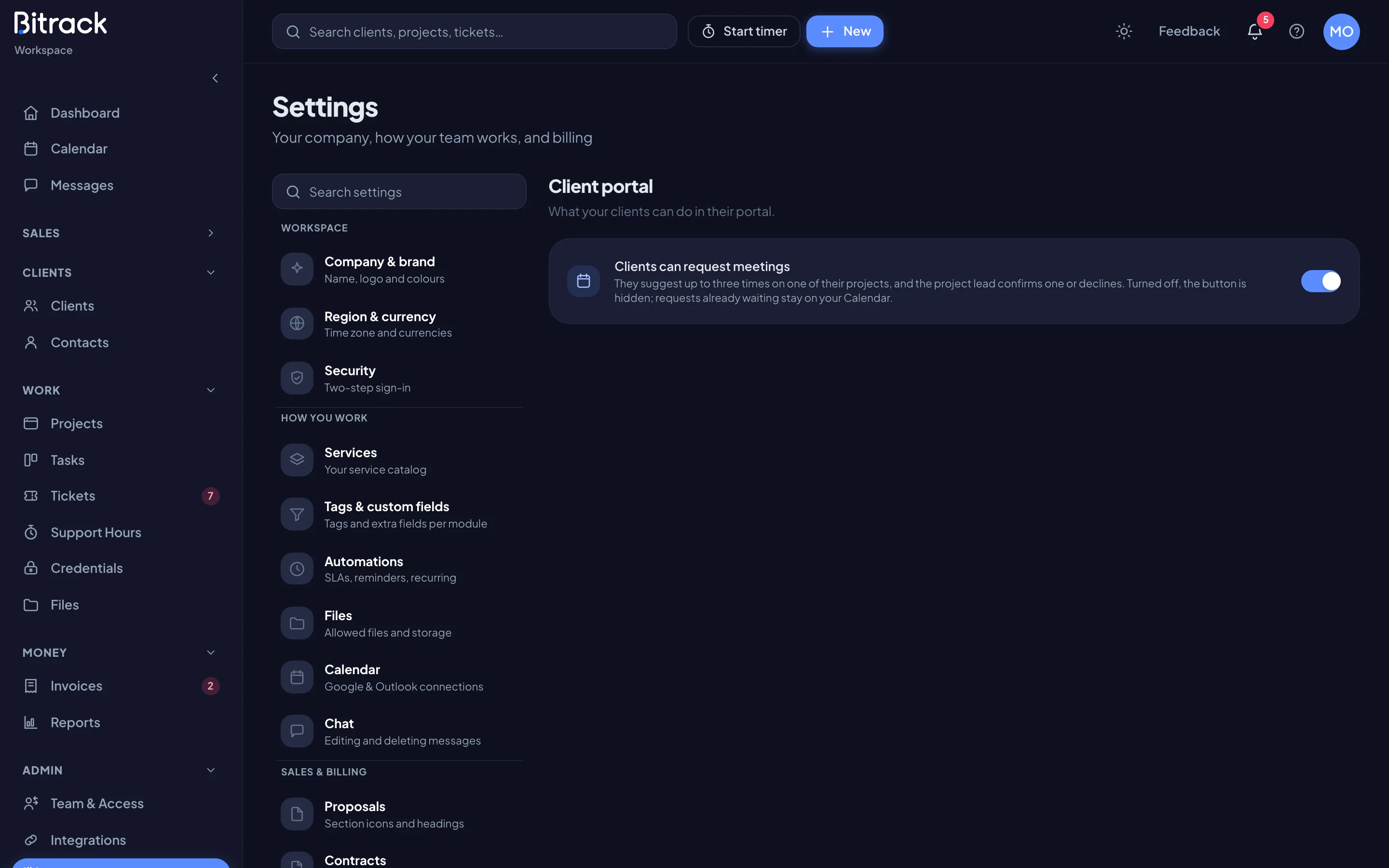
Clients can request meetings is on by default. Clients suggest up to three times on one of their projects, and the project lead confirms one or declines.
To turn it off:
- Go to Settings → Client portal.
- Turn off Clients can request meetings.
You’ll see Meeting requests turned off. The Request a meeting button is hidden in the portal. Requests already waiting stay on your Calendar, so you can still answer them.
Read more in Meetings and calendar in the portal.