Client emails
Reword the emails your clients receive, preview them in your brand, send yourself a test and go back to the default.
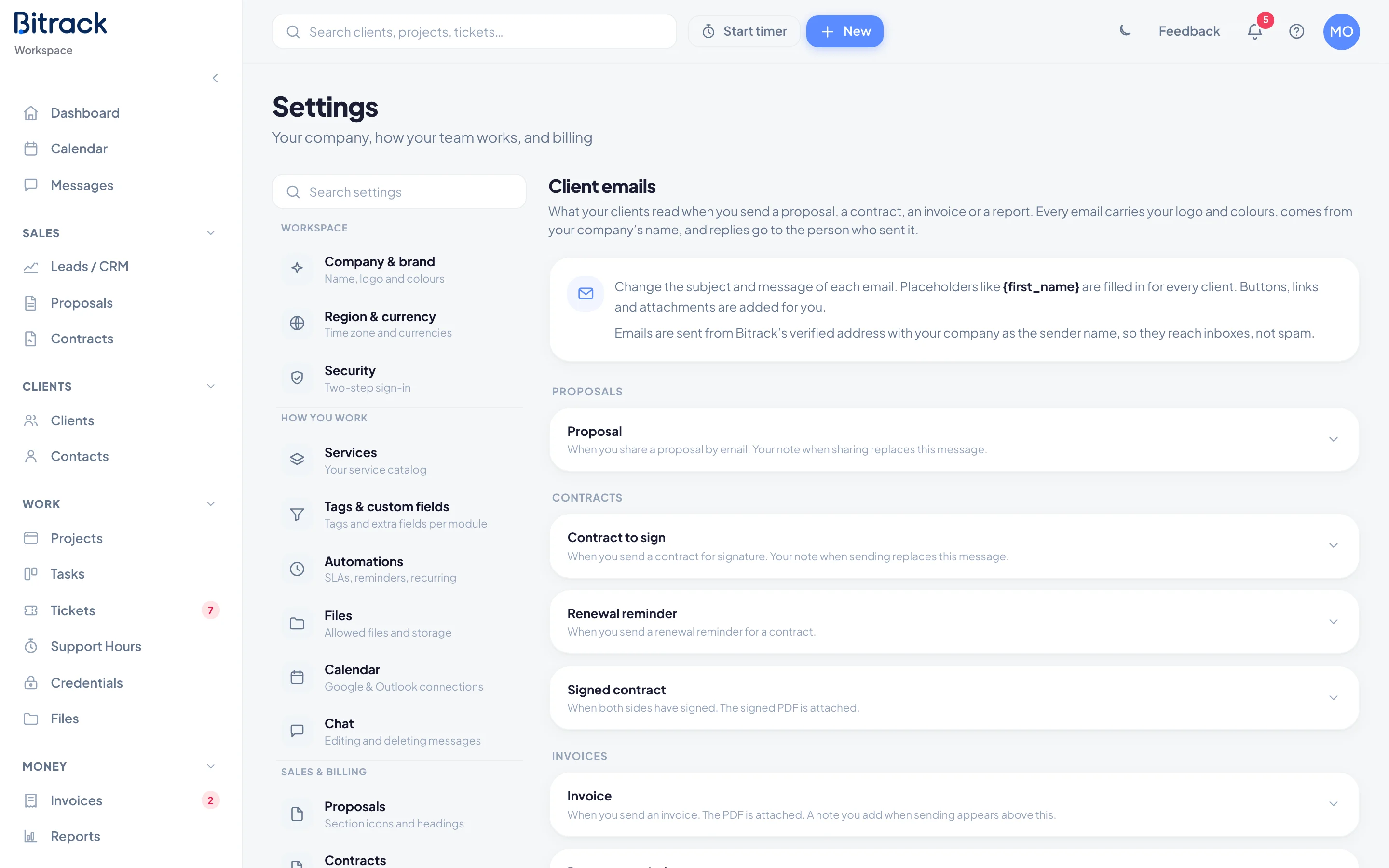
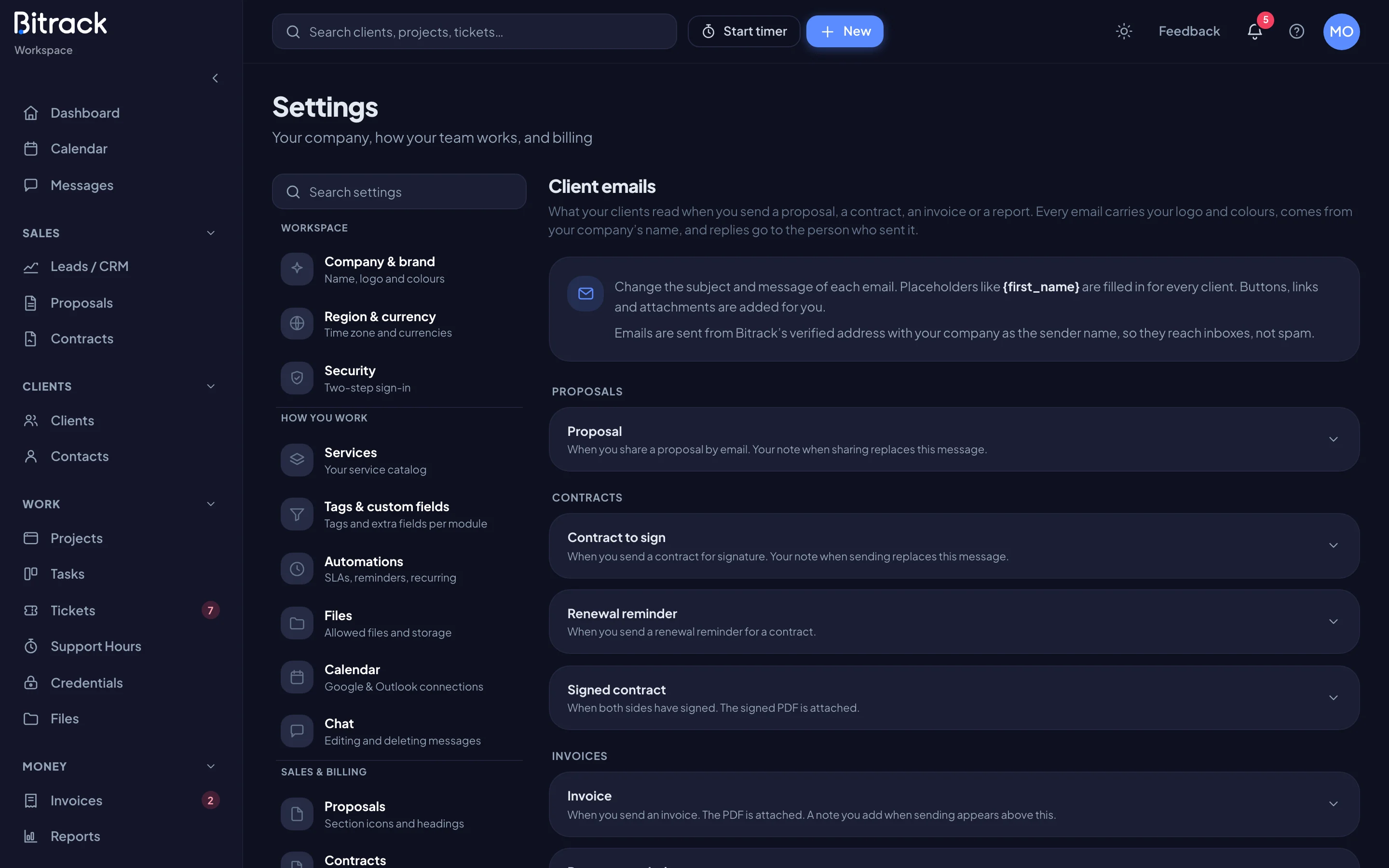
Your clients get an email when you send a proposal, a contract, an invoice or a report. In Settings → Client emails you can change the subject and message of each one, so it sounds like you. Owners and Admins can edit these emails.
What stays the same
Every email carries your logo and colours, comes from your company’s name, and replies go to the person who sent it. You can change the wording, but some things are added for you and can’t be changed:
- The buttons and links, such as the link to sign or pay
- The attachments, such as the invoice PDF
This means new wording can never break a signing or payment link.
The emails you can reword
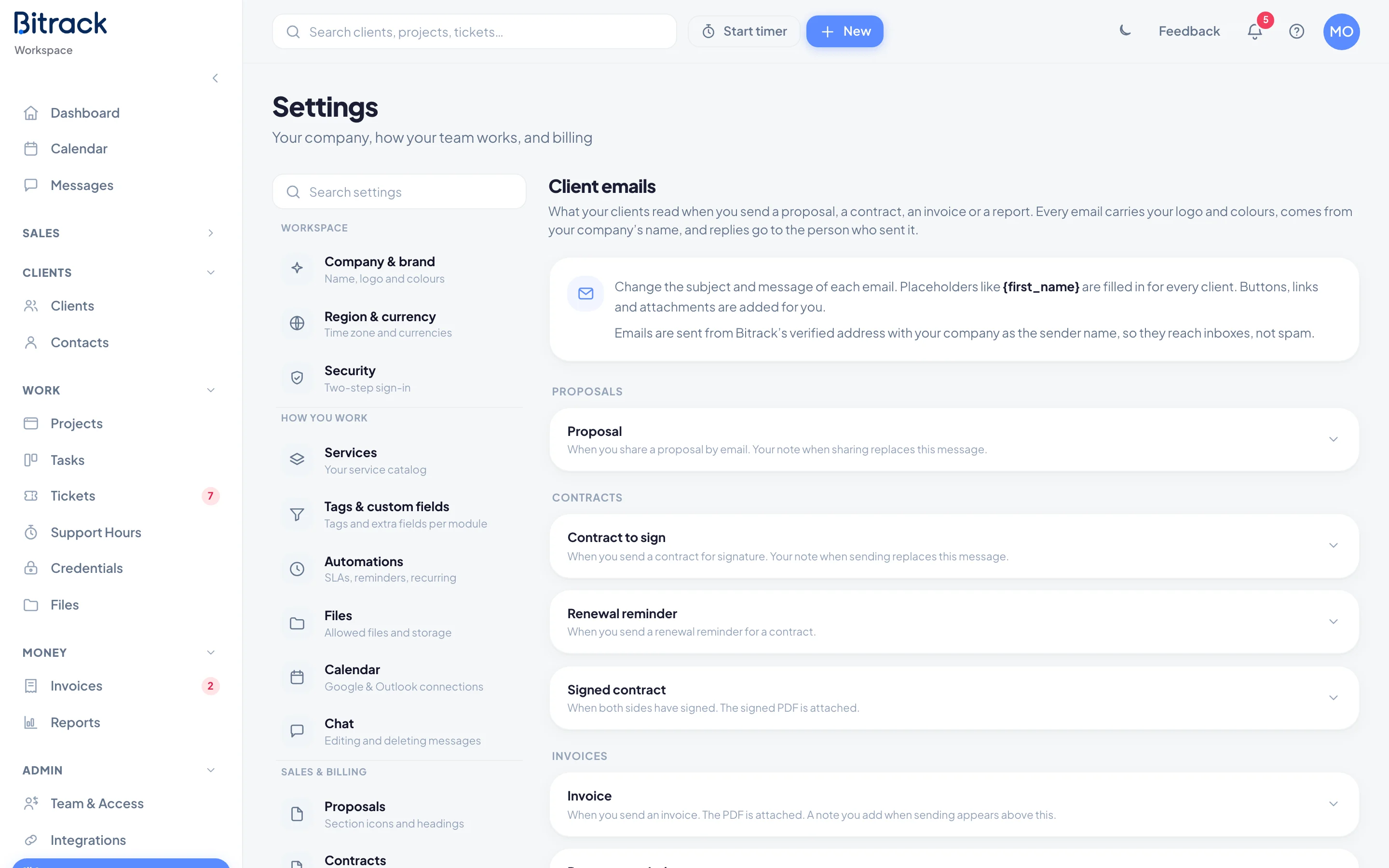
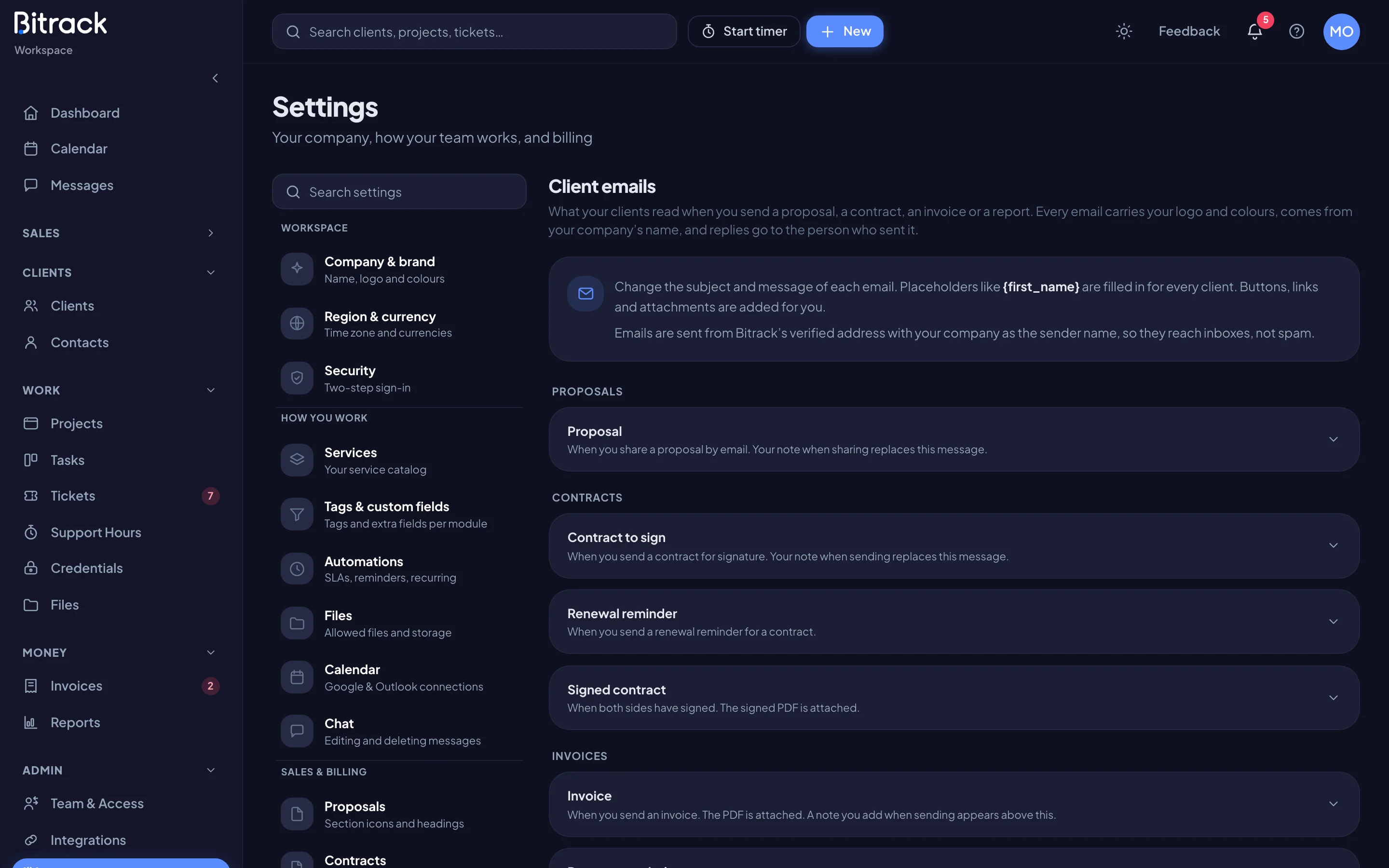
Emails are grouped by module. You only see the groups for modules your workspace uses.
| Group | Emails |
|---|---|
| Proposals | Proposal |
| Contracts | Contract to sign, Renewal reminder, Signed contract |
| Invoices | Invoice, Payment reminder, Payment receipt |
| Support hours | Support hours report |
Each email says when it’s sent. An email you’ve changed shows a Your wording badge.
Reword an email
- Go to Settings → Client emails.
- Choose the email you want to change. It opens below.
- Edit the Subject and the Message.
- To add client details, place your cursor and choose a placeholder under Insert a placeholder, such as Client contact’s first name. It goes in as
{first_name}and is filled in for every client. - Choose Save. You’ll see Email saved.
In the message, line breaks show as you type them. To make words bold, put two stars on each side, like **this**.
Preview it in your brand
Choose Preview to see the email as your client will, with your logo and colours. Sample values are used for the placeholders. The preview shows what you’ve typed, even before you save.
Send yourself a test
Choose Send me a test to get the email at your own sign-in address. Bitrack tells you where it was sent. You can send up to 10 tests an hour.
Go back to the default
If you change your mind, you can return to Bitrack’s wording at any time.
- Open the email.
- Choose Reset to default.
- Choose Use the default to confirm.
You’ll see Back to the default. This link only shows on emails that have your own wording.