Invoice settings
Set the company details, numbering, terms, tax, automation and payment details used on every invoice.
Invoice settings decide how every invoice looks and behaves: who it’s from, how it’s numbered, when it’s due and how clients pay. Set them once and every new invoice follows.
Open invoice settings
Go to Settings and choose Invoices, or choose Invoice settings on the Invoices page. Each field saves on its own when you leave it, and you’ll see Billing settings saved.
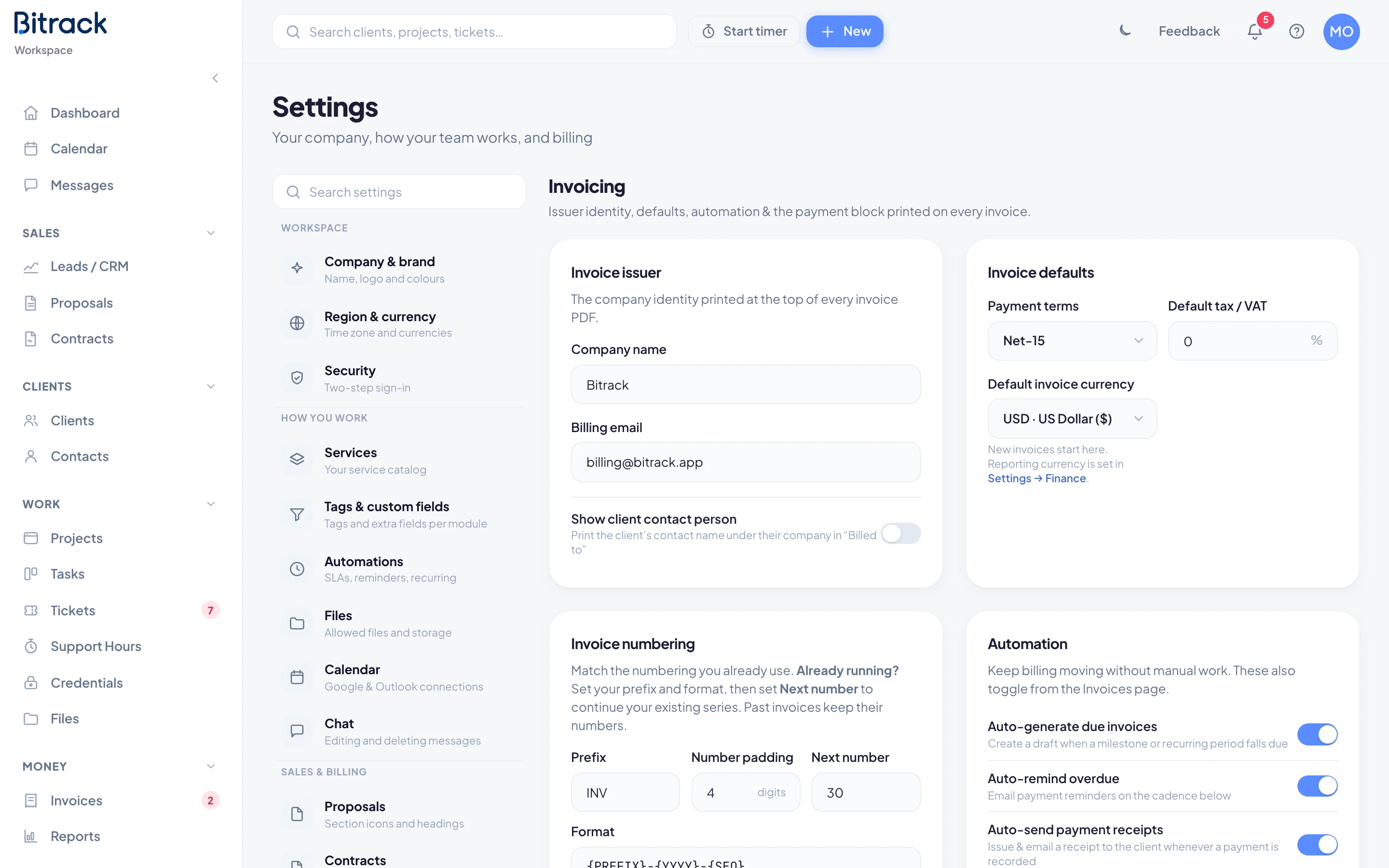
Invoice issuer
The company identity at the top of every invoice PDF.
- Company name
- Billing email
- Show client contact person: prints the client’s contact name under their company in Billed to.
Invoice defaults
| Setting | What it does |
|---|---|
| Payment terms | How long clients have to pay: Net-7, Net-15, Net-30 or Net-45 |
| Default tax / VAT | The tax rate new invoices start with |
| Default invoice currency | The currency new invoices start in, unless the client has their own |
You can still change the terms, tax and currency on any single invoice. Your reporting currency is set in Region & currency. Read more in Region and currency.
Invoice numbering
Match the numbering you already use, so your new invoices carry on from your old ones.
- Enter your Prefix, for example INV.
- Set the Number padding: how many digits the number has, such as 4 for 0001.
- Set the Next number. If you’ve already issued invoices elsewhere, enter the next number in that series.
- Build the Format. Choose a token under Insert, or pick one of the Presets.
| Token | Becomes |
|---|---|
{PREFIX} |
Your prefix |
{YYYY} |
The year, such as 2026 |
{YY} |
The short year, such as 26 |
{MM} |
The month, such as 06 |
{SEQ} |
The running number, padded to your digits |
Anything else you type, such as dashes, slashes or dots, is kept as it is. Next invoice will be shows the result as you type.
Receipt numbers
Receipts have their own series, with their own Prefix, Next number and Format. The line under them shows what the next receipt will be.
Automation
| Switch | What it does |
|---|---|
| Auto-generate due invoices | Creates an invoice for approval when a contract milestone or recurring period falls due |
| Auto-remind overdue | Emails payment reminders on the cadence you set |
| Auto-send payment receipts | Issues and emails a receipt to the client whenever a payment is recorded |
Reminder cadence is the days after the due date to send a reminder, separated by commas, for example 1, 7, 14, 30. Read more in Reminders and recurring invoices.
Accepted methods
The payment methods your team can pick in the Record payment dialog, separated by commas. For example: Bank transfer, Card, Cash, Cheque.
Tax identity
These details print on tax invoices.
- Country
- Tax registration number: your VAT, TRN or tax number.
- Commercial registration (optional)
- Address
If your country is in the Arab world, such as Jordan, Saudi Arabia or the UAE, two more fields appear: Legal name in Arabic and Address in Arabic. Tax invoices there usually show the Arabic legal name, and it prints next to the English one.
Payment section
A titled block printed near the bottom of every invoice, telling clients how to pay.
- Enter a Section title, such as Payment details.
- Write the Section text: your bank name, account or IBAN, and what reference to use. You can use bold, italic, lists and links.
It saves when you click away. Leave the text empty to hide the block.