Reminders and recurring invoices
Chase late payments automatically and have retainer invoices created for you each period.
Bitrack can do two repetitive billing jobs for you: remind clients when an invoice is late, and create the next invoice for each retainer when it falls due.
Payment reminders
A reminder emails the client about an unpaid invoice, with a link to view it online and the PDF attached. Reminders only go out on invoices that have been sent and still have money owed.
Send a reminder yourself
You can remind a client at any time:
- On an open invoice, choose Send reminder in the Actions card.
- In the invoice list, choose Remind on an overdue row.
- In the Needs your attention bar, choose Remind overdue to remind every overdue invoice at once.
- Tick several invoices and choose Send reminder.
If a client has no email address, Bitrack skips their invoice and tells you.
Send reminders automatically
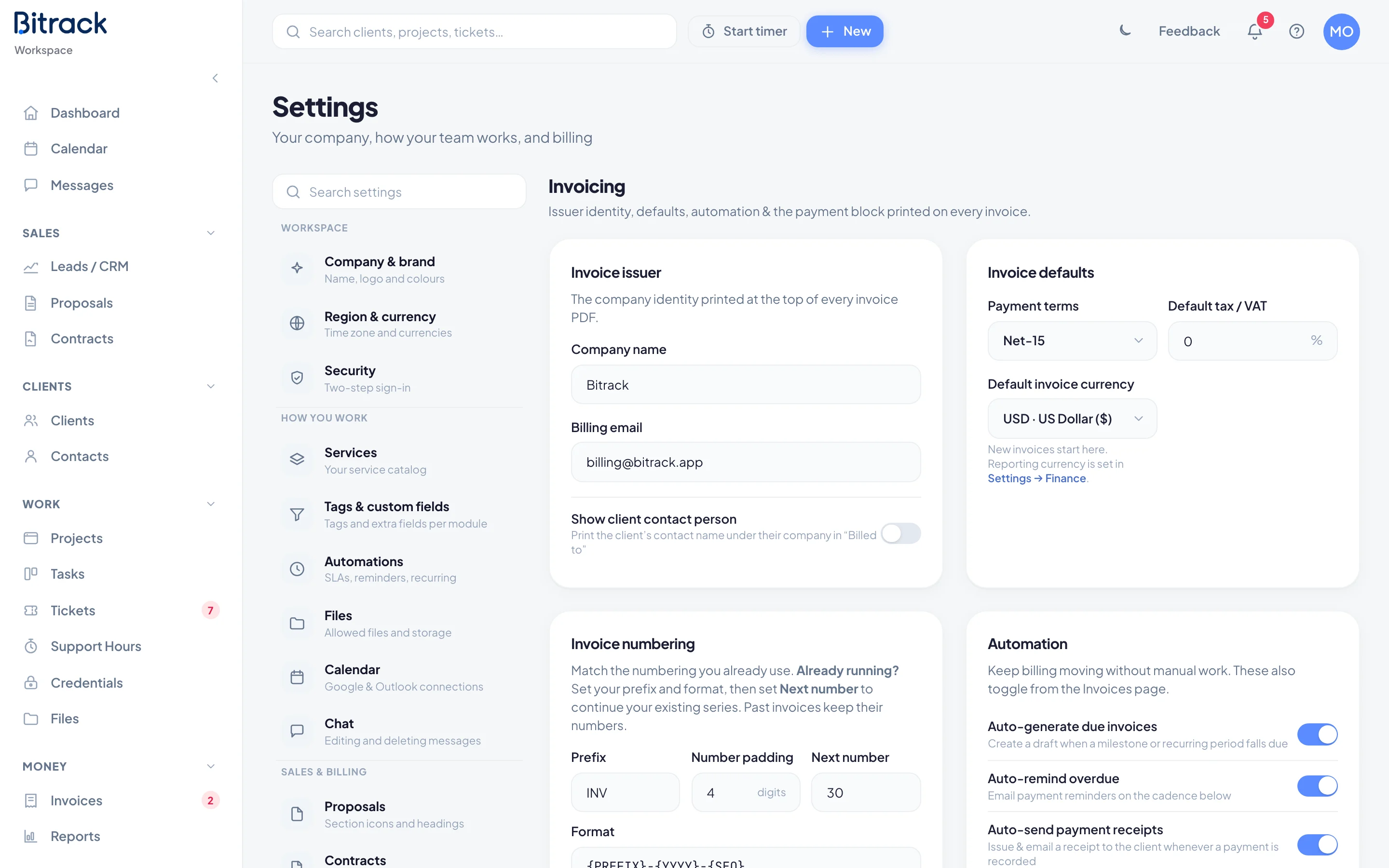
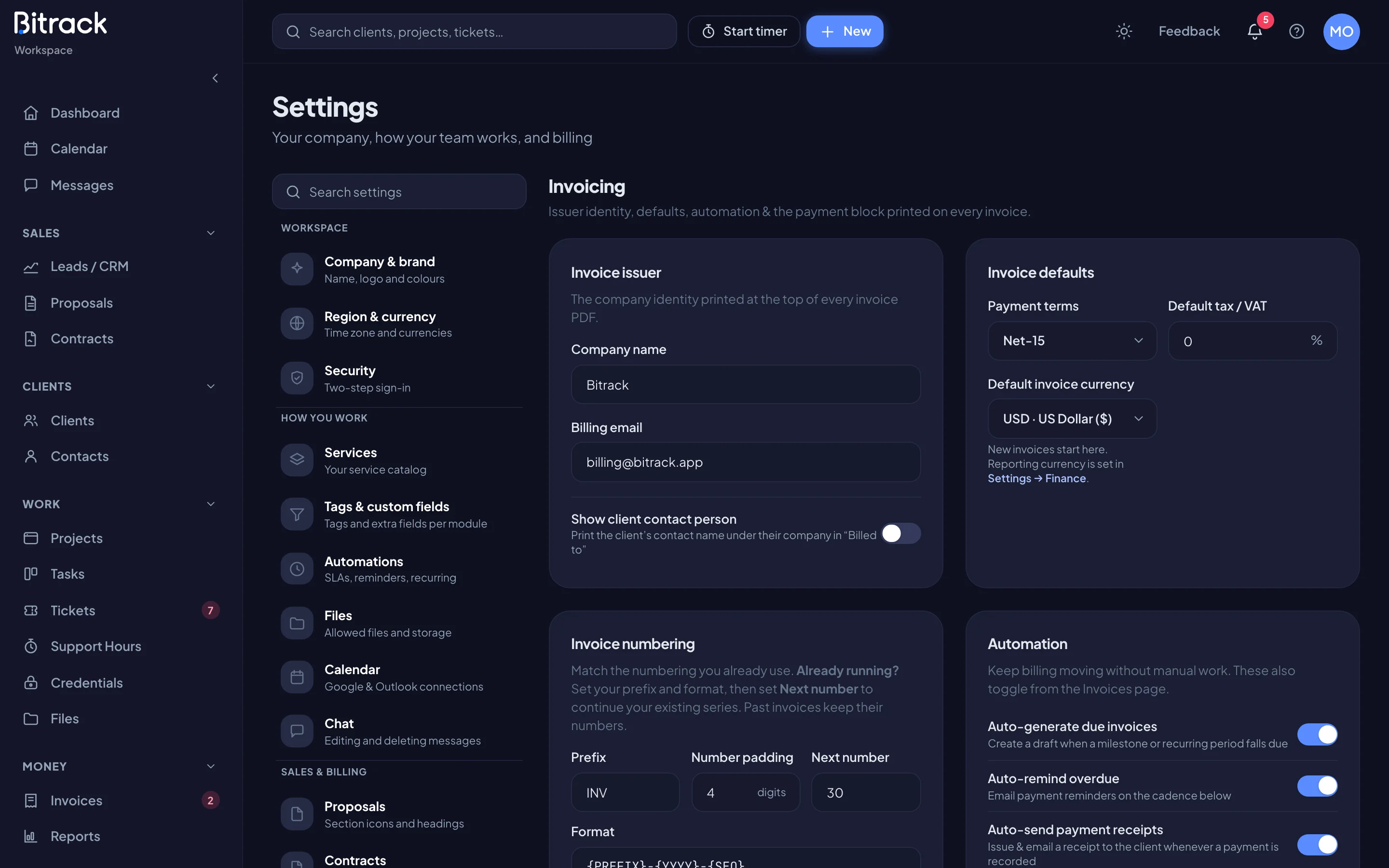
- Go to Settings and choose Invoices.
- In the Automation card, turn on Auto-remind overdue.
- Under Reminder cadence, enter the days after the due date to send a reminder, separated by commas. For example: 1, 7, 14, 30.
With these days, a client gets a reminder 1 day after the due date, then at 7, 14 and 30 days if the invoice is still unpaid.
A few rules keep reminders polite:
- Each step is sent once. If you switch automatic reminders on for an invoice that’s already 40 days late, the client gets one reminder, not four.
- A client never gets more than one reminder on the same invoice in a day.
- Reminders pause while a client has reported a payment from the portal.
- Invoices you imported as history never get automatic reminders.
See what’s been sent
On an open invoice, the Next step card shows the balance, how late it is, the last reminder and the next one due. Automatic ones are marked (auto). The Activity card lists every reminder that went out.
To change what the reminder email says, go to Settings > Client emails and open Payment reminder.
Recurring invoices
Recurring invoices come from contracts with a monthly or yearly payment schedule, such as a retainer. Each period becomes its own invoice.
How they’re created
With Auto-generate due invoices on (in Settings > Invoices, under Automation), Bitrack creates an invoice each time a period or milestone falls due. Each one:
- has the amount and description from the contract;
- starts as Awaiting approval, and the people who can approve invoices are notified;
- shows a Recurring badge in the invoice list.
Approve it, then send it, as usual. Nothing goes to the client until someone approves it.
If auto-generate is off, you can still create these invoices by hand. Choose Generate from contracts on the Invoices page, or Generate invoice in a contract’s Payment schedule. Read more in Create an invoice.
See what’s coming
On the Invoices page, Upcoming recurring lists the next period for each retainer and its date. The Recurring revenue box shows what your active retainers bring in each month.
Pause one schedule
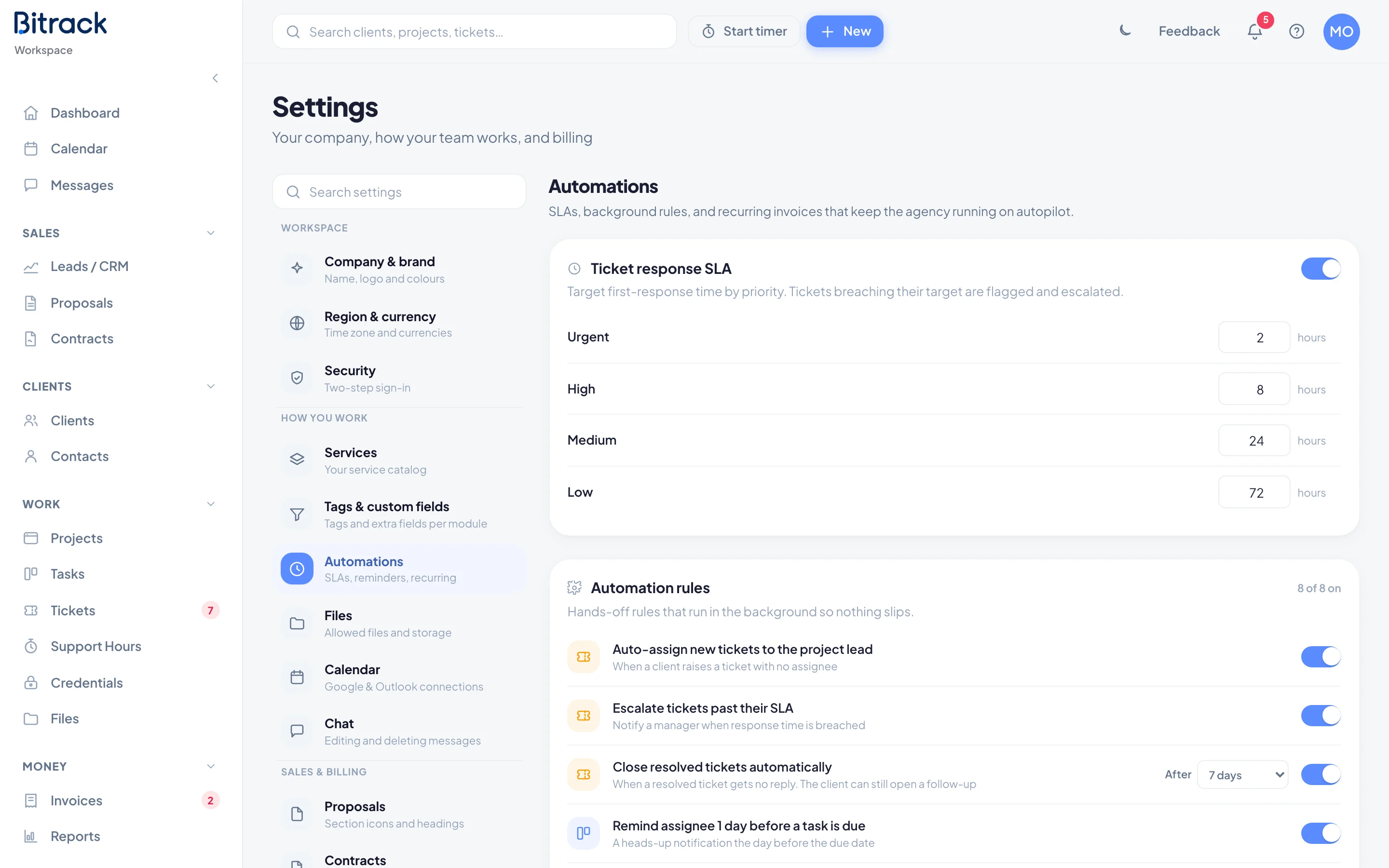
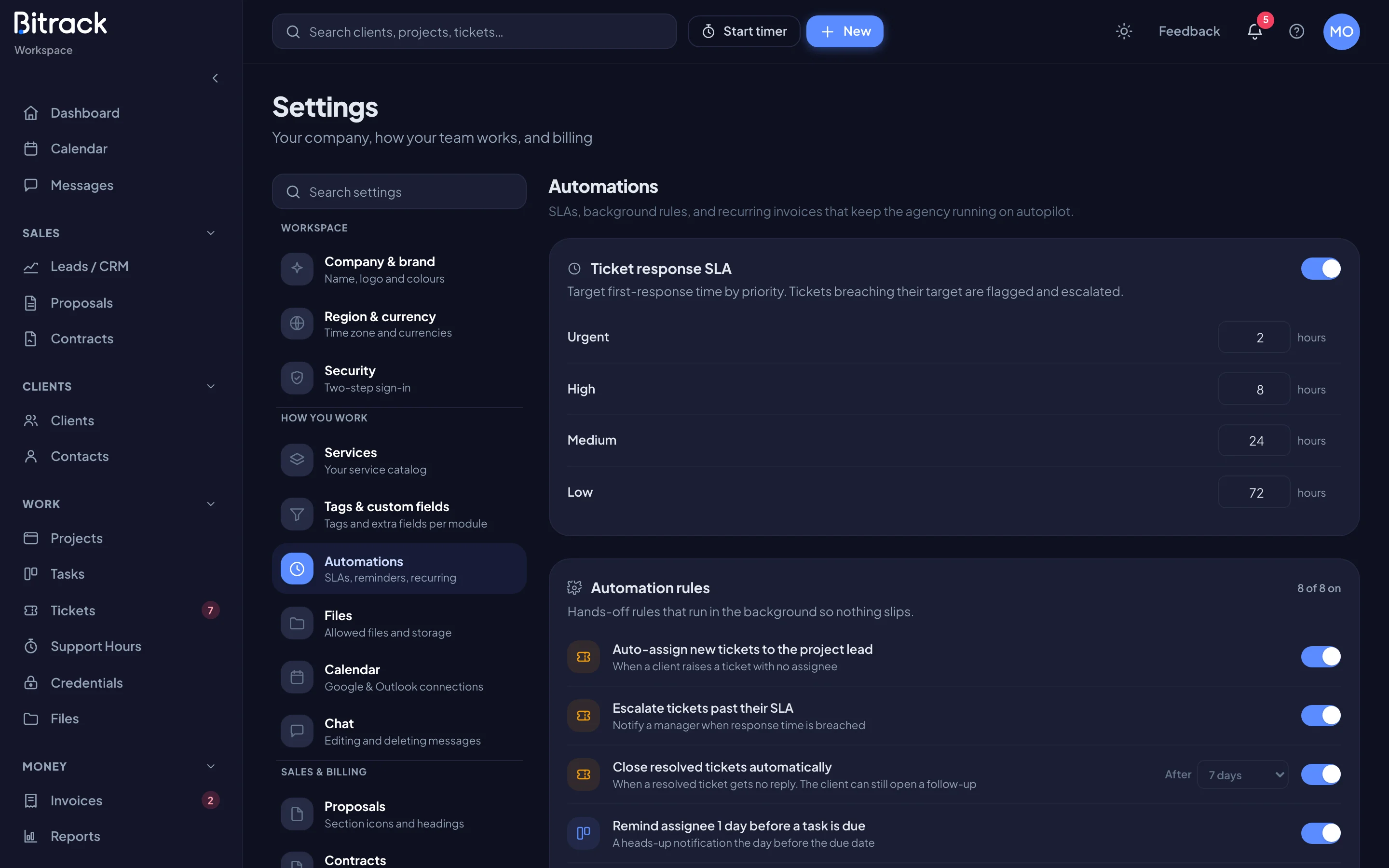
In Settings > Automations, the Recurring invoices card lists every recurring contract with its client, cadence and next date. Turn off a contract’s switch to pause its invoices without touching the others. Turn it back on to resume.
To add a new recurring schedule, choose Add schedule. This starts a new contract, where you set the payment schedule.