Send an invoice and get paid
Email an invoice to your client, record full or partial payments, send receipts, and handle payments clients report from the portal.
Once an invoice is approved, it’s ready to go. This guide covers sending it, recording what comes in, and sending receipts.
Send the invoice
- Open the invoice.
- In the Actions card, choose Send to client. If the invoice still needs approval and you can approve, choose Approve & send instead.
The client gets an email with the invoice PDF attached and a private link to view it online. The link works for 90 days and is renewed each time you send or remind.
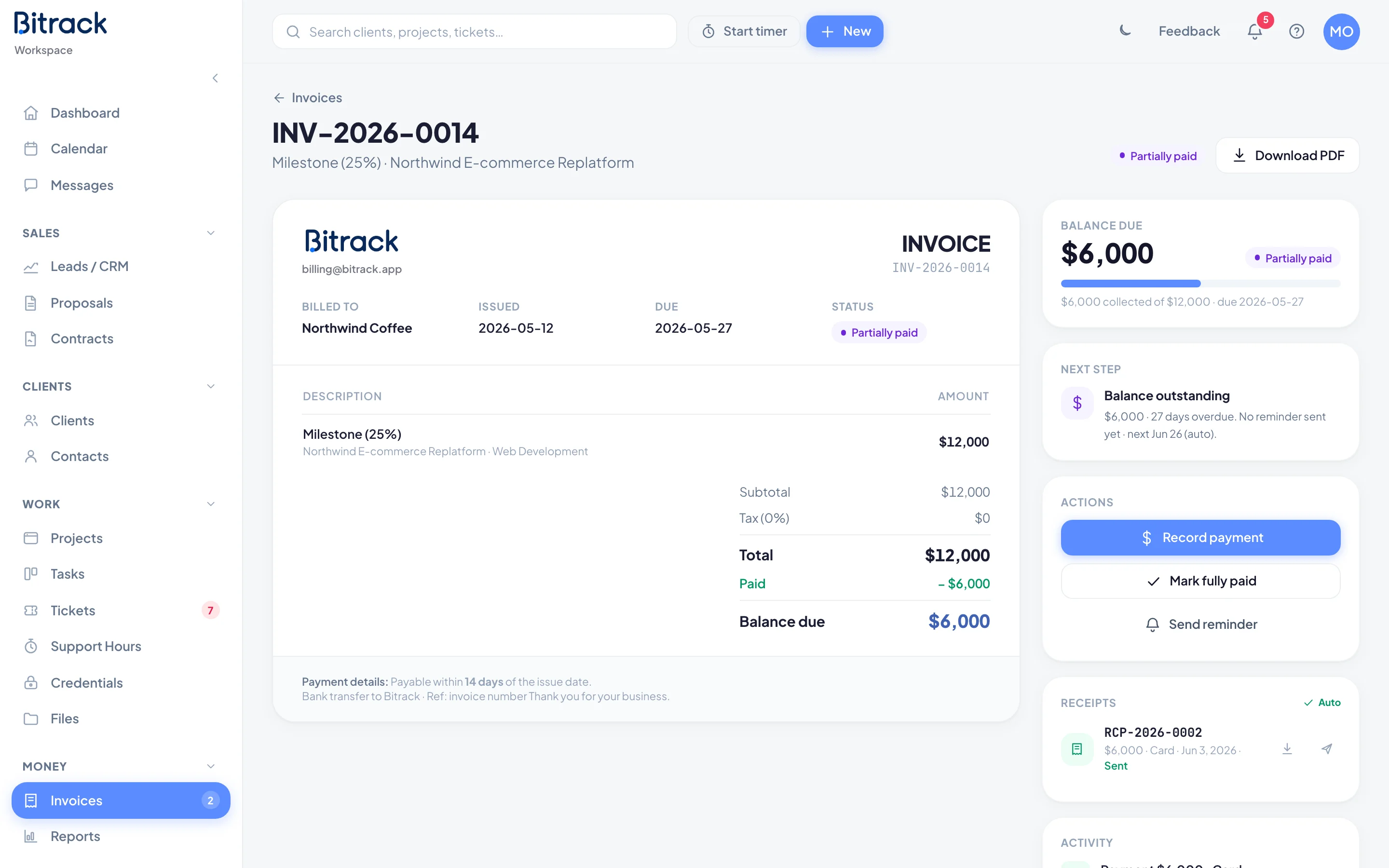
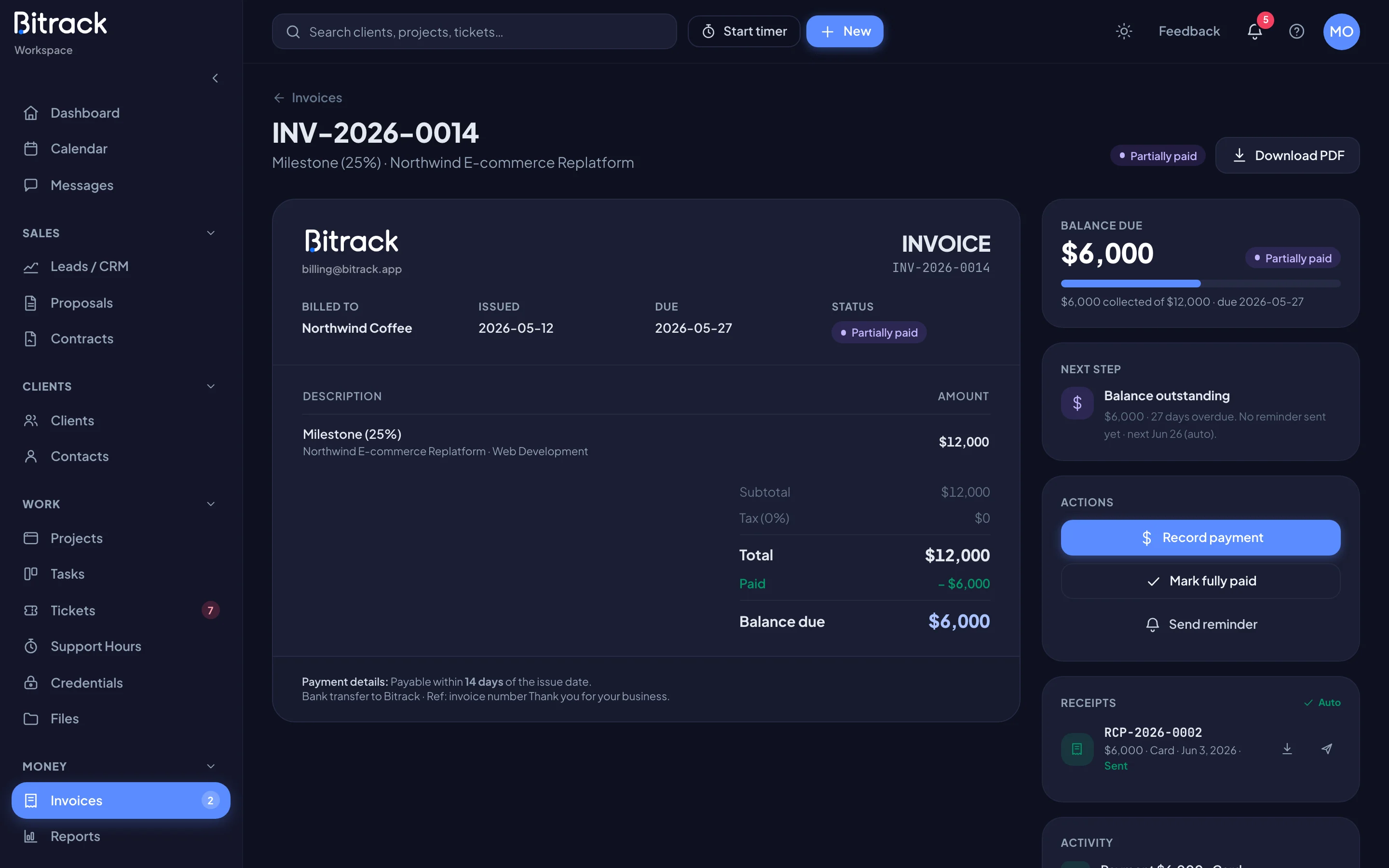
The Activity card on the invoice shows when it was emailed, re-sent, reminded and Viewed by client.
Download the PDF
Choose Download PDF at the top of any invoice. The PDF has your company details, the client, the dates, every line, the totals, your notes and custom sections, and your payment details.
Payment details on the invoice
The block near the bottom of each invoice tells the client how to pay, for example your bank details. You set it once in Settings > Invoices, under Payment section. Read more in Invoice settings.
Record a payment
When money arrives, record it so the balance stays right.
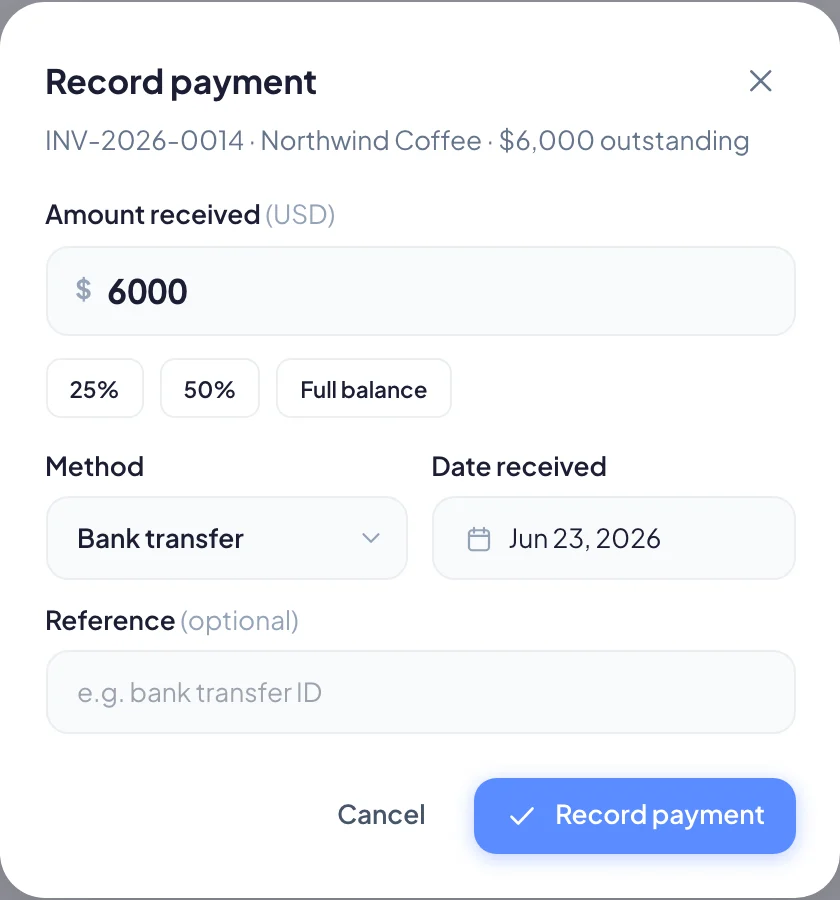
- Open the invoice and choose Record payment. You can also choose it on the row in the invoice list.
- Enter the Amount received, or choose 25%, 50% or Full balance.
- Pick the Method and the Date received.
- Add a Reference if you like, such as the bank transfer ID.
- Choose Record payment.
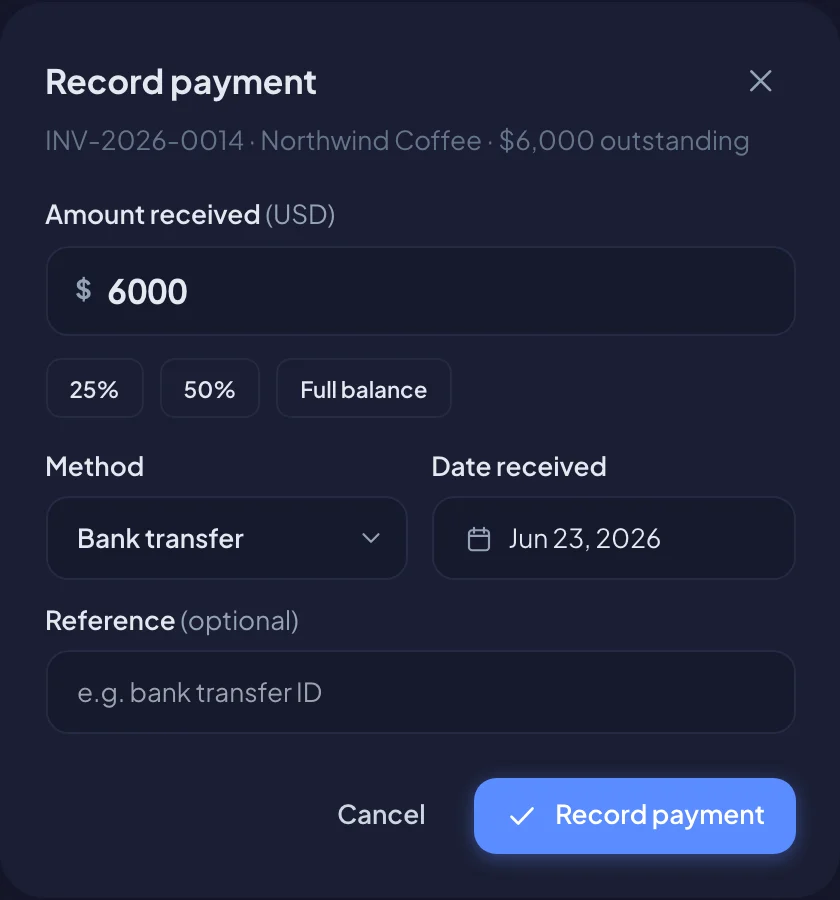
If you record less than the full balance, the invoice becomes Partially paid and shows what’s still due. Record more payments as they arrive. When the balance reaches zero, the invoice is Paid.
The methods in the list come from Accepted methods in your invoice settings.
Mark fully paid
If the whole balance arrived in one go, choose Mark fully paid. Bitrack records a payment for the full balance, dated today.
Fix a payment recorded by mistake
In the Activity card, find the payment and choose Remove. The amount goes back on the balance. If the payment had a receipt, its number stays used so your series has no gaps.
Receipts
Each payment can have its own receipt, with its own number series.
- With Auto-send payment receipts on, every payment you record gets a receipt number and the client is emailed the receipt. The Receipts card shows Auto.
- The Receipts card lists each receipt with its amount, method and date. Choose the download icon to get the PDF, or the send icon to send it to the client again.
You turn auto-receipts on or off in Invoice settings.
When a client says they’ve paid
From the client portal, your client can choose the Pay button (it shows the amount due) on an invoice. The Pay invoice dialog shows your bank transfer details and an I've sent the payment button.
When they choose it:
- the invoice shows Payment reported in your list, and Client reported a payment as its next step;
- automatic reminders pause, so you never chase a payment that’s on its way;
- the client sees Confirming payment on their side.
Check your bank account, then:
- choose Record payment (or Mark fully paid) when the money is there; or
- choose Not received if it didn’t arrive. The invoice goes back to awaiting payment and reminders resume on their schedule.
Void an invoice
If an approved or sent invoice shouldn’t count any more, choose Void invoice and confirm. It no longer counts as billed or outstanding. The number stays used, so your series has no gaps. You can’t void an invoice that already has payments recorded, and voiding can’t be undone.
Next, set up reminders and recurring invoices so less of this needs you.