Security settings
Require two-step sign-in for everyone in your workspace, and know what happens to people who haven't set it up.
Two-step sign-in protects accounts with a code from an authenticator app as well as a password. As the Owner, you can require it for everyone in your workspace.
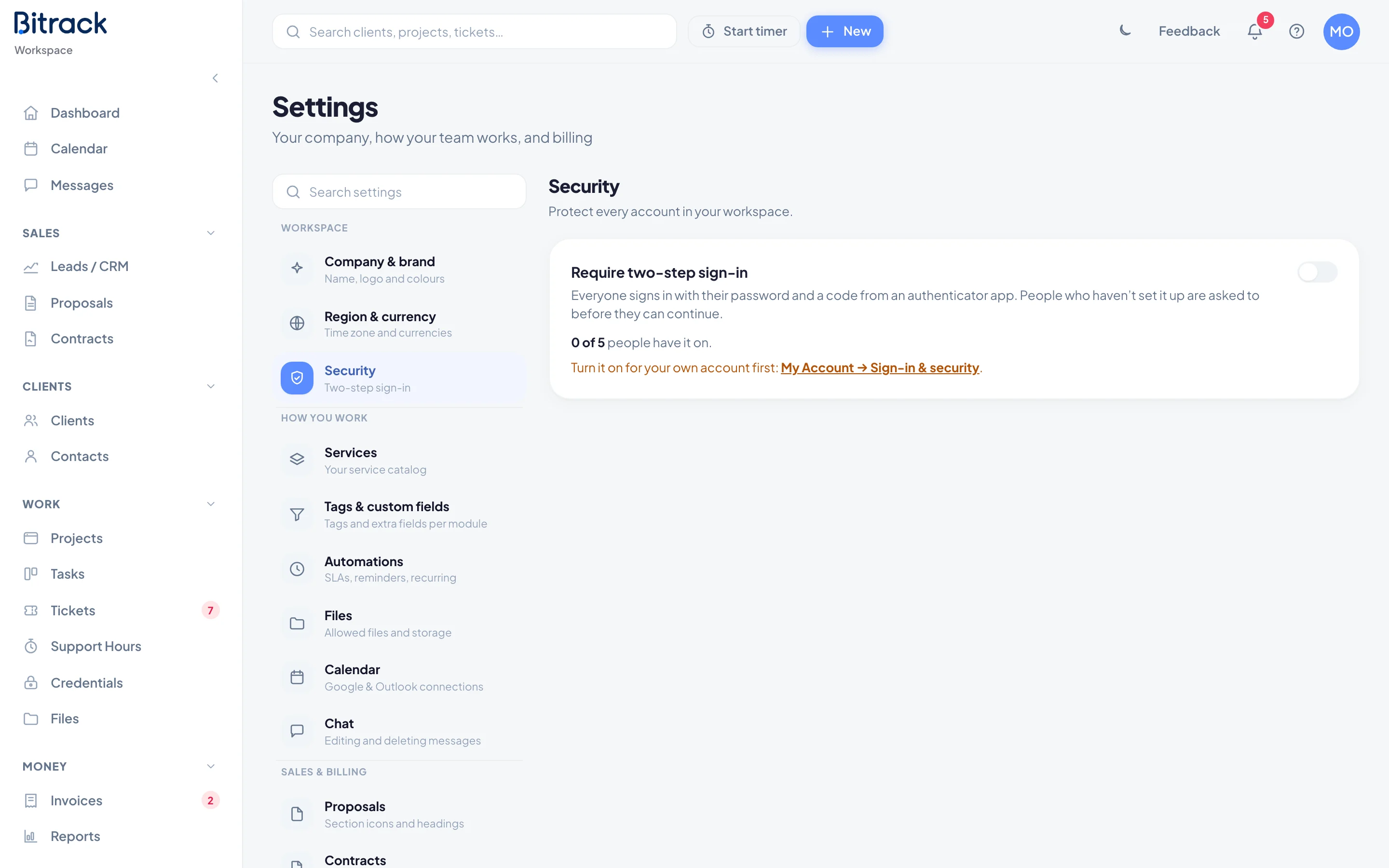
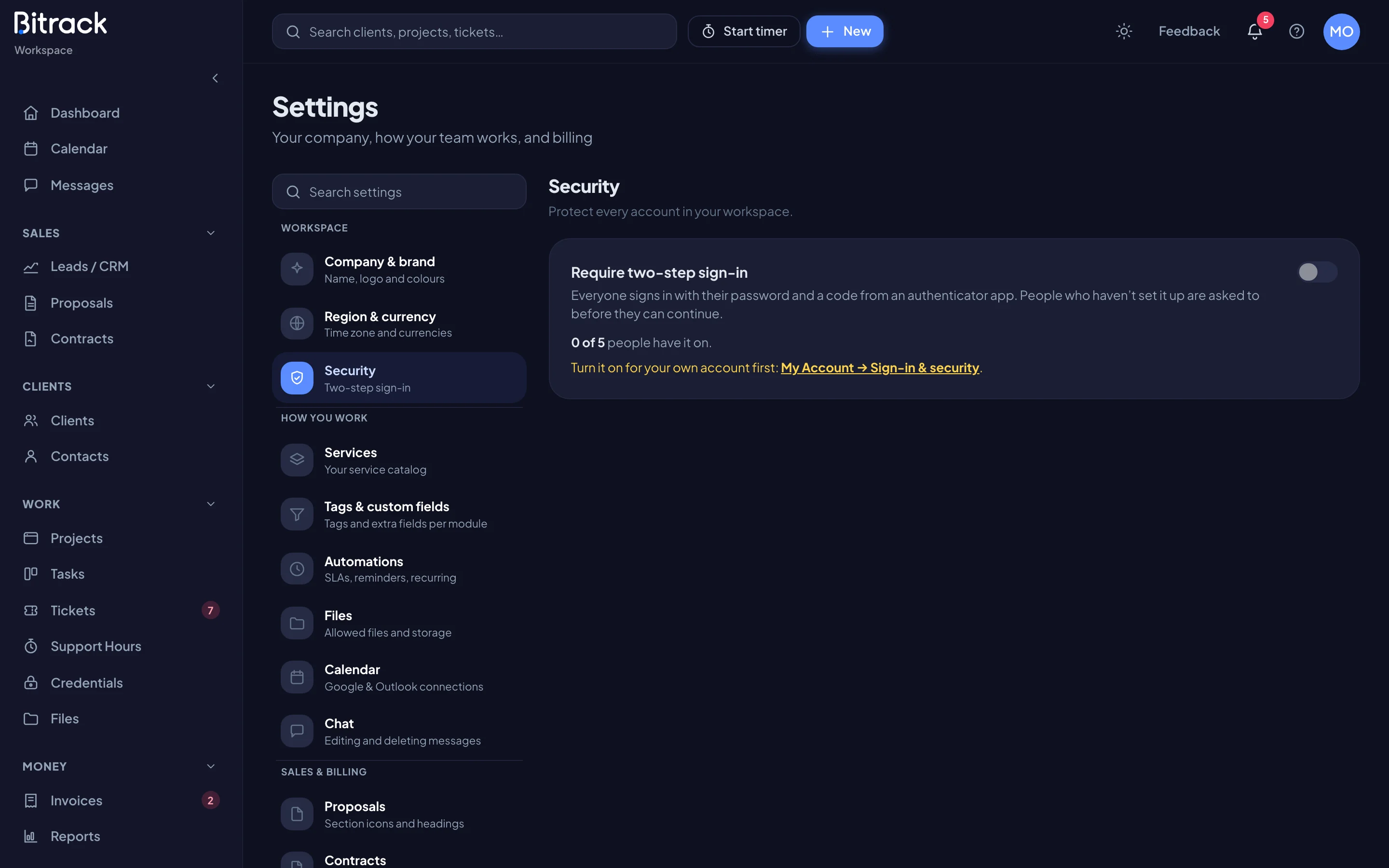
Before you start: turn it on for yourself
You can only require two-step sign-in for others once your own account uses it. If you haven’t set it up yet, the Security section shows a reminder with a link to My Account → Sign-in & security, and the switch can’t be turned on.
- Open the link in the reminder, or go to My Account → Sign-in & security.
- Set up two-step sign-in with your authenticator app.
- Come back to Settings → Security.
Read more in Your account.
Require two-step sign-in for everyone
- Go to Settings → Security.
- Check the count under Require two-step sign-in. It shows how many people already have it on, for example 3 of 8 people have it on.
- Turn on the Require two-step sign-in switch.
- If some people haven’t set it up yet, Bitrack asks you to confirm and tells you how many. Choose Require it.
You’ll see Two-step sign-in is now required.
What happens to people without it
From that moment, anyone in the workspace who hasn’t set up two-step sign-in is asked to do it before they can carry on:
- The next time they open Bitrack, they land on My Account → Sign-in & security.
- Until they finish setup, that page is the only part of Bitrack they can use. They can still sign out.
- Once they confirm their first code, they can use Bitrack as normal.
People who already have two-step sign-in on notice no change.
Make it optional again
- Go to Settings → Security.
- Turn off the Require two-step sign-in switch.
You’ll see Two-step sign-in is now optional. People who already set it up keep using it. Anyone can then choose to turn their own off in My Account.