Integrations and importing data
Import your records from a CSV, capture leads from your website, link Google sign-in and see which connections are coming.
Integrations is where you bring data in from other tools, capture leads from your website and connect sign-in. Open it from Integrations in the Admin group of the sidebar. By default, Owners and Admins can see it.
The page has up to three tabs: Connections, Import data and Website leads. You only see the tabs you have access to.
Import data from a CSV
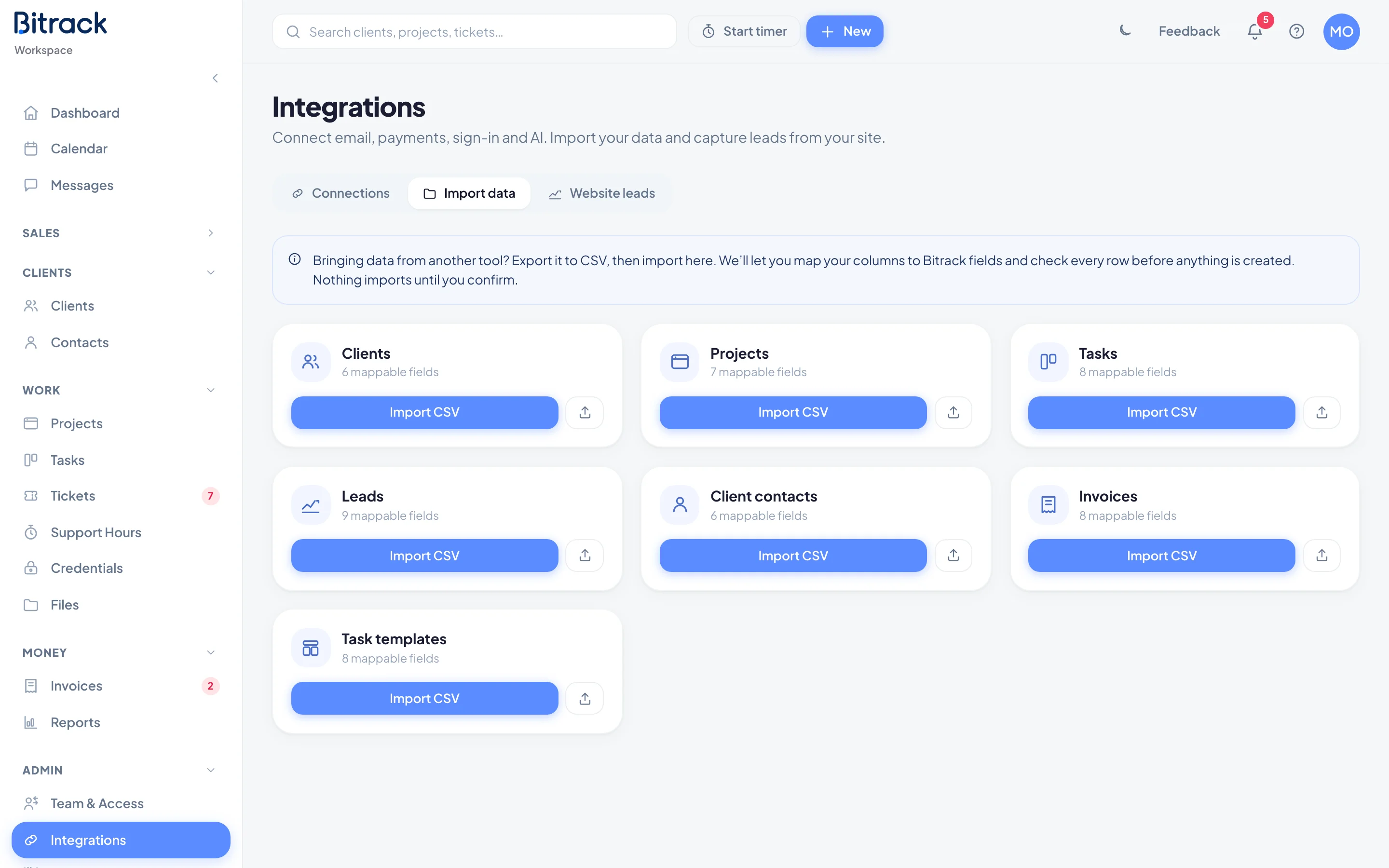
Bringing data from another tool? Export it to CSV, then import it here. You map your columns to Bitrack fields, and every row is checked before anything is created.
What you can import
| Card | Required columns | Other columns |
|---|---|---|
| Clients | Name | Contact person, Email, Phone, Industry, Location |
| Projects | Name, Client | Service, Status, Start date, Due date, Budget |
| Tasks | Title, Project | Status, Assignee, Priority, Due date, Tags, Description |
| Leads | Company or Contact name in each row | Email, Phone, Stage, Service, Owner, Value, Source |
| Client contacts | First name | Last name, Email, Phone, Client, Role |
| Invoices | Number, Client, Amount, Issue date | Currency, Due date, Status, Amount paid |
| Task templates | Template, Task title | Service, Status, Priority, Assignee, Tags, Checklist items |
You only see a card if its module is on and your role lets you create that kind of record.
Import a file
- Go to Integrations → Import data.
- On the card you need, choose Import CSV.
- Drop your file in the window, or choose the box to browse. The first row should be column headers.
- Under Your column and Bitrack field, match each of your columns to a Bitrack field, or leave it on Skip. Required fields are marked with *.
- Choose Check rows. Bitrack shows how many rows are ready and how many will be skipped, with the line number and reason for each.
- Choose Import to create the ready rows.
Nothing is imported until you confirm. Rows with a problem are skipped, and the rest come in.
Limits and rules
- A file can be up to 5 MB and 2,000 rows. Split bigger files into smaller ones.
- Budgets and lead values are only imported for people who can see financials. Otherwise they’re left out, and Bitrack tells you.
- For task templates, rows that share the same Template name become one template. Separate a task’s checklist items with a semicolon.
Importing past invoices
Invoices import as history: past invoices from your old tool, already issued. They:
- keep their own numbers and don’t change your invoice numbering
- get no automatic reminders
- are never sent to e-invoicing
Set Status to paid, partial (with Amount paid) or unpaid.
Website leads
If your workspace uses Leads / CRM, the Website leads tab is where you design your website lead form and connect other lead sources. Every submission becomes a lead in Leads / CRM.
- Lead forms: design the form, add your website’s domain, then embed it on your site or post to it from your own form.
- Lead sources: create a source to get a webhook URL and an API key for Zapier, Make or your own scripts. Only people who can edit leads see this part.
Sign in with Google
On the Connections tab, the Google Workspace card lets your team sign in with their Google accounts, with no extra passwords. Each person links their own Google account once.
To link yours, choose Link your Google account. This opens My Account, where you finish the link. Once linked, the card says Linked to Google.
What’s coming
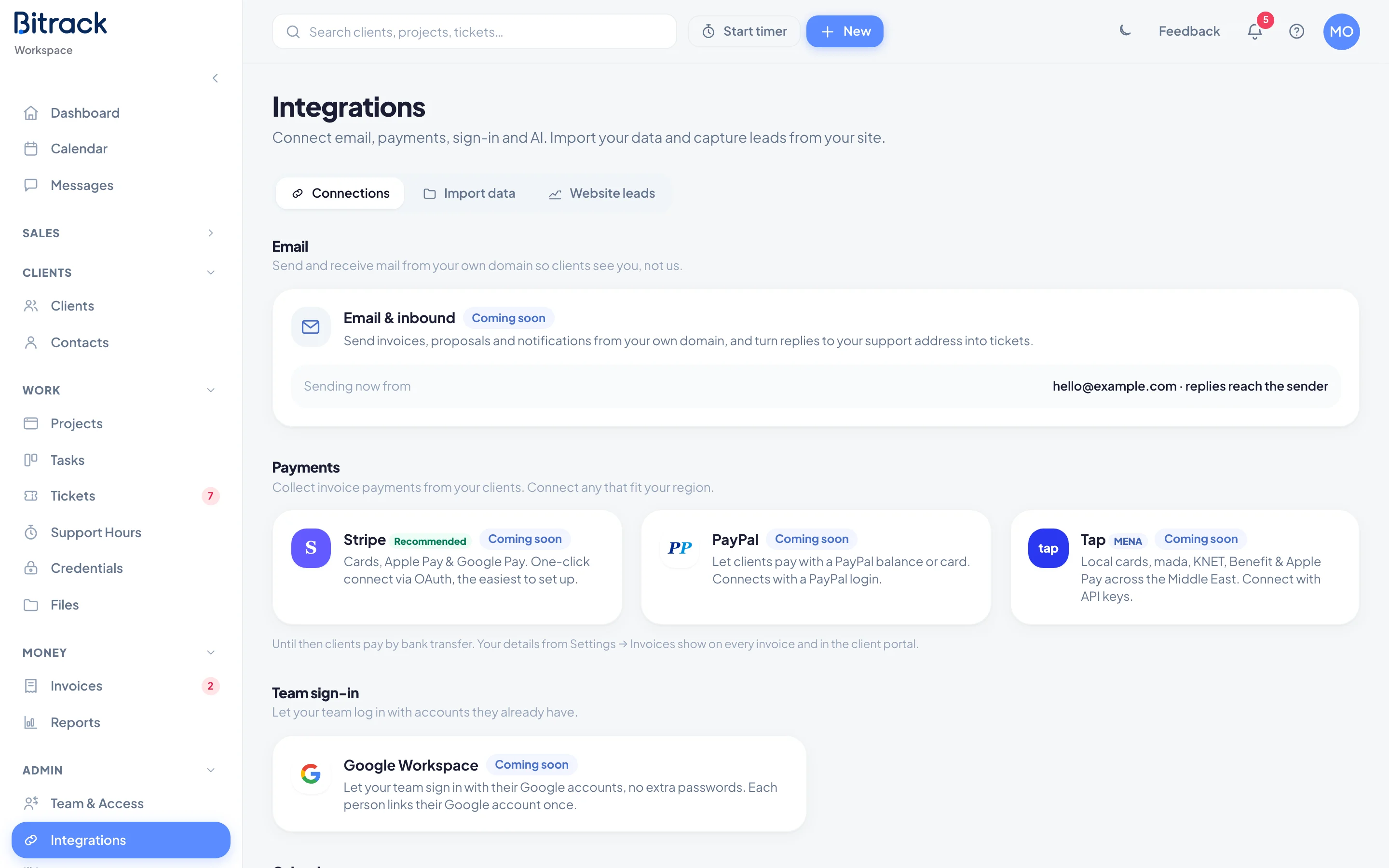
Some cards on the Connections tab are marked Coming soon:
- Email & inbound: sending from your own domain, and turning replies to your support address into tickets. Until then, emails go out from Bitrack’s address and replies reach the sender.
- Payments: Stripe, PayPal and Tap. Until then, clients pay by bank transfer, using the details from Settings → Invoices.
- AI assistant: drafting proposals and surfacing report insights.
If your workspace uses the Calendar, a Calendars section shows Google Calendar and Outlook. Read Connect Google or Outlook.
QuickBooks and Xero, Slack and Teams, Zapier, and SAML/SSO are planned for later.