Files and storage
Choose which kinds of files people can upload, set the largest file size and keep an eye on your storage.
Settings → Files controls every upload in your workspace: in projects, tickets, chat and deliverables. It also shows how much storage you’re using. Owners and Admins can see and change these settings.
See how much storage you use
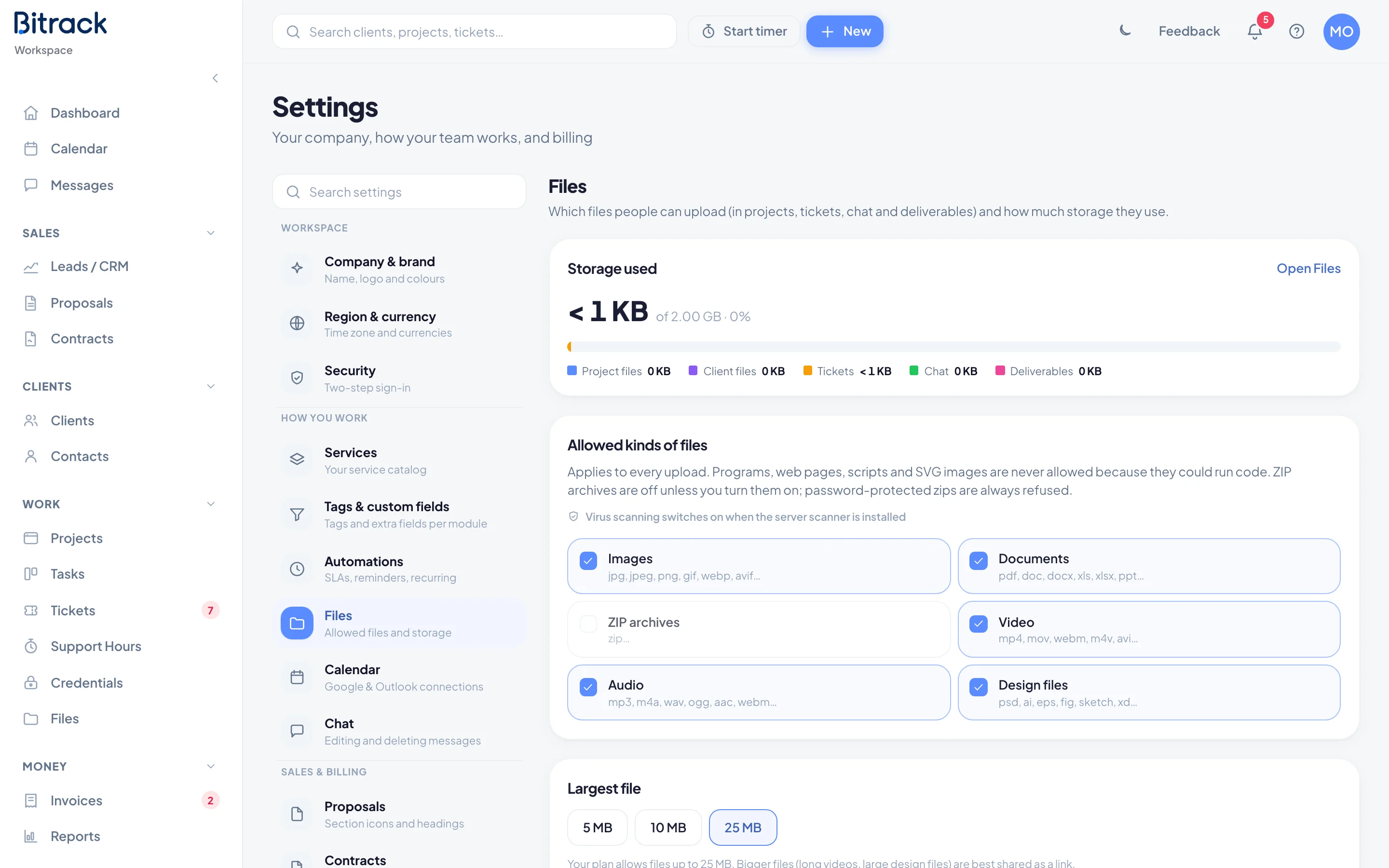
The Storage used card shows your total, your limit and the percentage used. The coloured bar splits it by where the files live:
- Project files
- Client files
- Tickets
- Chat
- Deliverables
If anything is waiting in the Trash, it’s listed as In the Trash. Choose Open Files to see and manage the files themselves.
When storage is 80% full, the card says Storage is getting full. At 100%, new uploads are paused until you free up space.
Choose the kinds of files people can upload
Under Allowed kinds of files, each kind has a tick box with examples of its file types:
| Kind | On by default |
|---|---|
| Images | Yes |
| Documents | Yes |
| Video | Yes |
| Audio | Yes |
| Design files | Yes |
| ZIP archives | No |
- Go to Settings → Files.
- Choose a kind to turn it on or off.
The change saves straight away and applies to every upload. You must allow at least one kind of file.
Set the largest file size
- Under Largest file, choose a size, for example 25 MB.
- The choice saves straight away.
The sizes you can pick depend on your plan, and the card shows the most your plan allows. Bigger files, like long videos or large design files, are best shared as a link.
Virus scanning
Just above the file kinds, a line tells you whether uploads are being scanned:
- Every upload is scanned for viruses means scanning is active.
- Virus scanning switches on when the server scanner is installed means it isn’t active yet. There’s nothing for you to set up.