Automations
Turn background rules on or off, set ticket response targets and manage recurring invoice schedules.
Automations are hands-off rules that run in the background so nothing slips. You’ll find them in Settings → Automations. Owners and Admins can change them.
What you see depends on the modules your workspace uses. Rules for a module only appear when that module is on.
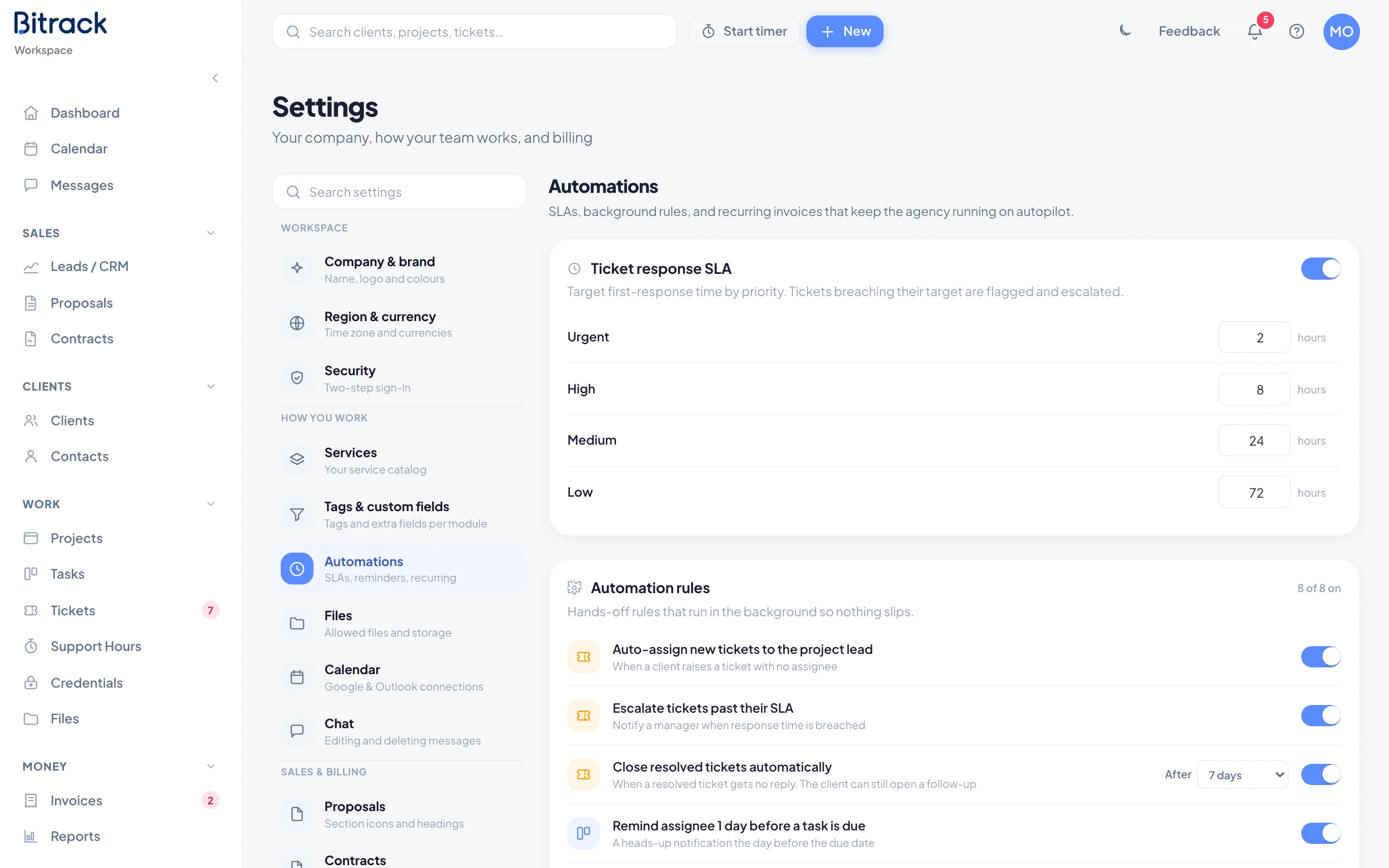
Automation rules
The Automation rules card lists every rule with a switch. The count at the top shows how many are on, for example 5 of 8 on.
To turn a rule on or off, use its switch. You’ll see Rule on or Rule off.
| Rule | What it does |
|---|---|
| Remind assignee 1 day before a task is due | Sends a heads-up notification the day before the due date |
| Flag overdue tasks to the project lead | Sends a daily summary of anything past due |
| Auto-assign new tickets to the project lead | When a client raises a ticket with no assignee |
| Escalate tickets past their SLA | Notifies a manager when the response time is breached |
| Close resolved tickets automatically | When a resolved ticket gets no reply. The client can still open a follow-up |
| Nudge owner about stale leads | When a lead has had no activity for 7 days |
| Send payment reminders for overdue invoices | Sends reminders on set days after the due date |
| Auto-generate recurring retainer invoices | Creates the next invoice when a cycle renews |
Choose when resolved tickets close
Close resolved tickets automatically has a day count. Next to the rule, open the After list and pick 3 days, 5 days, 7 days, 14 days or 30 days.
Invoice rules
The two invoice rules are the same switches you’ll find in Settings → Invoices. Changing one in either place changes both. The reminder days shown under Send payment reminders for overdue invoices come from your invoice settings.
Ticket response SLA
If your workspace uses Tickets, a Ticket response SLA card sits at the top. It sets a target first-response time for each priority. Tickets that breach their target are flagged, and escalated too when Escalate tickets past their SLA is on.
- Turn on the Ticket response SLA switch.
- Enter a number of hours for Urgent, High, Medium and Low.
Each value saves as soon as you leave the box. Leave a box empty for no target at that priority.
Recurring invoices
If your workspace uses Invoices and you manage billing, a Recurring invoices card lists every active recurring contract. These are the schedules the recurring-invoice rule creates invoices from.
Each row shows the contract, the client, Monthly or Annual, the next invoice date and the amount.
- To pause one contract’s automatic invoices, turn off its switch. You’ll see Schedule paused.
- To start it again, turn the switch back on. You’ll see Schedule on.
- To add a new schedule, choose Add schedule. This opens Contracts so you can create a recurring contract.