Meetings and calendar in the portal
Invite client people to your events, see how they answer in the portal, and schedule the meetings they ask for.
Your clients can see the meetings and dates that matter to them right in their portal. They answer your invitations there, and they can ask you for a meeting too.
Invite client people to an event
- Open Calendar and choose New event, or open an event you already have.
- Under Project, pick the client's project.
- In the section named after the client (for example From Atlas Property Group), pick each person from the Invite someone from Atlas Property Group… list.
- Choose Add event (or Save).
Each person gets an email invite with a calendar file, and the event appears in their portal. They see only this event, never your calendar.
A few rules keep this safe:
- The event must be linked to a project, so Bitrack knows which client it's for.
- You can only invite the client's portal people who can see that project.
- A private event (Only me under Who can see it) can't include anyone from the client.
- People who haven't signed in yet show as (hasn't signed in yet). You can still invite them.
When you change the time or place, they get an updated email. If you remove someone or delete the event, they're told it's cancelled.
What your client sees: Coming up
On Home and on each project page, the Coming up card shows the next 60 days:
- Meetings they're invited to, with their answer.
- Milestones and project due dates.
- For billing people only: invoices due, agreements to sign before a deadline, and renewals.
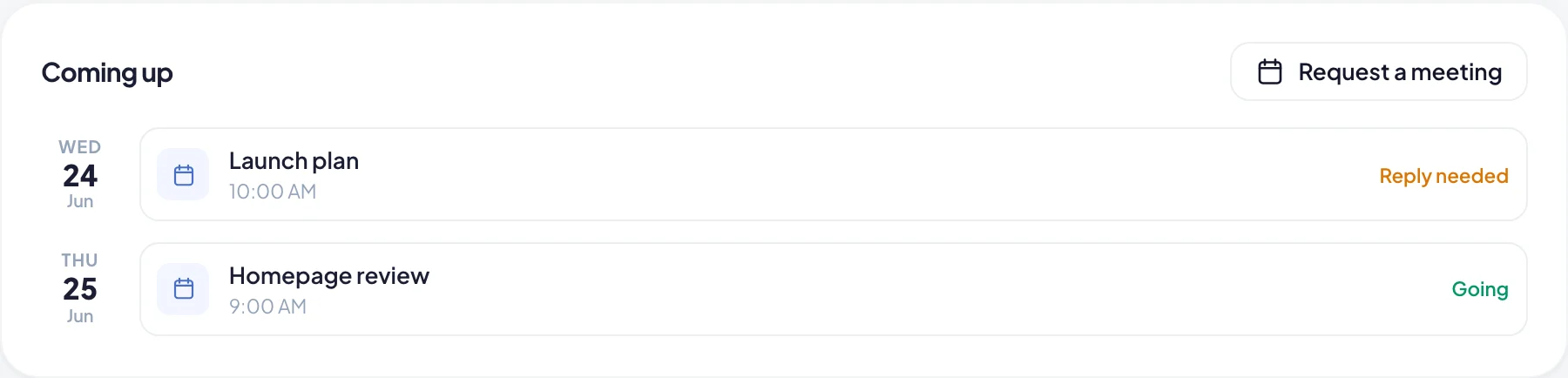
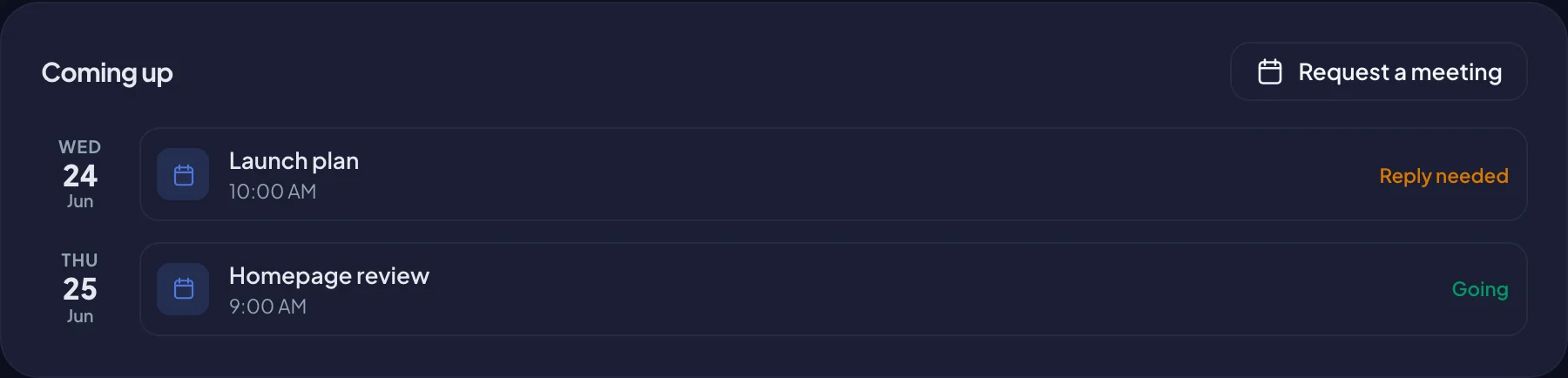
An event they haven't answered yet shows Reply needed.
Answering an invitation
When a client chooses an event, they see the time, the place or Join the call link, who organised it and any notes. Under Can you make it? they choose:
- Going
- Maybe
- Can’t go
They can change their answer at any time. You see each client guest's answer on the event in your Calendar, marked Client.
To keep the meeting in their own calendar app, they choose Add to my calendar. This downloads a calendar file that works with Google Calendar, Outlook, Apple Calendar and others.
Requesting a meeting
When it's turned on, clients see Request a meeting on the Coming up card.
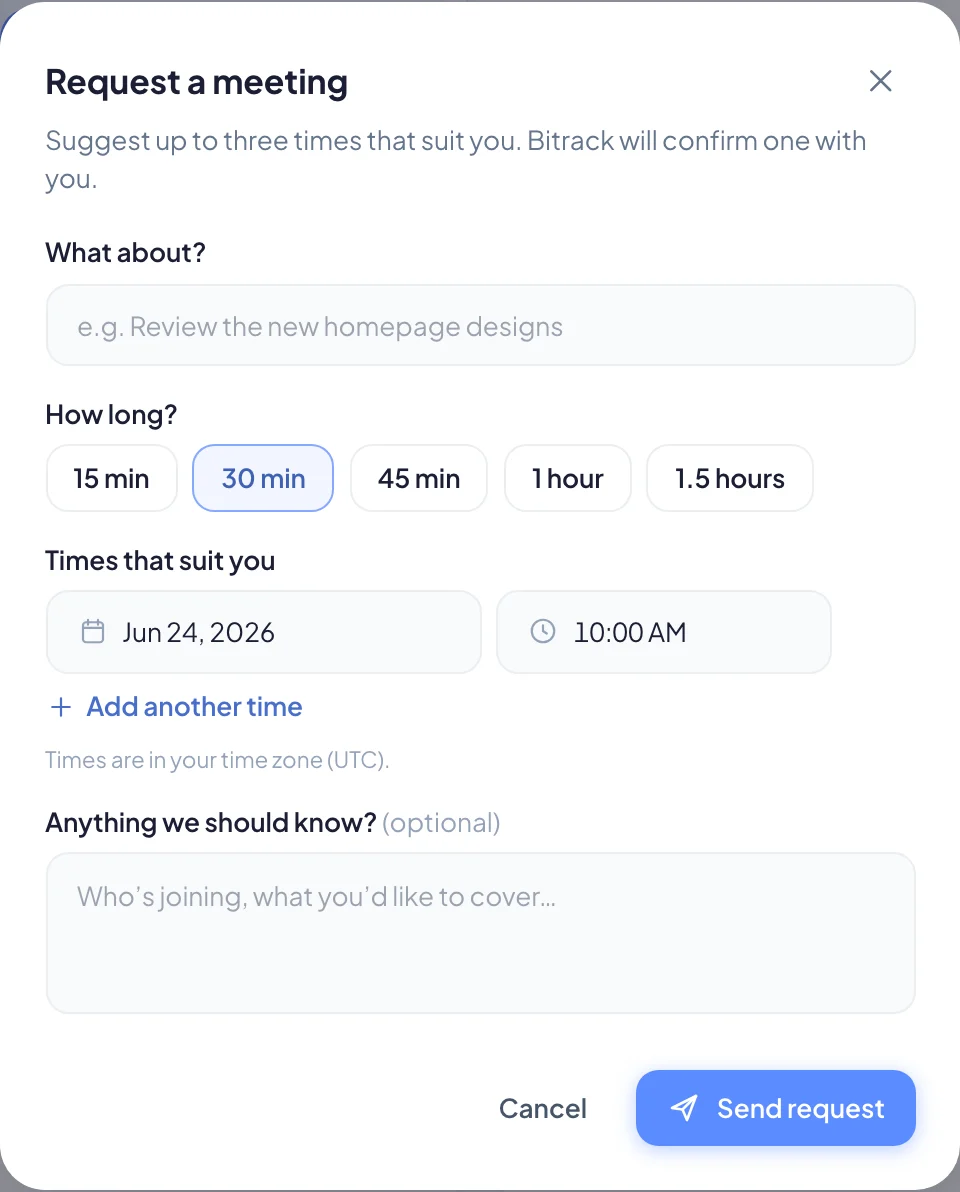
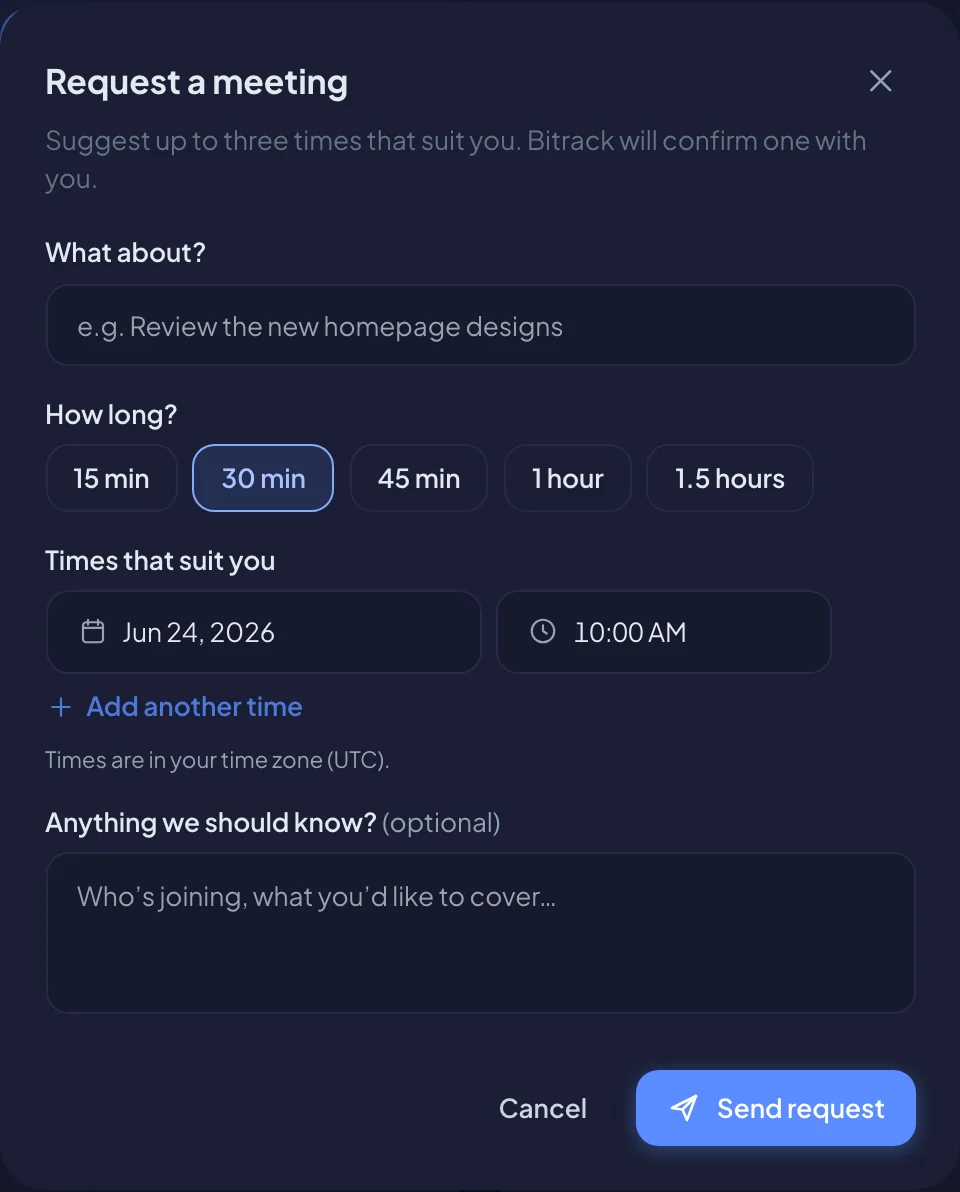
- They describe it under What about?
- If they see more than one project, they pick the Project.
- Under How long? they pick 15 min, 30 min, 45 min, 1 hour or 1.5 hours.
- Under Times that suit you they suggest up to three times, in their own time zone.
- They can add notes under Anything we should know?
- They choose Send request.
Nothing is booked yet. The request shows on their Coming up card as waiting for you to confirm. They, or a client admin, can choose Withdraw to cancel it. Each person can have up to 3 requests waiting at once.
Scheduling a requested meeting
The project lead gets a notification that the client asked for a meeting. If the project has no lead who can add events, people who manage the Calendar and can see the project are told instead.
- Choose the notification, or find the request under Meeting requests on the Calendar.
- Under Times that suit them, you see each suggested time in your time zone, and in theirs when it differs.
- Choose Schedule next to a time, or Pick another time.
- A new event opens, already filled in with the topic, project, length and the person who asked. Check it and choose Add event.
The client gets an email invite and sees the meeting in their portal.
If none of the times work, choose None of these work. Add a note if you like, then choose Decline request. They get your note by email, with a link to suggest other times.
Turn meeting requests on or off
Owners and Admins can control this in Settings → Client portal.
- Open Settings and choose Client portal.
- Turn Clients can request meetings on or off.
When it's off, the Request a meeting button is hidden. Requests already waiting stay on your Calendar until you answer them.