Share work for approval
Send designs, files and links to your client for review, and collect their comments, voice notes and approval in one place.
Deliverables are pieces of work you share with your client: a design, a prototype, a report or any file. Your client opens them in their portal, leaves feedback and approves them or asks for changes.
Send work for review
You need permission to edit the project.
- Open the project and choose the Deliverables tab.
- Choose Add deliverable.
- Enter a Title, for example Homepage · Hi-fi Design.
- Pick a Type: Figma, Prototype, PDF, Document, Report, Image, Video or Asset.
- Leave Status on Pending review.
- Under How to deliver it, paste a link (Figma, Drive, a live preview) or upload a file.
- Choose Add & deliver.
Bitrack emails everyone at the client who can see the project and has signed in at least once. The email says what's new and has a Review it button.
What your client sees
The work appears in three places in the portal:
- Needs your attention on Home, with a Review button.
- The Deliverables tab, which lists everything you've shared and how many items are awaiting review.
- The project's page, under what's waiting for review.
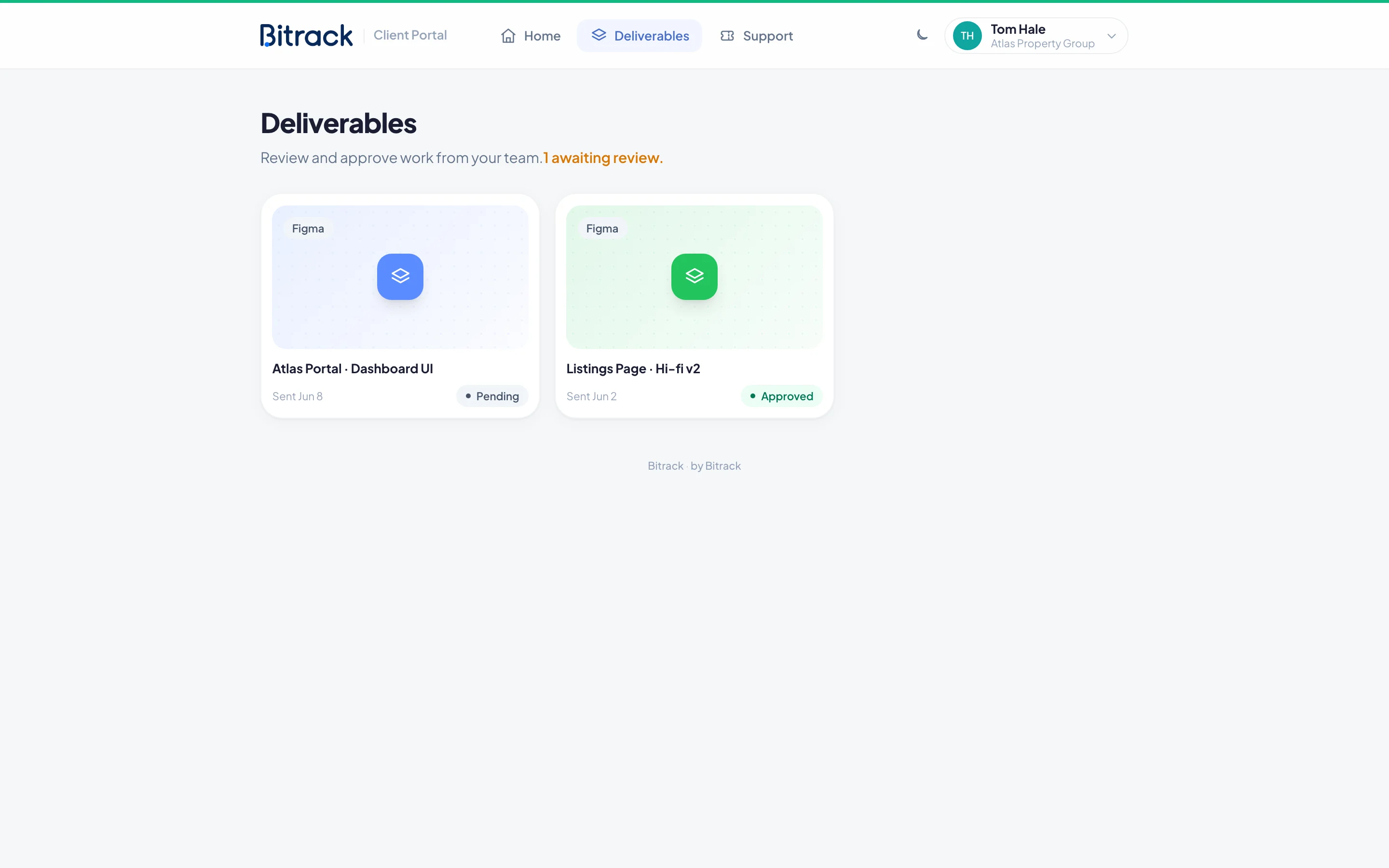
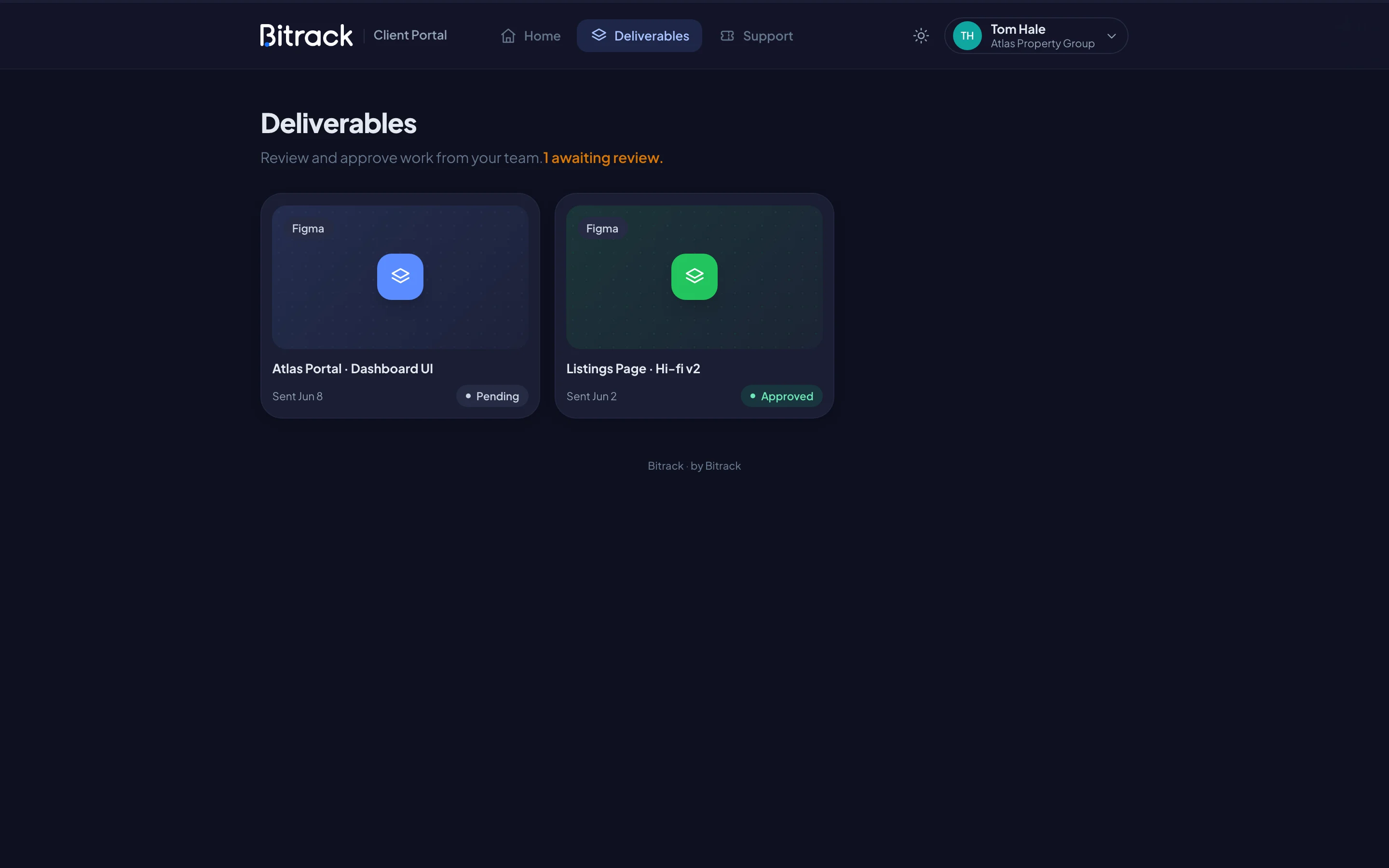
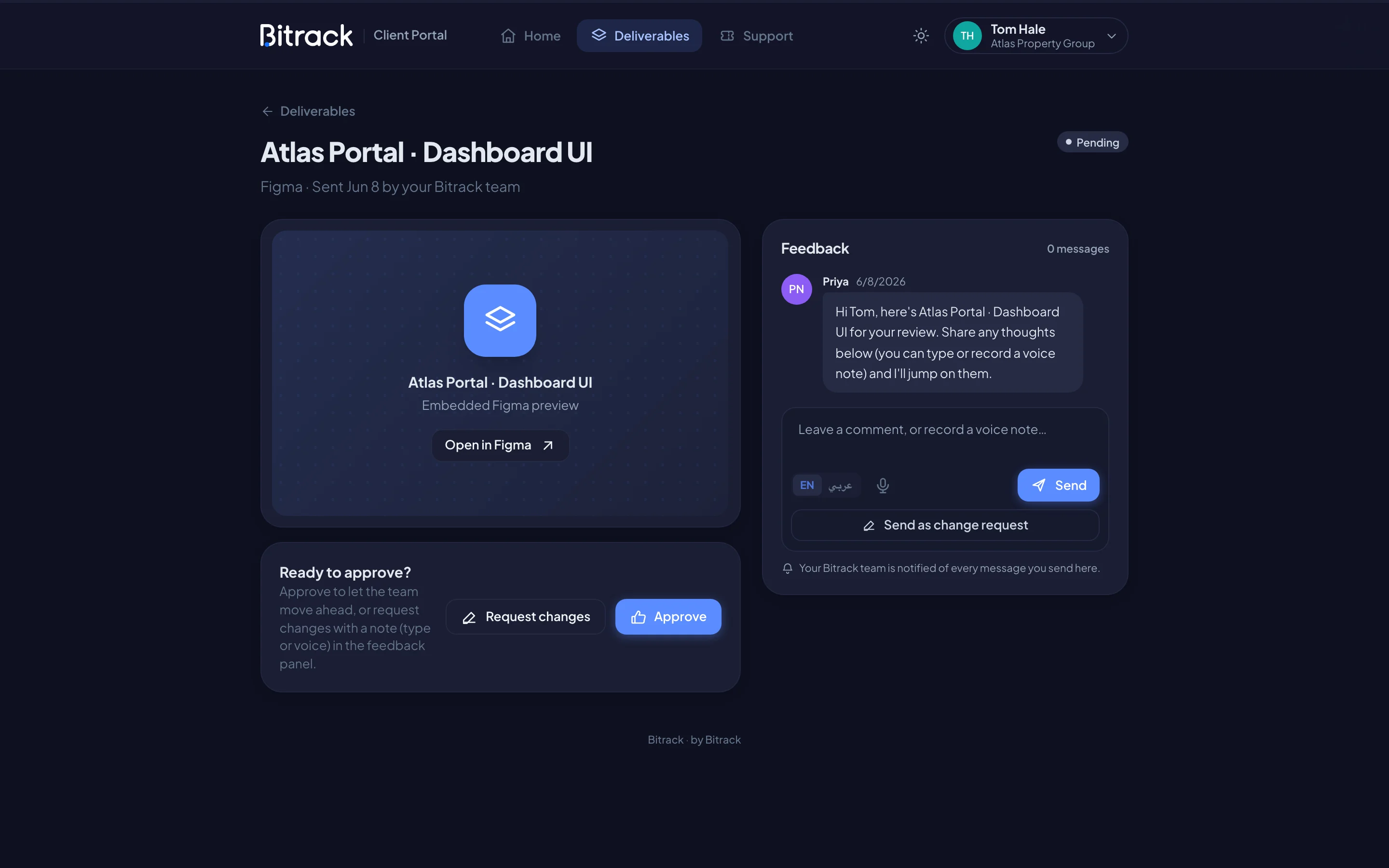
When they open a deliverable, they can download the file or open the link. Next to it is the Feedback panel, a conversation with your team.
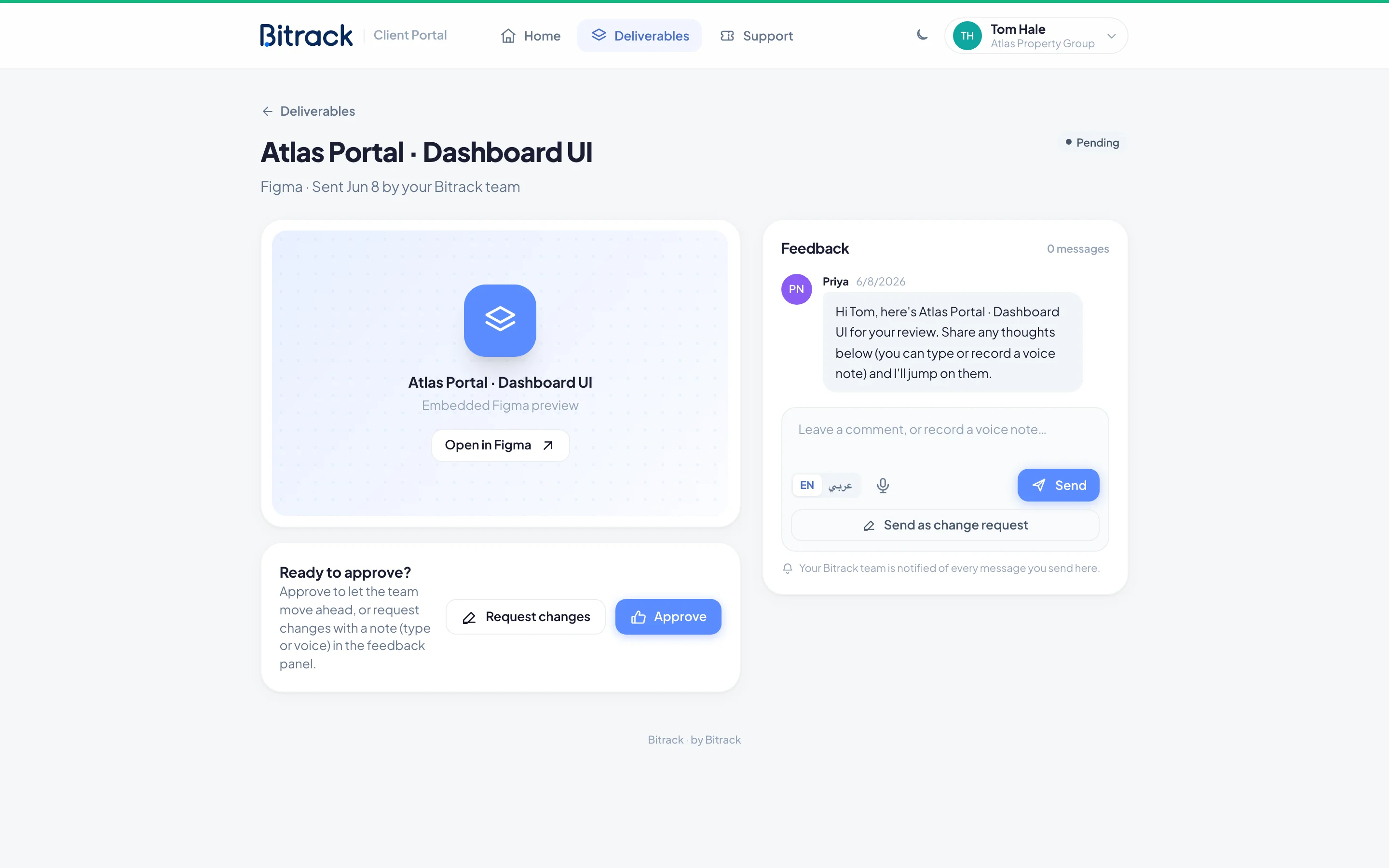
Comments and voice notes
Anyone who can see the project can leave feedback:
- Type a comment in the Feedback panel, or choose the microphone to record a voice note.
- Choose Send.
Voice notes can be up to 5 minutes long. Where the browser supports it, what they say is also typed into the message as they speak. They choose EN or عربي for the language. They can listen back before sending, or discard the recording.
Your team is notified of every message the client sends.
Approve or request changes
Only client admins, and members with Approve & return work, can decide. They see Ready to approve? with two buttons:
- Approve: the deliverable is marked Approved and your team can move ahead.
- Request changes: sends the note they've written or recorded in the Feedback panel as a change request. The deliverable is marked Changes requested.
The Send as change request button under the Feedback panel does the same. A change request always needs a note, so they write or record one first.
People without approval rights see Review & comment instead. They can comment, and a colleague with approval rights makes the call.
If they change their mind, they can choose Approve instead or Request changes later.
How your team hears about it
When a client approves, asks for changes or comments, the person who shared the deliverable and the project lead get a notification. For example: Atlas Property Group approved a deliverable. Choose it to open the deliverable's feedback.
Reply to your client
- On the Deliverables tab, choose Client feedback (or Changes requested) on the deliverable's card.
- Read the conversation, including any voice notes.
- Type your reply and choose Send reply.
The client sees your reply in their portal and gets an email with an Open the conversation button.
Change the status or delete
Each card has a status menu. Use it to set Pending, Approved or Changes requested yourself, for example after a call where the client approved verbally.
To remove a deliverable, choose the bin icon on its card, then Delete deliverable. It's removed for good, along with its feedback, so this can't be undone.