Agreements, invoices and tickets in the portal
Know what your client's billing people see in the portal, how they sign, accept and pay, and how anyone at the client raises a ticket.
The portal is where your client signs agreements, accepts proposals, pays invoices and asks for help. This guide shows what they see, so you can walk them through it.
Who sees billing
The Billing tab appears for client admins and for members with Billing & payments turned on. Everyone else at the client never sees invoices, proposals or contracts. To change this for someone, see Invite client people.
What a billing person sees also depends on their projects:
- Invoices and contracts: those for projects they can see, plus those not tied to any project.
- Proposals: only for people who see all of the client's projects, because proposals aren't tied to one project.
Clients only see documents you've sent. Drafts stay with you.
The Billing page
At the top, two numbers: Outstanding and Overdue. Below are two tabs:
- Invoices: grouped by engagement (each project or agreement), with what's been paid and what's still due. Invoices not tied to a project or contract sit under Other invoices.
- Documents: Proposals, Contracts & agreements and Reports (hours reports you've sent). Each can be viewed or downloaded as a PDF.
Anything waiting on them also shows in Needs your attention on Home, with Review & sign for agreements and Pay now for invoices.
Sign an agreement
When you send a contract, the client's billing people see it with Sign this agreement.
- They choose Sign & accept.
- They check their Full name and, optionally, their Title.
- They sign by choosing Type, Draw or Upload.
- They tick the box to confirm they agree and are authorised to sign.
- They choose Sign agreement.
A signed copy is emailed to them and to your team. If the agreement still needs your countersignature, they see that it takes effect once you sign. Afterwards they can choose Download signed PDF or Signature certificate.
If they don't agree, they choose Decline agreement and can give a reason. You can then send a revised version at the same link, and they see that a new version is on its way.
Accept a proposal
On a proposal, they see the Total investment and can choose Download PDF.
- They choose Accept proposal.
- They confirm their Full name and sign.
- They tick the box to agree, then choose Accept proposal.
Or they choose Decline proposal and tell you why.
Pay an invoice
Each invoice shows what's due and when, the lines, and any payments so far.
- They choose Pay (the button shows the amount).
- On Bank transfer, they see your payment details and the invoice number to use as the Reference.
- After sending the money from their bank, they choose I've sent the payment.
Your team is told to look for the payment, and the invoice leaves their Needs your attention list. Once you record the payment, they get a receipt by email. They can also choose Download receipt or Download invoice from a paid invoice.
Raise a ticket
If your workspace uses Tickets, everyone at the client can open the Support tab, whatever their billing access.
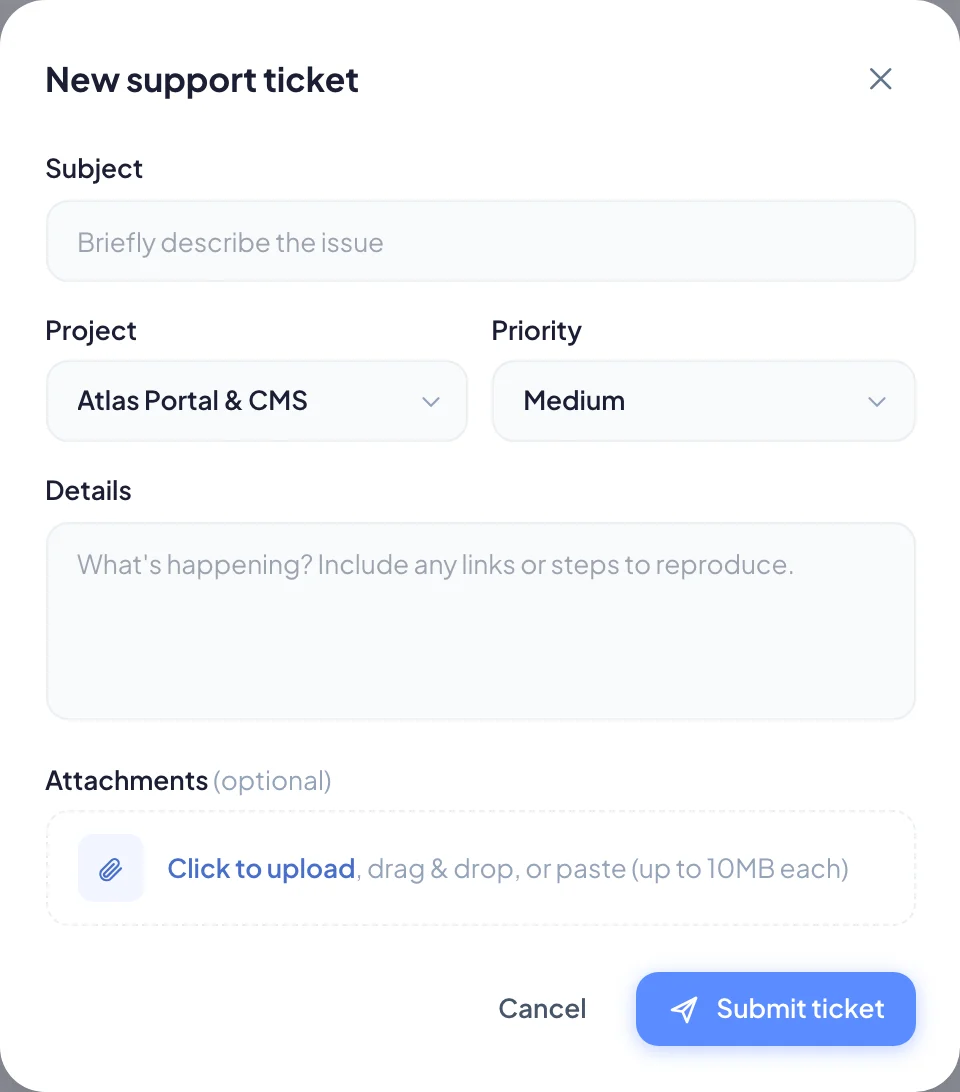
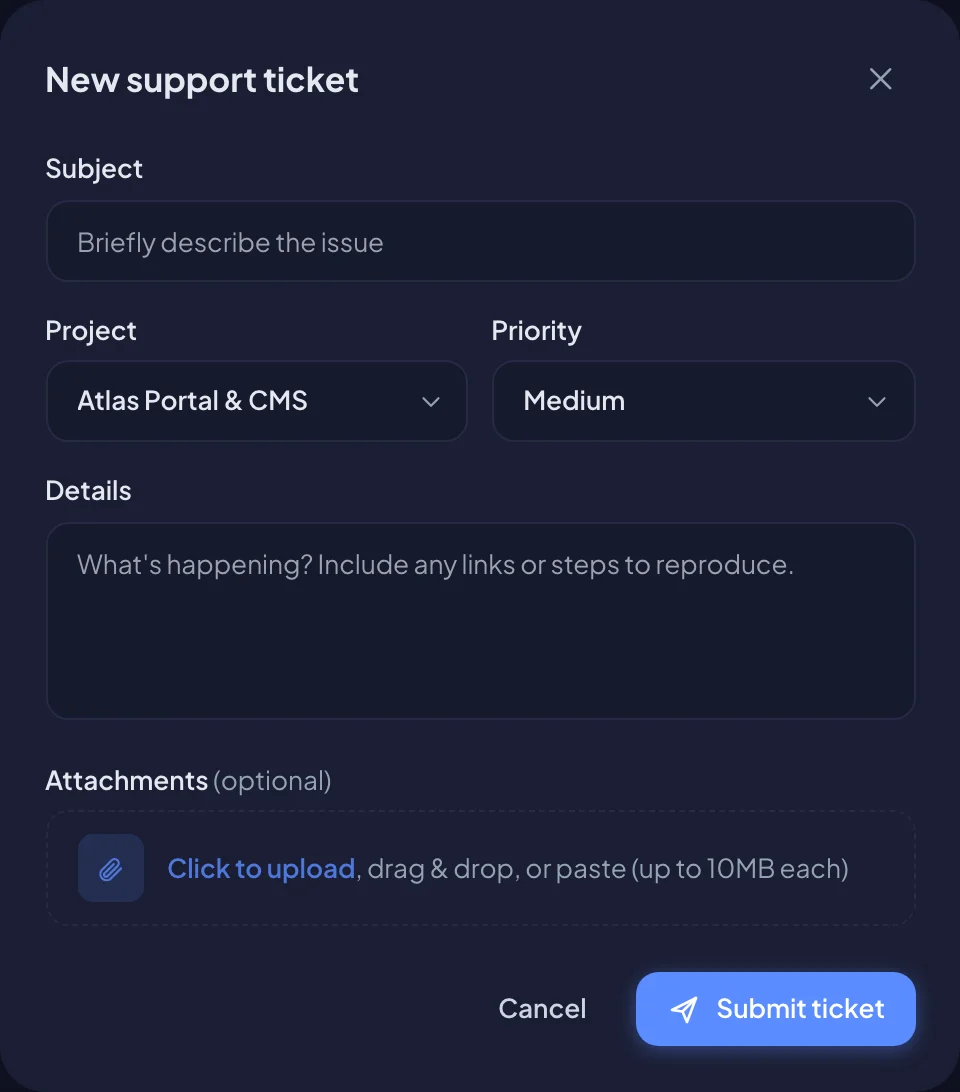
- They choose New ticket.
- They write a Subject, pick the Project and a Priority (Low, Medium, High or Urgent).
- They describe the problem under Details.
- They add files under Attachments if useful, up to 10MB each. They can drag them in or paste them.
- They choose Submit ticket.
Your team is notified straight away. When you reply, the client gets an email and sees the reply in the portal. They can answer from the ticket with Send reply.
Clients only see your replies, never your internal notes. Once a ticket is closed, replies are turned off, and they can choose Open a follow-up, which links back to the original.